Capture everything. Miss nothing. Crystal Clear.
5 Quick Fixes - How to Fix OBS Black Screen During the Game Capture

If you want to know how to fix the OBS game capture black screen issue, you've come to the right place. This post provides all the details you need. From possible causes to quick fixes, you'll find everything here. These tips can help you quickly identify the cause and resolve the issue. In addition, this post introduces a more reliable game recording tool that lets you record without black screen issues. Start reading now to learn more about the OBS black screen issue.
Guide List
Possible Reasons for a Black Screen During OBS Game Capture 4 Quick Fixes to OBS Black Screen During the Game Capture How to Obtain Game Captures without Black Screen Like OBSPossible Reasons for a Black Screen During OBS Game Capture
When OBS fails to capture games, there are several common causes. This section compiles the most common ones for you. You can use the information in this section to troubleshoot your device. This method can usually help you quickly pinpoint the source of the problem.
1. Outdated OBS Version
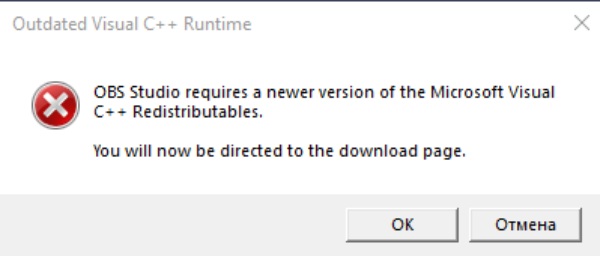
If game capture isn't working in OBS, the first thing you should consider is the version. Generally speaking, older versions of OBS Studio may contain unresolved bugs. This could interfere with your recording process. The latest version of the software fixes known issues as much as possible, allowing you to record gameplay more smoothly.
2. No Capturing Permission
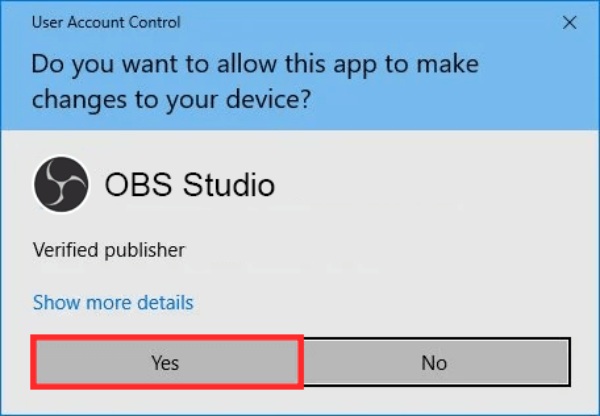
Another major reason OBS may not capture gameplay is permissions. Simply put, you may have inadvertently denied OBS recording permissions in the past. As a result, the system will block you from recording the game. Even if you manage to start the screen recording process normally, you may end up with a black screen when it finishes.
3. Potential Software Conflict
What should you do if you still encounter problems even though everything mentioned above is working properly? Try checking whether any other software is running, especially screen recording software. When other software is simultaneously using the GPU for processes such as recording or screen mirroring, OBS cannot capture the application due to resource conflicts. Conflicts between different software programs are causing your recording to fail.
4 Quick Fixes to OBS Black Screen During the Game Capture
If you want to know how to fix a black screen in OBS, this section can help you. After conducting practical tests, we've selected four viable fixes for you. You can troubleshoot potential issues by adjusting the relevant settings one by one. After following these troubleshooting steps, you should be able to resolve most OBS recording failures caused by minor issues.
1. Run OBS as Administrator
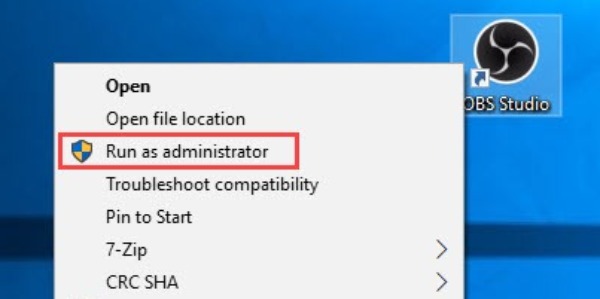
The first method you should try, and the simplest one, is to run OBS as Administrator. Many issues with OBS not working for game captures are caused by insufficient permissions. This method allows you to bypass the permission restrictions imposed on OBS and start screen recording smoothly.
2. Enable the Compatibility Mode
There is another method that can also help you resolve the OBS black screen issue. You can run OBS Studio in Compatibility Mode. With this setting, OBS will prioritize settings that are optimal for recording. This allows OBS to adapt to a wider range of scenarios. This method can largely resolve black screen issues during recording caused by incompatible settings, making OBS a perfect LOL recorder and the like.
Step 1.Right-click the "OBS Studio" button on the Desktop. Then, click the "Properties" button.
Step 2.Under the "Compatibility" tab, click the "Run this program in compatibility mode for" button.
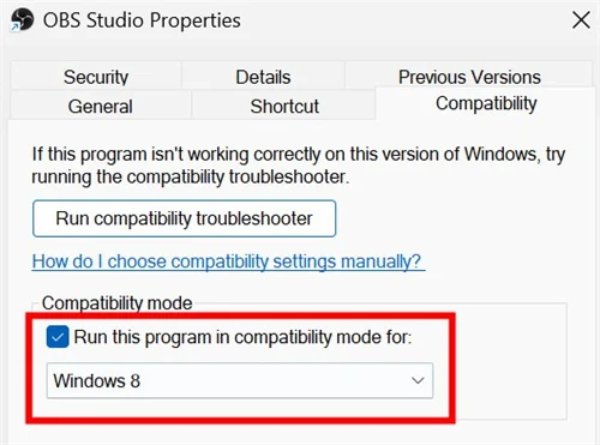
Step 3.To save the changes, click the "Apply" button. Now, the OBS game capture not working issue can be solved.
3. Adjust the GPU Settings
When you encounter a black screen while using OBS Game Capture, your device is likely running low on RAM. After all, games consume a significant amount of system resources while running. In this situation, in addition to closing other unnecessary software, you can also adjust your GPU settings. Follow the steps below to adjust your NVIDIA settings so your game screen recorder runs more smoothly.
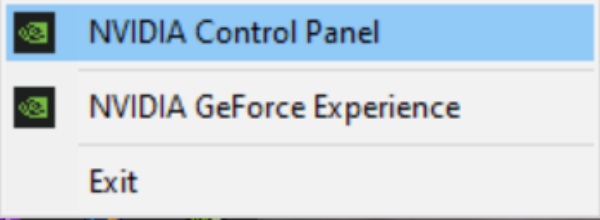
Step 1.Click the "Show Hidden Icons" button at the bottom-left corner of the screen. Right-click the "NVIDIA Settings" button. Then, click the "NVIDIA Control Panel" button.
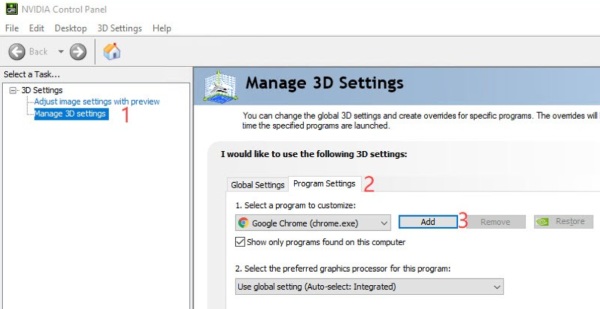
Step 2.In the left panel, click the "Manage 3D settings" button. Under the "Program Settings" tab, click the "Add" button.
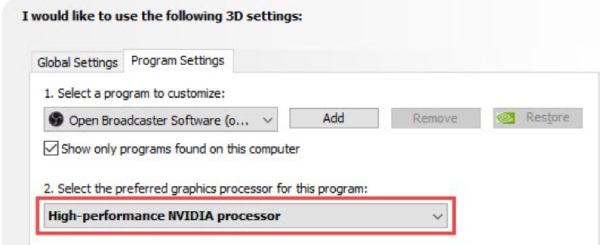
Step 3.After selecting the OBS.exe, click the "High-performance NVIDIA processor" button. It should help when OBS won't capture games.
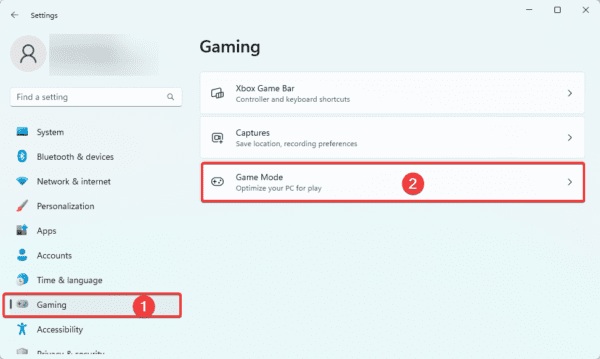
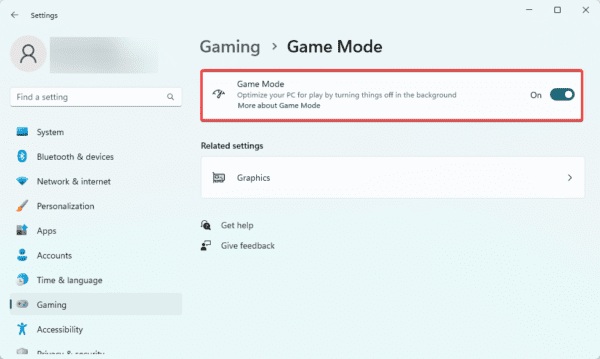
4. Disable the Game Mode
If OBS's game capture isn't working, it may be conflicting with Windows Game Mode. You can follow the steps below to disable Game Mode and create a more suitable environment for OBS Studio to run in.
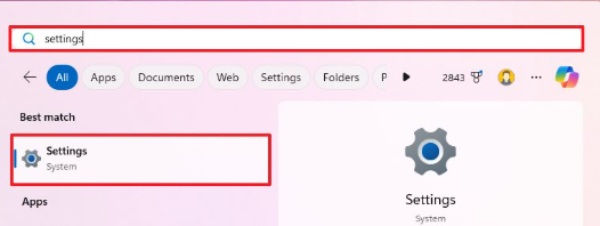
Step 1.Press the "Windows" button. Search and click the "Settings" button to launch it.
Step 2.In the left panel, click the "Gaming" button. Then, click the "Game Mode" button to access a new page.
Step 3.To fix game capture not working in OBS, click the "Game Mode" button to turn off this setting.
How to Obtain Game Captures without Black Screen Like OBS
The methods above can help you resolve many common OBS black screen issues. However, they are ineffective against more complex problems. In fact, a better approach is to use a professional recording tool that consumes very few system resources. This can prevent the vast majority of black screen issues during recording. AnyRec Screen Recorder won't interfere with your gameplay while recording. At the same time, it allows you to record gameplay at the original resolution and frame rate.
Record game videos in 4K 60 FPS without quality loss.
Capture audio & voice chats during the gameplay if needed.
Support GPU acceleration for no-lag gameplay recording.
Share to YouTube, Twitch, etc. with proper video formats.
Secure Download
Secure Download
Step 1.Launch AnyRec Screen Recorder on your device. Click the "Game Recorder" button under the "Screen Recorder" tab.
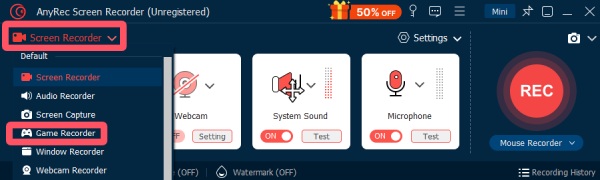
Step 2.To select the game, click the "Select the game" button. Then, AnyRec Screen Recorder will automatically select the area.
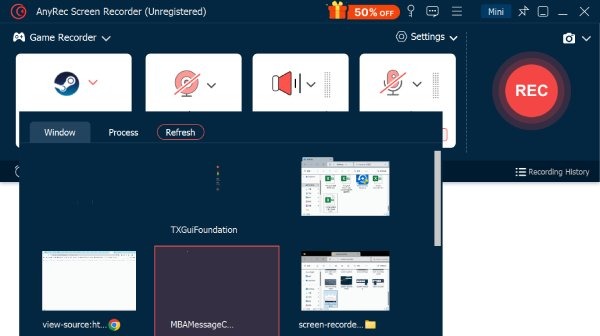
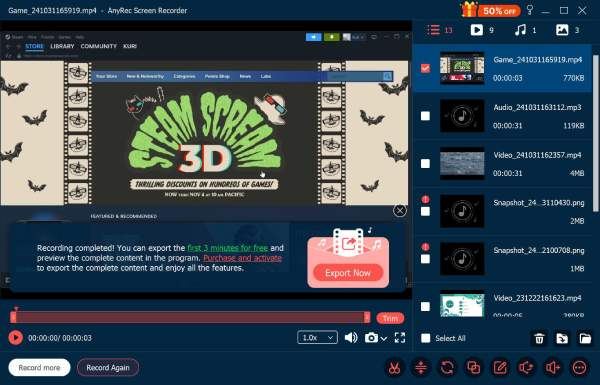
Step 3.Click the "Record" button to start the game recording without issues like an OBS black screen during capture.
Conclusion
This post offers four different solutions to the problem of OBS game capture not working. You can follow the steps provided in this post to adjust your OBS and system settings one by one. If you want to solve the problem at its root, you'll need a professional recording tool that consumes fewer system resources. AnyRec Screen Recorder records your gameplay in its original quality without affecting your gaming experience, ensuring the game and the recording run smoothly.
Secure Download
Secure Download
Related Articles
About Our Author