
The Ultimate NVIDIA ShadowPlay Review, Performance and Guide

You have just pulled off a legendary clutch, but you forgot to hit start recording! For years, NVIDIA ShadowPlay has been the angel for gamers, ensuring those epic moments are never lost. What's more about it today? See this NVIDIA ShadowPlay review, weighing the pros, cons, and the steps for using it. Plus, if you find it too limiting, there's a powerful alternative that takes your recording content to the next level. Do not miss the details below.
Guide List
Introduction of NVIDIA ShadowPlay NVIDIA ShadowPlay's Features, Pros, and Cons How to Use NVIDIA ShadowPlay to Record Gameplay Powerful Alternative to NVIDIA ShadowPlay for Game RecordingIntroduction of NVIDIA ShadowPlay
Before the nuts and bolts of NVIDIA ShadowPlay, set the stage first by looking at why it became an important name for gamers everywhere.
For many years, NVIDIA ShadowPlay Screen Capture has been the partner of millions of gamers. It leverages the dedicated hardware encoder on GeForce GPUs, letting all players record at high bitrates without dropping the frame rates. You can be a casual player who wants to save a funny glitch or a YouTuber who captures walkthroughs, still, NVIDIA ShadowPlay is capable of capturing them all easily, which other tools cannot match.
It is not just a simple recorder, but it is an integrated ecosystem that links playing a game and sharing it with the world.
NVIDIA ShadowPlay's Features, Pros, and Cons
Of course, in this NVIDIA ShadowPlay review, you need to see whether it is the right tool for your specific setup. So, here are its gaming features that most users rely on for their everyday gameplay capture. Also, you'll see its advantages and limitations like any other tool.
Features of NVIDIA ShadowPlay:
- Instant Replay. Records in the background without saving until you hit a hotkey. You can even set it to capture from the last 15 seconds to 20 minutes of your footage.
- NVIDIA Highlights. This utilizes AI to detect in-game events such as sniper shots in Call of Duty and automatically saves them.
- Broadcast Live. You can go live on Twitch, YouTube, or Facebook with camera and mic overlays.
- AV1 Encoding. The newest version fully uses AV1 encoding, providing significantly better video quality at lower file sizes.
- 8K HDR 120 FPS Capture. On the latest RTX cards, you can capture at 8K resolution with HDR for incredible color depth and clarity.
- Dual Track Audio. Separate the microphone audio from the system into two different tracks.
- GIF and Screenshot Capture. Beyond video, it lets you capture high-resolution screenshots or 15-second GIFs from your gameplay.
- Pros
- Ultra-low performance as it uses a GPU, so FPS stays high.
- Offers professional-grade visuals for the latest RTX 50-series cards.
- Never miss a moment with its Instant Replay.
- Smart AI saves your best highlights automatically.
- Cons
- Simple video trimming only; no advanced effects.
- Must have an NVIDIA GeForce GTX or RTX.
- Limited customization for overlays.
How to Use NVIDIA ShadowPlay to Record Gameplay
Now that you know what NVIDIA ShadowPlay can do, transition into the how-to side, getting the software up and running so you never miss the best game moments again. Once ShadowPlay is enabled, it works as an overlay that you can access anytime. Here's the quick process of how to record with NVIDIA ShadowPlay:
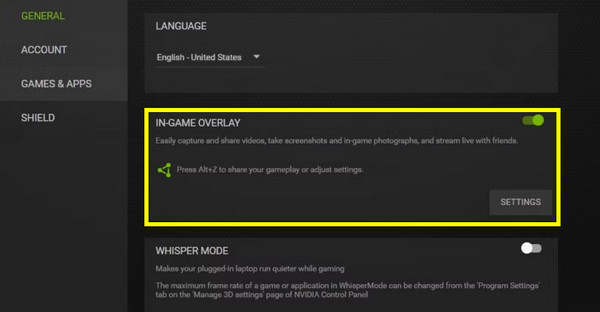
Step 1.To bring up the NVIDIA App, press the "Alt + Z" keys, and there make sure the "In-Game Overlay" toggle is turned ON.
Step 2.Click the "Settings" button to alter the video quality, frame rate, and resolution. If you wish for the "clip that" functionality, click "Instant Replay" and turn it on.
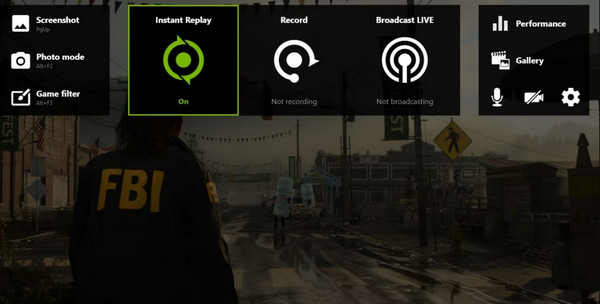
Step 3.Afterward, start the session by pressing the "Alt + F9" keys, and later press it again once finished. All clips are sorted by game title inside the "Videos" folder.
Powerful Alternative to NVIDIA ShadowPlay for Game Recording
However, if you're hunting for a way to achieve a high-fidelity game recording without being limited to a specific GPU in NVIDIA ShadowPlay, here's AnyRec Screen Recorder for you. It is a remarkably lightweight tool that handles much more beyond gaming. It is your go-to place for recording video calls, tutorials, meetings, voiceovers, and more with its different recording modes. The best part? It ensures a seamless experience, no lag, and ad interruptions during those best gaming fights and highlights! And even if you want to layer your webcam and high-quality commentary during the game, you will never have to worry about sacrificing the visual clarity for performance.

Game Recorder ensures your gameplay remains smooth for every frame.
Can snap high-res photos and add annotations during the session.
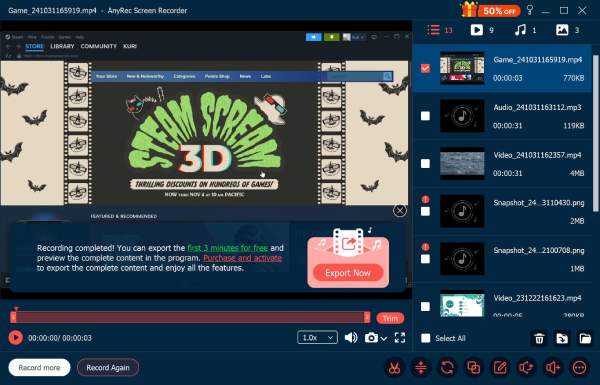
View your gameplay immediately and use the trimmer to cut out extras before saving.
Personalize keyboard shortcuts to start, pause, resume, and do more.
Secure Download
Secure Download
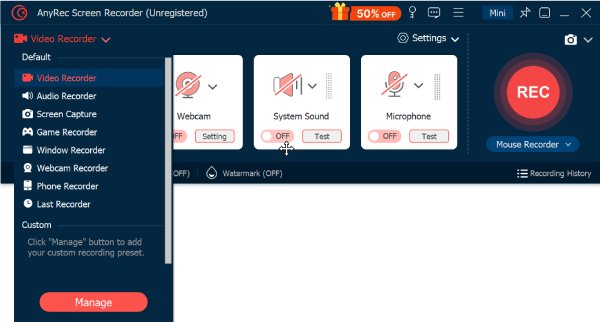
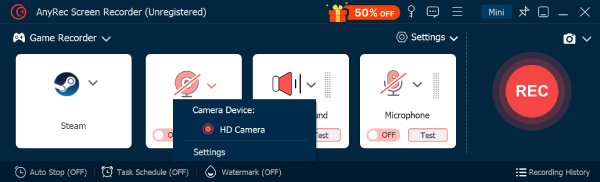
Step 1.Once you've launched AnyRec Screen Recorder, select the "Game Recorder" mode from the main menu. This mode will focus only on your game's performance.
Step 2.From the interface, click the "Select the Game" dropdown to choose the exact game window you want to capture. If you wish to adjust details, click the "Settings" button to customize settings before you begin.
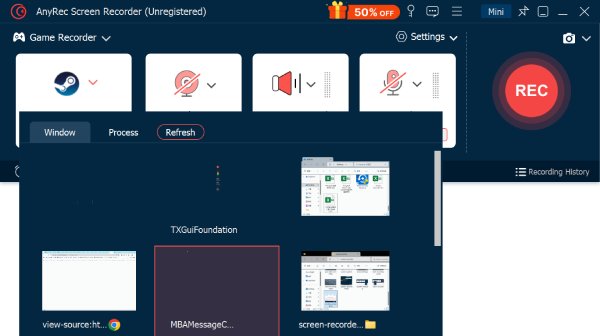
Step 3.After that, flip the "System Sound" switch to ON to capture all in-game effects. To show your face and add a voiceover, toggle ON the "Microphone" and "Webcam" too. Click the "REC" button.
Step 4.Now that the action is over, click the "Stop" button to enter the preview window. Use the trimmer to polish your clip before clicking on "Done" to save your gaming content.
Conclusion
As you've seen in this NVIDIA ShadowPlay review, the game recording software remains a favorite in the gaming world for 2026. With its AV1 encoding and 8K support, it makes it the best choice for GeForce users who prioritize performance above all else. But there's also AnyRec Screen Recorder that offers a lightweight feel to screen record across any device. Give it a try today to experience a simple lossless recording, webcam and audio capture, phone mirroring, and complete control over your next big task!
Secure Download
Secure Download
Related Article
About Our Author




