
MPEG to MP3: 4 Ways to Extract Audio from MPEG Video

Sometimes, you just need the audio from an MPEG video file, whether it is a song, podcast, or lecture. For this, converting MPEG to MP3 format makes it easier to play on any device, and lets you create a playlist effortlessly. Thankfully, several tools and methods are here to help! This post shares with you the four ways to turn MPEG to MP3 audio, from desktop software to online tools.
Guide List
MPEG vs. MP3: Definition and Difference Best Tool to Convert MPEG to MP3 Quickly on Mac/PC How to Turn MPEG to MP3 Online FreelyMPEG vs. MP3: Definition and Difference
Before choosing the correct format, MPEG and MP3, it's crucial to understand what these formats actually represent. While these two are related, they come with different purposes in media processing.
MPEG is a popular format for video and audio content. It is widely used for movies and recordings because it balances clear playback with smaller file sizes.
MP3, on the other hand, is a compressed audio format made specifically for storing and streaming sound. It lessens the file size while maintaining the quality acceptable for music, podcasts, and everyday listening.
Best Tool to Convert MPEG to MP3 Quickly on Mac/PC
Designed to convert MPEG files to MP3 with exceptional speed while keeping audio clarity, AnyRec Video Converter covers more than a thousand video formats and offers built-in editing tools, making it great for anyone who wishes for both convenience and control over the output. Also, whether you are working with a single file or dozens at once, this software guarantees a smooth, high-quality workflow on both Windows and Mac.

Can convert MPEG to MP3 and over 1000 formats with high-quality results.
Offers customizable audio settings like bitrate, sample rate, encoder, and channel.
Batch conversion for turning multiple MPEG files into MP3s at once.
Editing features like trimming, cutting, and enhancing audio before saving.
Secure Download
Secure Download
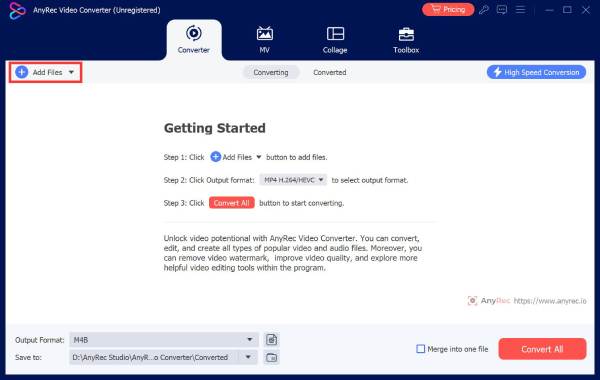
Step 1. Once AnyRec Video Converter is launched, click the "Add Files" button at the top to import your MPEG video. You can load multiple ones if you like.
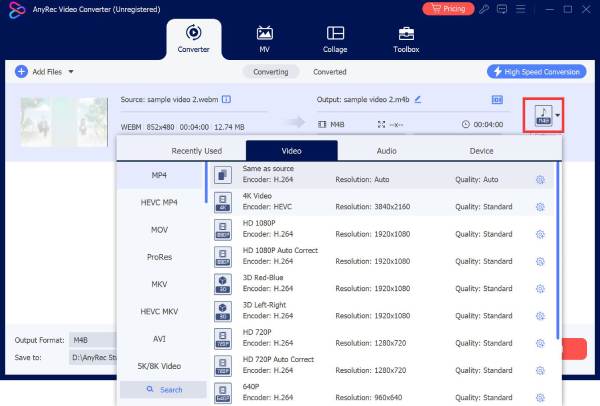
Step 2. Next, click the "Format" button, then choose the "Audio" tab to continue. Select "MP3" from the audio format list; you may also select presets
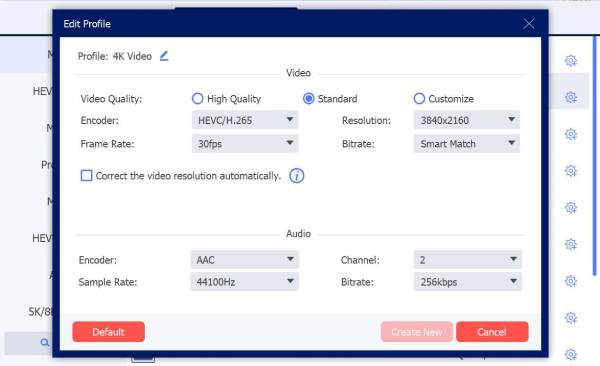
To fine-tune output settings depending on your needs, click the "Custom Profile" button next to the chosen format.
Step 3. When everything is set, return to the main screen. Select your output folder and name your file, and click the "Convert All" button to start converting MPEG video to MP3 audio.

Secure Download
Secure Download
How to Turn MPEG to MP3 Online Freely
You can change MPEG to MP3 in your browser directly. Choose from the following online MPEG to MP3 converters to change file formats now.
1.FreeConvert - MPEG to MP3 Converter with Custom Settings
FreeConvert saves MPEG to MP3 for free on any browser. It provides customizable audio settings. You can adjust bitrate, sample rate, and increase volume to optimize MP3 audios.
Step 1. Open FreeConvert website. Select the "MPEG to MP3" tool.
Step 2. Later, click the "Choose Files" button to upload your MPEG video file.
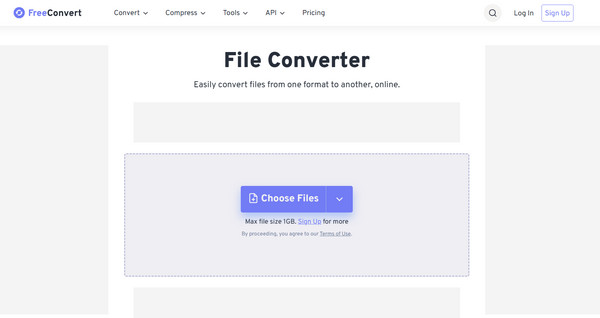
Step 3. Optionally, open the "Advanced Settings" to edit bitrate, sample rate, or volume.
Step 4. Click the "Convert to MP3" button and wait for it to finish.
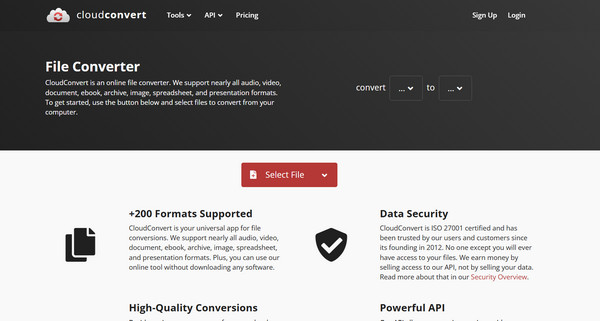
2.CloudConvert - High-Quality Web-Based MPEG to MP3 Converter
The next online platform offers even more conversion versatility. CloudConvert is a strong option for converting MPEG to MP3 files online. It covers a wide range of formats and also offers extra options like trimming and adjusting codec settings. Moreover, you can compress MP3 to make it smaller for emailing or sharing.
Step 1. After you've searched for the CloudConvert website, select "Convert MPEG to MP3" from the format selection.
Step 2. Start uploading your file by clicking the "Select File" button.
Step 3. You can click the "Wrench" icon to access audio settings and adjust them if needed.
Step 4. After that, click the "Convert" button and wait for it to process your file.
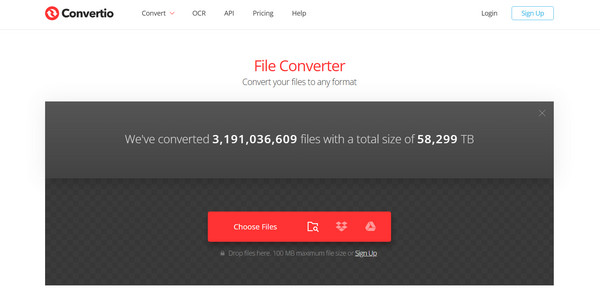
3. Convertio - Fast Online MPEG to MP3 Converter
Convertio online MPEG to MP3 converter allows users to import audios from local drives, Google Drive, and Dropbox. But despite its simplicity, it still provides adjustable audio options for more control over your output.
Step 1. Open the Convertio main website and select the MPEG to MP3 converter.
Step 2. Upload your MPEG audio.
Step 3. Optionally, you can click the "Settings" button to adjust audio parameters like bitrate or frequency.
Step 4. Click the "Convert" button to start processing your file.
Conclusion
These tools just make converting MPEG video to MP3 audio easier! From desktop software to online converters, there's a conversion solution to suit every need. Each one here has its unique advantage, such as advanced features, no installation needed, and many more. However, if you wish for a seamless and reliable experience, AnyRec Video Converter is the all-in-one solution you need. It not only converts MPEG to MP3 quickly and efficiently but also supports batch processing, high-quality output, and a friendly interface. With this program, handling all your video-to-audio conversion needs will be so effortless.
Secure Download
Secure Download



