
Screen Mirror iPad to PC without Lag [4 Ways & Fixes]

Knowing how to mirror iPad to PC can be helpful in online classes, gaming, presentations, or simply watching on a larger screen. However, you may encounter issues like screen lag and more along the way. Therefore, this post has got you multiple reliable ways to screen mirror iPad to Windows PC, both wired and wireless solutions. Also, it has practical tips to fix common mirroring problems, ensuring you can enjoy the best mirroring method without any issues.
Guide List
Mirror iPad to PC Wirelessly Mirror iPad to PC with USB Cable Troubleshoot iPad Mirroring IssuesMirror iPad to PC Wirelessly
Wireless screen mirroring is among the convenient ways to stream iPad screen to PC. It eliminates cables, making it great for online meetings, presentations, or just casual screen sharing. Just connect both devices are linked to a stable network. Later, you can show iPad screen to your computer wirelessly offers flexibility. Here are two practical wireless solutions you can try:
1. AnyRec Phone Mirror
Best for: High-quality, stable wireless mirroring for casual or professional use.
This powerful and friendly AnyRec Phone Mirror is designed to mirror iPad to PC smoothly and reliably. It covers wireless iPad mirroring via screen mirroring, making it perfect for anyone who wants a clean and lag-free experience. It also covers stable performance even during lengthy mirroring sessions. With its friendly interface, first-time users can start iPad to PC wireless mirroring in just a few clicks.
Mirror iPad to PC in full HD up to 4K resolution for a clear display.
Preview and trim recordings to remove extra sections before saving.
Can draw, annotate, or capture screenshots directly on the mirrored screen.
Smooth and stable mirroring experience with no lag or interruptions.
Secure Download
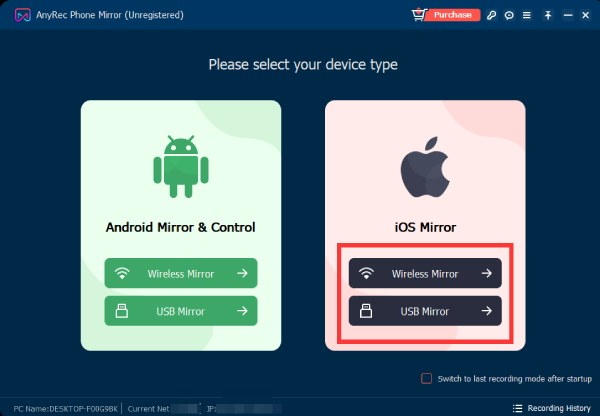
Step 1. Open AnyRec Phone Mirror. Click "iOS Mirror". Then select your desired connection method. Please choose "Wireless Mirror". Make sure both your iPad and PC are paired to the same Wi-Fi network for a smooth connection.
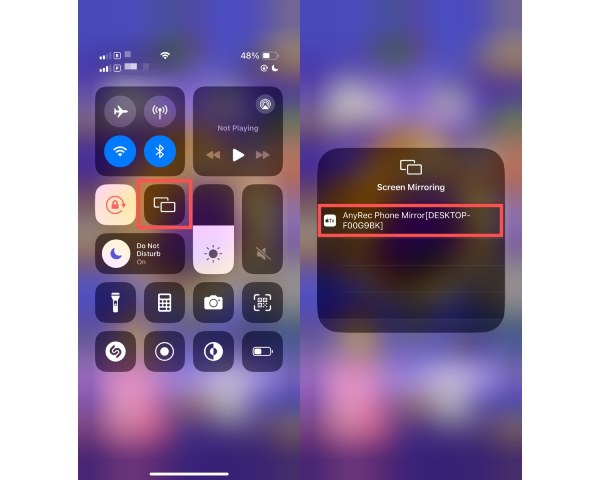
Step 2. On your iPad, open the "Control Center" by swiping down from the upper-right corner of the screen. Tap "Screen Mirroring" from there, then select "AnyRec Phone Mirror" from the list of devices to begin sharing your screen.
Step 3. Once the connection is made, your iPad screen can be seen instantly on your PC. You can now use your iPad as usual while viewing everything in real time on a larger screen.
2. Google Chrome Remote Desktop
Best for: Anyone looking for a free wireless solution for basic screen access and remote viewing.
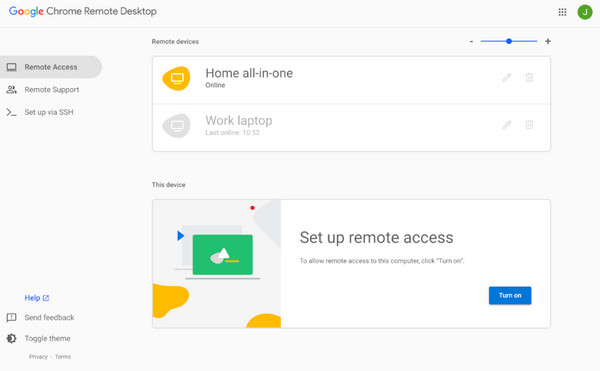
If you want a free, browser-based option, you can use Google Chrome Remote Desktop as an alternative to get iPad to show up to PC. Using this, you can access and control devices via Google account. Although it is not specifically made for screen mirroring, it can still display iPad screen on PC, making it a useful option for basic wireless viewing.
Step 1. Launch Chrome Remote Desktop on your PC, and set up remote access. Now, sign in with the exact Google account on both devices.
Step 2. After that, use a workable method to share the Pad screen with a supported system.
Step 3. Then, access and view the shared screen through the app on your PC.
Mirror iPad to PC with USB Cable
Suppose you wish for stability and minimal lag. Then, wired mirroring is the best option to connect iPad to PC for screen mirroring. With a USB cable, you can have a consistent connection and better performance, and it is also less affected by network issues. Here are two USB-based options to help you cast iPad screen to Windows:
1. AnyRec Phone Mirror
Best for: Users who want a stable, lag-free mirroring for gaming, recording, or professional tasks.
In addition to its wireless casting, AnyRec Phone Mirror also covers USB-based iPad to PC mirroring. This mode is excellent for anyone who needs a smoother and more reliable performance since the connection is direct. The setup process remains simple, even if you are non-techy.
Secure Download
Step 1. Launch AnyRec Phone Mirror on your PC. Select "iOS Mirror" from the main screen to start, then select "USB Mirror" as the connection method.
Step 2. Use a compatible cable to connect your iPad to computer. Unlock your device and when prompted, tap on "Trust" to allow the connection.
Step 3. Once it detects your iPad, it will immediately appear on your PC. You can now view and interact with your iPad as usual.
2. Direct USB Cable iPad to PC Mirroring
Best for: Anyone who just needs file access, not real-time screen mirroring.
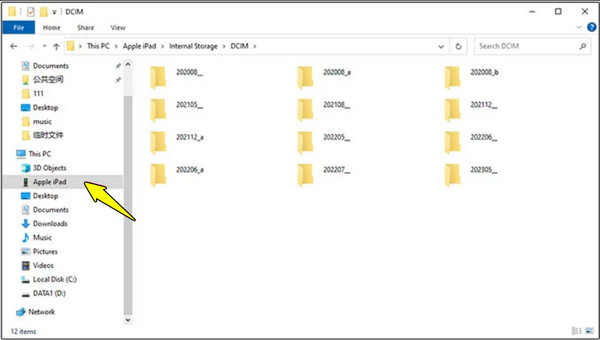
Meanwhile, this direct USB connection of iPad to Windows screen mirroring is limited. This approach is primarily helpful for accessing photos, videos, or backups rather than real-time screen mirroring. While it is not best for live screen sharing or presentations, it is helpful for basic content management.
Step 1. Link your iPad to the PC using a compatible USB cable.
Step 2. Then, unlock your iPad and tap "Trust" on the prompt shown to allow access. Later, you can show iPad screen on PC.
Step 3. Access your iPad files using "File Explorer" on your PC. View or transfer all media files as needed.
Comparison Table of Wired and Wireless iPad to PC Mirroring Methods
| Method | Connection Type | Ease of Use | Stability | Best For |
| AnyRec Phone Mirror | USB Cable and Wireless | Very Easy | Very High | Online classes, demos, presentations, recording, gaming, and more long sessions. |
| Chrome Remote Desktop | Wireless | Moderate | Moderate | Free remote access |
| Direct USB Connection | USB Cable | Easy | Low | File access only |
Troubleshoot iPad Mirroring Issues
Of course, even with the right tools, mirroring iPad to PC does not always go smoothly on the first try. You may encounter connection problems, missing audio, or poor quality. Thus, before wrapping up this post, see below the standard iPad mirroring problems alongside practical solutions to get iPad to PC mirroring working smoothly again. If you fail, you can see solutions to fix screen mirroring not working here.
- iPad not appearing on the Screen Mirroring menu. Make sure your iPad and PC are on the same network. You can also restart both devices or relaunch the mirroring software.
- PC not receiving AirPlay signal. Check if the PC tool supports AirPlay. Try disabling VPNs or firewalls temporarily, or updating the mirroring software to troubleshoot AirPlay not working.
- Audio not playing. Adjust the iPad volume, or check if it is muted. Select the correct audio output on your PC.
- Laggy or choppy screen. Exit any unnecessary background apps. You can switch to USB mirroring if needed.
- Poor resolution. Adjust the resolution in your mirroring software. Switch to a stable Wi-Fi network to have better clarity mirroring.
- USB cable not recognized. Get another USB port; ensure to use a certified USB cable.
Conclusion
Mirroring iPad screen to PC enhances how you work or enjoy content on a larger screen. With wireless or USB-based methods available here, you can have one that best fits your mirroring setup. And of course, issues such as audio problems or lag may arise, but as you've seen, these can be resolved quickly with a few quick troubleshooting steps. For an all-in-one solution that supports both wireless and USB, use AnyRec Phone Mirror. This tool offers high-quality screen display and flexible connection options, making it an ideal choice to screen mirror iPad to Windows PC without any hassle.
Secure Download



