Make a Ringtone from Video: iOS, Android, PC, and Mac

An iconic scene or a live concert clip could be an incredible ringtone! Yet, turning one on often feels complicated. But aside from the default ringtones on your phone, there are ways to make a ringtone from a video, and it is easier than it seems. Using your iPhone or Android, or working from PC or Mac, read the following guide to see methods to extract ringtone from video. See the five steps to convert any video into ringtone in just a few minutes.
Guide List
How to Make a Ringtone from a Video on iPhone How to Make a Ringtone from a Video on Android How to Convert Video to Ringtone on PC or Mac How to Set the Ringtone After ConvertingHow to Make a Ringtone from a Video on iPhone
Turning your favorite clip into a custom iPhone ringtone can take only a few minutes! See below for the three best methods to make an iPhone ringtone from your video, from built-in free tools to quick apps.
Make a Ringtone from Video Using GarageBand
If you prefer not to connect anything to a computer, use GarageBand as your free iPhone ringtone maker. Since it handles audio project files, all you need is a converter app to extract audio and import it into GarageBand.
1. After extracting your audio from video using a converter app, open GarageBand, tap the "Add" button to start a project, and choose "Audio Recorder".
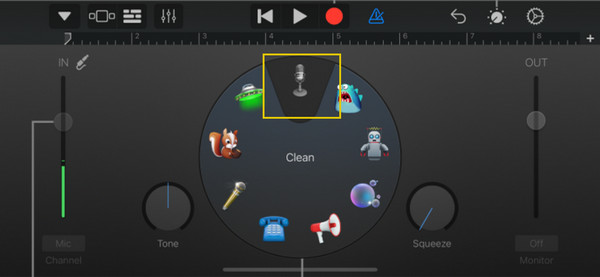
2. Switch to the "Tracks View", and tap the "Loop" icon in the corner, select "Files" and locate the audio. Drag the edges of your audio to clip it to the exact 30-second snippet.
3. Next, tap the "Downward arrow" in the corner and choose "My Songs" to save it. Touch and hold your saved project, tap "Share", then "Ringtone". Name it, export it, and pick "Standard Ringtone".
Make a Ringtone from Video Using iTunes/Finder on Mac/PC
For your video clip stored on your desktop, the iTunes or Finder method will give you control over your audio editing. This traditional process involves converting the video audio into an AAC file, then naming it in an Apple ringtone format and syncing it to your iPhone.
1. Once your video is opened in QuickTime Player, export it as an M4A file. Then, open it in iTunes/Finder. Right-click the song and go to "Get Info", and click "Options". Set the start and stop times to trim it to 30 seconds or less.
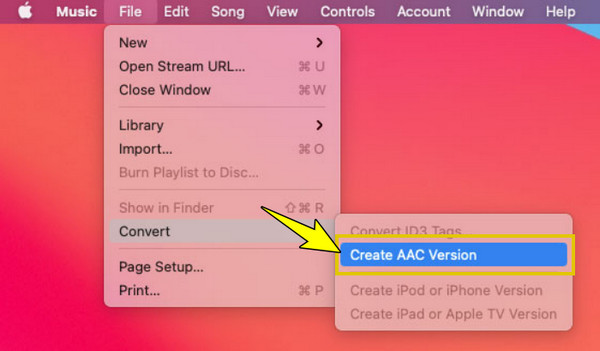
2. Next, select the track, go to "File" then "Convert" and select "Create AAC Version". Right-click the duplicate version and select "Show in Finder" (or Show in Windows Explorer) to change its extension to ".m4r".
3. Then, connect your iPhone to your Mac/PC, and in Finder/iTunes select your device and drag the .m4r file into the device window.
Make a Ringtone from Video Using Ringtone Maker App
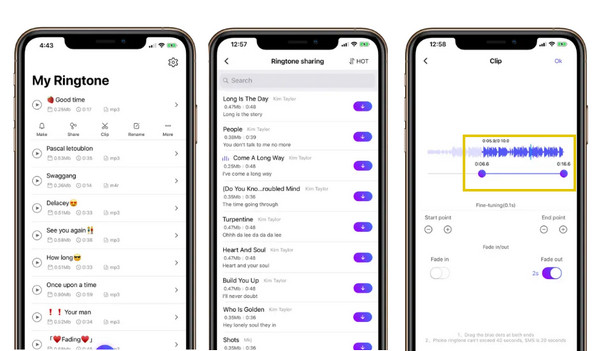
For the quickest steps, a dedicated third-party app can simplify your audio extraction. With apps like Ringtone Maker, you can extract audio or choose a video from your camera roll, trim it precisely, and export it instantly.
- 1. Open the Ringtone Maker app, then import your video from your library. The app will quickly separate the audio track once added.
- 2. Use the timeline editor to trim your audio down to 30 seconds or less.
- 3. Then, share it directly to GarageBand to export it and set it as your "Standard Ringtone".
How to Make a Ringtone from a Video on Android
Unlike iOS, Android makes setting custom ringtones so easy with its direct audio file assignment, without the need for sync tools. You can get a bunch of tools in the Play Store, such as Video to MP3 Converter. This app is the quickest method that will set video as ringtone on Android by separating the soundtrack from your video.
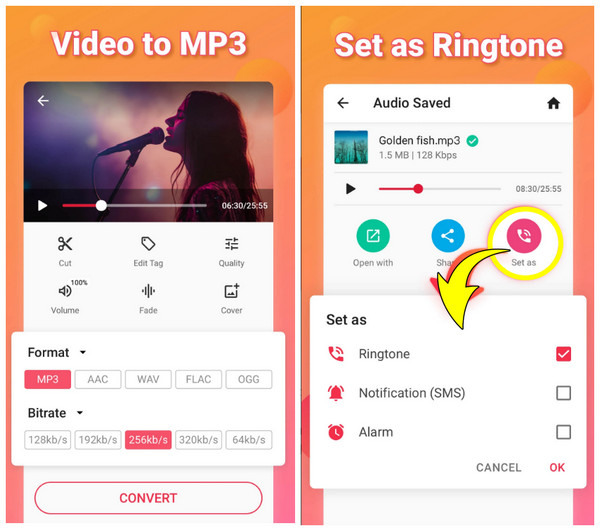
Step 1.Launch the Video to MP3 Converter app, tap "Video to Audio" (Add button), and choose your video from your gallery.
Step 2.Set the output format to "MP3", drag the handles to cut it to a 30-second snippet, and then click "Convert".
Step 3.Tap "Set As" in the app and choose "Ringtone".
How to Convert Video to Ringtone on PC or Mac
AnyRec Video Converter will make it remarkably easy to create a ringtone from a video on a PC or Mac. Thanks to its built-in conversion and editing tools, you can add any video clips, extract the soundtrack, trim them to a perfect duration of 30 seconds or less, and convert them to the proper ringtone format, such as M4R or MP3. From there, you can transfer the freshly made audio track to your mobile device in just a single click.
Lossless quality for converting video to M4R or MP3 soundtracks.
Listen to and refine your audio before finalizing the ringtone.
Precise trimming of any portion of your audio to create the ideal ringtone.
Access almost any video file, including MP4, MOV, MKV, to convert.
Secure Download
Secure Download
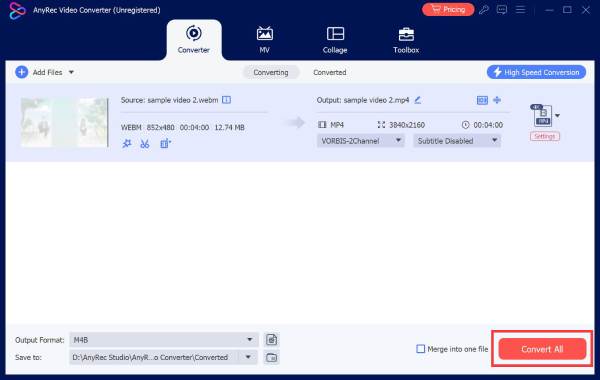
Step 1.Open AnyRec Video Converter and click the "Add Files" button to add the clip you want to create ringtone from. Or drag and drop your files directly into the window.
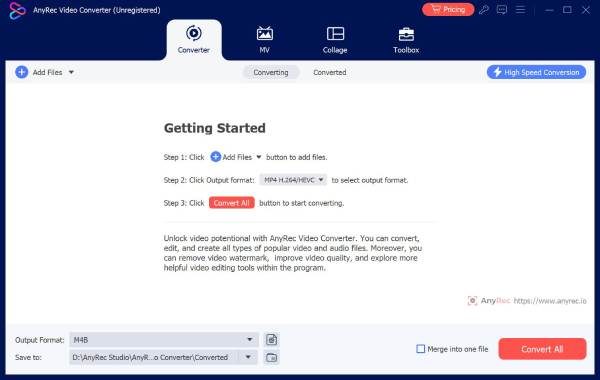
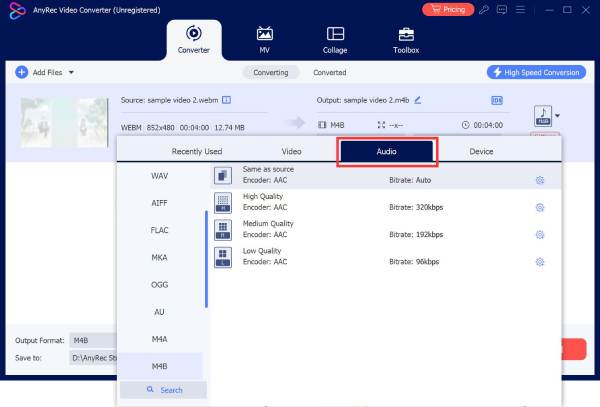
Step 2.Then, from the "Format" dropdown menu, navigate to the "Audio" section and choose your target ringtone format. You can either choose M4R or MP3.
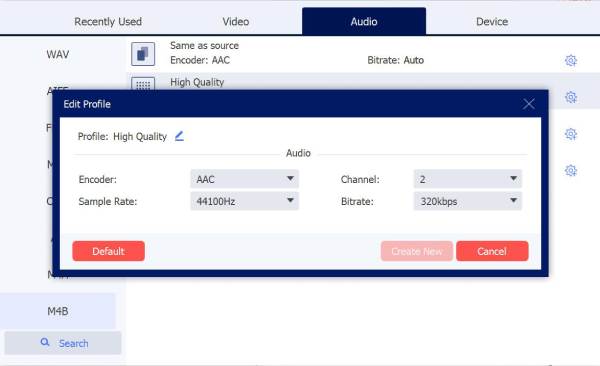
Click the "Custom Profile" button if you want to adjust the audio bitrate, sample rate, or channels to meet your preferences.
Step 3.Return to the main screen, select your destination folder at the bottom, and click the "Convert All" button to extract audio and save your new ringtone file.
How to Set the Ringtone After Converting
Finally converted your video into M4R or MP3 and transferred it to your mobile device? Set it as your default ringtone now in your phone's settings. For iOS, any M4R file exported from GarageBand or synced via iTunes/Finder appears at the top of your ringtone list, while on Android you can set any MP3 file through its settings. See below:
Set a Ringtone on iPhone After Converting:
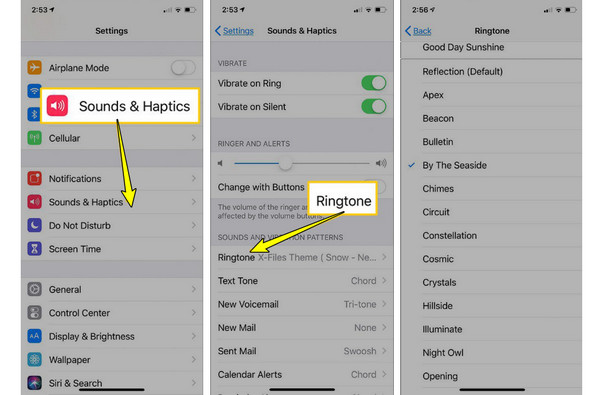
- 1. Go to Settings on your iPhone and head to "Sounds & Haptics".
- 2. Tap "Ringtone" to open your complete library of sounds.
- 3. You'll see your newly added ringtone at the top; tap on it to rename it.
- 4. Then, a check mark will appear next to it, and the sound will play for a preview.
Set a Ringtone on Android After Converting:
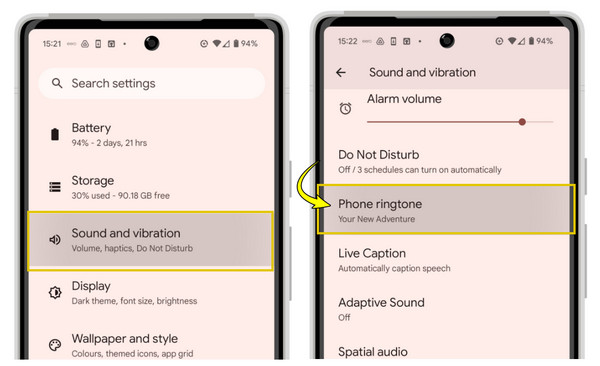
- 1. Open Settings on your phone and choose "Sound & vibration".
- 2. Go to "Phone ringtone" and you'll see volume controls and ringtone preferences.
- 3. Next, tap the "Add" button, locate your converted MP3 file, tap on it, and tap on "Done". The ringtone will now be displayed.
Conclusion
One of the easiest ways to give your phone a personalized feel is by making ringtones. You've seen here to set any video as a ringtone on your iPhone or Android, or even on your Mac or PC. You're no longer limited to your built-in system sounds. For a fast, smooth way to convert videos into ringtone-ready formats, use AnyRec Video Converter. Import your video, trim your clip, choose a target format, and make any video into your own personal soundtrack.
Secure Download
Secure Download
Related Articles:
About Our Author