
Hot

AnyRec Screen Recorder
Capture every moment. Record like a pro.
Secure Download
5 Best Lecture Recorders for Students [with Transcription]

Taking notes in a lecture is hard. You write fast. But you still miss things. During this time, you can use a lecture recorder to fix the problem. Just click the "Record" button. It can capture everything the professor says. Later, you can play it back and even get the auto transcription. Some AI lecture recorders can turn speed into text in seconds. See both the classic recorder and the AI-powered one for both students and professors.
Guide List
Is It Okay to Record a Lecture Recording vs. Transcribing - What's the Difference and Do You Need Both Best AI Lecture Recorders with Transcription How to Record an In-Person Lecture How to Record an Online LectureIs It Okay to Record a Lecture
It is always suggested to ask for permission from your professor before recording in class. You can start with your school policies and consent laws. In most cases, it is generally allowed to record a professor's lecture for personal study. But don't resell or distribute due to the copyright protections. In short, if you are in doubt whether recording lectures is illegal, you can ask your professor first. Most professors say Yes.
Recording vs. Transcribing - What's the Difference and Do You Need Both
Before you pick a lecture recorder, you should know what you actually need. Many students skip this step. Just figure out whether you want to record or transcribe a lecture.
- • Record and capture everything. including video, audio, and slides. You can record a professor's voice, a whiteboard drawing, and more.
- • Transcribe speech into text. No video or audio playback. Just works on a screen. You can find one sentence from a two-hour lecture easily.
- • Record and transcribe both together. You can get the full recording and a written version. Thus, you can watch the video and search the transcript.
Best AI Lecture Recorders with Transcription
Check those AI lecture notetakers to record, transcribe, and summarize important notes and meetings easier than ever. Here are short summaries of each online lecture recorder.
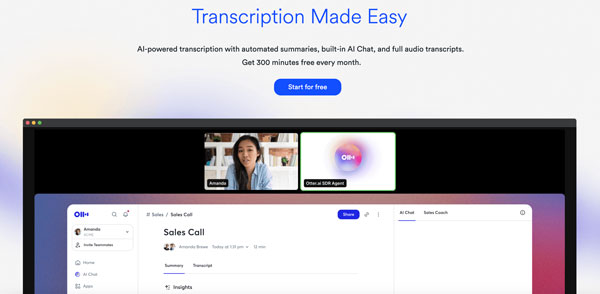
1. Otter.ai
Best for: English-speaking students who want real-time transcription.
Why choose: Improve lecture and interview recaps without distractions.
Why not choose: When there are several people talking at once, or the background noise is present, the mixed-up segments and incorrect attributions occur. (See steps to remove background noise from audio.)
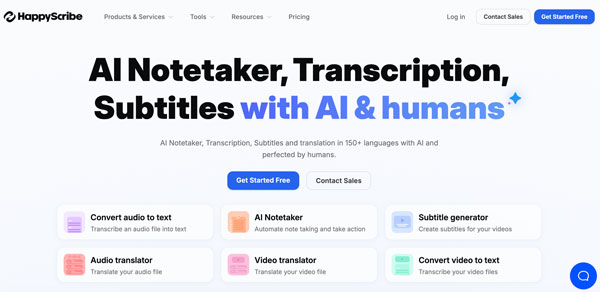
2. HappyScribe
Best for: Students who need strong accuracy across accents and languages.
Why choose: Can handle a noisy environment better than other online lecture recorders.
Why not choose: The HappyScribe human-made service is more expensive than other competitors after a pricing change.
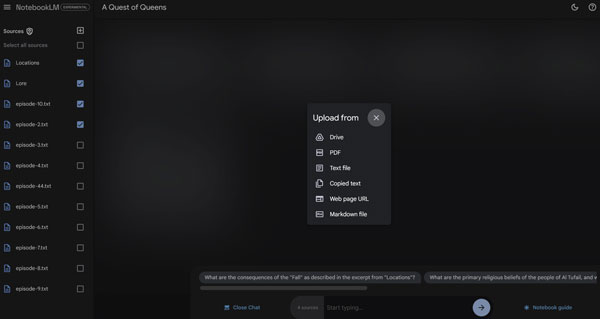
3. Whisper (by OpenAI) + NotebookLM
Best for: Students who want a free, private, no-subscription setup.
Why choose: Get free lecture recordings and transcripts from Whisper. Then use Google's NotebookLM to extract key points.
Why not choose: The lecture recorder and transcription combo is good for tech-comfortable students, not for starters.
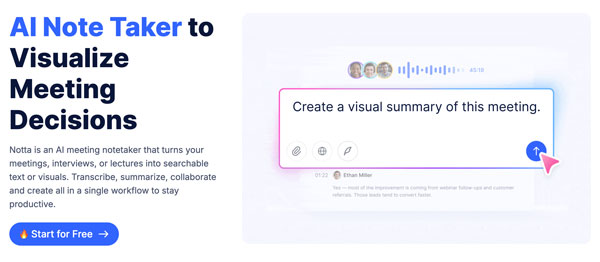
4. Notta
Best for: International students and multilingual lecturers.
Why choose: Supports 58 languages and handles live transcription well.
Why not choose: The Notta billing experience is not good. Many users complain in TrustPilot that they are still being charged after canceling the free trial within the stated window.
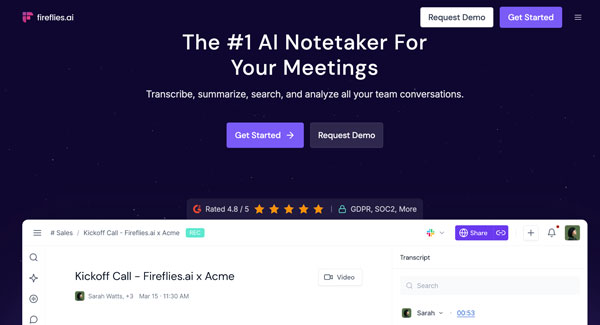
5. Fireflies.ai
Best for: Online lectures on Zoom, Meet, Teams, and more meeting platforms.
Why choose: Join your video call and online lectures as a bot. Then Fireflies ai lecture recorder can transcribe everything.
Why not choose: Not support to record in-person lecutres in classrooms. Only records virtual meetings.
| Lecture Recorder | Free Plan | Best for | Language Support |
| Otter.ai | 300 minutes/month | Real-time English transcription | English, Spanish, French |
| HappyScribe | 10 minutes in free trial | Noisy rooms, accents | 140+ languages |
| Whisper (by OpenAI) + NotebookLM | free | No subscription, privacy | 90+ languages |
| Notta | 120 minutes/month | Multilingual (use with caution) | 58 languages |
| Fireflies.ai | Limited | Online lectures | 60+ languages |
How to Record an In-Person Lecture
Here are 2 ways to record lectures in person.
1. Use your phone or computer
Place your phone near the front on the desktop close to the speaker. Later, you can record voice memos on iPhone and Android. Though the audio quality drops due to the distance and background noise.
2. Use a dedicated voice recorder
To record large lecture halls clearly, you can choose from Sony ICD-PX470, Sony ICD-UX570, Zoom H1, Olympus WS-853, Tascam DR-05, and more.
How to Record an Online Lecture
Students may struggle with online lecture recordings on Zoom, Teams, Google meet, and other platforms. Only the meeting host can do or grant the recording permission. If you want to record online lectures as an attendee without notification, you can use AnyRec Screen Recorder. No virtual audio drivers required. Just select the audio source and screen capture area. Later, you can record online classes and lessons.
Record system audio and microphone at the same time.
Capture online lessons and streams without black screen.
Use 6 recording modes to capture all video and audio activities on desktop.
Get built-in video trimmer, merger, converter, and more.
Secure Download
Secure Download
Step 1.Open AnyRec Screen Recorder. In the default Video Recorder, select the capture area first. Turn on the toggle buttons before "System Sound" and "Microphone" buttons to set the input audio source.
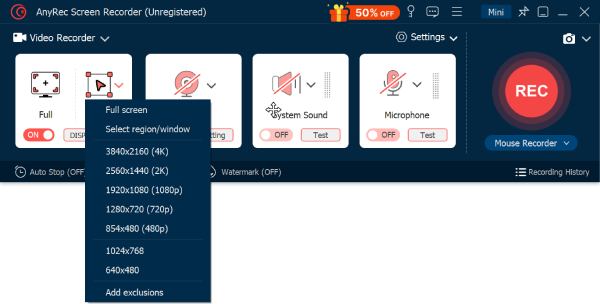
Step 2.Click the "REC" button to start the video capturing. You can add annotations and take snapshots with the floating toolbar.
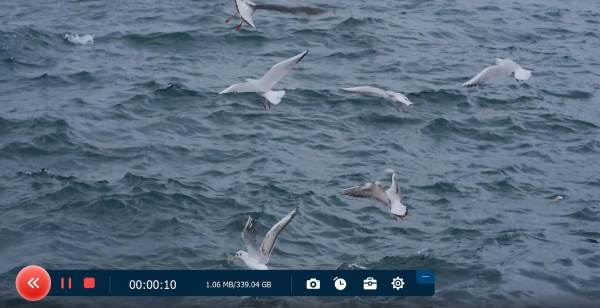
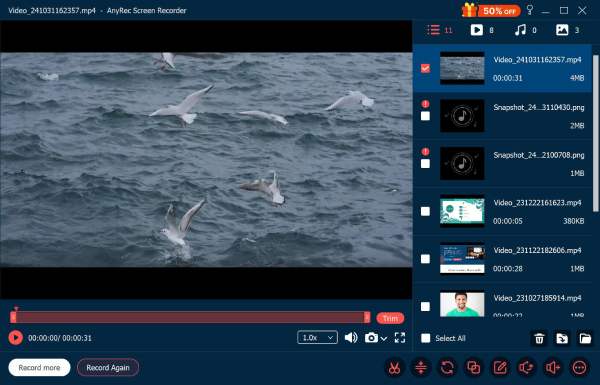
Step 3.Once you stop recording lectures, you can get your recorded video in the right panel. Moreover, you can edit this lecture recording video using the built-in tools near the bottom.
Conclusion
Recording lectures has changed how students study. There is no need to choose between listening and writing. You can do both. Choose your favorite AI lecture recorder to record and transcribe online lectures cleanly. If you just want to record in-person lectures, you can use your phone as a free lecture recorder. Sit closer for better audio recording quality. As for capturing system audio along with voices, AnyRec Screen Recorder is your better choice. You can record not only online classes, but also online meetings, video calls, streamings, and other daily activities. Download the software for free with the following buttons.
Secure Download
Secure Download
Related Articles
About Our Author




