
7 Top-Rated iPhone Screen Recorder Apps with a Bonus Tool

Sometimes, the built-in screen recording tool on iPhone falls short when you need advanced features for your game highlights tutorial, and others. Luckily, the App Store is flooded with iPhone screen recorder options. Some excel at facecam reaction, while others are made for presentation. To help you make the right choice, here's a list of the top 7 iPhone screen recorder apps in 2026, and later, you'll see a recommended tool for more professional success.
Guide List
1. Record it! - Premier Screen Recorder with Reaction Cam 2. Go Record - Lightweight Choice for Quick Recording 3. Loom for iOS - Instant Link Sharing Screen Recorder 4. DU Recorder - Versatile Recorder and Livestreaming Tool 5. V Recorder - 4K HD Screen Recorder with Noise Reduction 6. Vmaker - Cloud-Based Recorder for Unlimited Recording Time 7. ScreenPal - All-in-One Recorder and Video Editor Recommended: AnyRec Screen Recorder for High-Quality Phone Recording1. Record it! - Premier Screen Recorder with Reaction Cam
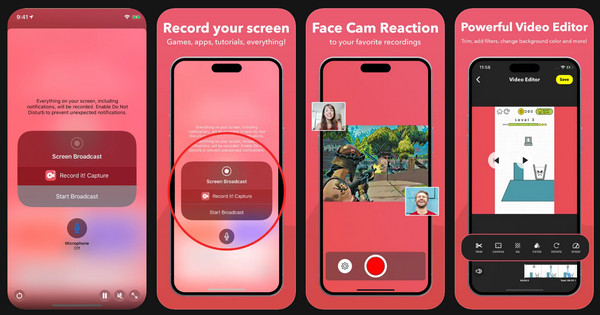
This iPhone screen recorder app, Record it!, is the go-to place for creators who wish to add personal magic to their recordings. Here, you can record screens and add video reactions and narration for engaging, high-quality content.
- Pros
- Integrates well with front-facing camera; professional-grade audio commentary.
- Cons
- Free version limits recording time; includes annoying ads.
Steps:
- 1. Start Record it! There, tap "Record" and select "Start Broadcast" from the iOS system prompt to start.
- 2. Once done, tap the red bar to stop and save the file to the app's library.
- 3. You can then select it and add face cam reactions to capture iPhone screen.
2. Go Record - Lightweight Choice for Quick Recording
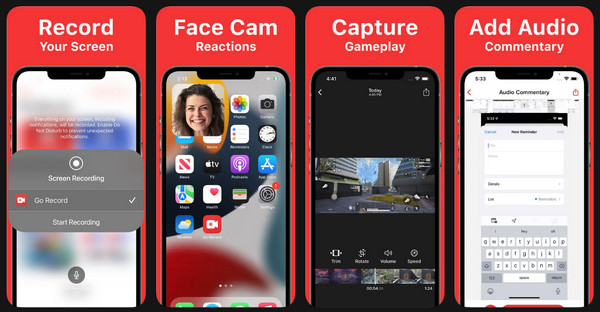
For those who love a lightweight iPhone screen recorder app, Go Recorder is designed for simplicity and is ideal for adding reaction cams. It works with your existing iOS library, letting you add audio commentary to videos you have recorded with the native system tool.
- Pros
- Very fast and lightweight; simple process for adding Face Cam.
- Cons
- Basic editing compared to rivals; relies heavily on in-app purchases.
Steps:
- 1. Launch the Go Record app. Tap "Start Recording" to start a fresh session. Or tap "Import from Library" to select a video you have captured.
- 2. To overlay a video, tap "Face Cam".
- 3. Later, tap on "Share" to save the combined video to your library.
3. Loom for iOS - Instant Link Sharing Screen Recorder
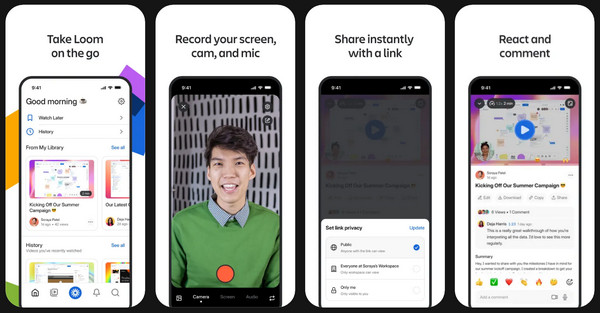
Loom is made perfectly for communicating with your team via video. Loom iPhone screen recorder app focuses on speed, letting you upload the recording to the cloud right away. It is the perfect tool for professionals sending bug reports and personalized feedback.
- Pros
- Quick, shareable link; built-in viewer comments.
- Cons
- HD 4K recording and AI tools are needed Pro version.
Steps:
- 1. Once the Loom app has been launched, sign in.
- 2. Then, tap "Record" and pick whether to capture "Screen" or "Camera".
- 3. Next, tap "Start Recording" to begin the countdown and record iPhone screen with audio.
- 4. Then, tap "Stop", and the app will copy the video link instantly for sharing.
4. DU Recorder - Versatile Recorder and Livestreaming Tool
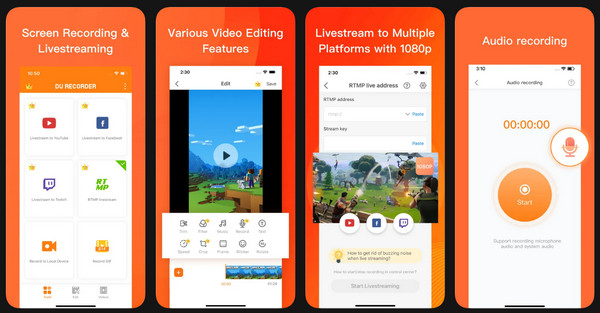
You might prefer a tool that specializes in real-time broadcasting. For this, use DU Recorder, a robust platform that can broadcast a screen to social media platforms. Plus, this iPhone screen recorder app offers editing tools, like merging clips and adding music.
- Pros
- Direct livestreaming to social platforms; comprehensive video editor.
- Cons
- Ads are showing; it has faced issues in terms of privacy.
Steps:
- 1. Open DU Recorder on your device and tap "Record to Local Device" or the "Live" button.
- 2. Adjust settings as needed, then tap on "Start".
- 3. Later, tap "Stop" from the Control Center.
- 4. Use the "Edit" menu to enhance footage before exporting.
5. V Recorder - 4K HD Screen Recorder with Noise Reduction
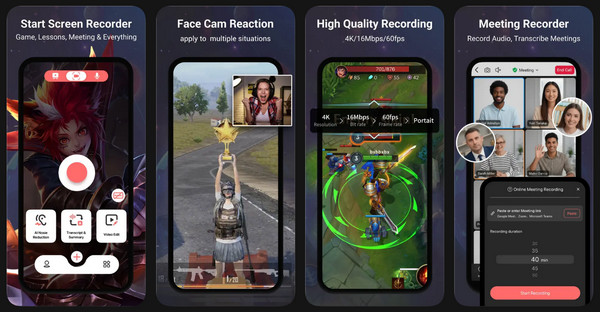
While live streaming is great, sometimes you need to record clear tutorials with clear sound. Here's V Recorder for you! It is a powerful iPhone screen recorder that focuses on visual and audio clarity, covering 4K resolution at 60FPS.
- Pros
- 4K high-definition output; voice-to-text subtitling.
- Cons
- Powerful AI features and 4K export needs VIP membership.
Steps:
- 1. Run the V Recorder app and tap on "Screen Record".
- 2. Pick your desired resolution and enable "Microphone".
- 3. Afterward, tap "Start Recording" and navigate through the apps you want to capture.
- 4. Later, tap "Stop" and clean up audio as needed.
6. Vmaker - Cloud-Based Recorder for Unlimited Recording Time
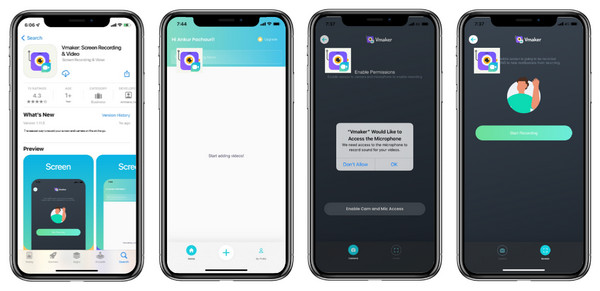
Meanwhile, Vmaker shines for its lengthy recording capabilities without worrying about storage limits. Unlike other iPhone screen recorder apps, this app has an unlimited duration and saves each file to the cloud storage.
- Pros
- Perfect for extensive sessions; make sure your files are accessible from any device.
- Cons
- Its UI feels less intuitive; long videos can take time to process in the cloud.
Steps:
- 1. Once the VMaker app is opened, tap "Record" below.
- 2. Then, select a recording mode for capturing the screen and audio.
- 3. Tap "Start Broadcast" to start the recording session.
- 4. Once finished, tap "Stop" and your video is saved to the Vmaker cloud.
7. ScreenPal - All-in-One Recorder and Video Editor
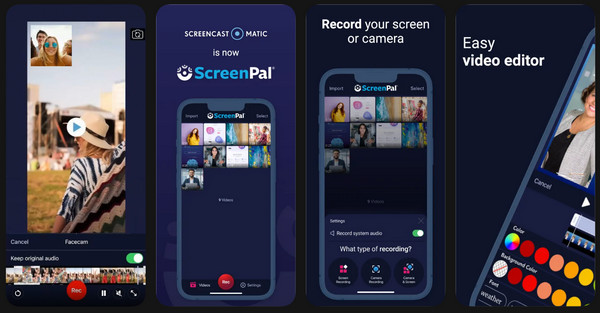
Finally, if you need an iPhone screen recorder app that handles both screen captures and complex editing, ScreenPal is the best option. After recording, you can add overlays, blur details, and apply transitions.
- Pros
- Sophisticated time-based editor; can also work on a computer.
- Cons
- The free version limit is up to 15-minutes; it adds a watermark to videos.
Steps:
- 1. Upon starting ScreenPal, tap "Record".
- 2. Confirm the settings and tap "Start" to initiate recordings.
- 3. Once done, go back to the app and tap "Stop".
- 4. Use the "Timeline" to add any edits before saving the file.
Recommended: AnyRec Screen Recorder for High-Quality Phone Recording
Now, when it comes to achieving professional-grade results, AnyRec Screen Recorder stands out as the best recommended tool for high-quality phone recording. While it is a desktop-based solution, it has a Phone Recorder mode that captures lengthy content from your phone by mirroring it on your desktop screen, so it can be your screen recorder for iPhone, too. It provides a stable, lag-free environment that is ideal for capturing high-intensity gaming, tutorials, or important presentations. Also, it offers advanced audio controls, letting you capture system sounds and mic separately or simultaneously. Therefore, if you are seeking a reliable, all-around desktop tool that offers both mobile convenience and studio quality, this tool is indeed the ultimate choice.

Lossless 4K mirroring and recording iPhone screen without quality loss.
Enjoy smooth, lag-free recording, even for high-frame-rate recording.
Built-in tools to enhance your voice and remove background noises.
Quickly trim, merge, or compress recordings after the session ends.
Secure Download
Secure Download
Conclusion
The best iPhone screen recorder app can turn your device into a professional creation studio. From Loom and Record it! to DU Recorder, each features its pros and cons; you can choose a workflow that saves you time and ensures your recording looks exactly what you expect. If you fail to record phone activities, try AnyRec Screen Recorder. This desktop screen recorder offers a seamless mirroring and recording experience, allowing you to capture every detail in lossless quality. Using it, you can make sure that the final recording is ready for any platform.
Secure Download
Secure Download
About Our Author




