
Import VCF to iPhone: 4 Proven and Easy Methods Today!

When upgrading to a new iPhone and moving contact lists, you may come across a VCF file that holds your contacts. This universal file format stores and shares contact information across various platforms. Now, you may ask how you can properly import VCF to iPhone? Making the process easier, this guide shares the four easy methods to copy vCard to iPhone. From wireless solutions to one-time transfers, there's a method here for your situation.
Guide List
Quick Comparison of VCF to iPhone Transfer Transfer Contacts from iPhone/Android to iPhone Add VCF to iPhone Contacts Import VCF to iPhone by Email Move VCF Files to iPhone with iCloudQuick Comparison of VCF to iPhone Transfer
Before exploring all four methods in detail to import VCF contact files to iPhone, it's helpful to compare them side by side to determine which one best suits your needs. The table below highlights the main differences between them, such as difficulty, requirements, and ideal use cases.
| Method | Difficulty | Requirements | Best For |
| AnyRec PhoneMover | Easy | Computer, USB cable | Large contacts transfer between iPhone/Android and computers. |
| Add VCF to iPhone Contacts | Very Easy | VCF file on iPhone | Small number of contacts. |
| Import VCF by Email | Easy | Email address, internet connection | Moving a moderate number of contacts wirelessly. |
| Move VCF with iCloud | Moderate | Apple ID, computer, internet connection | Keeping contacts synced across multiple Apple devices. |
Transfer Contacts from iPhone/Android to iPhone
Want to straightly transfer contacts to a new iPhone? Then, using a professional data transfer tool is what you need! AnyRec PhoneMover is one of the most convenient solutions for this task, letting you import VCF to iPhone without iCloud or any SIM cards. This software ensures a quick and seamless migration while keeping the original quality and structure of your contact list. Unlike other manual methods, you won't have to worry about duplicates or any compatibility issues here. Get this fast and complete transfer experience; even non-tech-savvy users can manage it easily.

Can transfer contacts between iPhone, Android, and computers easily.
Covers other data types such as photos, videos, music, and messages.
Automatically detects and removes duplicate contacts.
Let you export contacts to VCF, CSV, or XML formats for backup.
Secure Download
Step 1.Open AnyRec PhoneMover on your computer. Next, connect both your devices to the computer via a USB cable, and pick the source device.
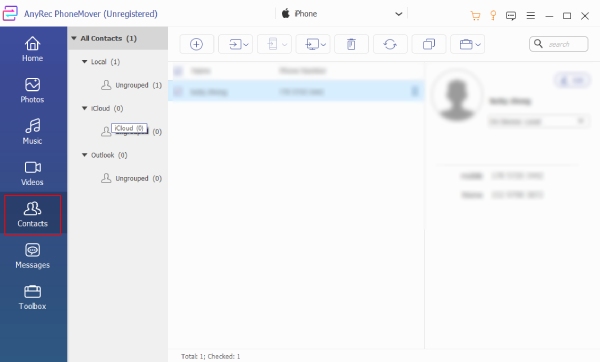
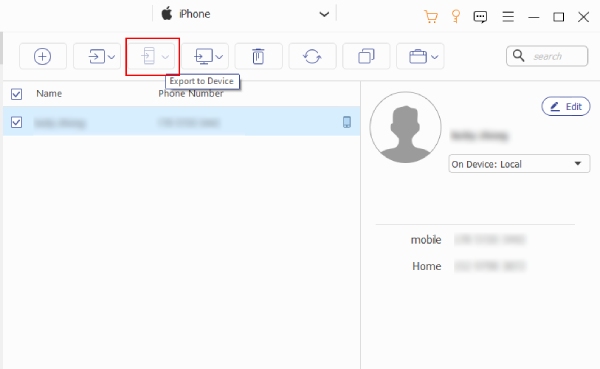
Step 2.After that, select "Contacts" from the data type shown on the left sidebar. Check the contacts you want to move from the list, then click on "Export to Device" and select your new iPhone as the target.
Please wait until the transfer completes, and then you can safely disconnect both devices.
- Pros
- Works fast for transferring large files from and to iPhone.
- Edit, manage, remove duplicates, add, and delete contacts.
- No need for iCloud or iTunes.
- Cons
- Needs the installation of third-party iPhone data transfer software.
Secure Download
Add VCF to iPhone Contacts
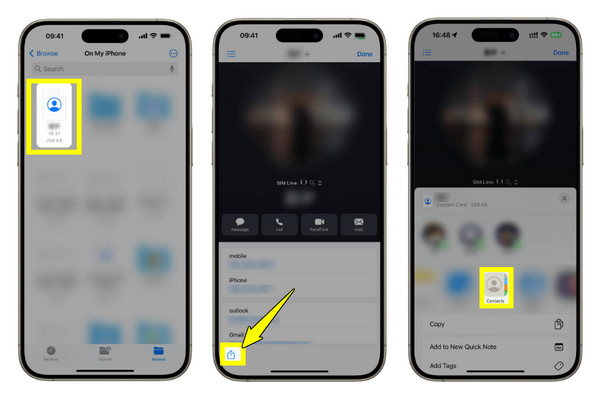
If you only have an individual VCF file to import, you can manually add it using the Contacts app. This method is very simple and doesn't require a computer. It is a good choice to import contacts from VCF to iPhone, especially when you have received it via AirDrop, Messages, Files, or any other app. If you still encounter contacts didn't transfer to a new iPhone issue, move on to the next solution.
- 1. Send or open the VCF on your iOS device, and tap on it.
- 2. When prompted, you can tap "Share Contacts" or "Add All Contacts".
- 3. The contacts will be added to the Contacts app.
- Pros
- Export VCF files to iPhone without extra apps.
- Very easy and straightforward.
- Cons
- It can cause duplicate contacts if one already exists. You need to delete and merge duplicate contacts on iPhone manually.
- Time-consuming if you have many contacts to import.
Import VCF to iPhone by Email
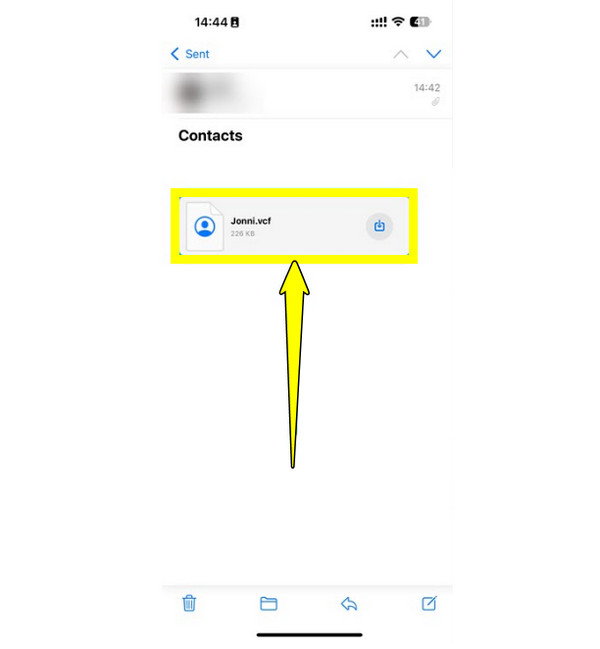
On the other hand, if you want to move your contacts without using cables, emailing is the best way to import multiple .vcf files or a single .vcf file to the iPhone. Using this technique, you can send the VCF file as an attachment and then download it on iPhone.
- 1. Start by composing an email to yourself from any device, then attach the VCF file. Enter your email address in the field.
- 2. Now, open the iPhone "Mail" app. Locate the attached VCF file, and tap it.
- 3. Then tap the "Add All Contacts" button to import iPhone contacts successfully.
- Pros
- No need for an extra download.
- Export iPhone contacts by emailing across different platforms.
- Cons
- Not ideal for large contact lists.
- Rely heavily on an internet connection.
Move VCF Files to iPhone with iCloud
If you wish to sync your contacts across multiple Apple devices, using iCloud to import VCF to iPhone is an excellent option. This method works by uploading your contacts to your iCloud, which then syncs to your iPhone. While it needs a bit more setup, it offers a smooth experience once everything is done.
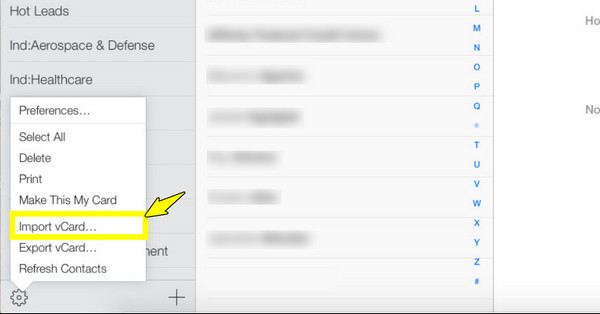
- 1. On your computer, search for iCloud.com and use your Apple ID to log in. There, click on "Contacts" from the main dashboard.
- 2. Tap the "Settings" button at the bottom and select "Import vCard". Upload your VCF file.
- 3. Now, open "Settings" on your iPhone, tap on your name above, then go to "iCloud", and ensure the "Contacts" switch is enabled.
- 4. Contacts should automatically appear in your iPhone's Contacts app.
- Pros
- Enable iCloud contacts syncing on iPhone automatically.
- No need for installing extra iPhone transfer apps.
- Sync photos, videos, and contacts across Apple devices.
- Cons
- Need to pay for extra iCloud storge space. (larger than 5GB)
Conclusion
What matters most is choosing the proper method to import VCF contacts to iPhone. Today, you've learned about a quick manual import, a wireless approach, automatic syncing, and a phone-to-phone transfer, each offering unique advantages. However, if you have a large number of contacts you want to move quickly, using AnyRec PhoneMover is the best way to go. This tool moves contacts between devices with just a few clicks. It also detects duplicate contacts and ensures your data stays organized during and after the transfer. Save time and effort now while keeping your contacts secure.
Secure Download



