
4 Ways to Sync Text Messages from iPhone to iPad [iMessage]

Keeping your messages accessible across all Apple devices makes communication more convenient than ever! If you often switch between your iPhone and iPad, learning how to sync SMS and MMS messages from iPhone to iPad is essential, keeping updated and consistent on both screens. And thankfully, Apple has several options to do so! This guide shares with you four ways to receive iMessages and text messages on iPad. Enjoy a seamless messaging experience anytime, anywhere.
Guide List
How to Sync Old Messages from iPhone to iPad via iCloud Backup Sync New iMessages from iPhone to iPad with Apple ID How to Sync Text Messages from iPhone to iPad with Settings Easy Way to Sync All Messages from iPhone to iPad [No Data Loss]How to Sync Old Messages from iPhone to iPad via iCloud Backup
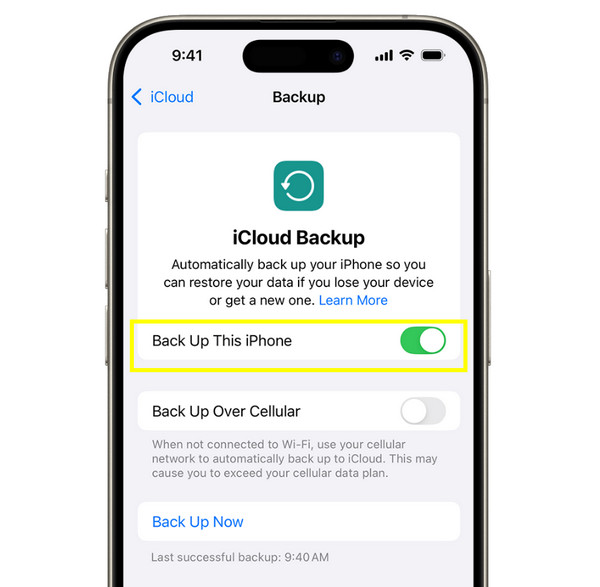
If you have recently set up a new iPad and wish to carry over your older text messages from your iPhone, you can view text messages on iCloud. Later, you can get iMessage to sync on iPad. This approach guarantees that your old messages, covering SMS and iMessages, are safely moved to the cloud and can be restored anytime you sign in with your Apple ID. Once you're done backing everything up, your iPad can automatically recover and sync all conversations.
Step 1.On your iPhone, open the "Settings" and tap your "Apple ID name" at the top.
Step 2.Go to "iCloud", then "iCloud Backup", and enable "Back Up This iPhone". Tap "Back Up Now"; please wait for the process to complete.
Step 3.Now, on your iPad, sign in with the same exact Apple ID as on your iPhone. During the setup, choose the "Restore from iCloud Backup" option.
Step 4.Choose the most recent backup, and your old messages will show on the iPad after restoration.
Sync New iMessages from iPhone to iPad with Apple ID
Suppose you're already using both an iPhone and an iPad. Sending iMessages to new iPhone or iPad will help you stay connected regardless of which one you use. This setup lets messages appear quickly on both services. So, you will not miss any text or conversation. The entire process does not need any backup or restore steps. Just make sure you use the same Apple ID to share text messages from iPhone to iPad.
Step 1.On your iPhone, head to "Settings" then "Messages" and tap on "Send & Receive". Ensure you are signed in with your Apple ID from the "You can receive iMessages to and reply from" section.
Step 2.On your iPad, go to "Settings" then "Messages" and toggle on the "iMessage" switch button. Also, sign in using the same Apple ID.
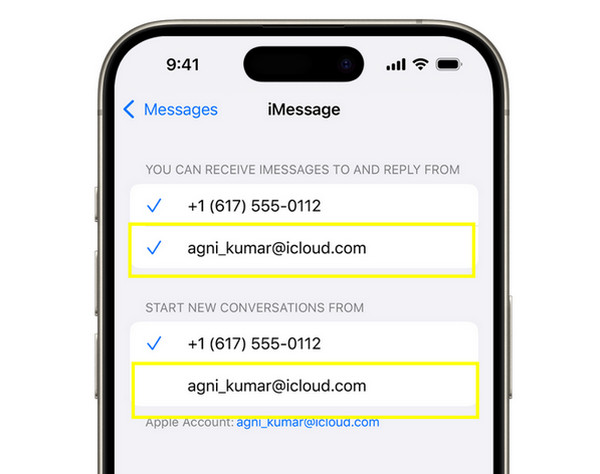
Step 3.Verify if the same phone number and email addresses are selected under "Send & Receive". After setup, any new iMessage you send or receive will sync automatically between both devices.
How to Sync Text Messages from iPhone to iPad with Settings
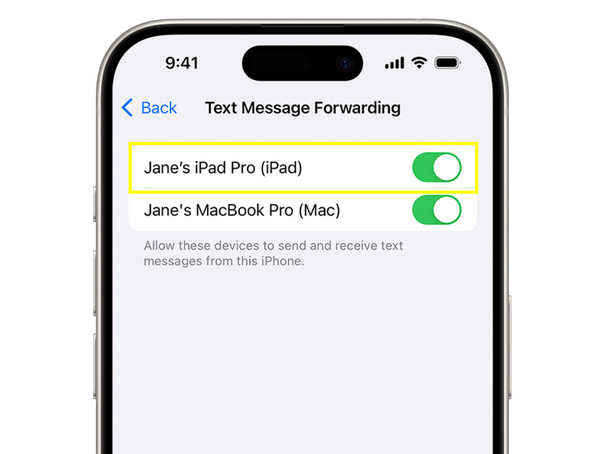
If you notice that only iMessages are syncing but not your regular SMS texts, you can turn on Text Message Forwarding in your iPhone's settings. This feature lets your iPad send and receive text messages even if it does not have its own SIM card. It is a convenient solution if you wish all your conversations, from blue to green bubbles, will be accessible on both devices.
Step 1.Open "Settings" on iPhone. Tap "Messages", and then select "Text Message Forwarding". Turn on the toggle button beside your "iPad" in the list of devices.
Step 2.A verification code will be shown on your iPad. Enter it on your iPhone to verify.
Step 3.There, ensure "iMessage" is enabled on both devices under "Settings" then "Messages".
Step 4.Now, your iPad will receive SMS messages through your iPhone.
Easy Way to Sync All Messages from iPhone to iPad [No Data Loss]
If you encounter text messages not syncing between iPhone and iPad, AnyRec PhoneMover is your alternative. Unlike iCloud and iMessages, which fail due to storage limitations, weak connections, or incorrect Apple IDs, this iPhone transfer software ensures that both iMessages and SMS are carried over securely while keeping your existing data intact. It supports the latest iOS 26 (iPadOS 26) now.

Instantly move data like messages, photos, videos, and more.
Transfer files without erasing existing data on the target device.
Preview data before moving it to ensure accuracy and control.
Allows you to view, delete, edit, and manage files directly from the iPhone.
Secure Download
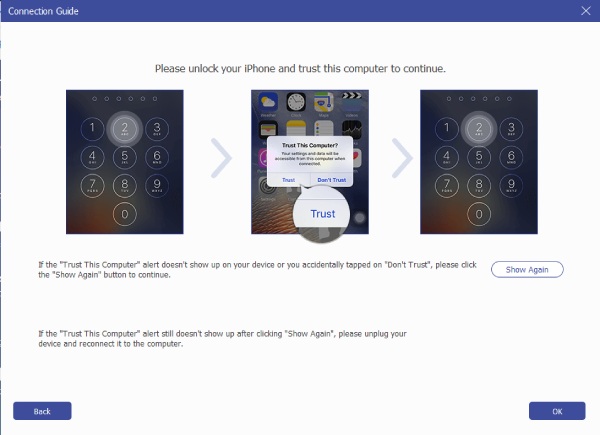
Step 1.Open AnyRec PhoneMover on your computer. Plug your iPhone and iPad into this computer via two USB cables. When a prompt appears on each device, tap "Trust" to confirm.
Step 2.Click on your "iPhone" as the source device. Then, from the left sidebar, click "Messages" as the data type you wish to transfer. You can preview each message list and check on the conversations you want to sync to your iPad.
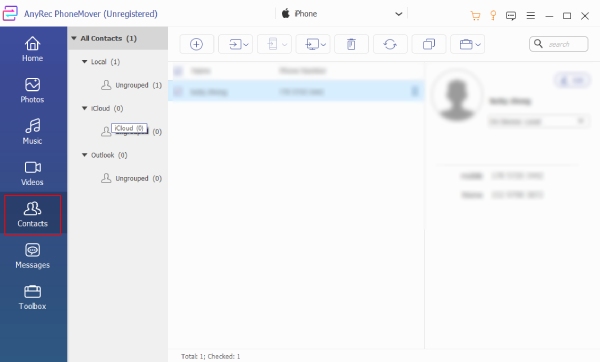
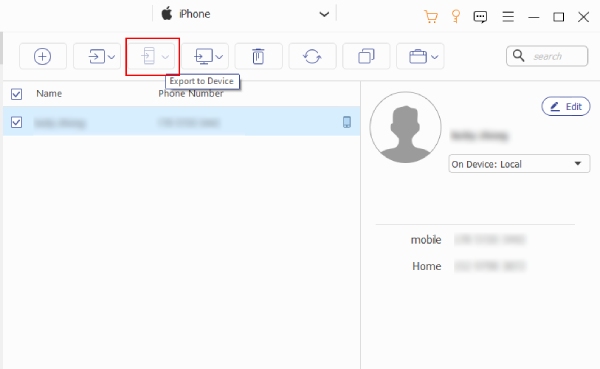
Step 3.After choosing all the messages, click the "Export to Device" and select your "iPad" as the target device. Wait for the transfer to get text messages on iPad.
Conclusion
Syncing iPhone messages to iPad is easy. If you prefer a faster and more flexible way to transfer text messages to new iPad or iPhone, AnyRec PhoneMover is an excellent choice. This powerful tool makes it easy to move texts, photos, contacts, and more between your iPhone and iPad without affecting data. You can back up iPhone messages to PC and other devices suing this program too. Make your message syncing smoother than ever!
Secure Download



