
4 Ways to Create a Contact Group on iPhone [iOS 26]

Are you searching around the internet and looking for an answer to your question, "How to create a contact group on iPhone?" If yes, then that sounds like what you want to make the process of sending group messages or emails more efficient, or organize contacts by grouping them. Regardless of the reason, there are a few practical ways you can do that, and thankfully, you're here because this post features four ways to create an iPhone group contact list.
Guide List
How to Create Contact Group on iPhone Manually for Email Steps to Use iCloud to Create a Contact Group on iPhone How to Manage and Create Contact Groups for iPhone 17 How to Create Contact Groups on iPhone with Groups AppHow to Create Contact Group on iPhone Manually for Email
Creating a contact group on an iPhone is a straightforward process that requires minimal effort. However, there are some things you first need to prepare. First, you need to update your iPhone to iOS 16. Second, the contact you wish to add to a group should have an email address on the contact card. Lastly, you enabled "Contacts" in iCloud. If you are all set, here are the steps to email a contact group on iPhone manually:
Step 1.Launch the "Contacts" application on your iPhone, tap the "All Contacts" button at the top-left corner, tap the "+" icon at the lower section, and select the "New Group" option.
Step 2.Next, put a name for the group and tap the "Return" button on your keyboard. After that, press the "All Contacts" button again to add the contacts you wish to put in the group.
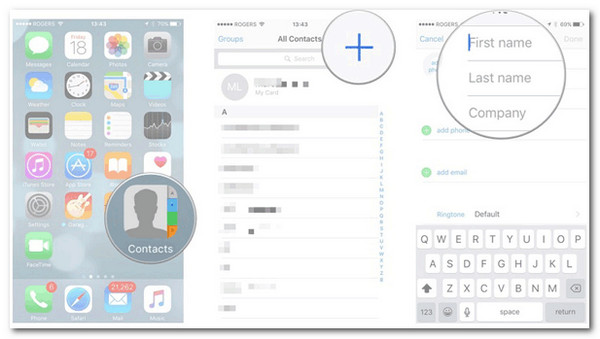
Step 3.Then, drag and drop the contacts you want to add. Next, tap that group to check whether the right contacts were added. To check the new group, open the "Phone" app on your iPhone.
Step 4.After that, tap the "Contacts" button and choose "Groups". Next, run the "Mail" app, tap the "New Email" icon at the lower right, and enter the contact group name in the "To:" field.
Step 5.Next, tap the group name when prompted before writing and sending an Email. And that's it!
Steps to Use iCloud to Create a Contact Group on iPhone
If you want to organize your contacts better or send emails to multiple people at once, using iCloud is one of the easiest ways to create a contact group. Before iOS 16, Apple users could only make contact groups through iCloud, and while you can visit iCloud.com on an iPhone, you still need a computer or tablet to access the Contacts page properly. Follow steps below to create an iPhone group contact list on iPhone via iCloud. Later, you can transfer contact list from iPhone to iPad and other devices flexibly.
Step 1.On your browser, visit the official webpage of iCloud. Then, on the list of options presented, select "Contacts".

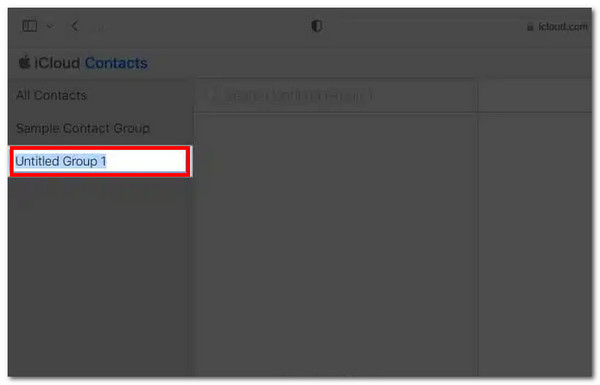
Step 2.Next, click the "+" icon at the lower left and click the "New Group" button. After that, double-click on the group (with the Untitled Group 1 placeholder). Then, name it accordingly.
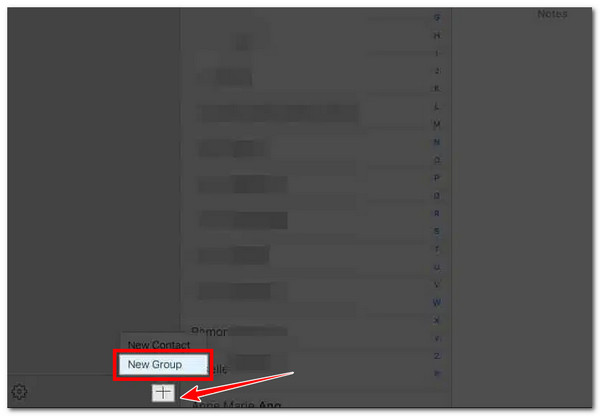
Step 3.After that, click the "All Contacts" button and drag the contacts you wish to add into the group chat, and then click "Enter/Return". That's it! You can group contacts on iPhone using iCloud successfully.
How to Manage and Create Contact Groups for iPhone 17
AnyRec PhoneMover enables you to easily manage your contacts from your iPhone, including the process of creating and editing groups. It supports the ability to thoroughly scan your iPhone for its contacts, present them intuitively, and lets you create contact groups easily and quickly. What makes this solution worthy of trying is that it also allows you to back up all the contact group messages and transfer them to other devices. That without relying on the internet! If you want to make a contact group on iPhone via this tool, start diving below.

Allows you to import, export, create, delete, sync, and edit contacts and groups.
Capable of scanning and merging duplicated contacts in just a few minutes.
Automatically merge duplicated contacts and groups in just minutes.
Lets you back up and transfer contact group messages at great speed with no internet.
Secure Download
Step 1.Install the AnyRec PhoneMover tool on your computer and launch it afterward. Next, link your iPhone using a USB cord to the desktop, tap the "Trust" button on your screen if prompted, click the "Contacts" button, and let the tool scan your device.
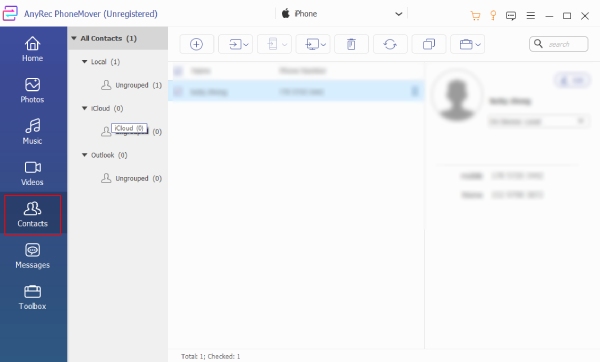
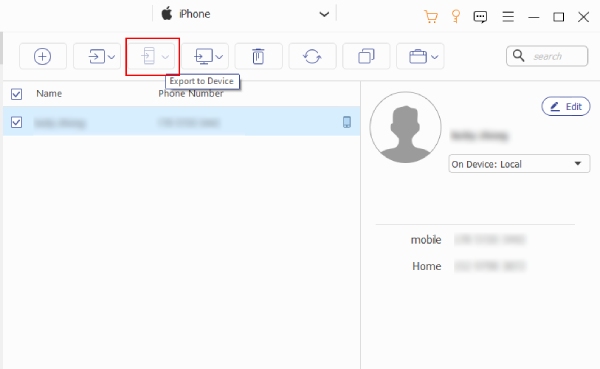
Step 2.After scanning, the tool will preview your contacts. You can manage them, create a group using the options above, or transfer them to another connected device by clicking "Export to Device".
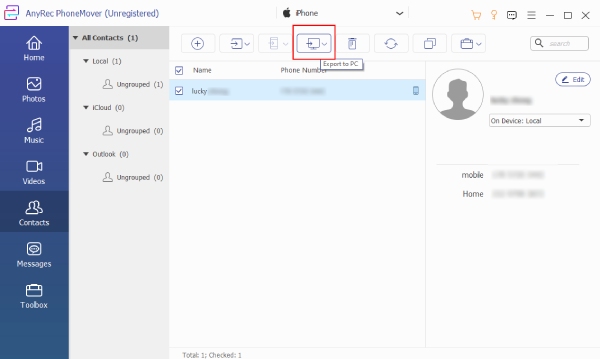
Step 3.If you wish to transfer the contact group messages to your computer, you can select all the contact group messages and click the "Export to PC" button to choose a destination. Then, click "Select Folder" to confirm the destination and start transferring iPhone contacts.
Secure Download
How to Create Contact Groups on iPhone with Groups App
Another option is to use a third-party application called Groups, which allows you to easily create, manage, and organize your contact lists directly on your iPhone. It's a great option if you frequently send messages or emails to multiple contacts at once. So, how do you make group chats on iPhone using the Groups app? Here are the steps you need to follow:
Step 1.Install the Groups app on your iPhone from the App Store. Then, once installed, launch it and provide the necessary permissions to contacts. After that, skip the following steps.
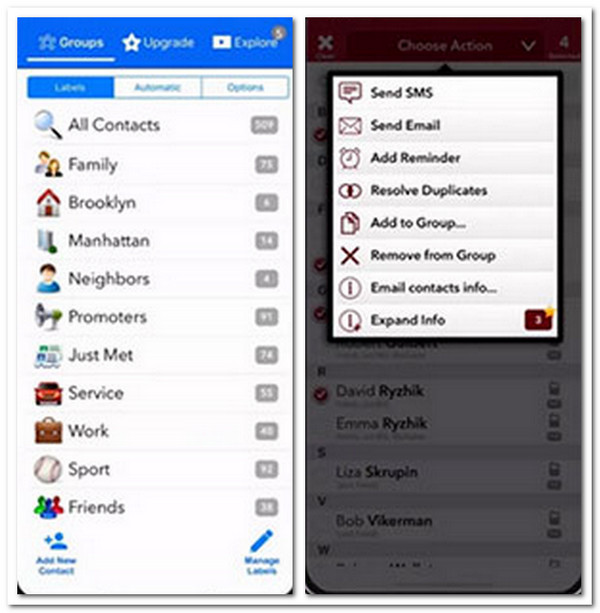
Step 2.Next, go to the "All Contacts" section and pick the contacts you want to add to your new group. After that, select "Choose Action" and then the "Add to Group" option.
Step 3.Then, tap "Copy Contact" and name your group. Next, tap "Done", and you can select the contacts in the new group to add necessary adjustments.
Conclusion
Creating contact groups is easy, most especially if you are guided to create and manage contact groups on iPhone, as featured in this post. These ways allow you to send group messages, organize contacts, delete duplicate contacts and make emailing more efficient. However, if you are looking for the best way that doesn't just let you create contact groups but also lets you manage and transfer their messages, then you need to use AnyRec PhoneMover. Well, the first step to discover this tool's capabilities by hand is to install it on your computer. Do it today!
Secure Download



