
How to AirDrop from iPhone to iPhone (and Why It Isn't Working)

Sharing photos, videos, and files between two iPhones has never been easier, thanks to the AirDrop feature. This built-in feature from Apple allows you to send content instantly without any third-party apps or cables required. How to AirDrop from iPhone to iPhone, then? What if it suddenly stops working properly? Dive in here to learn how to turn on and use Airdrop, why it is not working, a reliable alternative, and everything you need to know.
Guide List
What Is AirDrop on iPhone? Preparations You Should Do Detailed Steps to AirDrop from iPhone to iPhone [Guide] Why Can't You AirDrop from iPhone to iPhone Best Alternative Way to Transfer between iPhones without AirDropWhat Is AirDrop on iPhone? Preparations You Should Do
To get you ready for the steps to AirDrop from iPhone to iPhone, understand first what the feature is all about and how to prepare your iPhone for it. Knowing these will help you have a smooth sharing process. Let's start!
AirDrop is a built-in Apple feature for wireless file sharing that allows you to send photos, videos, and files, and more between nearby Apple devices. It utilizes Bluetooth and Wi-Fi to pair two devices, allowing fast transfers without any cables, internet, or cloud storage.
Thus, to ensure AirDrop works properly for sending files, here are some preparations you should do:
- 1. Turn on Bluetooth and Wi-Fi. AirDrop uses both, so ensure they are enabled in the Control Center or Settings.
- 2. Keep both iOS devices near each other. The transfer process will work faster when devices are within about 9 meters or 30 feet.
- 3. Check AirDrop visibility. To do so, access the "Control Center", tap on the "AirDrop" icon, long-tap on to see options for whom you're sharing: Contacts Only or Everyone for 10 Minutes.
- 4. Turn off Personal Hotspot. Having this feature enabled can interfere with the AirDrop transfer process.
- 5. Unlock two iPhones. The recipient's iPhone must be on and unlocked for it to appear in the sender's AirDrop list.
Detailed Steps to AirDrop from iPhone to iPhone [Guide]
After preparing your iPhone for AirDrop, it's time to send and receive files from iPhone to iPhone with AirDrop. The steps are just simple and quick, whether it is a picture, video, contact, or document. Just ensure both iPhones have Wi-Fi and Bluetooth enabled and are close to each other. Follow the steps below to AirDrop from iPhone to iPhone successfully.
Step 1.Go to the file you wish to share, such as a photo, video, or document. For example, head to the "Photos" app and locate the picture you want to AirDrop.
Step 2.From the photo, tap the "Share" button, and then select "AirDrop" from the sharing options. And your iPhone will immediately search for nearby Apple devices.
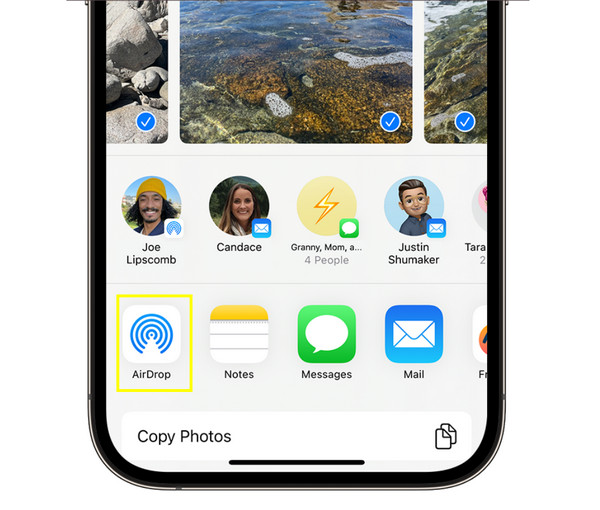
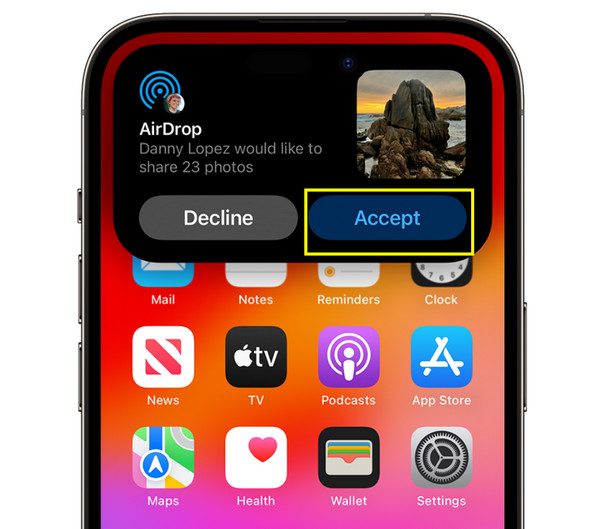
Step 3.Tap the receiving device's name. From the recipient's iPhone, accept the transfer by tapping the "Accept" button pop-up on screen. Later, you'll see the shared picture in the library.
Why Can't You AirDrop from iPhone to iPhone
Sometimes, AirDrop won't work as smoothly as you expected. You may notice that the recipient's iPhone is not appearing on your list, or the transfer process fails suddenly. Problems like these are usually caused by settings or connectivity issues, and not hardware failures.
See below the most common reasons why you can't use AirDrop to send items from iPhone to iPhone, and what you can do to fix them.
- • Bluetooth or Wi-Fi is turned off. AirDrop needs both to work; if not, the transfer won't push through.
- • Devices are too far from each other. AirDrop works within a short range only, so if the devices are too far, they won't be connected.
- • AirDrop visibility is limited. Your settings might be set to Contacts Only or Receiving Off.
- • Personal Hotspot is turned off. Having this active interrupt the Wi-Fi function, which AirDrop transfer needs.
- • Software issues or outdated iOS. Older software may cause compatibility issues or glitches.
- • The recipient's iPhone is locked. The receiving device may be unlocked, which is why it is not appearing in the AirDrop list.
Best Alternative Way to Transfer between iPhones without AirDrop
Still not impressed with how AirDrop transfers from iPhone to iPhone? If so, try the alternative AnyRec PhoneMover allows you to move photos, videos, messages, contacts, and music effortlessly between iPhones without Bluetooth and Wi-Fi. It provides a quick and stable USB connection, ensuring your files will be transferred smoothly and securely every time. Plus, you can preview your selected data first before transferring, to ensure you only move the ones you actually need.

Can transfer all file types such as photos, videos, music, contacts, and more.
No compression or data loss, preserving original quality during transfer.
Preview files before sending to select specific items to transfer.
Let you add, delete, edit, and organize files within the program.
Secure Download
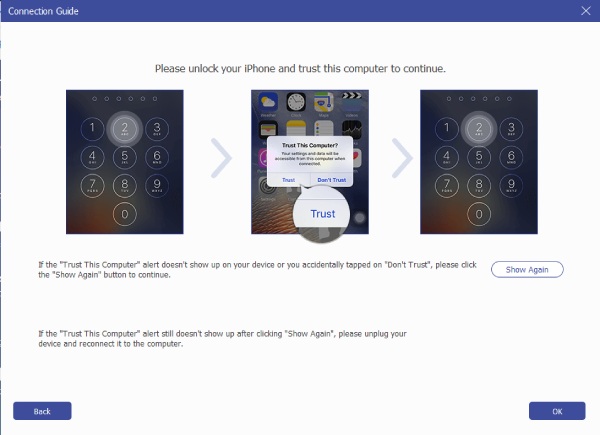
Step 1.Open AnyRec PhoneMover on your computer and connect both iPhones. When prompted, tap "Trust" on each device to allow access. Then, determine which one is the source and target device.
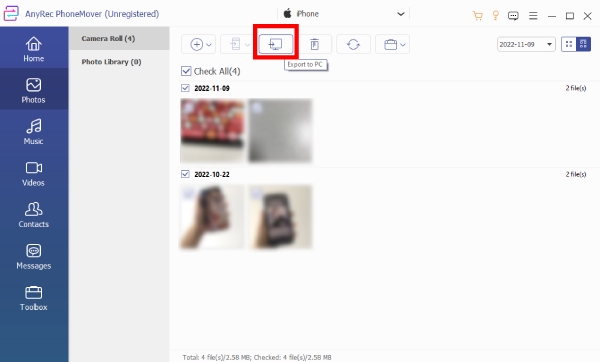
Step 2.From the left side bar, select a category, e.g., Photos, Videos, Music, Contacts, or Messages. The program will then scan your iPhone and organize files for easier selection.
Step 3.Check the boxes following the file you wish to move. Click the "Export to Device" button and select the other iPhone connected.
Conclusion
AirDrop is one of the easiest and most efficient ways to share files between iPhones. With just a few taps, you can quickly use AirDrop on iPhone to send and receive files, whether it is photos, videos, contacts, or documents. However, if it does not work due to some issues, you can try its best alternative, the AnyRec PhoneMover. This professional tool allows you to move files between iPhones quickly via a USB cable. You can even preview files before transferring, making it ideal for managing and organizing your iPhone every time.
Secure Download



