
Hot

AnyRec Video Converter
120× faster video conversion and editing. No waiting.
Secure Download
WebM to MP4: Get 6 Ways to Change WebM Files Online/Offline

For everyday users, creators, and students, the need to convert WebM to MP4 has become so strong since many devices and platforms prefer the MP4 format. Whether you wish for broader compatibility, smoother playback, or easier editing, doing the conversion is the best solution. And today, six tools are shared, with clear steps and their strengths, to change WebM to MP4. Regardless of your skill level, you will find a method that works for you perfectly.
Guide List
Essential Considerations When Converting WebM to MP4 AnyRec Video Converter - Fast and Versatile High-Quality Converter Handbrake - Open-Source and Free Encoder VLC Media Player - Free Player with Basic Conversion Any Video Converter - Fast Converter with GPU Acceleration DVDFab Video Converter - Full-Featured Video Converter Convert Small-Size WebM to MP4 OnlineEssential Considerations When Converting WebM to MP4
While straightforward, converting WebM to MP4 has several essential factors if you wish to ensure the best quality and compatibility. Whether you're using a desktop converter or not, understanding the following will make sure the output meets your needs.
- 1. Quality Preservation. Check if the converter maintains the original resolution and bitrate.
- 2. Audio and Video Sync. Ensure the tool preserves all timing, especially for lengthy and high-resolution videos.
- 3. Output File Size. Consider the tool that allows you to adjust the bitrate or compression without quality loss.
- 4. Conversion Speed. Large WebM files take time to convert, and having a GPU-accelerated tool can reduce waiting time.
- 5. Compatibility with Devices and Platforms. MP4 is widely supported, but choosing the correct codec ensures playback on your chosen device.
- 6. Extra Editing Features. If you need any trimmings or other edits, make sure the converter supports these features.
AnyRec Video Converter - Fast and Versatile High-Quality Converter
Made to convert WebM files to MP4 quickly while maintaining excellent video quality, AnyRec Video Converter covers a thousand video and audio formats, making it an all-in-one solution for anyone. The software also works smoothly whether you want to convert a single video or process multiple files at once, ensuring a high-quality workflow on both Windows and Mac. Also, it offers built-in editing tools, letting you trim, rotate, crop, merge, or apply filters to your video before exporting.

Converts WebM to MP4 and supports thousands of formats with high-quality.
GPU hardware acceleration for fast video conversions.
Edit videos by trimming, reversing, cropping, etc.
Batch conversion for handling multiple WebM files simultaneously.
Secure Download
Secure Download
- Pros
- Wide range format support; high video quality; built-in editing tools
- Cons
- Full access to features in the pro version.
Step 1. Open AnyRec Video Converter on your computer and click the "Add Files" button to import your WebM video.
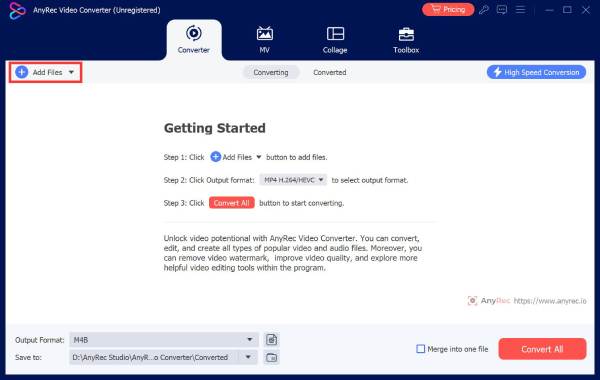
Step 2. Click the "Format" button. Choose "MP4" as the output format in the "Video" section.
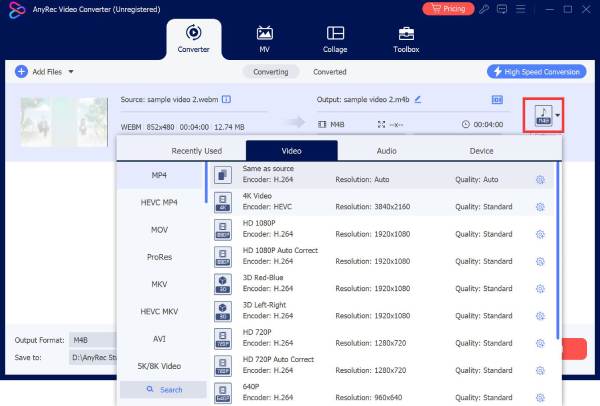
Step 3. On the main screen, set the output folder and file name. After that, click the "Convert All" button to begin converting WebM to MP4.

Secure Download
Secure Download
Handbrake - Open-Source and Free Encoder
Next is Handbrake, a free and open-source video converter that helps you turn WebM to MP4 with full control over codec, bitrate, frame rate, and resolution. The tool offers presets optimized for devices like iPhone, Androids, or game consoles.
- Pros
- Cross-platform tool; batch conversion is supported; deep customization.
- Cons
- Its screen can be confusing for starters; very large files can take time.
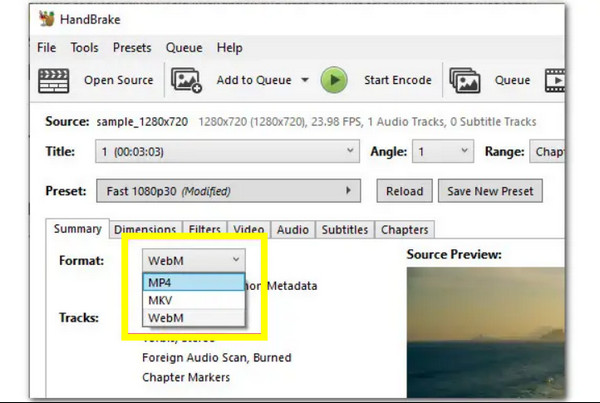
- 1.Launch Handbrake, then load your WebM file.
- 2.Next, in the "Summary" tab, select "MP4" as the output format.
- 3.Adjust other settings as needed.
- 4.Click the "Start Encode" button to begin conversion.
VLC Media Player - Free Player with Basic Conversion
VLC Media Player, while known as a media player, has a conversion tool for converting WebM to MP4. It works free, cross-platform, and can support basic codec settings as well as select output resolution and file destination.
- Pros
- Works free and is widely available; lightweight tool; ideal for basic conversions.
- Cons
- Not perfect for large files; conversion sometimes takes time
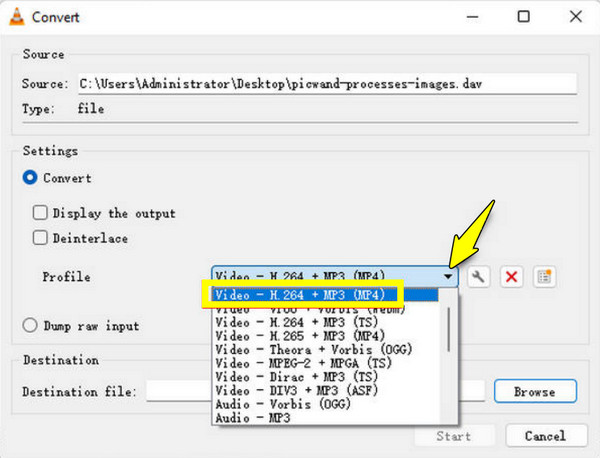
- 1.Once VLC is opened, head to "Media" then "Convert/Save".
- 2.Add your WebM file in this window, and click "Convert/Save".
- 3.Next, select "Video - H.264 + MP3 (MP4)" as the Profile.
- 4.Set a file name and location before clicking "Start" to start the conversion.
Any Video Converter - Fast Converter with GPU Acceleration
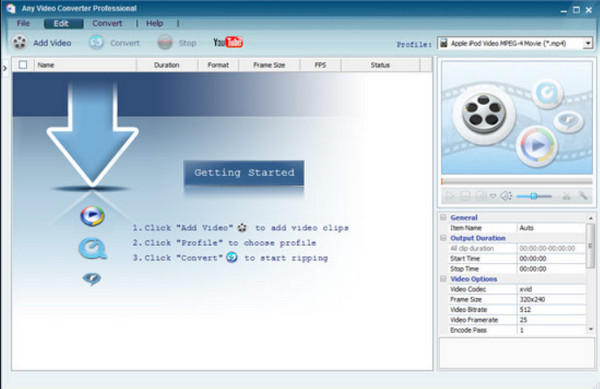
Any Video Converter supports a wide range of input and output formats, including WebM and MP4. Additionally, it includes editing features and GPU acceleration for faster conversion, especially for large videos.
- Pros
- Wide format support; faster conversion speed; editing features.
- Cons
- Large batch conversions take time; slight quality loss depending on settings.
- 1.Start the Any Video Converter.
- 2.Add your WebM video file to the program, and select "MP4" as the output format.
- 3.Adjust settings and edit WebM files if desired.
- 4.Click the "Convert Now" button to begin conversion.
DVDFab Video Converter - Full-Featured Video Converter
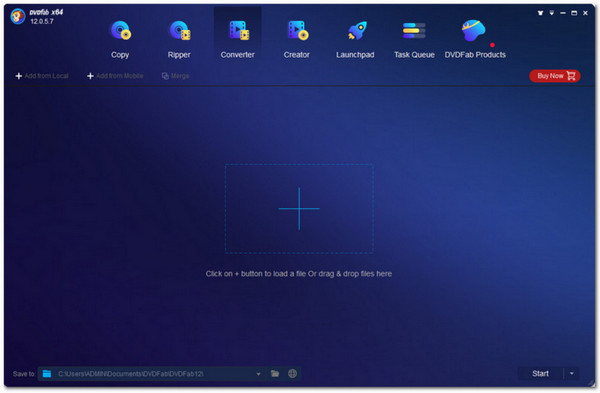
The following conversion tool is a comprehensive desktop program that turns WebM to MP4 flawlessly: DVDFab Video Converter. It includes device-optimized output files as well as allows you to adjust settings for the high-quality output you wish. If your WebM file is too large to share, you can compress WebM videos within the program before the conversion.
- Pros
- Several formats and devices are supported; customizable settings and more advanced options.
- Cons
- Larger installation size; may be complex for simple conversion tasks.
- 1.Run the DVDFab Video Converter on your computer, and import your WebM files.
- 2.Then, choose "MP4" as your format or a device-optimized preset.
- 3.Adjust settings as needed before clicking "Start" to finalize the conversion.
Convert Small-Size WebM to MP4 Online
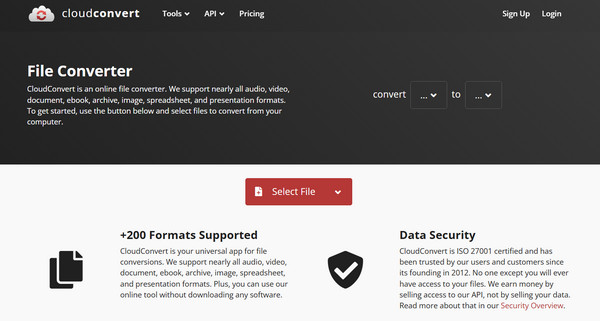
For a no-installation solution to save WebM to MP4, an online tool like CloudConvert is what you need. This web-based converter processes videos smoothly and lets you fine-tune output settings before exporting your file.
- Pros
- Supports many formats; customizable settings; cloud-based processing.
- Cons
- Uploading large files may be slow; limited free conversions per day.
- 1.Go to the CloudConvert website.
- 2.Click the "Select File" button to import your WebM file.
- 3.In the format dropdown, select "MP4".
- 4.You can adjust settings if needed, and then click "Convert" to start processing.
Conclusion
Using the wide range of tools here, you can quickly convert WebM to MP4 videos across desktop and online. Whether you want a quick browser-based solution, a media player, or a complete professional converter, the methods here offer their own strengths for various needs. Among them, for a converter that combines speed, simplicity, and powerful features in one program, AnyRec Video Converter is the best choice! This tool finishes your WebM to MP4 tasks with consistent, high-quality results.
Secure Download
Secure Download
Related Articles:
About Our Author




