
3 Effective Ways to Convert AVCHD to AVI [Desktop & Online]

Having trouble playing an AVCHD file on a player or device? Well, you need to convert AVCHD to AVI to make that happen. Why? Because videos in AVCHD format captured from camcorders are not widely supported. In that case, you may have a hard time playing it on most media players and devices, unlike AVI, which is a widely supported format. So, how do you convert AVCHD MTS videos to AVI? Let this post show you three easy and practical ways. See them below.
Guide List
Why Convert AVCHD to AVI Convert AVCHD to AVI on Windows Save AVCHD as AVI on Mac Change AVCHD to AVI Online Best Settings for AVCHD to AVI Conversion FAQsWhy Convert AVCHD to AVI
Before you start converting AVCHD to AVI, it helps to understand why you need to convert an AVCHD file to the AVI format first. So, AVCHD (Advanced Video Coding High Definition) is a format used by camcorders and digital cameras to record high-quality videos. Despite the high quality of AVCHD footage, these files are not widely supported and can be tricky to work with. Here are the main reasons why people change AVCHD to AVI:
- Better Compatibility - As mentioned earlier, not all media players or devices support AVCHD. So, converting it to AVI will make it playable almost anywhere.
- Easier Editing - AVCHD files are highly compressed and can be heavy for editing software. On the other hand, AVI files are easier to edit, especially on older computers.
- Simpler Sharing - AVI is a widely recognized format, which makes it easier to share videos without playback issues.
- Smoother Playback - AVI can provide a smoother viewing experience with less lag, compared to AVCHD.
Convert AVCHD to AVI on Windows
If you are using a Windows PC, one of the best options that you can use to convert AVCHD files to AVI is to use the professional AnyRec Video Converter. This Windows and Mac-compatible tool is a dedicated media file converter that supports converting AVCHD video files to AVI format. Conversion can be risky, primarily due to potential quality loss. But with this professional tool, there is no need to worry, as it delivers high-quality output even when converting multiple AVCHD files simultaneously. What makes this tool even more amazing is that it lets you tweak the output's quality, giving you complete control over it, which you can then further enhance or balance.

Convert AVCHD files to AVI at 120x faster speed with high quality.
Convert multiple AVCHD files to AVI simultaneously with no compromise in speed.
Supports a trimmer that allows you to cut out unwanted AVCHD video segments.
Offers an MV Maker to compile all AVCHD videos and save them as one AVI video file.
Secure Download
Secure Download
Step 1. Launch AnyRec Video Converter on your Windows. After that, click "Add Files" to import the AVCHD file you wish to convert.
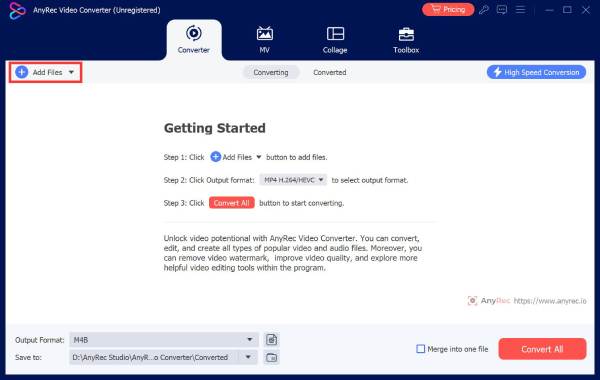
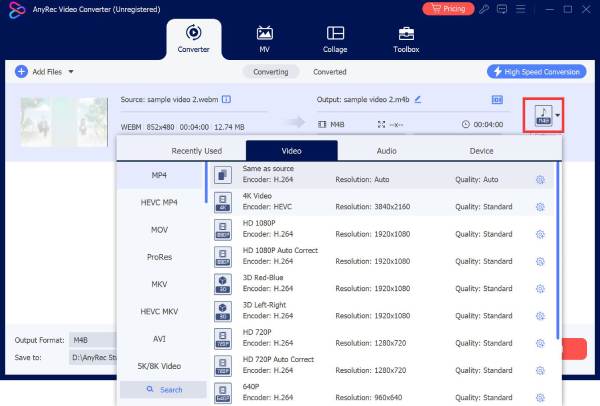
Step 2. Next, click the "Format" in dropdown menu at the right end of the imported AVCHD file. Then, click the "Video" tab, "AVI" from the list of formats, and choose "Same as source.
Step 3. After that, click the "Convert All" button in the lower right section to begin the conversion operation. And that's how you use this tool as your AVCHD to AVI converter on Windows.

Secure Download
Secure Download
- Pros
- Easy to use and start the conversion process.
- Delivers high-quality AVCHD to AVI conversion.
- Supports options to edit AVCHD videos before converting.
- Includes an automatic video enhancer for a better playback experience.
- Supports batch conversion.
- Cons
- Recommends purchasing a paid plan for the whole experience.
Save AVCHD as AVI on Mac
If you are using a Mac, one of the best tools to convert AVCHD to AVI is VLC. Unlike the first featured solution for Windows, VLC is an open-source, free tool, meaning you can download and use it at no cost to convert your AVCHD video files to AVI. Moreover, initiating a conversion process with this tool, although it takes more steps compared to the first featured solution, is not complicated to perform. With this, you can ensure a smooth conversion on your Mac. Here's how to use it:
Step 1.

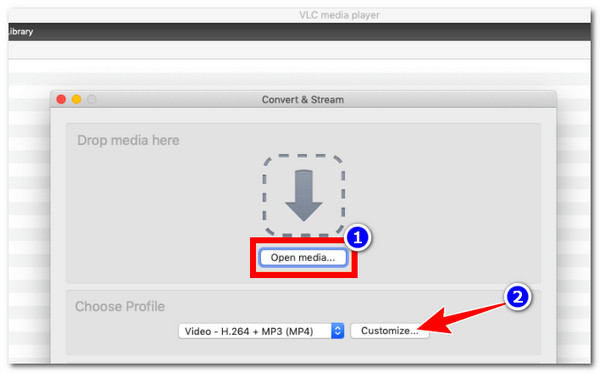
Step 2. Then, click "Open media" to import the AVCHD file. Next, click the "Customize" button, select the "AVI" format under the "Encapsulation" tab, and click "Save.
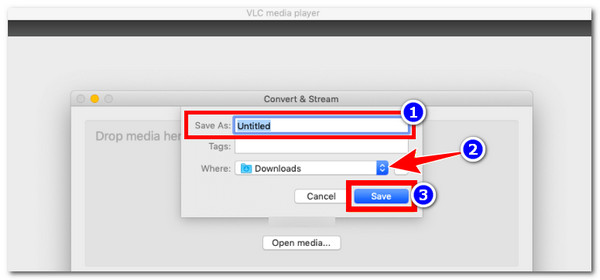
Step 3. Once done, click "Save as File" choose a file name, specify where you want to store it, and click "Save.
- Pros
- No watermark attached in your output video.
- Supports a wide variety of codecs without needing extra plugins.
- Use VLC to trim video, rotate video, and apply other video effects for free.
- Cons
- Converts files slowly compared to dedicated conversion software.
- Won't let you do batch conversion.
- Occasionally, it causes audio and video synchronization issues.
Change AVCHD to AVI Online
If you no longer want to install an extra AVCHD to AVI converter tool on your computer, you can try to utilize an online tool, like Convertio. This web-based tool also supports the ability to convert any AVCHD files into AVI. It offers a free conversion with no watermarks and provides a much more straightforward operation. So, how do you turn AVCHD to AVI online using Convertio? Here are the steps you need to follow:
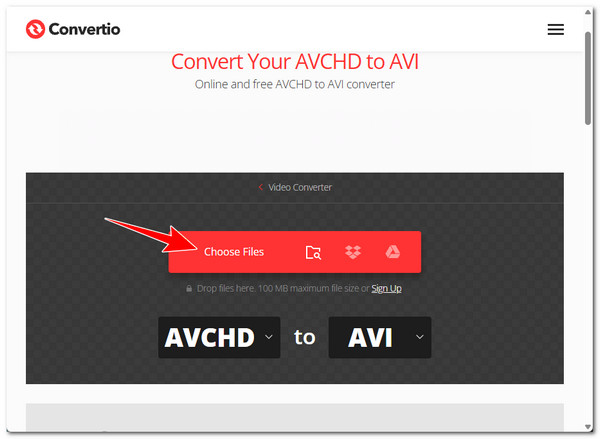
Step 1. Visit Convertio's Convert AVCHD to AVI Online & Free webpage on your browser. After that, click the "Choose Files" button to import the AVCHD file.
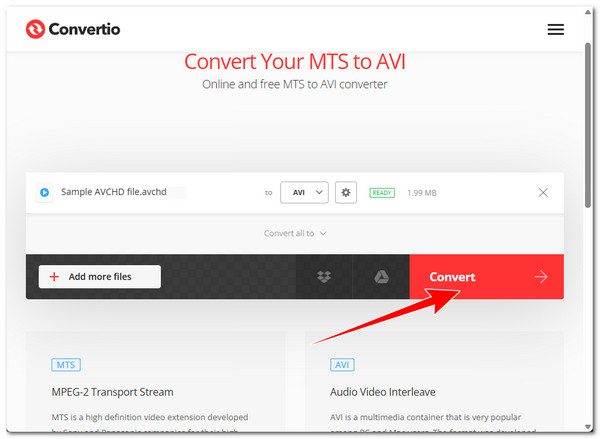
Step 2. Then, the online AVCHD converter will automatically select "AVI" as the output format. In that case, you can click the "Convert" button right away to start the conversion process.
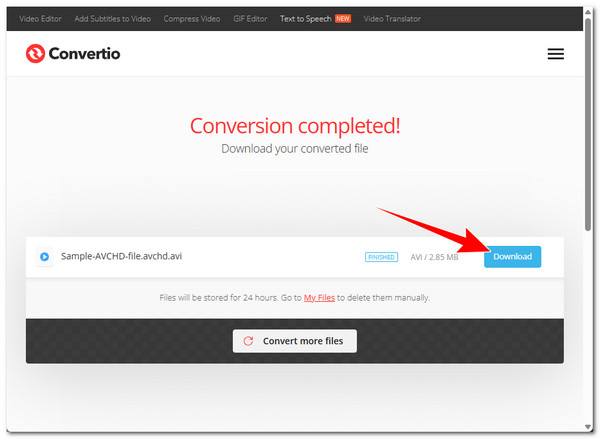
Step 3. Once done, click "Download" to save the AVI version of your AVCHD video file.
- Pros
- Free to use with no watermarks.
- Offers quick AVCHD conversion.
- Supports output tweaking options.
- Contains ads, but they are not intrusive.
- Cons
- Requires you to sign up for an account to import AVCHD files larger than 100 MB.
- Relies on a stable internet connection for fast conversion.
Best Settings for AVCHD to AVI Conversion
To get the most out of your AVCHD to AVI video conversion, focus on three key goals: quality, file size, and editing. Here's how to achieve each:
- Best Quality - Keep the original resolution and frame rate to preserve the sharpness and smooth motion of your video. Additionally, use a reliable codec like Xvid or DivX to maintain transparent colors and detail.
- Small File Size - Use a medium bitrate to reduce the file size while keeping the footage clear. This way, your videos are easier to store and share without losing too much quality.
- Editing-Friendly - Avoid heavy compression so your video plays smoothly in editing software. Moreover, this helps prevent lag or crashes while working on your project.
FAQs
-
1. Could converting an AVCHD video to AVI reduce its original quality?
Yes. When you convert an AVCHD file to AVI, its quality can be slightly reduced, especially with high compression or low bitrate. However, when you use good settings and keep the original resolution and frame rate can minimize the loss.
-
2. Is the AVI format a great option for converting AVCHD to?
AVI is a suitable format for converting AVCHD because it works on most devices and is easy to edit, but MP4 can be better if you want smaller files with good quality.
-
3. Do mobile phones support playing AVCHD video files?
No. Most mobile phones cannot play AVCHD files directly, but you can watch them using a special app or by converting them to MP4 or AVI.
Conclusion
Those are the three easy ways to turn AVCHD to AVI. Using them, you can easily store and play your AVCHD video files on any media player or device as AVI files. It will also be easier to keep all your great moments captured on your camcorder. If you want a fast, easy, and high-quality solution, use the desktop-based AnyRec Video Converter. With this AVCHD converter, you can quickly turn all your AVCHD files into AVI at once without compromising quality, and you can even enhance them further. Try it today!
Secure Download
Secure Download
About Our Author




