
3 Ways to Convert OGV to MP4 on Windows, Mac, and Online

Converting OGV files to MP4 can be really helpful for compatibility. OGV is a good file format for saving the storage while keep its high quality. Although being efficient, OGV files are not widely supported on most devices or media players today. The most practical solution is to convert OGV files into MP4. This guide will explore what OGV files are and provide three practical methods for converting them into MP4 without compromising quality.
Guide List
What is OGV File for Conversion to MP4? How to Convert OGV to MP4 with Original Quality How to Convert OGV to MP4 Using VLC Media Player An Online Solution to Converting OGV to MP4What is OGV File for Conversion to MP4?
OGV is a video container format associated with the Ogg project, developed by the Xiph.Org Foundation. OGV files gained popularity for their role in open-source applications and were once commonly used for embedding videos on web pages before MP4 and WebM became the standard.
So, why should you consider to change OGV to MP4 format? Although the OGV file format is an efficient and open-source format, in reality, the number of devices that support playing OGV files is quite limited. By 2025, in many popular devices, you will find that many media players and even editing software do not support OGV playback by default.
For this reason, converting OGV to MP4 has become a necessity. Whether you want to play video on MP4 players, upload it to social media, or edit it in professional software, you will not be notified with errors like unsupported format.
How to Convert OGV to MP4 with Original Quality
When it comes to saving OGV files to MP4, one of the primary concerns is the potential loss of quality during the process. Many free or online converters compress video heavily, resulting in blurry images or audio desynchronization. So, how can you manage to balance the file size and the picture quality at the same time? To avoid these issues, AnyRec Video Converter, a professional video conversion tool, is highly recommended.

You can choose lossless settings when transforming OGV to MP4 for better playback on modern devices. To efficiently complete your task, AnyRec Video Converter utilizes advanced GPU acceleration technology, which can significantly speed up the processing speed whether converting MP4 to OGV or vice versa. Don't worry, this process will not affect the quality of the conversion. You can follow the steps below to complete the task with no effort.

Convert OGV to MP4 with advanced CPU acceleration technology.
The original quality of the OGV video won’t be reduced after conversion.
Convert OGV files to MP4 format in batches to save your precious time.
Export the MP4 file converted from OGV without any watermark for free.
Secure Download
Secure Download
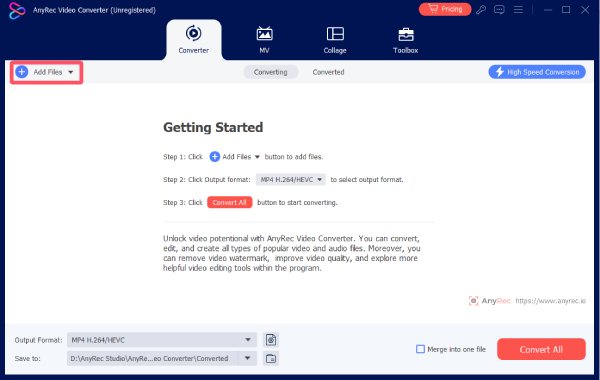
Step 1.Launch AnyRec Video Converter. Click the "Add Files" button. Upload your OGV file.
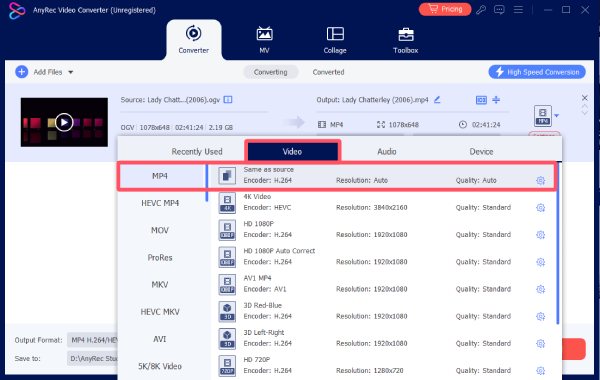
Step 2.Click the "Format" button. Under the "Video" tab, click the "MP4" button in the "Video" tab. You can adjust video settings, including video resolution, output quality, frame rate, and more.
Step 3.Finally, click the "Convert All" button to convert OGV to MP4 without losing its original quality.

How to Convert OGV to MP4 Using VLC Media Player
If you really use VLC media player to watch videos, you might not be aware that it is also a free option to help you export OGV to MP4 format. Apart from playing OGV videos, VLC media player can also assist you in converting it into a format compatible with other players. Although the formats it can export are relatively limited, the VLC to MP4 solution provides a simple, direct, and free method for quickly turn OGV files to MP4 format.
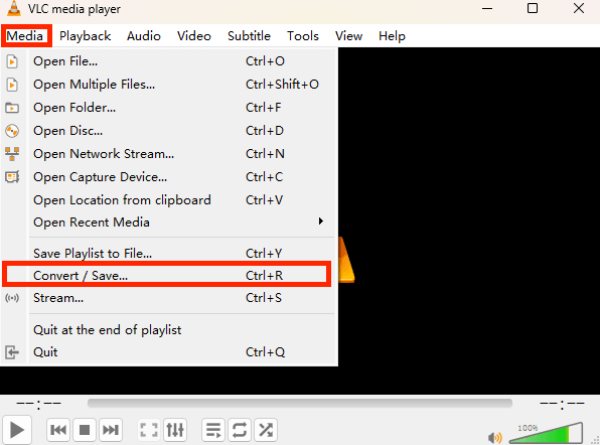
Step 1.Launch VLC media player and click the "Convert/Save..." button under the "Media" tab.
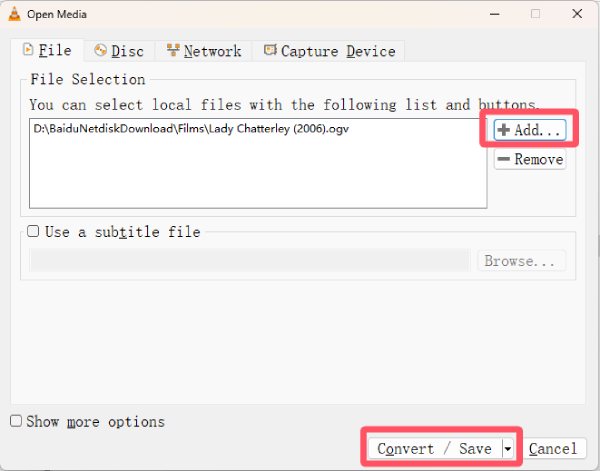
Step 2.Click the "Add..." button to import the OGV file. Then, click the "Convert" button.
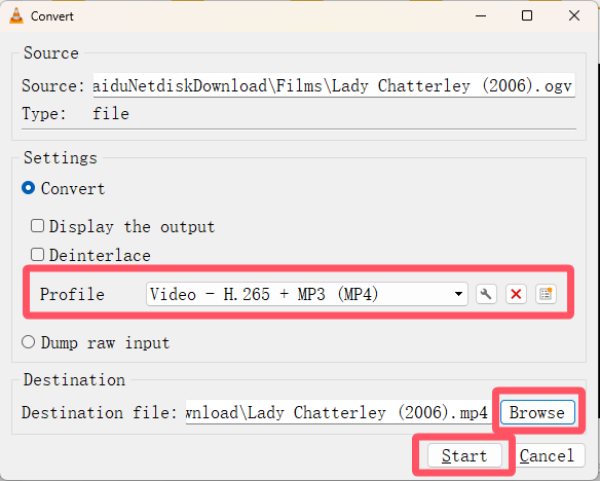
Step 3.Click the "Profile" button to choose MP4 format. Also set the destination. Finally, click the "Start" button.
An Online Solution to Converting OGV to MP4
Looking for an online OGV to MP4 converter? Try FreeConvert. Just upload your OGV file, choose MP4 as the output format, and let FreeConvert process the online video conversion.

However, this online OGV converter does not good for everyone. FreeConvert is free to use, supports various file formats, and does not require registration for basic conversions. However, FreeConvert has upload size limits, and the conversion process relies entirely on a stable internet connection. For quick and lightweight tasks, though, FreeConvert remains a handy choice.
Step 1.Open the FreeConvert website on your browser. Click the "Choose Files" button, then import the OGV video.

Step 2.Select MP4 from the "Output" list.

Step 3.At last, click the "Convert" button. Now you can save OGV to MP4 format.

Conclusion
The OGV to MP4 conversion is easy. You can easily change video formats using online and desktop tools without hassle. Among them, AnyRec Video Converter can help you resolve issues about OGV playback once and for all, ensuring smooth video enjoyment across all platforms.
Secure Download
Secure Download



