A Guide to 4:3 Aspect Ratio: Resolution, Uses, and Examples

Want to achieve the classic framing standard of 4:3 aspect ratio? This nearly square format was perfect for television and computer monitors for decades before the high-definition widescreen arose. Is it still up today? How does it differ from 16:9? In this guide, you'll see exactly how the 4:3 aspect ratio works, its most common applications, and the three best tools to crop your videos with precision. Scroll down for the details and crop your footage instantly.
Guide List
What is the 4:3 Aspect Ratio? How Does it Differ from 16:9? What Are the Common Applications of 4:3? How to Quickly and Precisely Crop Videos to 4:3? 2 Online Methods for Cropping to a 4:3 Aspect RatioWhat is the 4:3 Aspect Ratio? How Does it Differ from 16:9?
The 4:3 aspect ratio is a boxy, classic framing where the width is slightly differed than the height, creating a square look that focuses on the center of the image. With this aspect ratio, you can provide a more upright and intimate view of your subjects, making it a most-loved for every project, from vintage-style filmmaking to today's digital tablets.
In contrast with the modern 16:9 widescreen that stretches out to copy a cinematic theater experience, the 4:3 aspect ratio looks more compact and center. This is the reason why it was the go-to standard for older television for many years and, up to now, remains a great choice for reading and professional presentations.
What Are the Common Applications of 4:3?
As you know, the 4:3 aspect ratio provides a bland view that closely matches the natural human vision, making it ideal for structured content. Using more of it, it helps others avoid distractions of wide horizontal backgrounds. Listed below are some of its key modern applications:
- Digital Presentation. In slide presentations, they frequently use 4:3 as the default format, as it centers the text and data visualization.
- Photography and Printing. With a 4:3 aspect ratio, it reduces the need for destructive cropping during the printing process.
- Tablet and App Design. Devices such as the iPad are designed around 4:3 to mimic the standard sheet of paper dimensions, perfect for e-reading, note-taking, and other productivity apps.
- Cinematic Aesthetics. Today's directors and creators use the 4:3 aspect ratio to create an intimate atmosphere that focuses on the subject's face.
- Smart Home Security. Home cameras usually record in 4:3 videos to provide a head-to-toe view of visitors and packages.
How to Quickly and Precisely Crop Videos to 4:3?
Once you get the benefits of the classic 4:3 aspect ratio framing, you may need a reliable tool to convert the widescreen footage into a more compact format. So, here's AnyRec Video Converter for you. It offers a dedicated cropping tool that lets you lock the 4:3 video aspect ratio, ensuring you never lose the preferred composition of your frame. Furthermore, it handles high-resolution 4K files very smoothly while keeping the original quality during the export process.

Precision cropping to set aspect ratios in 4:3, 16:9, 21:9, and more.
Utilizes hardware acceleration to export videos up to 50x faster.
Built-in editor for trimming, rotating, applying filters, effects, and so on.
Full control over the quality, resolution, frame rate, and other settings.
Secure Download
Secure Download
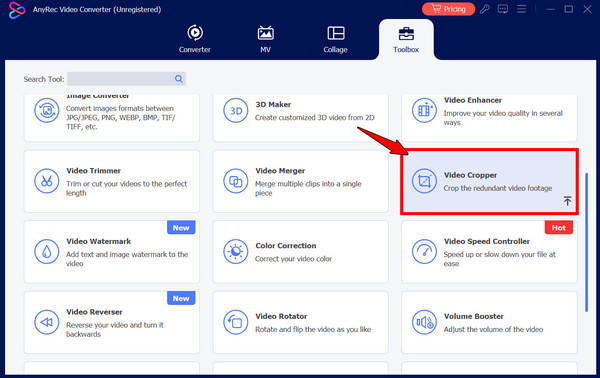
Step 1.Launch AnyRec Video Converter and click on the "Toolbox" tab at the top. Scroll through the list of toolkits available, and click the "Video Cropper" option.
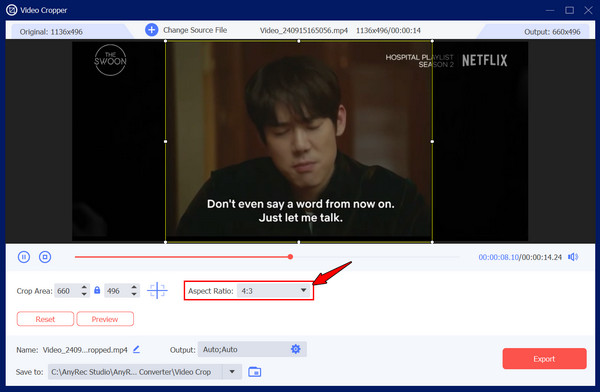
Step 2.In this new window, click the "Add" button to choose the video you want to change to a 4:3 aspect ratio. Then, find the "Aspect Ratio" dropdown menu and select "4:3".
Step 3.You can drag the yellow frame to position the crop into the important parts of your footage or use the "Crop Area" for a specific size.
Step 4.Click the "Export" button in the bottom right corner to get the result.
Secure Download
Secure Download
2 Online Methods for Cropping to a 4:3 Aspect Ratio
While software has the most power, online tools offer more convenient, installation-free alternative solutions for quick 4:3 aspect ratio edits. The following web-based platforms are perfect for smaller files or when you need to change a framing while working away from your main work desk.
1. Clideo Video Resizer
Clideo is a versatile web-based platform that focuses on preparing videos of specific social media standards, helping you achieve the 4:3 aspect ratio. Plus, it lets you change the background color and add a video blur effect if your crop leaves space in the frame.
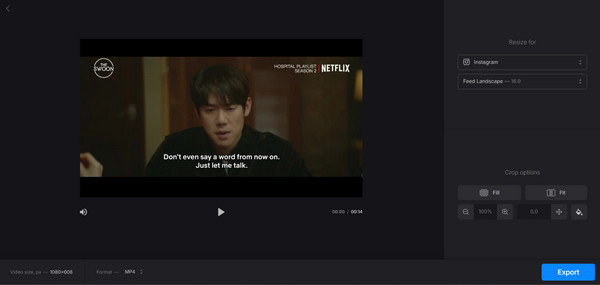
Step 1.Go to the Clideo Resize tool, and click the "Choose file" button to upload your video.
Step 2.From the right-hand panel, choose "Custom" and pick "4:3".
Step 3.Next, you can use the "Fill" or "Fit" buttons to adjust how the clip sits in the frame, then it's time to "Export".
2. Online Video Cutter Video Cropper
Next is Online Video Cutter Video Cropper, a straightforward option to achieve the 4:3 aspect ratio that is designed for maximum efficiency. This tool supports a wide range of file formats and lets you drag a cropping frame or choose a fixed ratio to crop a video on Windows 10/11 and Mac.
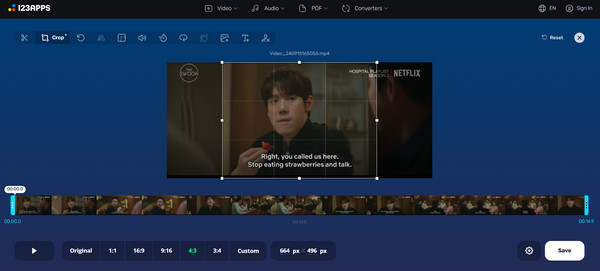
Step 1.Inside the Video Cropper tool, click the "Open file" button to upload your clip.
Step 2.There, click the "4:3" button in the preset ratio options.
Step 3.Then, drag the crop area to your preferred position and click the "Save" button to process and save your file.
Conclusion
While users may have switched toward widescreen, the 4:3 aspect ratio in pixels remains necessary for creators who love focus, clarity, and a classic style. You can use it for archiving old family pictures, optimizing a presentation for a tablet, or experimenting with a cinematic look. With the right dimensions and tools, you can ensure your subjects are always centered. And since the right software makes the perfect frame, AnyRec Video Converter is the ultimate solution for this! With its Video Cropper and support for high-resolution files, you can transform your widescreen footage into a perfectly 4:3 masterpiece within clicks.
Secure Download
Secure Download
Related Article
About Our Author