
How to Record Video from Website on PC/Mac/iPhone/Android

Record website video from all sources. Free download and use the Video Recorder or Window Recorder to grab online video and audio for 1:1 offline playback.
Secure Download
Secure Download
Regarding recording videos from mainstream sites, you may want to do it for offline viewing of the movies online or later review the online class you attend. But whatever the reasons, the situation is that you don’t know how to record video from website. Fortunately, several procedures are available, depending on what device you’re using. Make sure you respect the copyright and terms of service of the website you're recording. Don't share or resell those recorded videos without permission. It is just for personal watching.
Guide List
Record Website Video with AnyRec Screen Recorder Screen Record Video from Website Using OBS Use Free Online Screen Recorder How to Record Videos from Website on Android/iPhone Can't Record Video from Website? Use Those Fixes! FAQs about Website Video Recording| Browser Screen Recorder | Why to Choose | Why Not Choose | Supported OS |
|---|---|---|---|
| AnyRec Screen Recorder | Lightweight and easy to use. You can record entire screen, browser window, or custom region flexibly. | Need to upgrade full version to access the advanced editor. | Windows, Mac |
| OBS | Support multi-source recording with customizable layouts and tools. | High CPU usage. Low-end computer may crash frequently during recording. | Windows, Mac, Linux |
| Free Online Screen Recorder | No extra installing. 100% free to record online video from bowsers. | The maximum frame rate is 24fps. | Online |
| iOS Screen Recorder | Built-in with all iPhones. You can start quick recording via the Control Center. | Record video to MOV format only. | iPhone (iOS 11 and higher) |
| AZ Screen Recorder | Support internal audio recording without rooting. | The free version contains ads. | Android, iPhone |
How to Record Videos from Website [Windows/Mac]
AnyRec Screen Recorder gives the ultimate way to record video from website among the five ways. This tool is lightweight yet powerful recording software for everyone. You can make use of it to record online, calls, meetings, gameplay, classes, and from website moments. Not to mention it is free from watermark as well, this offline tool is also very lightweight, and will not use the Internet or occupy too much processing storage, which guarantee a smooth recording of videos from websites. Moreover, you can select an area to record videos from website, whether full screen, selected window, or customize any part. Using this user-friendly recorder, you can easily capture special moments, edit, and save your video in your desired formats.
Do video capture on all websites without popup.
Record browser audio and microphone voice flexibly.
Get advanced video trimmer, compressor, and more tools.
No watermark, time limit, or quality loss of website video recording.
Secure Download
Secure Download
Step 1.Soon after launching AnyRec Screen Recorder, click the "Video Recorder" button. Make sure the video you want to record on the website is ready.
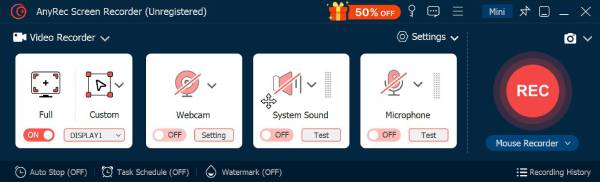
Step 2.Then, proceed to choose a desired area to record, whether "Full" or "Custom" option. Suppose you choose "Custom", you can easily customize the area or choose the active window.
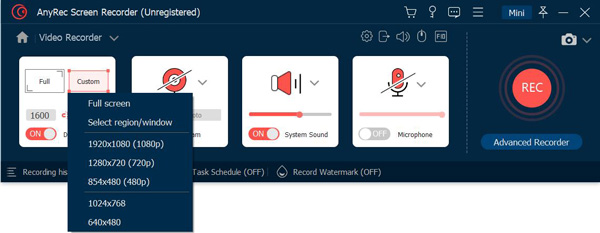
Step 3.Enable audio options such as the "System Sound" to capture the computer audio and the "Microphone" option to do a narration recording. Later, click the "REC" button to start.

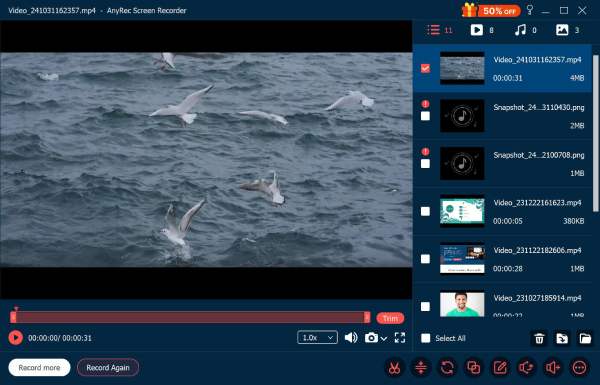
Step 4.Once finished, click the "Stop" button to move to the "Preview" window, watch the video, and check if trimmings are needed. Click the "Done" button to save the recorded videos from website.
Secure Download
Secure Download
How to Use OBS to Record Videos from Websites
OBS recommended minimum specs for recording (not gaming):
- CPU: Intel Core i5 or AMD Ryzen 5 (for x264 software encoding).
- GPU: Any dedicated GPU with NVENC/AMF support (reduces CPU load significantly).
- RAM: 8 GB minimum.
- For basic screen recording only (no gaming): Intel Core i3 with QuickSync works acceptably.
Another worthwhile way to record video off website is through OBS Studio. It offers a free and open-source recording for Windows, Mac, and Linux operating systems. With it, you can easily record videos on your computer, live streaming, and even video with a webcam to include your reaction. Here’s how to use OBS Studio to record video from the Internet:
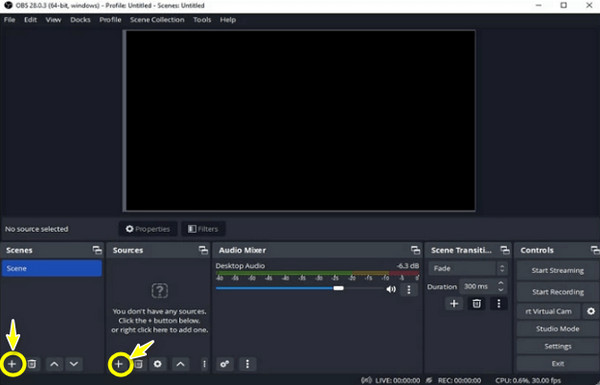
Step 1.Prepare your video, then launch the OBS Studio. On the left corner, click the "Add" button to add a new scene. Then, under the "Sources" section, click the "Add" button to add "Audio Input", "Output Capture", and "Browser".
You can also choose "Display Capture" and "Window Capture" to record videos per your conditions.
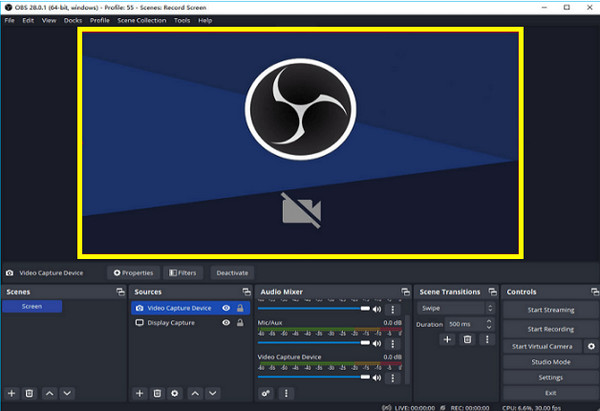
Step 2.If you wish to record video from website with your webcam, don’t forget to add "Video Capture Device". Later, paste the "URL" into the browser, and it will be displayed in the scene; you can adjust the position and size.
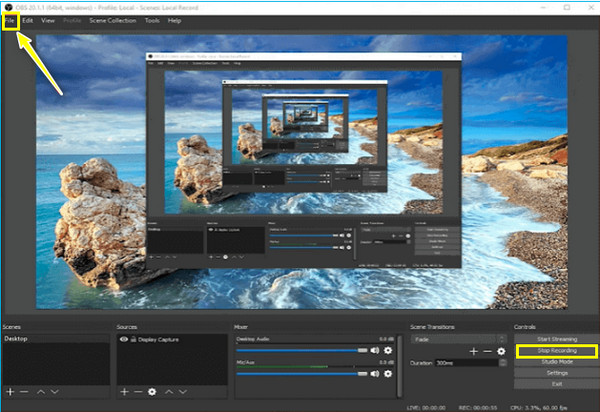
Step 3.After everything is decided, click "Start Recording" button to play the video; click the "Stop Recording" button once finished. To see the recording, click the "File" button and select "Show Recording".
OBS may record a black screen when capturing copyrighted videos due to DRM or HDCP. Platforms like Netflix, Hulu, and Disney+ use these technologies to prevent users from copying or distributing protected content. You can disable hardware acceleration in both of your browser and OBS Studio. Later, use Display Capture to start recording.
Online Way to Record Video from Website to MP4 for Free
Platform: Any browser (Chrome, Firefox, Edge, Safari)Price: Completely free, no registrationTime limit: NoneDownload required: A small launcher (~2 MB) is required on first useBest use case: Quick one-off recordings of non-DRM content. Good for tutorials, webinars, web demos.
After all the must-installed programs to record video from website, if you wish for a cozy way to capture video from a website without installing anything, AnyRec Free Screen Recorder is made for you! Being an online screen recording tool isn’t a hindrance to performing well, as it is capable of free recording video calls, videos, gameplay, and more!
- Record videos from websites with or without audio for free.
- Preserve your recordings, and let you organize them on the history list.
- Offers high-quality videos and audio in any scenario.
- Adding drawings and annotations can be done during recording.
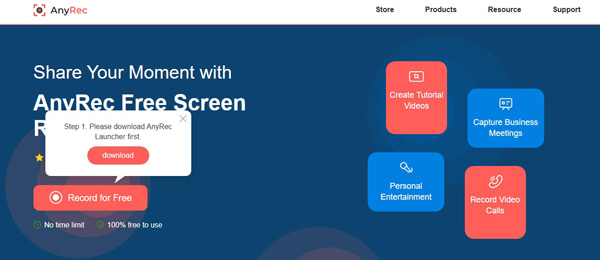
Step 1.Visit the AnyRec Free Screen Recorder official page. Later, click "Record Now" button, then choose the recording area and audio options. Please note that the video from the website should be ready.
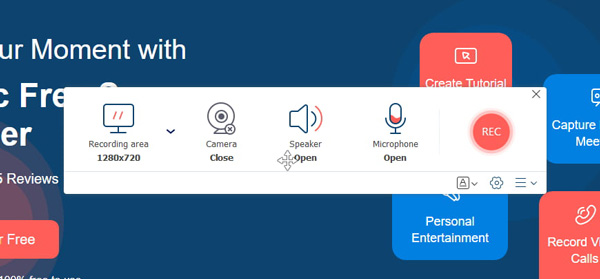
Step 2.After settling everything, click the "Rec" button to begin. Once it ends, click the "Stop" button and decide whether to use "WMV" or "MP4" format in exporting.
How to Record Videos from Website on Android/iPhone
Enough with computers, and start talking about recording video from websites on your mobile devices, such as Android and iPhone. Both offer an easy, quick, and unique way to record video from websites; for more details, read on to see what recording tool you’ll use on your mobile phone.
Record Video from Online Websites on iPhone with Default Recorder
Available since: iOS 11 (2017)Found in: Settings > Control Center > add Screen RecordingOutput format: MOV onlyStorage: Saves to Camera RollLimitation: Output is MOV only. You can't record a movie on Netflix, Amazon Prime Video, and most other major streaming apps due to DRM restrictions.
Thanks to the iPhone built-in recorder, you can effortlessly record video from website without facing concerns such as watermarks, limits, and others. The feature was introduced in iOS 11 and later versions, and it has become one of the most valuable features of the iPhone. But don’t expect so much from it since it may not meet your quality expectations. Anyways, for doing basic recording, see the detailed tutorial to record a browser video:
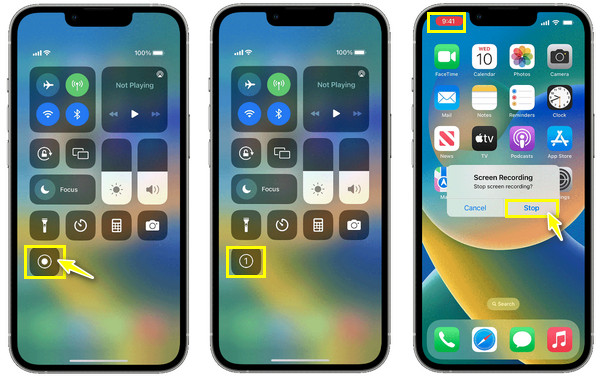
Step 1.Open the website video you want to record. Then, see the "Screen Recorder" in the "Control Center" by swiping up for iPhones with a Home button, while "swiping down" from the upper right corner for those without a Home button will do.
Step 2.In the Control Center, tap on "Screen Recording" or the "Circle" button to begin the 3-second countdown.
Step 3.When the video is done, tap the floating "Red" recording button above or open the "Control Center" to stop the recording of videos from website. The recorded video can then be watched on the "Photos" app.
Record Online Videos from Websites on Android with AZ Screen Recorder
Platform: Android (4.4+). Also available on iPhone. But the AZ Screen Recorder for iPhone version has significant limitations compared to the Android version.Price: Free with ads; Pro version removes ads.Root required: No. Internal audio recording works without root on Android 10+.
As for Android, there are lots of recorder apps that can help to record video from websites; one of the best is AZ Screen Recorder. Similar to how the built-in record works, the app supports capturing screen videos, calls, gameplay, and live streaming. Android users can also enjoy using it to do basic editing on their recorded videos. To discover how to record video from a website, read on for comprehensive steps.
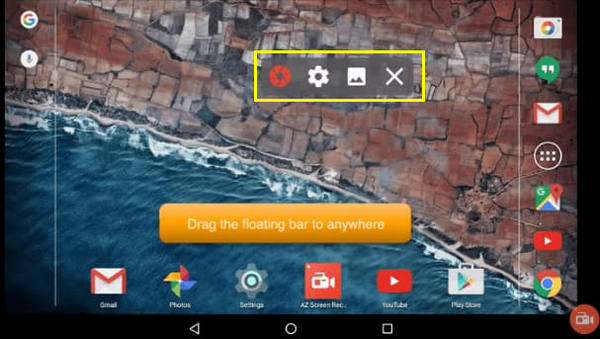
Step 1.Once the AZ Screen Recorder is installed on your Android device, launch it. You’ll immediately see a "bar" on your screen.
Step 2.Inside the application, tap on the "Record" button to start recording videos from website and wait for the three-second countdown.
Troubleshoot Website Video Recording Failure
You may encounter scenarios in which the video goes blank or black while recording. That's because the website detects screen recording and blocks it. The unstable network and browser compatibility issues also cause this recording error. But don't worry about that. You can use the following solutions to bypass the screen recording not working problem.
- Update your browser and screen recorder software to the latest version.
- Increase the video recording quality, increase or decrease the frame rate, and change the screen recording region.
- Test the Internet speed to see if it makes your video laggy, pause, or crash.
- Quit background programs to bypass software conflicts.
- Check if there is enough storage space for your recording video.
- Use another phone or camera to record videos.
FAQs about Website Video Recording
-
Why does my recording show a black screen where the video was?
It is the DRM protection that blocks screen capture. Disable hardware acceleration in your browser (see above), then try recording in the browser instead of the app.
-
Is recording streaming video legal?
Yes. Recording for personal offline viewing is legal in many jurisdictions under fair use or time-shifting principles. However, it is illegal to redistribute copyrighted content, share recordings publicly, upload to YouTube, or sell. Always check the laws in your jurisdiction.
-
Does recording affect video quality?
Screen recording captures what's displayed on screen, which is already compressed by the streaming platform. The resulting file is a re-encoded copy of a compressed video. So, the video quality will be lower than the source. You can use a high bitrate in your recorder to preserve what's on screen, but cannot recover quality lost in the platform's own compression.
Conclusion
That’s how easy it is to record video from website! As you see, it is much easier if you have the right screen recording tool in mind, like the OBS Studio, built-in on iPhones, AZ Screen Recorder for Android, etc. So you can save a video that is unavailable for download but viewable. Even though the video link cannot be copied, you can still make a digital copy by capturing its video and audio. In short, AnyRec Screen Recorder is the go-to software for a more practical recording method! Besides capturing videos from website, you can edit and enjoy more recording options. Powerful features and high-quality results are waiting for you here!
Secure Download
Secure Download
Related Articles
About Our Author




