
5 Easy Ways to Play WebM Files [and Why They Won't Play]

WebM is a popular open-source format widely used for online streaming, especially on websites. However, not all media players or devices support these files by default, so how to play WebM files without encountering errors or black screens? Fortunately, this guide here offers several solutions to open WebM files on players and more browsers. Also, you'll learn how to convert WebM to MP4 for smoother playback on any device.
Guide List
Why WebM Files Won't Play on Some Devices How to Play WebM Files with AnyRec Blu-ray Player How to Open and Play WebM Files with Windows Media Player How to Play WebM Files with VLC Media Player How to Play WebM Files on Safari/Chrome/Firefox and More Browsers How to Convert WebM to MP4 for Smooth PlaybackWhy WebM Files Won't Play on Some Devices
While WebM is a widely used video format in online streaming, it may refuse to open or play properly since not all browsers or media players support it. Here's why WebM files won't play on some devices:
- Missing Codecs in Native Media Players. Many built-in players do not have the WebM codecs by default, so the player cannot simply decode the video or audio.
- Browser Does Not Support WebM. While most browsers, like Chrome and Edge, support WebM, others, such as Safari, may not.
- Limited Support on iPhone and Android Versions. Apple devices rely heavily on HEVC formats, and they do not support WebM playback. Also, older Android versions lack proper WebM decoding support.
- Corrupted File Download. If the WebM file was interrupted during transfer or download, it may become corrupted, which is why it won't open at all.
- Unsupported WebM Codec Profile. Not all WebM files are created with advanced codec profiles or some with higher bitrates that a player cannot handle.
- Outdated Media Player. Older players may not have the codec updates anymore, so they can't play the WebM videos.
- Hardware Limitations. Some low-end devices lack the hardware acceleration needed to decode WebM videos efficiently.
How to Play WebM Files with AnyRec Blu-ray Player
For a smooth and hassle-free way to view .webm files on Windows and Mac computers, using a professional media player like AnyRec Blu-ray Player is the most reliable and suggested solution. This WebM player stands out because it supports WebM playback natively, with no need for you to get extra codecs or browser extensions. And with its advanced decoding technology, it delivers high-quality playback with clear audio and minimal CPU usage.

Supports WebM, MP4, MKV, AVI, MOV, and hundreds of formats for playback.
Offers a smooth playback with hardware acceleration support.
Has an advanced audio decoding for clear and immersive sound.
High-quality playback up to HD, 4K, and even 8K resolution.
Secure Download
Secure Download
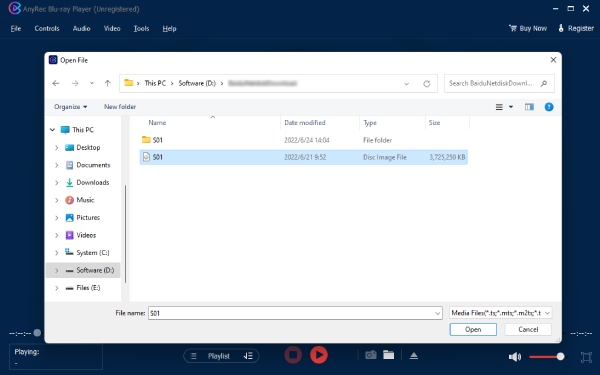
Step 1. On your computer, launch AnyRec Blu-ray Player. Click the "Open File" button on the main interface and select your video file from your computer.
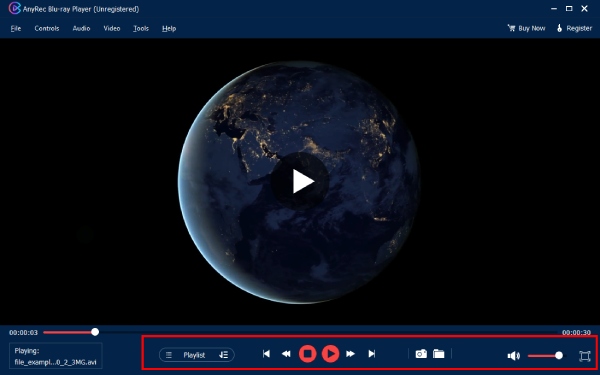
Step 2. The WebM video will begin playing immediately with complete control options, such as pause, resume, volume adjustments, and more.
Secure Download
Secure Download
How to Open and Play WebM Files with Windows Media Player
You can use Windows Media Player to open WebM files on Windows PCs. With the right codec installed, WebM playback becomes possible. Here are steps to play a WebM file as a video on Windows.
Step 1. Get the trusted WebM codec pack on your Windows PC, then restart your computer to make sure the codec is applied.
Step 2. Next, click on "File" in Windows Media Player. Then select "Open" and locate your WebM file.
Step 3. Once loaded, the WebM playback will begin.
How to Play WebM Files with VLC Media Player
VLC Media Player can be your free WebM player and editor on multiplatform. There is no need to install extra addons. You can get a quick playback without additional setup, whether on desktop or mobile. Moreover, you can edit WebM files using VLC for free too.
How to Play WebM Files on Windows/Mac with VLC
- 1.Make sure the operating system and VLC player are updated.
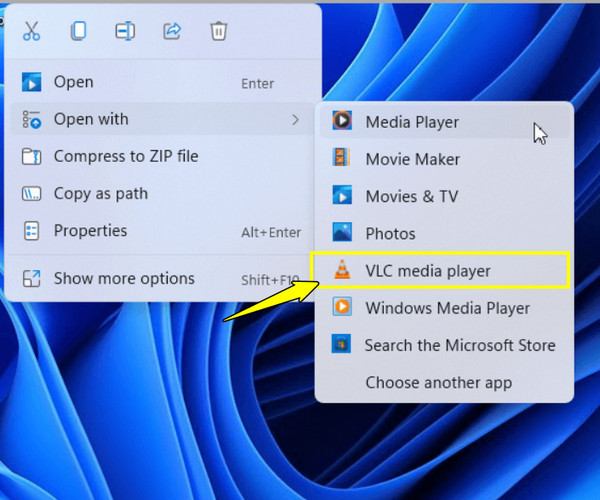
- 2.Now, right-click on your WebM video file and choose "Open with".
- 3.From the dropdown list, select "VLC Media Player". Confirm the selection to start playback.
How to Play WebM Files on Android/iOS with VLC
- 1.Get the VLC app from the Google Play Store or App Store.
- 2.Launch the app after installation, and allow it to access your device storage.
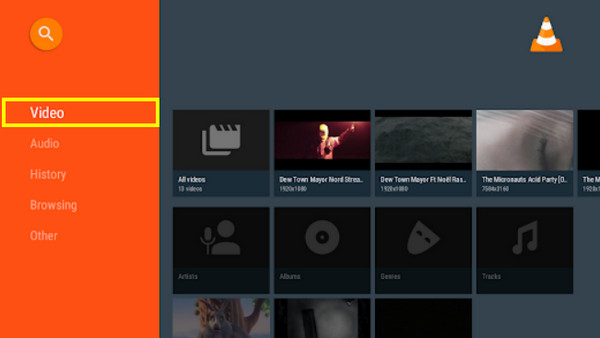
- 3.On Android, tap the "Video" or "Browse" tab to locate your WebM file. VLC will start playing it immediately.
- 4. Meanwhile, on iPhone, upload your WebM video via Files, AirDrop, or cloud storage.
- 5.Then, go to the "Video" tab, and tap on the WebM file to start playing.
How to Play WebM Files on Safari/Chrome/Firefox and More Browsers
Moving on to browser playback. It is one of the simplest ways to open and play WebM video files online, especially for online videos. While modern browsers support WebM, sometimes compatibility may vary depending on the version.
Step 1. Open a supported browser such as Chrome, Edge, or Firefox.
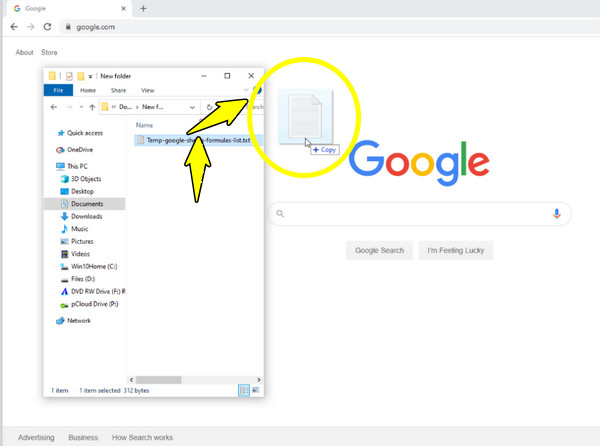
Step 2. Then, drag and drop the WebM file into a new browser tab; otherwise, right-click and select "Open with browser".
Step 3. Please wait for the video to load, and click "Play" to watch the WebM video file directly in your browser.
How to Convert WebM to MP4 for Smooth Playback
What if the playback issue persists across devices and platforms? For this, converting WebM to a more supported format like MP4 is the most practical solution, letting you play WebM files smoothly. Luckily, AnyRec Video Converter offers a fast, high-quality way to transform WebM files without noticeable quality loss, ensuring smooth playback on almost all devices. Besides WebM and MP4, the converters cover MOV, AVI, MKV, and more formats with hardware acceleration, so you can get the results in no time!
Secure Download
Secure Download
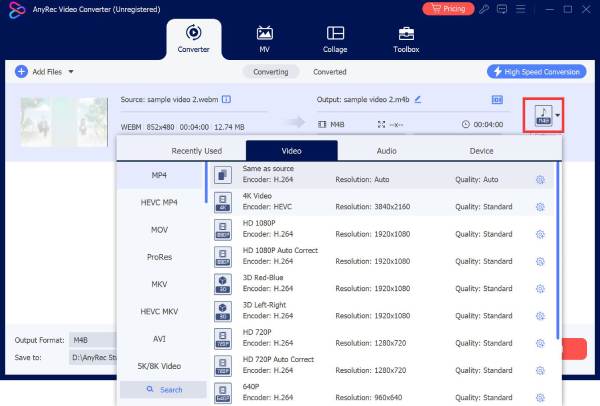
Step 1. Launch AnyRec Video Converter. Click "Add Files" to upload your WebM video file. Later, select "Video" from the "Format" dropdown menu, and choose "MP4".
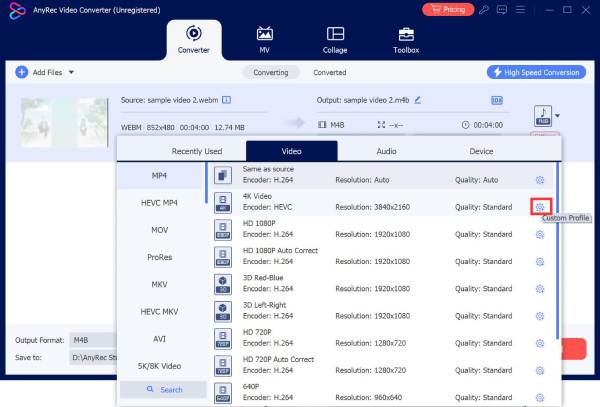
Step 2. From there, adjust video settings by clicking the "Custom Profile" button beside the format you choose.
Step 3. Click "Convert All" to export and convert WebM to MP4 video for smoother playback anywhere.

Conclusion
Despite the limited native support on some devices and players of WebM files, you've seen here that there's no shortage of practical solutions. Whether you wish to open WebM files on a media player like VLC or watch them directly on browsers, each method offers you a helpful way to enjoy WebM videos without playback errors. That said, if you wish for more straightforward instead of using a WebM video player, AnyRec Blu-ray Player is highly suggested. It covers WebM playback with high-quality video and audio, without additional codecs. With this performance, the player makes playing WebM files worry-free on any desktop system.
Secure Download
Secure Download



