
How to Record Video on PC: 5 Solutions & Troubleshooting

Is there a way to record video on PC? Yes! Whether it is for tutorials, online meetings, gameplay, or simple on-screen activities, recording tasks on PC has become essential. And doing so requires the right screen recording tool. Therefore, this article explores five reliable tools to record computer screen on Windows 11/10, from built-in solutions to third-party tools. Along the way, you'll see the common problem with fixes to capture your Windows PC screen without frustration.
Guide List
How to Screen Record on PC with Audio and Webcam How to Record a Video on PC with Xbox Game Bar How to Record a Webcam Video on PC with the Camera App How to Record Computer Screen on Windows with OBS How to Screen Record on Windows with Audio for Free Common Problems and Fixes for Windows RecordingHow to Screen Record on PC with Audio and Webcam
Best for: Tutorials with webcam overlay, online meetings, long recordings, and gameplay.
For a complete recording solution to record video on PC, AnyRec Screen Recorder is a strong place to start. Unlike Windows' built-in tools, this program records your screen, system audio, mic, and webcam at the same time, without losing quality. It is easy to use yet powerful enough for tutorials, meetings, gameplay, and more professional recording tasks. Regardless of short or long sessions, the program delivers stable performance and high-quality results.

Capture screen in high-quality, up to 4K, with smooth frame rates.
Built-in preview and editing tools to enhance video before saving.
Get 7 recording modes to capture all video and audio on desktop & phone.
Adjust recording settings like frame rate, resolution, and format.
Secure Download
Secure Download
Step 1.Open AnyRec Screen Recorder. From the "Video Recorder" screen, decide whether to capture the "Full" or "Custom" screen.
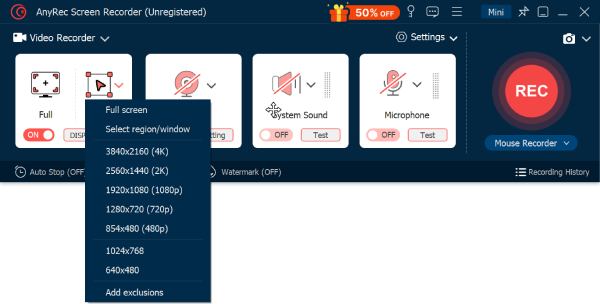
You can also go to "Settings" then "Output" to adjust resolution, frame rate, or format.
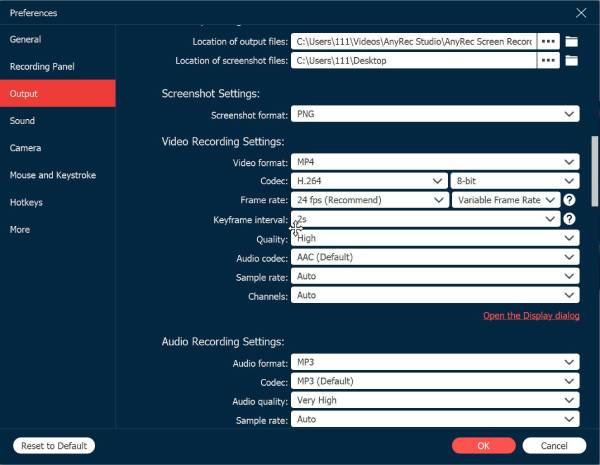
Step 2.Turn on "System Sound" and "Microphone" toggles to record not only computer audio but also microphone voice. You can turn on "Webcam" to record screen video with your reactions too. Adjust the volume levels to get a balanced sound.
Step 3.Click the "REC" button to start. Using the toolbar, you can pause, stop, take screenshots, etc., during recording.
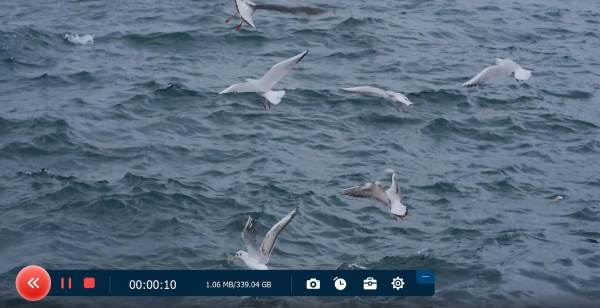
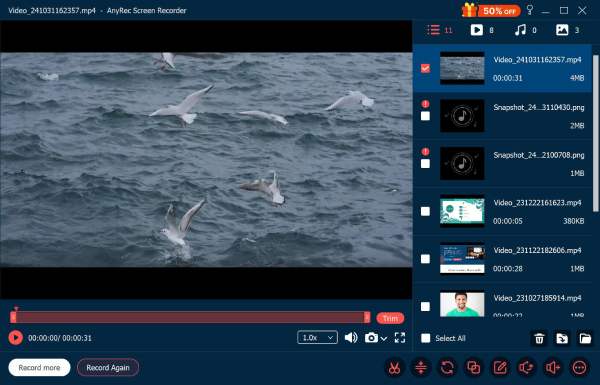
Step 4.Click the "Stop" button when done. In the preview window, watch your recording, trim any extra parts, then click the "Save" button to save the video on your PC.
Secure Download
Secure Download
How to Record a Video on PC with Xbox Game Bar
Best for: Quick app captures, gameplay recording, and short recordings.
Moving on to the built-in Windows tool, Xbox Game Bar is one of the most accessible options for a quick video recording on PC. It is handy for capturing app activity or gameplay with no hassle.
Step 1.Press the "Windows + G" keys. From the Capture widget, click the "Record" button to begin capturing on-screen activity. Enable "Microphone" if narration is needed.
Step 2.Later, press the "Windows + Alt + R" keys to stop.
Step 3.Find the recorded video in the "Videos" then "Captures" folder.

Cons
No webcam overlay support.
Cannot record File Explorer.
Only limited customization options.
How to Record a Webcam Video on PC with the Camera App
Best for: Video messages, quick recordings, and webcam-only recordings.
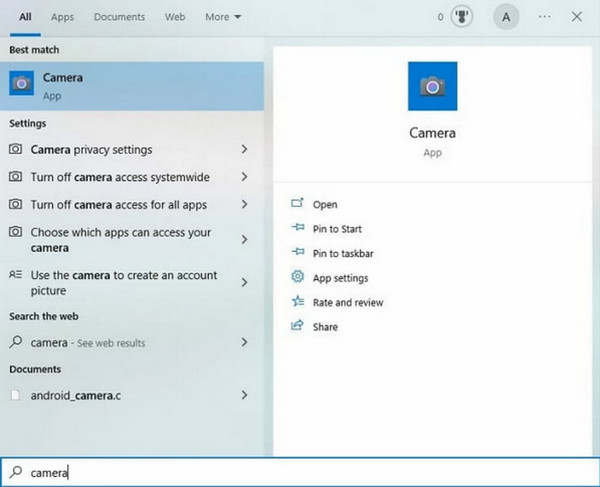
If you only need to record a webcam video on PC and not the screen, the Camera app is the simplest solution you can use. This tool focuses entirely on webcam recording and works great for short messages and quick introductions.
Step 1.Open the Camera app in the "Start" menu. Switch to "Video" mode.
Step 2.Next, select your webcam, then click the "Record" to begin and "Stop" to end it.
Step 3.See the video in the "Camera Roll" folder.
Cons
No computer screen recording.
Cannot record system audio.
Have very limited controls.
How to Record Computer Screen on Windows with OBS
Best for: Live streaming and multi-source capture, advanced screen recordings, and custom overlays.
For anyone who wishes for more control in recording video on PC, OBS Studio is a nice choice. Many content creators and streamers prefer OBS because of its flexibility and advanced settings, giving custom layouts, multiple source recordings, and high-quality output.
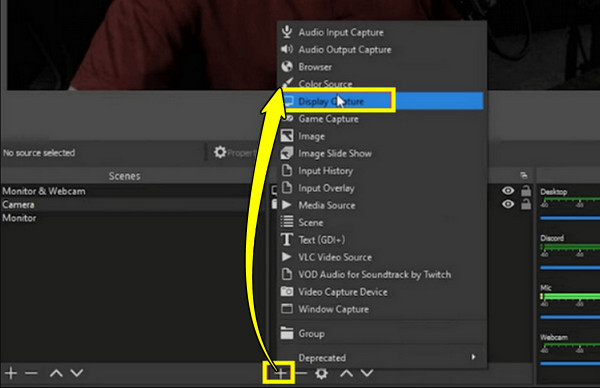
Step 1.Run OBS Studio on your PC. Under "Sources", click the "Add" button and select either "Display Capture" or "Window Capture".
Step 2.After that, add "Mic/Aux" and "Desktop Audio" source if needed, then click the "Start Recording" button.
Step 3.Later, click the "Stop Recording" button when finished.
Cons
Steep learning curve for first-time users.
Needs manual configuration to record video on PC.
Can be resource-heavy on low-end PCs. You need to adjust recording settings and preferences to fix laggy OBS.
How to Screen Record on Windows with Audio for Free
Best for: Quick screen recordings, tutorials, or demonstrations.
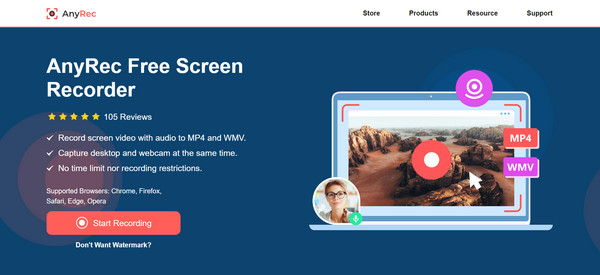
Finally, if you don't want any installation, AnyRec Free Screen Recorder Online offers a convenient browser-based solution to record video on PC. This online tool works directly in the browser and covers screen and audio recording with no hassle and watermark. It is excellent for quick tasks with a user-friendly layout, and two popular formats support MP4 and WMV.
Step 1.Go to the AnyRec Free Screen Recorder webpage, and click "Start Recording". You'll need the launcher first to get started; it will be installed quickly.
Step 2.Next, choose the part of the screen you wish to capture, then turn on the following options if needed: Camera, System Sound, or Microphone.
Step 3.To adjust the output, click the "Settings" button. Here, choose the format, quality, codec, and other options you want; click "OK" to confirm.
Step 4.Open the window or content you wish to record and click "REC" to begin. When finished, click "Stop", then save the video in your chosen format or share it only.

Common Problems and Fixes for Windows Recording
Even with those Windows screen recorders, you may still face issues that interrupt the recording process. Included here are missing audio, laggy videos, Xbox Game Bar failing, etc. Thankfully, these issues can be resolved quickly with simple tweaks. The table below summarizes the most common Windows recording problems alongside solutions you can try right away.
| Windows Recording Issues | Quick Fix |
| Black Screen Recording | Update graphic drivers, switch to window capture, or disable hardware acceleration. |
| No System Audio | Check the sound output settings; enable system sound in the recording tool. |
| Laggy Video | Try lowering resolution or frame rate, or closing unnecessary apps. |
| Xbox Game Bar Not Opening | Enable Game Bar in”Settings” then”Gaming”; update Windows system, or restart your PC. |
| Microphone Not Working | Turn on mic access in”Settings”, then”Privacy & Security”, to”Microphone”. |
| Recording Crashes | Update the recorder; reinstall the recording app or restart your PC. |
Conclusion
As you've seen here, Windows video recording does not have to be a headache, even when issues get in your way. This post shows different tools to record video on a laptop with audio and webcam. If you want the most reliable and flexible recording solution, AnyRec Screen Recorder stands out! Whether you want a full-screen recording with audio and webcam, the program helps bypass Windows limitations and delivers smooth, high-quality recordings.
Secure Download
Secure Download



