
YouTube Video Length Limit: 15 Minutes or 12 Hours

YouTube video length limits are different for each account. If your account is new or not verified, you can only upload videos to YouTube up to 15 minutes. Verify your account, and you can upload much longer videos, up to 12 hours or 256 GB. It's okay if your video file is still overlarge. You can trim the video or compress it before uploading. Let's go through the details.
Guide List
What Is the YouTube Video Length Limit YouTube Shorts vs Long Videos Why Can't I Upload a Long Video How to Upload Videos Longer Than 15 Minutes Reduce Video Length or File Size Before Uploading to YouTubeWhat Is the YouTube Video Length Limit
If your video is over 15 minutes and won't upload, your account may still be unverified. Complete YouTube's phone verification first, then try uploading again.
Maximum Upload Length:
- • Unverified account: Up to 15 minutes.
- • Verified account: Up to 12 hours or 256 GB.
- • Verify your account with a phone number to upload videos over 15 minutes.
YouTube Shorts vs Long Videos
When uploading to YouTube, you'll need to choose between Shorts and regular videos. Each has its own purpose and length limit. Thus, selecting the right one is just as important as creating good content.
YouTube Shorts
- • Up to 3 minutes.
- • Made for vertical playback and full-screen mobile videos.
- • Works well for mini tutorials, viral videos, and quick tips.
Regular YouTube Videos
- • Up to 12 hours (require verified accounts).
- • Suitable for tutorials, gaming, podcasts, webinars, documentaries, and more.
- • Gives you more flexibility for longer content.
Don't make your video longer just because you can. Pick the format that fits your content and your viewers' expectations.
Why Can't I Upload a Long Video
There are several reasons explaining why YouTube may reject a long video upload. Before exporting your project again, check these common issues first.
Your Account Isn't Verified
The 15-minute upload limit still applies to unverified YouTube accounts.
- • Verify your account to upload longer videos.
- • The process only takes a few minutes.
The Video Is Too Large
YouTube limits both the maximum video length and file size.
- • Maximum upload size: 256 GB.
- • Consider compressing the video before uploading.
Copyright or Channel Restrictions
Some YouTube account issues can affect uploads.
- • Active copyright strikes.
- • Community Guidelines violations.
- • Temporary account restrictions.
Check these issues one by one. In most cases, you can quickly find the reason why your long video won't upload. Meanwhile, you can edit videos for YouTube before uploading.
How to Upload Videos Longer Than 15 Minutes
Just make sure your YouTube account is verified. YouTube won't allow longer uploads from an unverified account. A quick phone verification removes this restriction and only takes a few minutes.
- 1. Go to YouTube Studio. Sign in to your Google account.
- 2. Type YouTube.com/verify in its search.
- 3. Complete the account verification. Select your country and get the verified code. Then submit it.
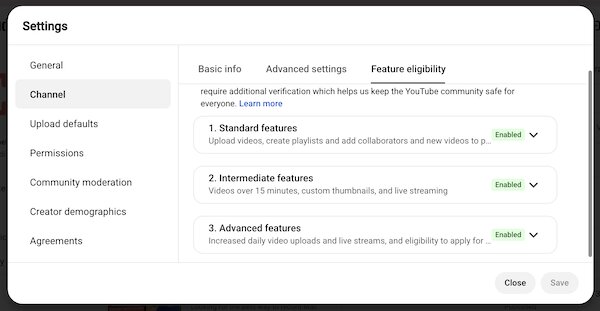
- 4. Go to YouTube Settings. Go to "Channel" and switch to "Feature eligibility". The status of "Features that require phone verification" (or "Intermediate features") is "Enabled".
- 5. Now you can upload your video again.
Reduce Video Length or File Size Before Uploading to YouTube
If your video is too large for YouTube or takes hours to upload, you can use AnyRec Video Converter to trim, compress, convert, and optimize videos in one place. It's a practical solution for creators who upload large 4K videos, long recordings, or multiple files every week. You can reduce upload time while keeping good video quality.
Make videos smallers without a noticable drop in quality.
Trim long videos into smaller parts and export the selected clip.
Convert to YouTube-friendly formats.
Create slideshow videos and split-screen videos with templates.
Secure Download
Secure Download
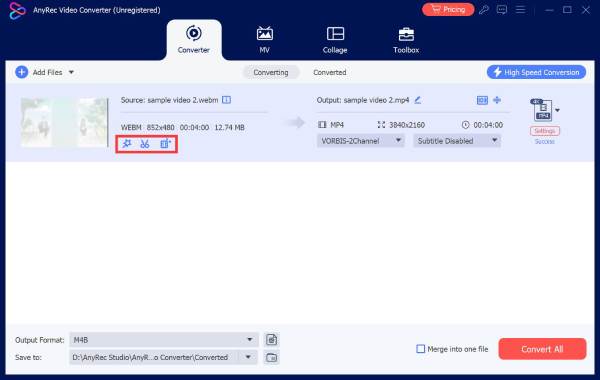
Step 1.Open AnyRec Video Converter. Click the "Add Files" button and upload your video. To reduce your video length, click the "Edit" button under your video.
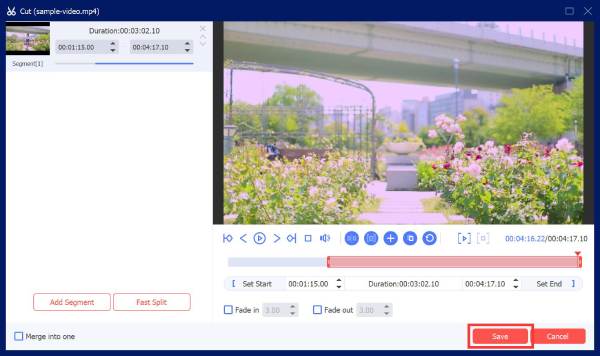
Step 2.In the "Cut" window, you can split and cut out unwanted parts of your video. Then click the "Save" button to save changes.
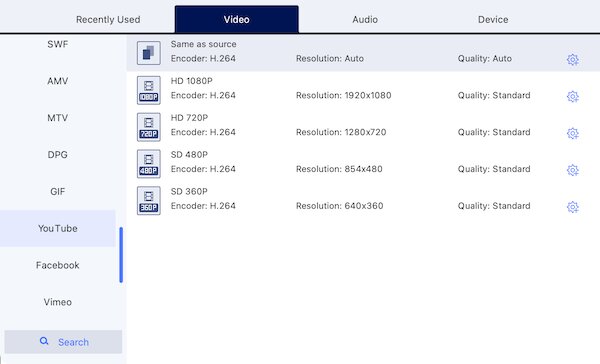
Step 3.You can go to "Toolbox" to access Video Compressor, Video Watermark Remover, and more editing tools. In the default "Video" section, scroll down and get YouTube-compatible formats. At last, click the "Convert All" button.
Conclusion
Knowing the maximum video length for YouTube helps you avoid failed uploads and wasted time. Whether you're uploading a short clip, a gameplay recording, a webinar, or a full tutorial, make sure your account is verified, and your video meets YouTube's upload requirements. If the file is too large or needs editing before uploading, AnyRec Video Converter offers an easy way to trim, compress, convert, edit, and optimize videos in one place. Instead of struggling with slow uploads or oversized files, you can prepare your videos more efficiently and get them published faster.
Secure Download
Secure Download
About Our Author




