
How to Cut Videos in VLC Media Player: Pro Tips & Alternative

Can VLC media player trim videos? The answer is yes. VLC gives you a workaround to trim videos using its recording feature. In this guide, we'll show you how to trim videos in VLC on Windows and Mac step by step. We'll also share a professional video trimmer for a faster and more convenient video editing experience.
Guide List
Part 1: How to Trim Videos with VLC on Windows Part 2: How to Trim Videos with VLC on Mac Part 3: A Powerful VLC Alternative for Trimming Videos Easily Part 4: Trimming Tips to Cut Clips Like a Pro Part 5: FAQs About VLC Video TrimmingPart 1: How to Trim Videos with VLC on Windows
VLC Media Player is a free and open-source media player that is widely used around the world. Besides playing videos, many users also use it to do some basic editing tasks, such as adding subtitles or rotating videos, because they don't want to install additional software. However, VLC doesn't have a dedicated cut tool for trimming videos; you can use its recording features as a workaround.
How to trim a video using VLC on Windows:
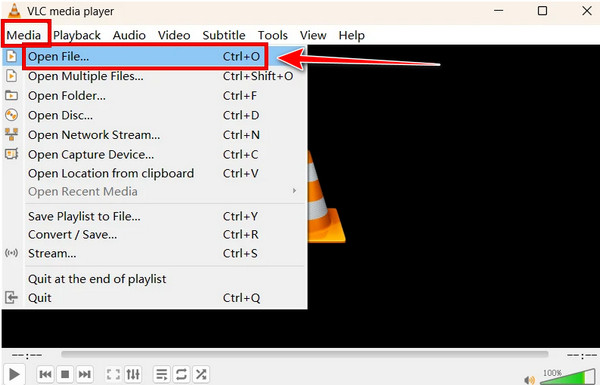
Step 1.Launch VLC on your computer. Click "Media" > "Open File" to select the target video you want to trim, and click "Open".
Step 2.Click "View" in the top menu bar and select "Advanced Controls" from the dropdown menu. Then you'll see a new row of small buttons at the bottom of the player.
Step 3.Start playing your video and bring it to the start point of the clip you want to keep.
Step 4.Click the red Record button to start capturing. When the playback reaches the end point, click the Record button again to stop recording. You can also press "Shift + R" to start or stop recording.
Step 5.VLC automatically saves the trimmed clip to your system's default "Videos" folder.
Part 2: How to Trim Videos with VLC on Mac
Just like the Windows version, VLC Media Player for Mac does not offer a direct video trimming feature. Mac users can also use VLC's record function to capture the part of the video they want to keep and save it as a separate clip.
How to trim a video using VLC on Mac:
Step 1.Open VLC on your Mac, click "File" > "Open File" from the top menu bar to upload your videos.
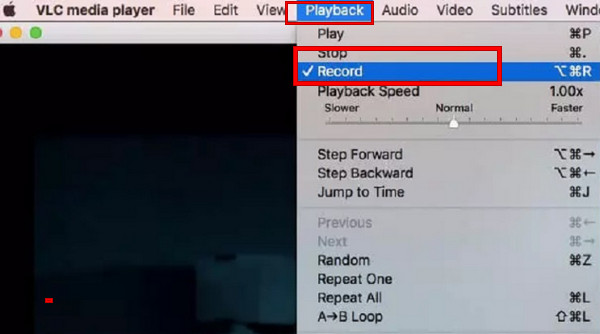
Step 2.In the menu bar, click "Playback" > "Record." Keep playing until the point you want to end your cut, then click "Record" again. You can also press "Option + Command + R" to start or stop recording.
Step 3.Your trimmed video will be saved to your Mac's "Movies" folder automatically.
Part 3: A Powerful VLC Alternative for Trimming Videos Easily
Because VLC lacks a built-in trimming tool, you can only cut videos by recording the sections you need. So, trimming a long clip may take as much time as playing the entire video. Don't want to waste time recording videos with VLC? You can use this dedicated video trimmer! AnyRec Video Converter allows you to set the start and end points of a clip, preview the result, and remove unwanted parts in just a few clicks!
Trim videos and audios effortlessly with one click.
Preserve the video's original quality after trimming.
Support input and output files in 1000+ formats.
Include 20+ built-in tools for convenient editing.
Secure Download
Secure Download
How to trim videos with AnyRec:
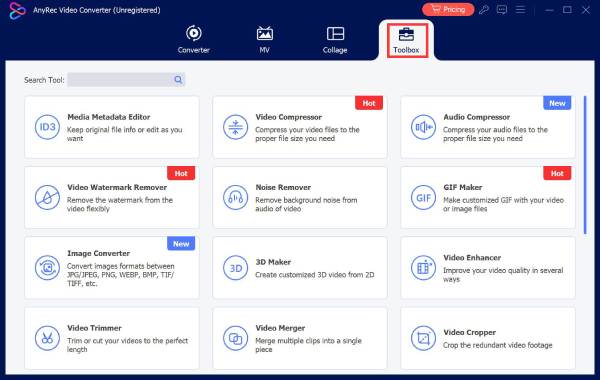
Step 1.Launch the software and click "Toolbox" from the top menu. Then, scroll down and select "Video Trimmer."
Step 2.Click the "Add" button to upload your audio, or drag and drop your video file into the program.
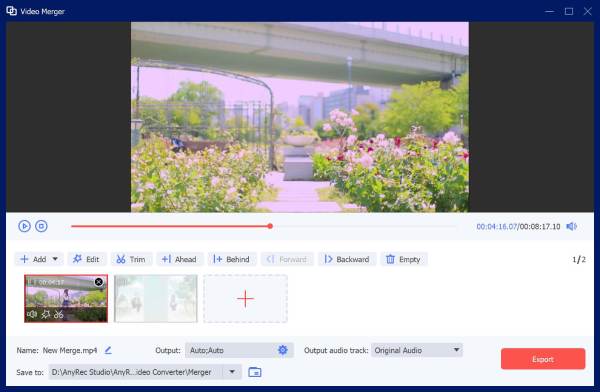
Step 3.Drag the sliders on the timeline to select the part you want to keep. You can also add fade in/out effects to the video.
Step 4.Preview the trimmed clip to make sure everything looks right. Choose an output format and click "Export" to save the trimmed video.
Part 4: Trimming Tips to Cut Clips Like a Pro
How to make the trimmed video keep better quality? Learn these practical tips to polish your trimming effect easily:
- Preview before trimming: Watch the entire video first and mark the exact parts you want to keep or remove.
- Cut at precise points: Use timestamps or frame-by-frame controls to avoid unwanted scenes and make smoother cuts.
- Keep the original quality: Choose proper output settings to prevent quality loss after trimming.
- Remove unnecessary parts: Delete pauses, mistakes, and repeated content to make your videos more engaging.
- Save a backup copy: Keep a copy of the original file before editing in case you need to restore or create another version.
Part 5: FAQs About VLC Video Trimming
-
Can VLC trim videos?
Yes. VLC can trim audios and videos by using its built-in recording feature. However, it does not have a dedicated trimming tool, so it records the selected section instead of directly cutting the video file.
-
Does VLC reduce video quality when trimming?
Yes. You might notice a small drop in quality after trimming. VLC records the part you trim, so the video may be re-encoded along the way. If that bothers you, using a dedicated video trimmer to make the video just like the original.
-
What's the best alternative to VLC for video trimming?
AnyRec Video Converter is one of the best alternatives to VLC for video trimming. This tool allows you to directly select the start and end points of a video and trim unwanted parts quickly. It also supports various video formats and provides various editing features.
Conclusion
Now you know how to trim videos with VLC. If VLC can't meet your demands for high-quality video trimming, try AnyRec Video Converter for a more efficient editing experience! With this tool, you can create stunning highlights from your vlogs or remove redundant parts from videos effortlessly!
Secure Download
Secure Download
About Our Author




