
4 Ways to Sync Contacts from iPhone to iPad Seamlessly

Whether you're calling, messaging, or emailing from either device, learning how to sync contacts from iPhone to iPad is necessary. Doing so also ensures you can easily stay connected. Luckily, Apple provides multiple ways to transfer, so you never have to enter the same contact information twice. In this guide, you'll see 4 reliable methods to import contacts from iPhone to iPad, ensuring all contacts remain available across both devices. Read on!
Guide List
How to Sync Contacts from iPhone to iPad with iCloud Sync Contacts from iPhone to iPad Using the Same Apple ID Detailed Steps to Sync Contacts from iPhone to iPad via Gmail Transfer All Contacts Directly from iPhone to iPad [No Data Loss]How to Sync Contacts from iPhone to iPad with iCloud
iCloud can sync iPhone contacts to iPad automatically. This built-in Apple feature syncs your contacts wirelessly based on the same Apple ID. So, if you make any changes to iPhone contacts, iCloud can sync contacts across devices on iPad immediately.
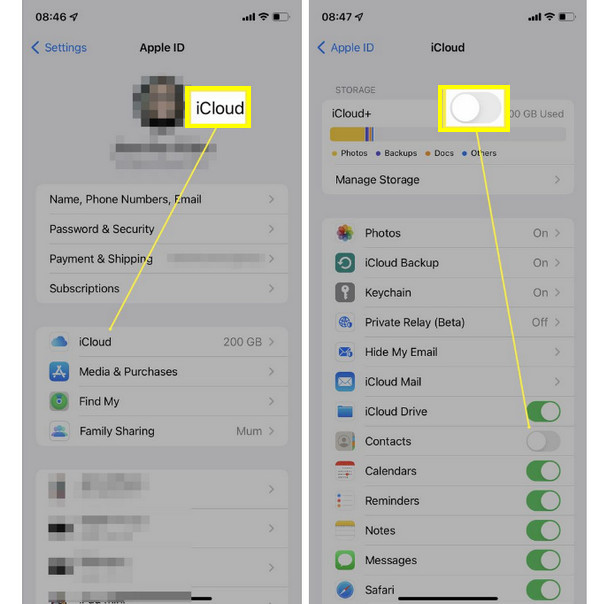
Step 1.Open "Settings" on iPhone. Tap your "Apple ID name" at the top of iPhone screen.
Step 2.Choose "iCloud". Scroll down and toggle on the switch button before "Contacts".
Step 3.Later, open "Settings" on your iPad. Sign in with the same Apple ID.
Step 4.Select "iCloud" and toggle on the "Contacts" switch as well. After a while, your iPhone contacts should now appear on your iPad.
Sync Contacts from iPhone to iPad Using the Same Apple ID
In addition to iCloud, by simply using the same Apple ID across both devices can also sync iPad with iPhone contacts. This method ensures that your data, covering contacts, calendars, and notes, stays updated on both devices.
Step 1.On your iPhone, open the "Settings" app. Check if the "Apple ID" at the top. Now, on your iPad, go to "Settings" and verify that the same account is signed in.
Step 2.If not, tap "Sign In to your iPad" and enter your Apple ID credentials.
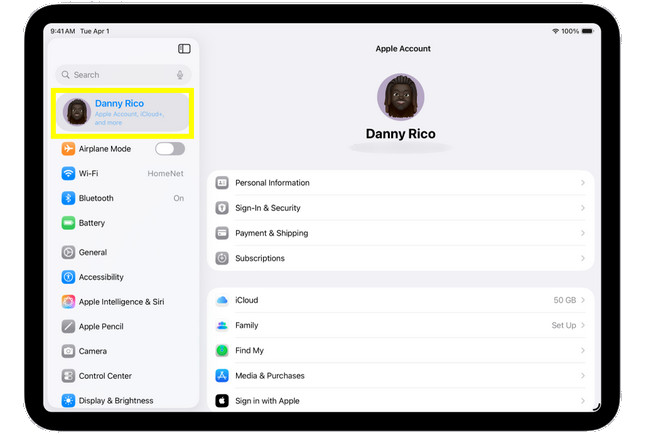
Step 3.Once signed in, head back to "Settings" main screen, then select "Contacts" and tap on "Accounts" and ensure the "iCloud" is enabled.
Step 4.Please wait for a moment, then open the "Contacts" app to get contacts on iPad.
Detailed Steps to Sync Contacts from iPhone to iPad via Gmail
After learning how to transfer contacts from iPhone to iPad through iCloud and Apple ID, explore how to use Gmail as your third-party method. Gmail lets you store and manage contacts in the cloud, making them accessible from any device as long as you are signed into your Google account. It is a great alternative if you don't wish to depend entirely on Apple's syncing system.
Step 1.Open the "Settings" app on your iPhone, then select "Contacts" to "Accounts". There, tap "Add Account", then select "Google" from the list.
Step 2.Next, sign in with your Gmail details and ensure the "Contacts" switch is toggled on. After all that, repeat the same process on your iPad.
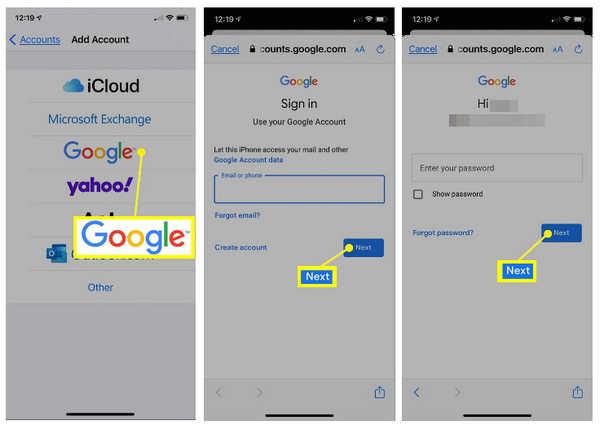
Step 3.Kindly wait for a few moments for your iPhone contacts to sync, then open the "Contacts" app on iPad, and all contacts from your iPhone must be visible.
Transfer All Contacts Directly from iPhone to iPad [No Data Loss]
How about if you have a large number of contacts to sync? AnyRec PhoneMover offers the ultimate way to sync contacts from iPhone to iPad. Unlike the previous methods, this professional tool lets you transfer contacts directly via a USB connection, ensuring no data loss and complete privacy. Here, you can even preview details and delete duplicate contacts on iPhone in clicks. Additionally, it supports not only contacts but also photos, music, messages, and more between iOS devices. Whether you're upgrading your device or managing multiple Apple devices at once, this tool provides a smooth and fast transfer experience.

Transfer all contacts from iPhone to iPad smoothly with no data loss.
It can automatically detect duplicate contacts for a cleaner organization.
Compatible with all iPhone and iPad models, including the latest iOS versions.
Offers fast transfer speeds with complete data security.
Secure Download
Step 1.Upon connecting your iPhone and iPad to your computer using a USB cable, launch AnyRec PhoneMover.
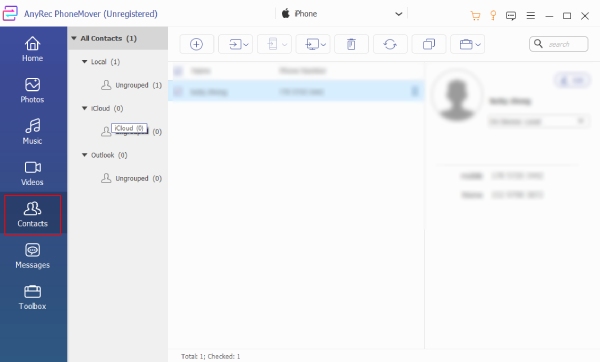
When detected, set your iPhone as the source device. Then, to start, select the "Contacts" widget from the left sidebar to view all your saved iPhone contacts.
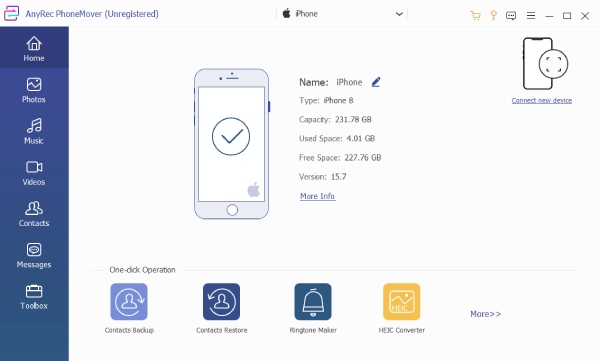
Step 2.You can see all the contact lists on your screen and review them all. You can preview names, numbers, and details. Check the individual box of each selected contact or check the "Select All" box to move the entire list.
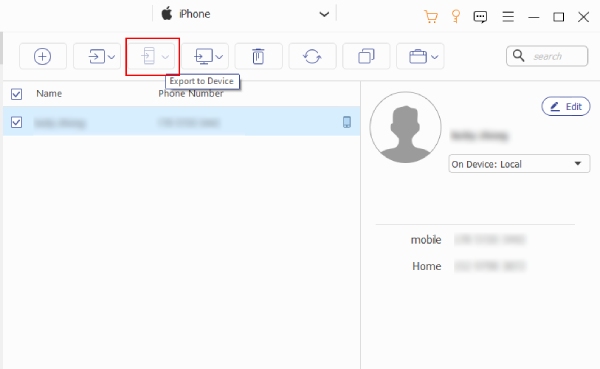
Step 3.Once done, click the "Export to Device" button and choose your iPad as the destination. Later, open the "Contacts" app on your iPad and check if you can see all the iPhone transferred contacts available, ready to use.
Conclusion
Transferring iPhone contacts to iPad can be done effortlessly using iCloud, Apple ID, or Gmail. And each method mentioned offers a convenient way to keep your contact list updated across devices. However, if you want a faster, more direct way to transfer and export iPhone contacts without depending on an internet connection, AnyRec PhoneMover is the best solution. This professional iPhone transfer lets you move contacts, music, photos, and other data between iPhone and iPad with simple clicks. With its compatibility and powerful features, this tool offers the most reliable way to sync contacts between devices quickly and securely.
Secure Download



