
Record Phone Audio for Podcast on Android and iPhone

For you to create a podcast, you no longer need a thousand-dollar gear! From the palm of your hand, you can now record phone audio for podcast. However, achieving the studio-quality sound depends on more than just pressing the record button; it still requires a proper approach. Therefore, keep reading to find out the entire process for podcast recording, from preparation to refining tracks, ensuring your mobile audio podcast achieves that broadcast sound.
Guide List
Preparation Before Recording Phone Audio for Podcast Choose the Best Recorder to Record Audio How to Use Dolby On for Android to Record Podcast Audio How to Edit and Improve Podcast Audio After RecordingPreparation Before Recording Phone Audio for Podcast
Setting up your environment is the first, crucial step to ensure you record a podcast on your phone professionally and clearly. Since a mobile device picks up a huge amount of background noise, you must have all the necessary preparations, from a room to a compatible external mic.
The details of what things you need to prepare for podcast audio recording are written below:
- • A Quiet Space. Pick a small, soft-surfaced room with carpets, curtains, or other soft furniture to reduce reverb.
- • Toggle Flight Mode. Ensure to enable the Do Not Disturb mode to avoid getting notification alerts that will ruin a take.
- • Enough Storage. Check your device if it has at least 2GB of free storage space for high-quality audio files.
- • External Microphone Connection. Plug in your microphone and make sure it is recognized by the system.
- • Secure a Tripod or Stand. Keep your phone stable by using a stand to avoid handling noise from your hands. This matters if you make a video podcast.
Choose the Best Recorder to Record Audio
Once your recording podcast environment is perfectly set and your hardware is ready, you can use AnyRec Screen Recorder to capture podcast audio. This desktop audio recording software captures everything without loss of quality, whether it's your phone's internal system sound or your external microphone. Its design is for efficiency, allowing you to adjust volume levels and perform a quick sound check before the recording of podcast starts. By using this recording tool, you can bypass the limitations of those mobile recording apps and enjoy professional-grade control over your podcast.

Can record system and microphone audio in lossless quality.
Offers built-in noise cancellation and enhancement tools.
Versatile format exporting your podcast audio to MP3, AAC, M4A, etc.
Quickly cut out mistakes immediately after the recording ends.
Secure Download
Secure Download
Step 1.Open AnyRec Screen Recorder on your computer and choose the "Audio Recorder" mode from the main menu.
Step 2.Toggle ON the "System Sound" if you're recording a guest via a call. Toggle the microphone switch to ON to record your own voice; click the arrow next to it if you have an external podcast mic. You can also click the "Microphone" button and check the enhancement feature to ensure your vocals sound clear.
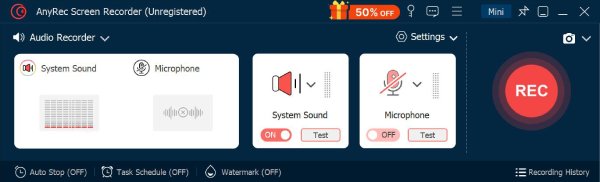
Step 3.Now, try speaking into your mic and watch the volume sliders; adjust them to stay within the green and yellow zones. Once ready, click the "REC" button to start recording audio.
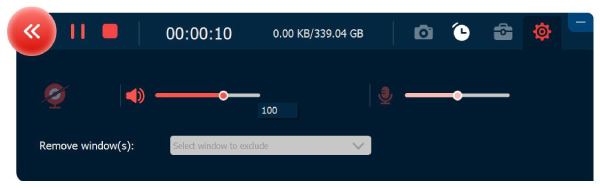
Step 4.Later, click the "Stop" button to enter the preview window. Use the built-in trimmer to delete any dead air at the start or end, then click the "Save" button to export your podcast audio to your computer.
Secure Download
Secure Download
How to Use Dolby On for Android to Record Podcast Audio
You may occasionally need a mobile-native solution for recording phone audio for a podcast on the go. If so, Dolby On for Android offers a premier solution for mobile podcasters. This mobile app simplifies the complex task by using automated algorithms to clear up your voice as you record. It is particularly great for interviews and quick updates where a complete computer setup is not on your options. (See how to prepare podcast questions.)
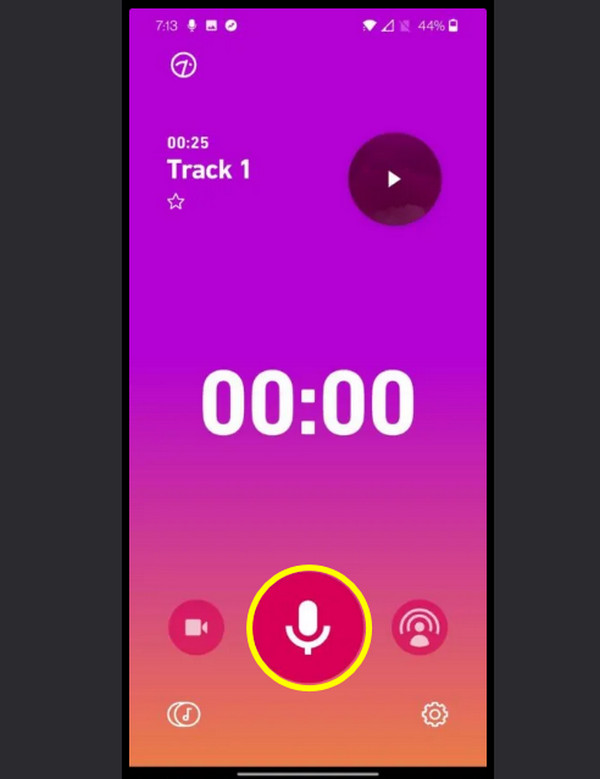
Step 1.Upon getting the Dolby On launched, grant all permissions to access your microphone. Then, tap the "Record" button, and the app will analyze the silence for a few seconds to create a noise reduction profile.
Step 2.Now, speak clearly where your microphone is located and observe the waveform. Later, tap the "Stop" button, and it will apply "Dolby Processing" right away to your track.
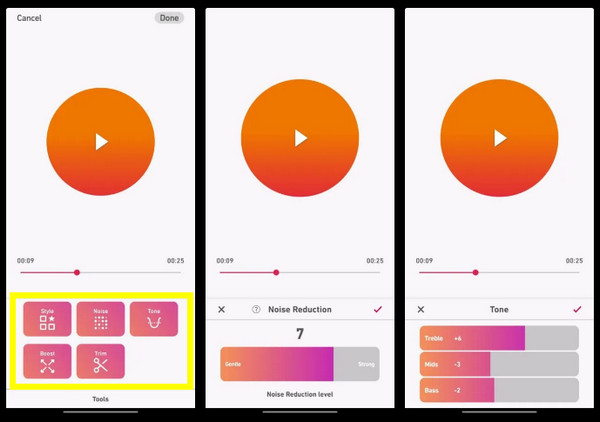
Step 3.After that, tap the "Tools" button to adjust the Bass, Treble, or Boost levels if the default setting is not right alongside other edits. Tap on "Share" and select "Save Audio" to move the file to your local storage.
How to Edit and Improve Podcast Audio After Recording
After you have captured vocals, the final phase of recording phone audio for a podcast involves refining to ensure it is pleasant to hear. Edit is where you eliminate those "ahhs" and "umms" and other silences that disrupt the flow of the recording. At this part, you are also allowed to add music, transitions, and even advertisements to give your audience a professional podcast structure.
Here are some tips for improving and polishing your podcast recording:
- • Use Crossfades. When switching between two clips or adding music, use a crossfade to avoid audible clicks or pops.
- • Normalize to -1.0 dB. Applying this keeps your volume loud enough for your listeners without causing clipping.
- • Apply a Limiter. Using a limited tool will put a stop to your audio from distorting during loud moments.
- • Use Headphones. Please edit the podcast audio using over-ear headphones to scratch those subtle background hisses or other noises.
- • Have a Backup. Always keep the raw version of your recording before you start editing it.
Conclusion
Recording podcasts on your phone is achievable with the right environment and proper preparations! Take your time to prepare the space and select software that offers high-quality audio. With the steps mentioned and tips in hand, you can now record phone conversions for a podcast clearly for your listeners. And to ensure it sounds its absolute best from the first take, use AnyRec Screen Recorder. This versatile desktop recording software provides high-fidelity audio recording and noise cancellation features to transform your phone audio input into a professional studio sound, keeping your listeners coming back for more.
Secure Download
Secure Download
About Our Author




