
Unlock iPhone's Mic! 3 Ways to Record Audio on iPhone

Your iPhone can be a pocket size recording studio, capturing everything from quick lectures to podcasts! Whether you're a student or a professional, knowing how to record audio on iPhone and which tools to use can make a difference between a mess and a clear masterpiece. Continue reading to learn the three distinct ways to do audio recording on iPhone, from built-in apps to software. Plus, you'll dive into tips to help you get that high-quality audio on iPhone.
Guide List
How to Use Voice Memos to Record Audio on iPhone Use the Professional Recorder on PC/Mac to Record iPhone Audio GarageBand as iPhone Audio Recorder to Record Audio Tips to Record High Quality Audio on iPhoneHow to Use Voice Memos to Record Audio on iPhone
For most users, the quickest way to a solid audio recording on iPhone is right on the home screen. The Voice Memos app captures all quick thoughts, lectures, or interviews directly. Thus, you can always be ready to record without extra help. With its clean interface and basic editing features, you can totally enjoy recording and polishing your audio instantly. So, for someone who prioritizes speed and simplicity, recording audio on iPhone with the Voice Memos app is the gold standard solution.
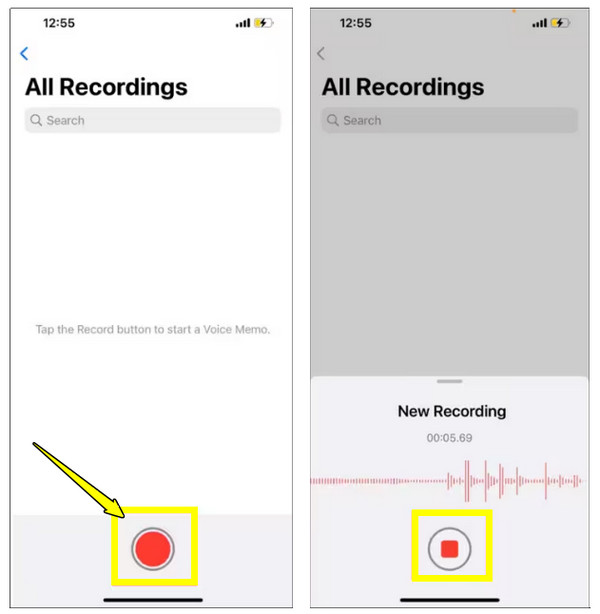
Step 1. Launch the Voice Memos app from the Home Screen.
Step 2. Once you're in there, tap the "Record" button at the bottom to start recording audio on iPhone immediately.
Step 3. Make sure to place the iPhone microphone 6-8 inches away from the sound source.
Step 4. You can pause then resume the recording. Later, tap the "Stop" button to finish recording conversations on iPhone.
Use the Professional Recorder on PC/Mac to Record iPhone Audio
While the built-in app is convenient, for a much more stable recording environment, use a dedicate desktop tool like AnyRec Screen Recorder. This screen recording software is specifically made to mirror iPhone screen and audio to your computer, letting you bypass the limits of your phone. By using your computer's processing power, you can guarantee a lag-free audio recording on iPhone experience that's perfect for gameplay, tutorials, or lengthy podcasts. Furthermore, it features a built-in trimmer so you can get rid of the unwanted parts before saving the final file. It is an ideal solution for anyone needing to record system sound and mic input together with high-fidelity output.

Seamless records iPhone screen and audio with Phone Recorder.
Lossless audio quality for iPhone recording for professional-grade results.
Allows you to save the audio in your desired format, quality, bitrate, etc.
Listen to the recording and trim it right away before saving it to your hard drive.
Secure Download
Secure Download
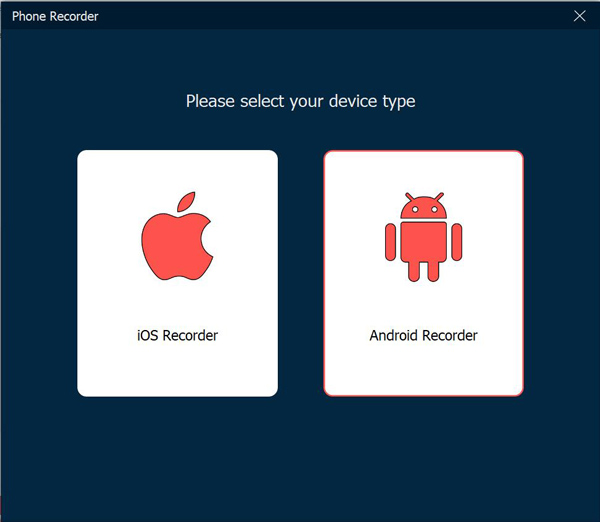
Step 1. Launch AnyRec Screen Recorder on your desktop and navigate to the right-hand side of the main screen to select the "Phone Recorder". Then, from the device selection window, choose "iOS Recorder"
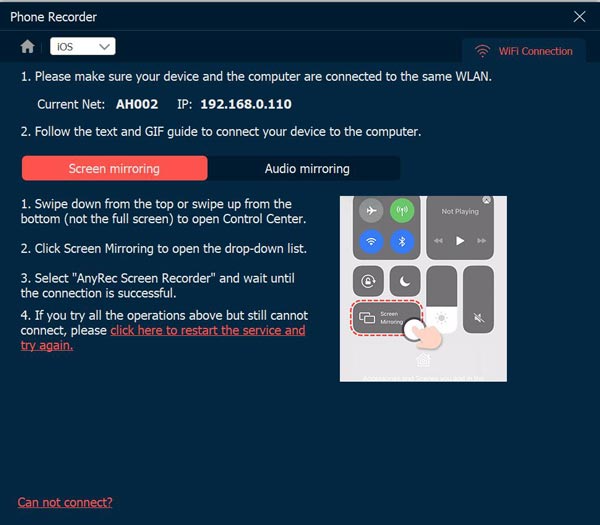
Step 2. Make sure your iPhone and computer are logged into the same network. On your iPhone, open "Control Center", long-press the "Music Playback" tile to expand it, and choose "AnyRec Screen Recorder"
Step 3. Upon establishing the connection, the recording screen will feature a circular waveform. Click the "Record" button to begin capturing your iPhone audio.
Secure Download
Secure Download
GarageBand as iPhone Audio Recorder to Record Audio
If you are searching for a more musical approach, GarageBand is here to do the work as a full-scale digital audio workstation. Aside from helping you record audio on iPhone, it lets you apply professional filters, adjust input gain, and even add multiple tracks over one another. This iPhone app is perfect for musicians or podcasters who want to apply effects such as Studio Vocal or Distorted to their voice. With this built-in tool on iPhone, you can transform a simple vocal recording into a radio-ready clip.
Here's your simple roadmap to using GarageBand to record iPhone audio:
Step 1. Start the GarageBand app on your iPhone, and tap the "Add" button to create a new song. Swipe through the instruments and choose "Audio Recorder" (microphone).
Step 2. Next, tap the "Settings" button to enable "Metronome" if you need to adjust the "Input Settings" for a noise gate.
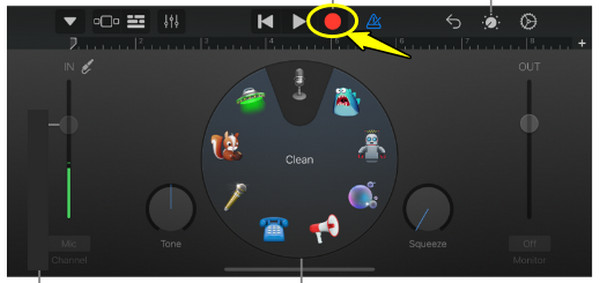
Step 3. Once ready, tap the "Record" button at the top to start recording. After a while, tap "Play" to stop and review your audio track, then go to the "My Songs" menu to save your final audio.
Tips to Record High Quality Audio on iPhone
After knowing how to record audio on iPhone, even with the best apps, to ensure they just sound professional regardless of the method you choose, the settings play an important role in the final file. From simple adjustments to choosing the right room, you can elevate your audio recording.
Follow the essential tips to produce high-fidelity sound that matches expensive studio equipment.
- • Enable Airplane Mode. Turn on Airplane Mode or Do Not Disturb in the Control Center to stop notifications from appearing.
- • Switch to Lossless Quality. From "Settings", go to "Voice Memos", select "Audio Quality", and choose "Lossless" to avoid compression.
- • Mind the Distance. Ensure to hold the microphone about 6-8 inches away from the source to avoid plosives or echoes.
- • Record in a Soft Environment. Look for a room with curtains, carpets, or other soft stuff to absorb sound reflections.
- • Use an External Microphone. Plug in a USB-C or a Lightning-compatible microphone to boost clarity.
- • Reduce Handling Noise. Place the phone on a stable surface or a tripod. It is not suggested to hold it to avoid shaky movements and the sound of your fingers.
Conclusion
As you've seen, your iPhone is capable of producing high-quality audio, whether for a podcast, a quick note, or saving an important discussion. You can have the built-in Voice Memos app or the creative GarageBand to record internal audio on iPhone. But to ensure you never lose a recording due to limits or crashes, using AnyRec Screen Recorder is the safest bet! Enjoy nothing but a seamless experience that combines high-fidelity sound with advanced editing tools. Capture iPhone audio directly on your PC or Mac with lossless quality!
Secure Download
Secure Download
About Our Author




