
Forget Writing! Here's How to Record a Voice Memo on iPhone

While you're in a meeting, there may be a quick idea in mind or an important detail you need to remember. Your iPhone is always ready for cases like these! How? Record a voice memo on iPhone! But beyond the Voice Memos app, there are several clear ways to make a voice recording on iPhone. Whether you want a quick recording or a more integrated approach, see here the three distinct options that will ensure no important details ever slip again.
Guide List
Record a Quick Voice Memo with iPhone Built-in App Make a High-Quality iPhone Voice Memo with Desktop Tool Use MOTIV Audio to Record a Quick Voice Memo on iPhoneRecord a Quick Voice Memo with iPhone Built-in App
The built-in Voice Memos app is the most accessible solution for capturing sudden thoughts or important conversations straight from your iPhone. Since it comes pre-installed on your iOS device, you never need to worry about downloading any software for recording a voice memo on iPhone. Its interface features a clean, big record button that lets you start recording right away. Plus, it includes basic editing features such as trimming and enhancing recording, helping you lessen background noise with a single tap.
Here's a step-by-step breakdown to record audio and voice memos on iPhone with the built-in app:
Step 1.Open your iPhone and find the "Voice Memos" app on your Home screen. Then, place your device's mic toward the sound source and tap the "Red Record" button.
Step 2.If you have to pause, swipe up the recording card and tap the "Pause" button; tap the "Resume" button to proceed. Once you're finished, tap the "Stop" button.
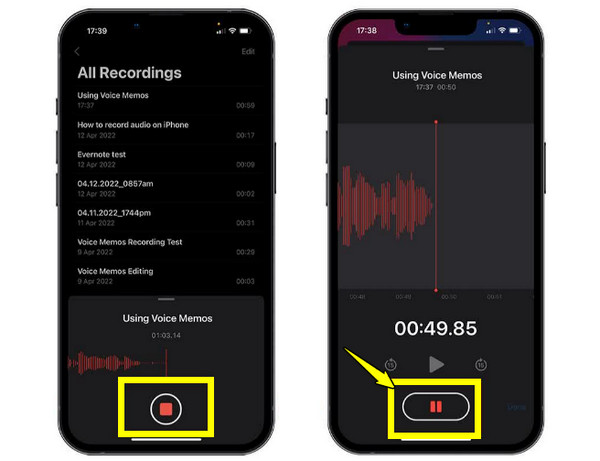
Step 3.Your voice memo will save in .m4a format automatically. You can then tap on it to rename it or tap the "three dots" or the "Edit" button to edit and share. If you encounter the incompatibility issue, you can convert voice memos to MP3 or move on to the next solution.
Make a High-Quality iPhone Voice Memo with Desktop Tool
While the native app is perfect for recording a voice memo on iPhone quickly, to achieve the level of control, transitioning to a desktop workflow like AnyRec Screen Recorder is the best step to take. This tool provides a stable, powerful environment for iPhone voice memo recording with zero quality loss, bypassing the limitations of the built-in app. It has a specialized Phone Recorder mode that can mirror your iPhone screen and audio to your computer, and start recording what's on your iPhone screen. Beyond just mobile recording, it offers real-time tools to ensure your audio levels are just perfect before you even hit the stop button.

Seamlessly mirrors and records iPhone screens and audio to your computer.
Set hotkeys for a quick start, pause, resume, stop, and more actions during recording.
Built-in microphone noise reduction and enhancement for crystal clear voice memos.
Can cut out unwanted parts from the audio immediately after recording.
Secure Download
Secure Download
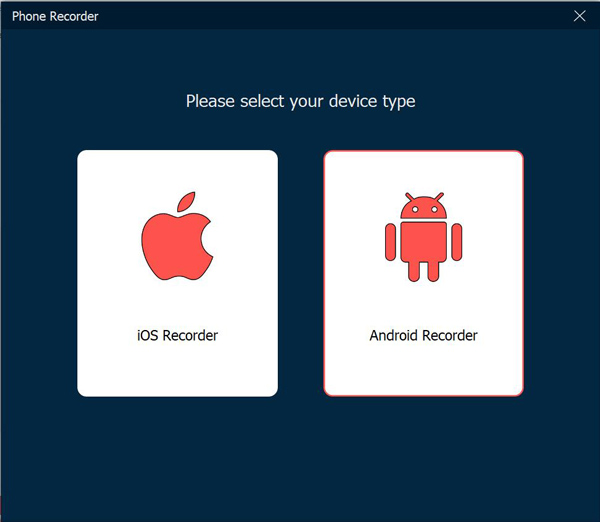
Step 1.Launch AnyRec Screen Recorder on your desktop. Locate the "Phone Recorder" button, and a window will appear asking for your device type; click "iOS Recorder" to start with your iPhone app.
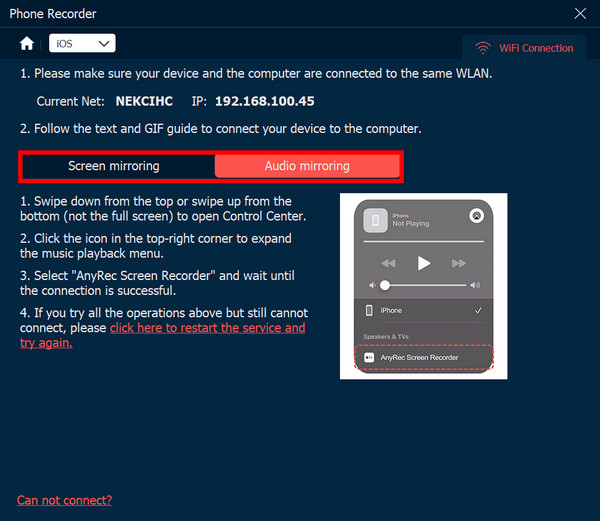
Step 2.Next, ensure both your iPhone and computer are linked to the same Wi-Fi network to have a stable link. From the connection tabs, choose "Audio Mirroring" if you need to record iPhone voice memos, or "Screen Mirroring" to capture visuals too.
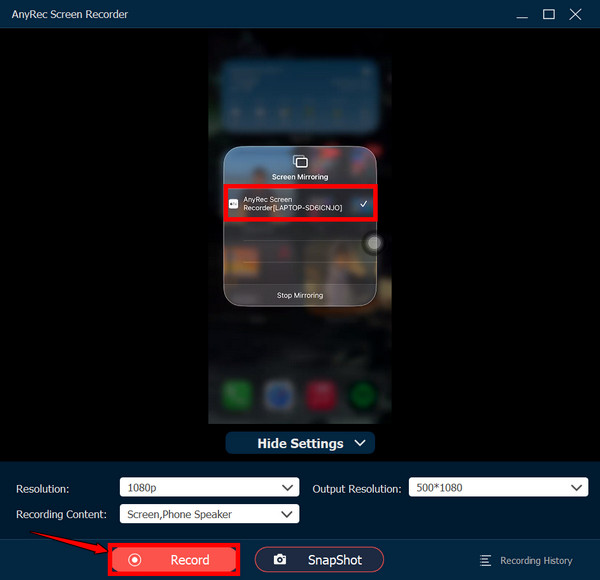
Step 3.Access the "Control Center" on your iPhone by swiping down from the upper-right corner, or up from the bottom. From there, tap the "Screen Mirroring" or the "AirPlay" icon and select "AnyRec Screen Recorder" from the list to project your audio to the computer.
Step 4.Before starting, adjust your desired audio source and settings within the desktop screen. When you're ready, click the "Record" button (Ctrl + Alt + R) to record a voice memo on iPhone.
Step 5.Once done, a preview window will be opened. Here, trim away silence and make final edits before saving the file. Moreover, you can merge two separate voice memo files using the built-in editor.
Secure Download
Secure Download
Use MOTIV Audio to Record a Quick Voice Memo on iPhone
Perhaps you want to keep recording a high-quality voice memo on iPhone, but still demand studio-level quality. For this, you can try the MOTIV Audio app. This powerhouse tool lets you have deep customization of audio settings, like adjustable sample rates and bit-depth. It offers high-resolution metering that lets you visually monitor gain levels in real-time. Plus, it is mainly effective when used with external Shure mics, but it also works great as a standalone recording tool to enhance the iPhone's microphone.
Do record a voice memo on iPhone and edit using MOTIV in just a few steps:
Step 1.Upon getting the MOTIV Audio app, grant all permissions to access your microphone. Then, select your desired audio format, like WAV, and sample rate.
Step 2.Check the "input meter" above to make sure your voice levels are hitting the "green" range. Tap the "Record" button once ready.
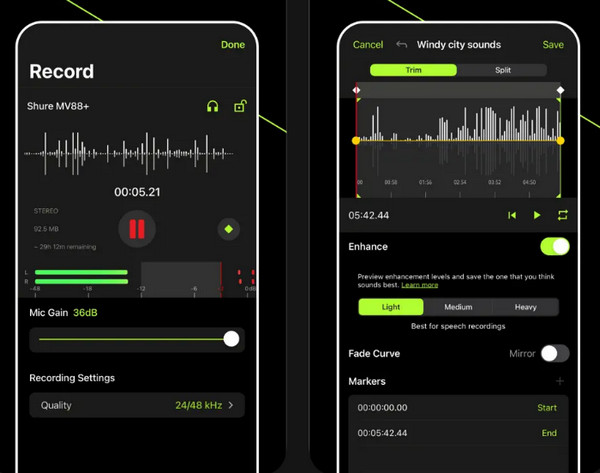
Step 3.You can use the "Marker" icon during the session to highlight important moments. Later, tap on "Done" to take you to the library, where you can trim the voice memo or share it instantly.
Conclusion
Having a reliable tool to record audio is essential. As you have seen today, the Voice Memos app is not the only one that can record iPhone voice memos quickly. While it offers unmatched speed for spontaneous moments, some tools provide much more. If you find the mobile tools too limited, use a robust desktop tool like AnyRec Screen Recorder. Whether you want to save long interviews or need to narrate, its simple interface and powerful editing suite make it your ultimate companion if you wish for a high-quality audio recording solution.
Secure Download
Secure Download
About Our Author




