 Play any region disc on Windows and Mac.
How to Play Blu-ray ISO Files on Windows and Mac [2 Ways]

Ever tried opening a Blu-ray ISO in your usual media player and gotten nowhere? You're not doing anything wrong. A Blu-ray ISO isn't just a video. It is a mirror image of the whole disc, menus and all, and most everyday players choke on that format. Regular players like VLC or QuickTime just aren't built to read that structure. So, you end up needing something made specifically for Blu-ray playback. See steps below to play .iso files on your computer.
Guide List
How to Play Blu-ray ISO Files on Windows and Mac Can VLC Play Blu-ray ISO Files Common Problems When Playing Blu-ray ISO FilesHow to Play Blu-ray ISO Files on Windows and Mac
You don't have to mount a Blu-ray ISO as a virtual disc before watching it. AnyRec Blu-ray Player can open the ISO file directly, which saves you an extra step. It supports Blu-ray ISO files and BDMV folders, as well as BD-5, BD-25, and BD-50 formats. You can enjoy 4K UHD and 1080p video playback within the program, too. This makes it a practical option if you have a collection of legally backed-up Blu-ray discs stored as ISO files.

Play Blu-ray ISO, discs, and folders smoothly.
Support NVIDIA hardware acceleration to open high-bitrate ISOs.
Keep the original menus and chapters.
No region locks. Works with ISOs pulled from all discs.
Secure Download
Secure Download
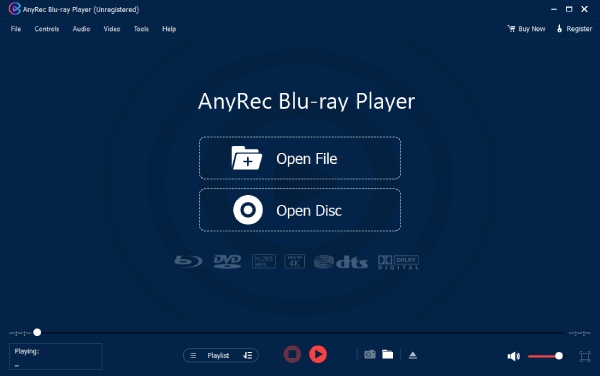
- 1. Open AnyRec Blu-ray Player. Click the "Open File" button.
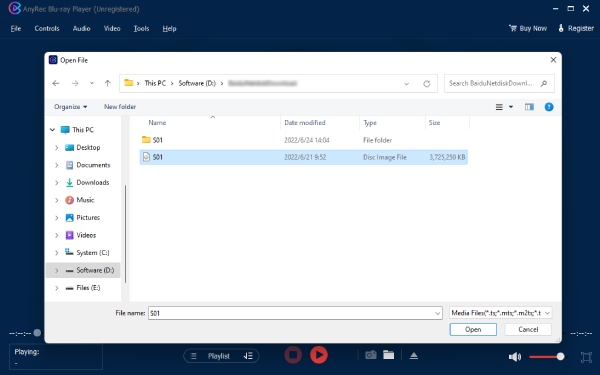
- 2. Select your ISO file. Click the "Open" button to import it.
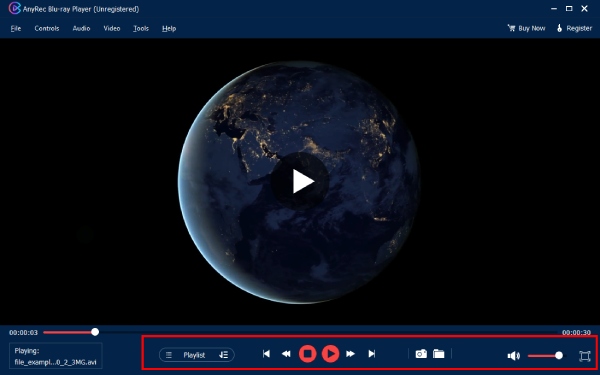
- 3. Wait for the Blu-ray content to load. Later, you can adjust playback controls and settings from the top and bottom options.
Can VLC Play Blu-ray ISO Files
Yes, VLC can play unprotected Blu-ray ISO files, but the process is not easy. Blu-ray playback can involve disc menus, encryption, Java-based menus, and a specific folder structure. VLC may need additional files or configuration before it can handle Blu-ray content properly. Otherwise, you may encounter VLC playback problems, like "unable to open the mrl" or complaints about missing AACS or BD+ decryption libraries.
If you only want to access the video inside an ISO, VLC can be worth trying. But if you want a simpler way to play Blu-ray ISO files with menus, chapters, subtitles, and different audio tracks, dedicated Blu-ray playback software is usually a better fit.
For people who insist on using VLC to play Blu-ray ISO files, follow the steps below.
- 1. Right-click on your Blu-ray .iso file in Windows 10 or 11. Select the "Mount" option to mount the ISO as a virtual disc drive.
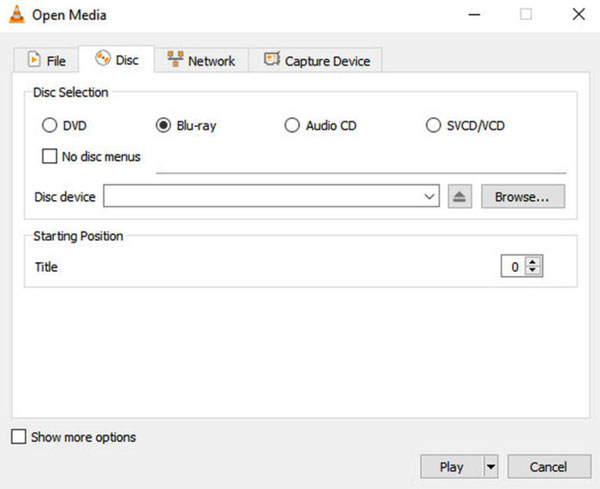
- 2. Open VLC Media Player. Go to the top "Media" list. Click the "Open Disc" button. Choose "Blu-ray" and select the drive letter of your mounted virtual drive.
- 3. Select and play the main movie title to open the Blu-ray ISO with VLC.
Common Problems When Playing Blu-ray ISO Files
Blu-ray ISO files are convenient, but playback does not always go smoothly. The problem may be the ISO itself, the player, or the audio and video settings on your computer. Here are some common issues and what you can try.
ISO Won't Open
If the ISO does nothing when you try to open it, first check whether the file is complete and readable. A damaged or incomplete ISO may fail in more than one player.
If the file seems fine, try opening it with software that supports Blu-ray structures. A regular video player may not know how to handle the contents of a Blu-ray ISO.
You can also try opening the ISO directly in AnyRec Blu-ray Player instead of mounting it as a virtual disc first.
No Blu-ray Menu Appears
A Blu-ray ISO can contain menus, chapters, extras, subtitles, and multiple audio tracks. However, not every media player handles these features properly.
If the movie plays but you cannot access the original Blu-ray menu, check whether your player supports Blu-ray menu navigation.
Video Plays but There Is No Sound
If the picture plays normally but you hear nothing, check the basic audio settings first:
- Make sure the correct audio track is selected.
- Check your computer's volume.
- Confirm that the correct output device is selected.
- Check whether your player supports the audio format in the ISO.
- If you're using external speakers or a receiver, check its input and volume settings.
Blu-ray files can contain several audio tracks. Try switching to another track to see if the sound comes back.
ISO File Is Very Large
A large Blu-ray ISO is usually normal. An ISO is an image of the entire disc, rather than a compressed copy of just the movie. It can therefore take up much more space than an MP4 made from the same content.
If you only want to watch the movie and don't need the original disc structure, you can convert ISO to VOB or other compact video formats. If you want to keep the Blu-ray menus, chapters, extras, and other disc data, keeping the original ISO makes more sense.
Conclusion
Blu-ray ISO files can be convenient backups, but they are not as straightforward to play as regular video files. A damaged ISO, missing menu support, or incorrect audio track can quickly get in the way. Once you check the file itself, using Blu-ray playback software is often the simplest approach to open Blu-ray ISO files. AnyRec Blu-ray Player lets you load a Blu-ray ISO directly rather than mounting it first. It is a good choice when you want a simpler way to watch your Blu-ray backups.
Secure Download
Secure Download
Related Articles:
About Our Author