
Movavi Screen Recorder Review and How-to [with Alternative]

Movavi Screen Recorder has long been a go-to place for anyone who wants professional capturing without a steep learning curve. But as 2026 has been flooded with lots of recording tools, is Movavi still the best? Learn here in this Movavi Screen Recorder review its features, how to use it, and the pros and cons. By the end of this post, you will know exactly whether it is the right investment or if you're better off looking for alternatives.
Guide List
Full Review of Movavi Screen Recorder How to Use Movavi Screen Recorder The Easier and More Useful Alternative to Movavi Screen RecorderFull Review of Movavi Screen Recorder
In today's Movavi Screen Recorder review, you will see whether it still holds its title as the go-to place in 2026. While the software is built-in for efficiency, giving you a clean workspace that lets you start capturing your desktop, it has some qualities that make you look elsewhere.
Here's the breakdown of Movavi review, highlighting its core features, pros, and cons.
Core Features of Movavi Screen Recorder:
- • Selective Capture. Record the desktop screen entirely, choose a specific app window, or manually select a custom area.
- • Real-time Drawing. Annotate your screen during the session with arrows, shapes, and highlights.
- • Webcam Overlay. Easily toggle the webcam feed to have picture-in-picture overlay, adding a personal touch to your tutorials and presentations.
- • Scheduled Recording. Set a desired date and time for Movavi to automatically begin and stop recording, even when you're away.
- • AI Noise Reduction. Automatically eliminates background echoes and hums from your microphone audio during the export.
Pros of Movavi Screen Recorder:
- • Minimalist, simple design that needs no learning curve.
- • Extremely fast exporting times to MP4.
- • Operates smoothly on older hardware.
- • Has a separate stream to record audio and video for easier editing.
Cons of Movavi Screen Recorder:
- • Adds a visible watermark and limits the recording length.
- • Major version updated often needs new purchase.
- • Suffers from frame drops when recording Ultra HD.
How to Use Movavi Screen Recorder
As you see, Movavi Screen Recorder does not disappoint when it comes to simplicity. While there's that, following a structured process will ensure you get the highest recording quality output. (Or you can use third-party video quality enhancers to improve the overall video quality.) Your simple roadmap to get started is written below:
Step 1. Open Movavi Screen Recorder on your desktop. Click the "Record" button (Camera icon) on the sidebar, and your cursor will transform into a crosshair. Please click on it and drag to choose the area of your screen to be recorded.
Step 2. From the panel, toggle ON what you need, such as System Audio, Microphone, and Webcam. Don't forget to adjust settings by clicking the "Settings" button (Gear icon).
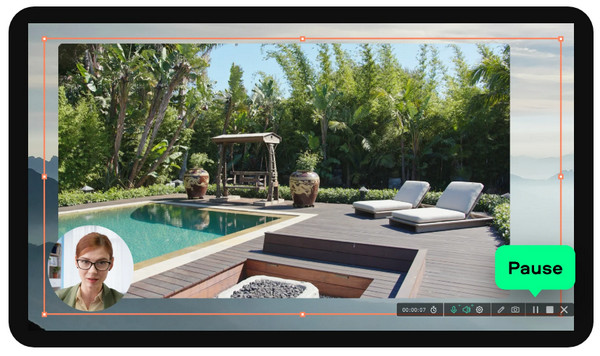
Step 3. Click the "REC" button or press the "F10" hotkey to start the three-second countdown. While the recording runs, use the "Drawing" tool to annotate. Later, click the "Stop" button (F10) to end.
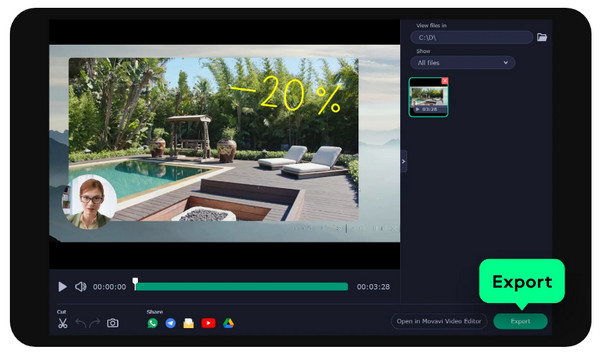
Step 4. Upon clicking, a preview window will show up. Perform any trims to remove the extras at the start or end before clicking the "Export" button to save the file.
The Easier and More Useful Alternative to Movavi Screen Recorder
What if you find that a specific task needs a tool with different capabilities beyond Movavi Screen Recorder? For this, AnyRec Screen Recorder is a powerhouse alternative that excels where other tools fall short. Here, you can enjoy a seamless, lag-free experience for recording on-screen content like gaming, live streaming, presentations, and more. It provides a dedicated mode that locks onto a specific window, full-screen, selected region, or even audio-only capture, ensuring no extra parts appear in your footage. With its focus on lossless quality, it serves as your professional-grade tool that remains remarkably easy to operate. Regardless of what you wish to record, this Movavi Screen Recorder alternative provides the stability you need for lengthy sessions without overheating your system.

Record screen, audio, and webcam selectively or all at once.
Choose custom resolutions and other settings for your desired output.
Enjoy uninterrupted, clean recording in stunning up to 4K resolution.
Set hotkeys for start, pause, resume recording, and more for easy access.
Secure Download
Secure Download
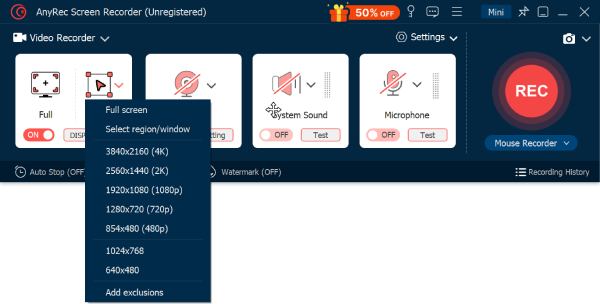
Step 1. Kick things off by launching AnyRec Screen Recorder and clicking on "Video Recorder". From here, decide how much of your screen you wish to show: select "Full" to capture everything or "Custom" to record a window or area.
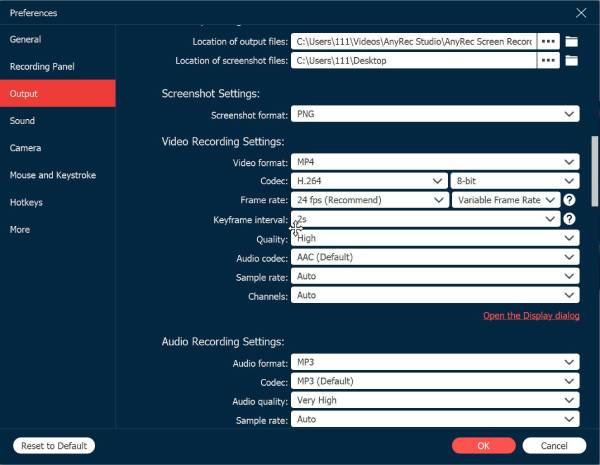
To get the desired file format or quality, just click the "Settings" button and head to the "Output" tab to tweak things.
Step 2. Before hitting start, turn on "System Sound" to pick up audio from your computer. Toggle the "Microphone" on too to add your own voice. Adjust both to make sure the audio volume is balanced.
Step 3. When you're ready to roll, click the "REC" button (Ctrl + Alt + R). While it is running, use the built-in toolbar to draw on the screen or click the "Camera" button to snap a quick photo of a specific moment.
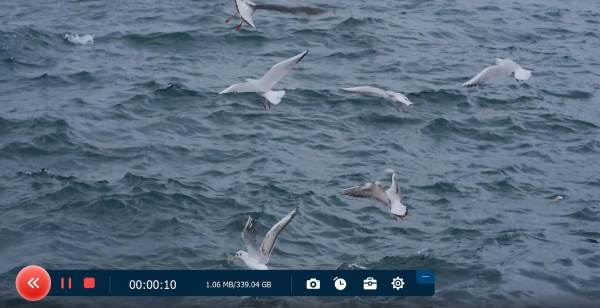
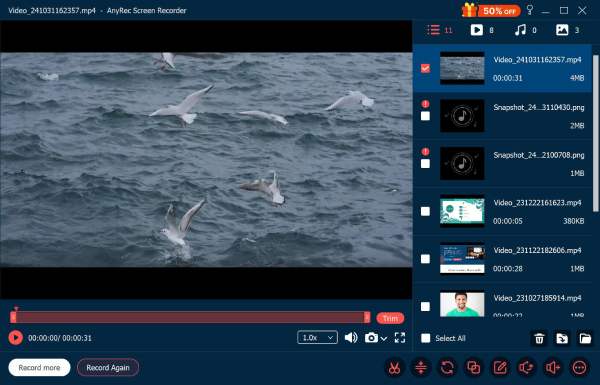
Step 4. Once you have captured what you need, click the "Stop" button. In the preview window, watch your work and easily trim those extra parts away. When it looks perfect, click the "Save" button to export the video to your computer.
Conclusion
In this Movavi Screen Recorder review, the tool remains unmatched if you need to create high-quality webinars, tutorials, or capture quick how-to clips. While it may lack advanced multi-track editing, its fast speed export and simple interface make it standard. But for more specialized tasks, use AnyRec Screen Recorder as a more useful alternative. It offers a dedicated mode that will not lag your system, and offers 4K support and advanced audio enhancements, all in a user-friendly interface.
Secure Download
Secure Download
About Our Author




