
How to Convert MKV to AVI for Small-Size Output with High Quality

Converting MKV to AVI is often less about changing visual quality and more about optimizing usability. With the correct settings, it is possible to reduce file size while keeping the video sharp enough for everyday viewing. The key is selecting a tool that manages codecs appropriately instead of unthinkingly compressing the file.
This guide explains why converting MKV to AVI is still helpful today and walks through several practical methods, from professional desktop software to free and online solutions.
Guide List
Why Do You Need to Convert MKV to AVI The Most Powerful Way to Convert MKV to AVI How to Convert MKV to AVI When Watching via VLC An Online Way for Conversion from MKV to AVIWhy Do You Need to Convert MKV to AVI
MKV files are efficient for archiving and high-definition playback, but they are not always convenient. Many legacy media players, embedded systems, and older editing tools still rely on AVI for stable playback. In addition, AVI files can be easier to compress into smaller sizes, which makes them practical for sharing via email or limited-bandwidth platforms.
Changing MKV to AVI can also simplify workflows when dealing with software that does not fully support MKV containers. In these cases, AVI acts as a more universally accepted format with fewer playback surprises.
The Most Powerful Way to Convert MKV to AVI
When both file size control and output quality matter, AnyRec Video Converter offers a dependable solution for converting MKV to AVI. It supports a wide range of MKV codecs. It allows users to fine-tune output settings such as resolution, bitrate, and frame rate, making it easier to achieve smaller AVI files without excessive quality loss.
AnyRec also supports batch conversion, which is useful when handling multiple MKV files at once. Hardware acceleration helps speed up the process, especially for high-resolution videos, while maintaining stable output quality. The interface remains accessible, allowing users to rely on optimized presets or make manual adjustments when needed. For users who want predictable results and efficient compression without dealing with codec errors, AnyRec provides a balanced and reliable conversion workflow.

Convert the MKV file to AVI format to significantly reduce the video file size.
During the conversion process, select the video quality to be the same as the resource.
Preview to check if the AVI video converted from MKV can be played normally.
Support adjusting detailed parameters during the conversion process.
Secure Download
Secure Download
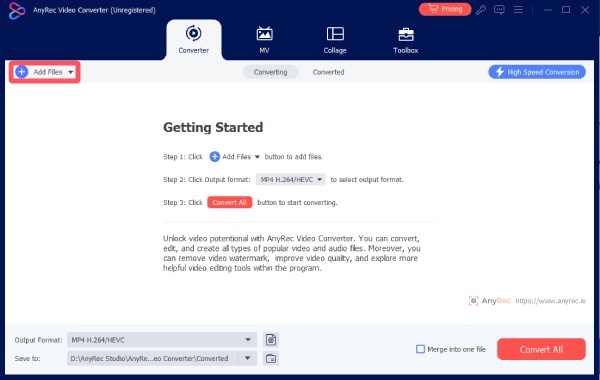
Step 1. After launching AnyRec Video Converter on your computer, click the "Add Files" button to import the MKV file.
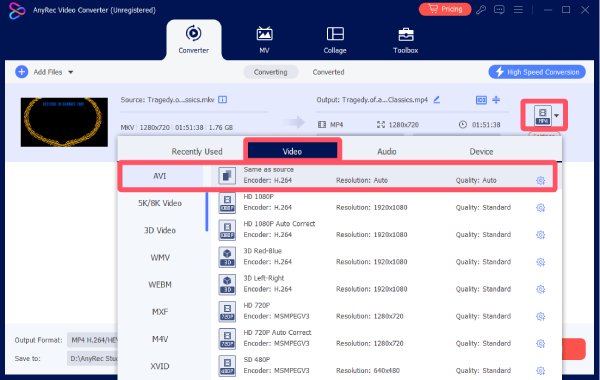
Step 2. A window will pop up after clicking the "Format" button. Click the "AVI" button under the "Video" tab to adjust the detailed parameters.
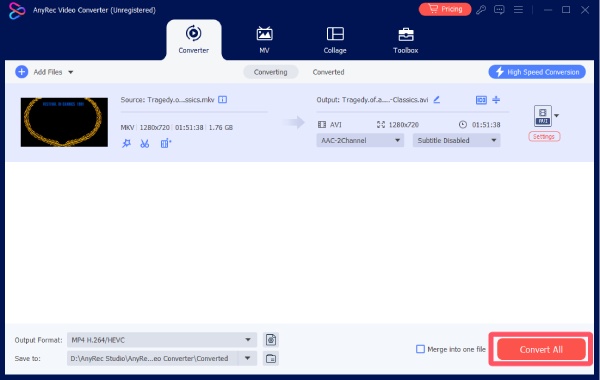
Step 3. Once you finish selecting, click the "Convert All" button to convert all MKV files to AVI.
How to Convert MKV to AVI When Watching via VLC
VLC Media Player is commonly used for playback, but it also includes a basic conversion feature that many users overlook. For those who already rely on VLC to watch MKV videos, converting the file to AVI can be done without installing additional software. This method is best suited for simple format changes, as VLC media player offers limited control over output quality and compression settings.
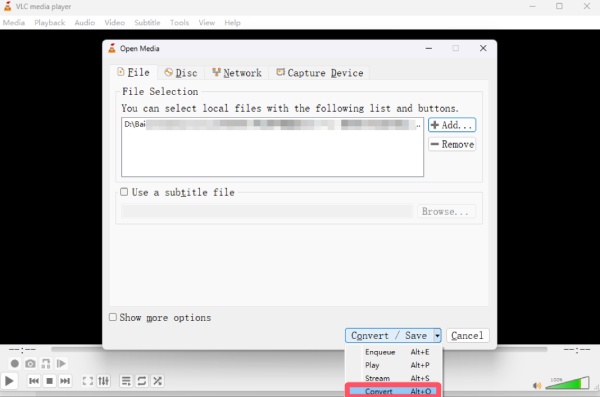
Step 1. Launch VLC media player on your device and click the "Convert/Save" button under the "Media" tab.

Step 2. To import your MKV files, click the "Add..." button. Then, click the "Convert" button under the "Convert/Save" tab.
Step 3. Under the "Profile" tab, click the "Edit selected profile" button. Click the "AVI" button to select it as the output format. You can also convert VLC videos to MP4 here.
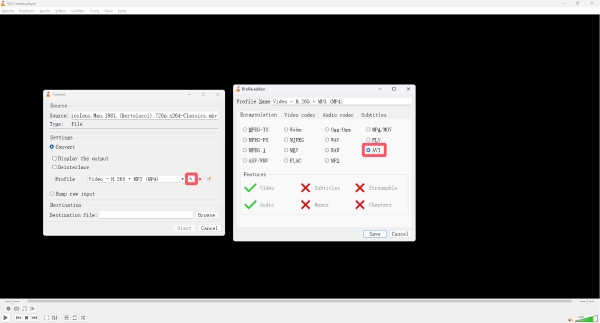
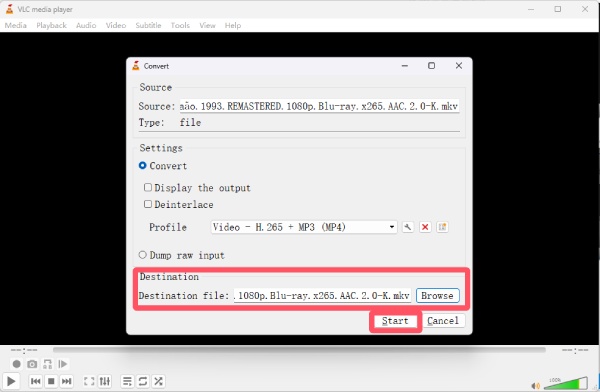
Step 4. Before starting the process, click the "Browse" button to select a destination folder. Finally, click the "Start" button to convert MKV to AVI.
An Online Way for Conversion from MKV to AVI
Online MKV to AVI converters provide a quick solution when installing desktop software is not convenient. They work directly in a browser and usually require only an upload and a format selection. These tools are suitable for occasional conversions or small files, especially on shared or restricted devices. However, upload limits, processing speed, and data privacy are essential factors to consider before relying on online services.
123 Online Video Converter is an established web-based platform that supports a wide range of file formats, including MKV to AVI. This online video platform provides basic options for adjusting resolution and output size, which can be helpful for simple optimization. This tool works well for occasional conversions but is less suitable for large-scale or frequent use.
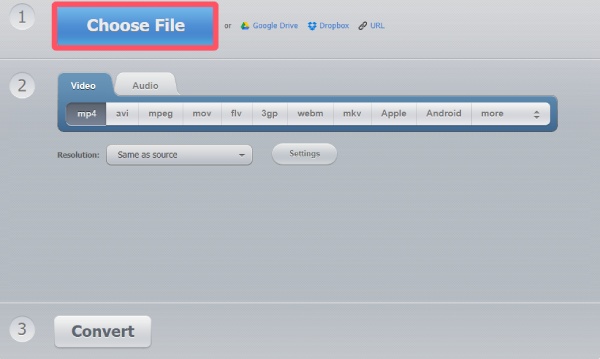
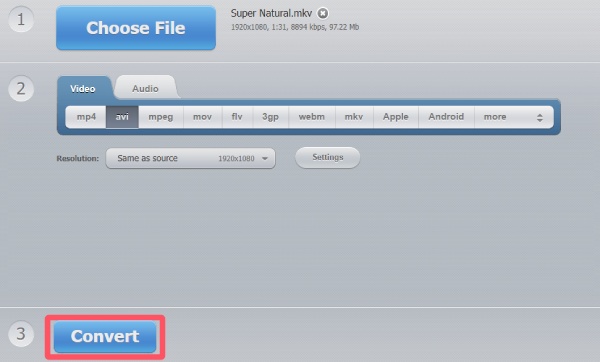
Step 1. Navigate to the official website of 123 Online Video Converter and click the "Choose Files" button to upload your MKV file.
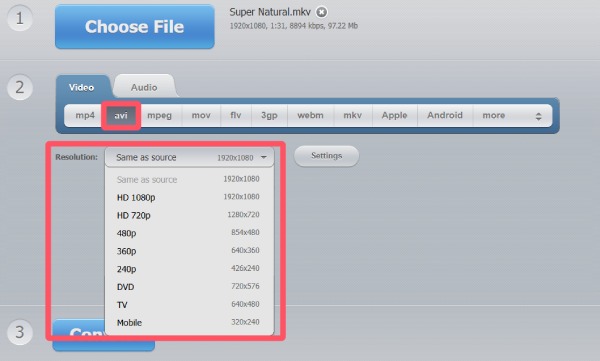
Step 2. To convert MKV to AVI, click the "avi" button. You can click the "Resolution" button to adjust the quality.
Step 3. Finally, click the "Convert" button, and the process of conversion will start automatically. Download and save it when finished.
Conclusion
Converting MKV to AVI remains a practical solution when smaller file sizes and broader compatibility are required. From professional tools to free options, each method offers a different balance of control and convenience. With AnyRec Video Converter, MKV videos can be converted to AVI quickly while maintaining acceptable visual quality for sharing and playback.
Secure Download
Secure Download



