
Is IObit iTop Screen Recorder Good? Full Review for You

Remote work and gaming dominate screens today, so having a way to capture those moments is necessary. That's what the iTop Screen Recorder does! But does it record with zero lag and high definition? Scroll down for the details. You can explore the standout features with a clear, step-by-step guide to help you master iTop Screen Recorder in minutes. After the in-depth iTop Screen Recorder review, you'll get to know the best alternative on the market to find the perfect match for your recording needs.
Guide List
Basic Introduction of iTop Screen Recorder Tested Review of iTop Screen Recorder How to Use iTop Screen Recorder to Record Video The Best Alternative to iTop Screen Recorder to Record EasilyBasic Introduction of iTop Screen Recorder
To give you a clear starting point for iTop Screen Recorder, here's what it is designed to do. It is an all-in-one screen recording and video editing tool specifically built for Windows users. While other recorders center only on capturing the screen, iTop has a suite of creation tools, including a built-in video editor, a compressor, and even AI-powered tools such as background removers and voice changers.
It is regarded as a one-stop place for gamers, educators, and professionals looking forward to producing high-quality video content without switching between multiple applications.
Tested Review of iTop Screen Recorder
Now, take a closer look at what the iTop Screen Recorder offers in 2026. While several features stood out, like any software, it comes with specific downsides. Here's a breakdown of its key features and an honest review of its pros and cons.
Key Features:
- • Screen Capture. Record the full screen, a certain window, or a custom, specific region. It also includes a Game Mode that uses GPU hardware acceleration to maintain high frame rates.
- • Webcam with Virtual Backgrounds. Allows you to blur or replace your webcam background without a green screen, which is perfect for clean, private settings during remote meetings.
- • Built-in Video Editor. Not only basic video trimmers, but it also has a multi-track timeline where you can add stickers, text, transitions, and music.
- • AI Voice Changer and Denoiser. You can change your voice in real-time using presets and apply the denoiser to eliminate the keyboard clicks or background hums.
- • Teleprompter Tool. Read a script efficiently with its floating, auto-scrolling text window while looking straight into the camera.
Pros of iTop Screen Recorder:
- • Very low CPU usage thanks to its hardware acceleration, perfect for gaming.
- • Its AI tools, e.g., voice changer, are very useful for tutorials.
- • Clean and intuitive interface where you won't need a manual to start recording.
Cons of iTop Screen Recorder:
- • Strictly for Windows only.
- • The free version has watermarks and limited export quality.
- • Pop-ups for the pro version are showing up.
How to Use iTop Screen Recorder to Record Video
After knowing the iTop Screen Recorder review, transition to the more practical side, knowing how to set it up and record. Your simple roadmap for your first recording with iTop Screen Recorder is written below:
Step 1. Launch iTop Screen Recorder on your desktop. From its main dashboard, choose between Screen, Webcam, Game, or Only Audio. To record the screen, click the dropdown arrow and select "Full Screen" or "Select Region".
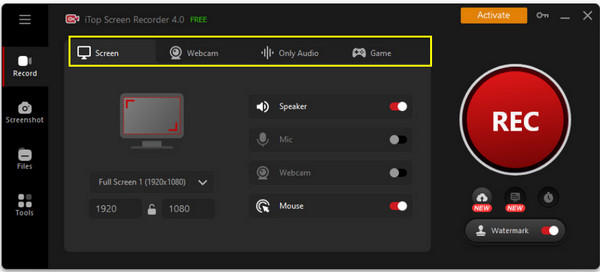
Step 2. Turn on icons for Speaker, Microphone, Mouse, and Webcam. Make sure "Mouse effects" is ON so your viewers can see your mouse clicks while recording. Optionally, apply AI enhancements by clicking the "Settings" button beside the Mic or Webcam buttons.
Step 3. After all that, click the "REC" button. A 3-second countdown will start, so switch to the window you wish to capture. During the session, use the floating toolbar to annotate on screen.
Step 4. Ultimately, click the "Done" button. Your recording will then appear in the "Files" tab, where you can click the "Edit" button to cut or compress the file.
The Best Alternative to iTop Screen Recorder to Record Easily
While the iTop Screen Recorder is a solid choice for many, you may find its interface or system requirements too much. So, in this final section, look at the top-tier iTop Screen Recorder alternative for both Windows and Mac: the AnyRec Screen Recorder. This lightweight yet powerful screen recorder is made to capture everything on your computer with zero lag, making it ideal for high-speed gaming, professional tutorials, or webinars. With its highly intuitive interface, it remains straightforward across both Windows and macOS platforms. You get a stable environment for length recordings without risking the audio or visuals. Plus, it excels at hardware acceleration, ensuring your computer stays fast even while recording 4K resolution.

Dedicated modes for Video, Game, Webcam, Window, Phone, and more.
Add text, drawings, arrows, and more on screen while recording.
Record system sound and mic at the same time with audio enhancements.
Adjust output settings to your desired ones, like format, resolution, frame rate, etc.
Secure Download
Secure Download
Step 1. Launch AnyRec Screen Recorder on your desktop and choose the "Video Recorder" option from the main screen. To select the capture area, click "Full" to grab the entire display or select "Custom" to pick a specific frame.
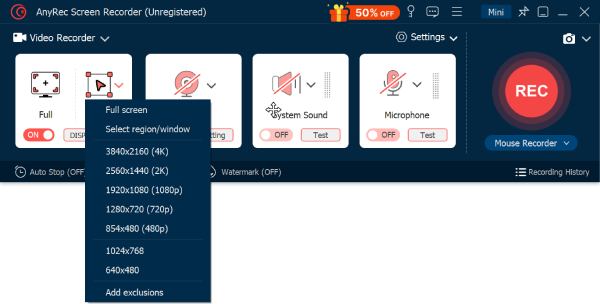
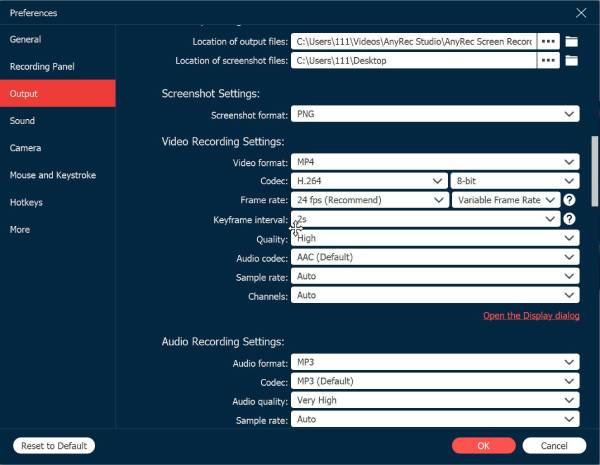
Before you start, click the "Settings" button and head to the "Output" tab to fine-tune your video format, quality, frame rate, and more.
Step 2. Make sure the "System Sound" toggle is ON to record the internal audio. For commentary, switch the "Microphone" toggle to ON, too. Balance the volume levels as needed.
Step 3. Click the "REC" button to begin. While the recording is ongoing, you can access the floating toolbar to add real-time annotations or even take a screenshot using the "Camera" button.
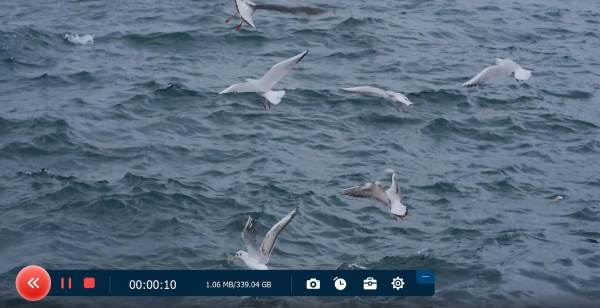
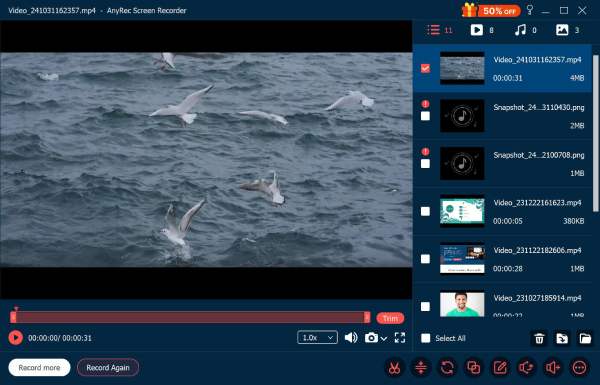
Step 4. When you have finished, click the "Stop" button to open the preview window automatically. You can watch your footage back and use the trimming tool to remove any extra segments. Once it looks polished, click the "Save" button to export the final file.
Conclusion
Choosing between so many recording tools can feel like a full-time job, but here's iTop Screen Recorder, a fantastic entry-level tool for users who wish for reliable and fast recording without a steep learning curve. However, after this IObit iTop Screen Recorder review, you know it is always nice to have a backup plan. So, give AnyRec Screen Recorder a try! It is a polished, free alternative that always guarantees your recordings are crisp, clear, and watermark-free. Whether it is video, audio, webcam, game, or phone recording, this Windows and Mac recorder does its job very well!
Secure Download
Secure Download
About Our Author




