
A Complete iSpring Free Cam Review with Best Alternatives

Since most free recording tools come with watermarks, or if not, recording limits, finding the right one is surprisingly difficult. So, here's iSpring Free Cam for you! However, with the rise of powerful recording tools, does it still hold up? In this iSpring Free Cam review, you will dive deeper into its pros, cons, steps for using it, and even the best alternatives. Whether you want a quick tutorial or training videos, find out today if Free Cam is still worth using.
Guide List
What is Free Cam? Features, Pros, and Cons of Free Cam How to Use Free Cam to Record Videos on Computer The Best Alternative to Free Cam to Record Easily OBS Studio as Alternative to Free CamWhat is Free Cam?
The first step is knowing what Free Cam is.
iSpring Free Cam is a lightweight, free recording software made specifically for Windows users. It was designed to provide a straightforward and quick way to create tutorials, screencasts, and educational lessons. Unlike other free tools, it is well-known for giving everyone a clean recording experience without watermarks or time limits on your clips.
Features, Pros, and Cons of Free Cam
Once you know what iSpring Free Cam screen recorder is, the next part of the review is to weigh its capabilities against its weaknesses to see whether it meets your project needs. Check out below the listed features, pros, and cons of Free Cam below.
Free Cam Overview:
- Flexible Recording Area. Record the whole screen, a specific window, or a custom-selected region.
- Audio Capture. Can capture both system and microphone sound simultaneously.
- Mouse Interactions. Let you highlight your cursor and allow mouse-click sounds to be captured for your audience to follow your movements. It is also supported to hide mouse cursor during recording.
- Built-in Media Editor. Trim extra segments, remove background noise, and adjust the volume of the entire video.
- Direct Social Sharing. Allows you to upload your project directly to YouTube or save it locally on your computer.
Pros of Free Cam:
- No watermarks, so your videos remain clean and professional.
- Record as long as your storage permits.
- Can enhance your audio quality easily.
- Streamline the publishing process.
Cons of Free Cam:
- Does not let you record your face while sharing your screen.
- Can only save videos in WMV format.
- There are no annotations, text overlays, or transitions.
How to Use Free Cam to Record Videos on Computer
Knowing the features of Free Cam is one thing, but seeing how they work in a real-world workflow is the next step in mastering and getting the software more. Here's how to use Free Cam to record videos:
Step 1. Open the Free Cam on your computer, and click on the "New Recording" button on the home screen.
Step 2. Next, select the area to capture by dragging the corners or choosing "Full Screen" from the dropdown menu. Then, click the "Settings" button to make sure your mic is selected, and your system sounds are turned on. If ready, click the "Rec" button.
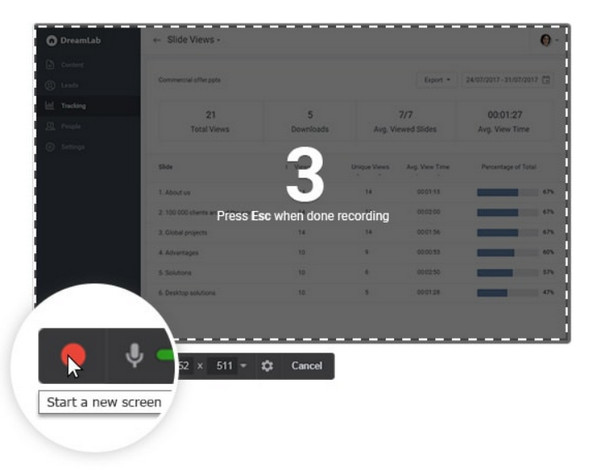
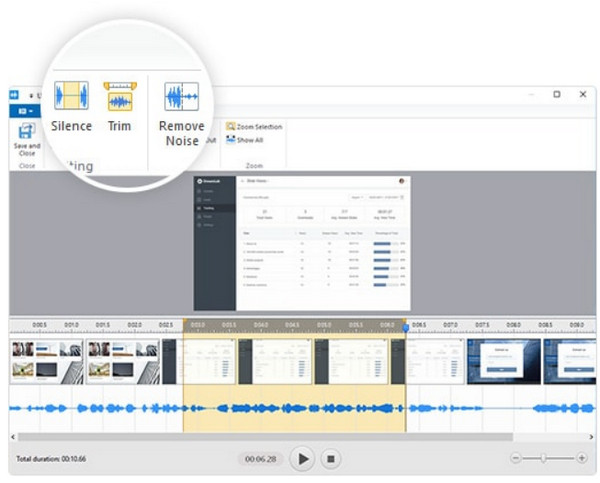
Step 3. Later, press the "Esc" key to stop, and a preview window will show up where you can trim the video or remove it. Click the "Save as Video" button to finalize.
The Best Alternative to Free Cam to Record Easily
If Free Cam's lack of webcam support or resolution limit is a dealbreaker, you may want to transition to a feature-rich alternative like AnyRec Screen Recorder. This powerful, all-in-one capture program is made for anyone who needs high-quality results on both Windows and Mac. Unlike Free Cam, the program has a dedicated webcam overlay, letting you show your face and your screen at the same time. Plus, it features a real-time drawing toolkit, adding arrows, text, and highlights during the recording session. With its interface and advanced features, this alternative connects the world of simple free tools and complex software.

Simultaneously record screen, webcam, and audio in high definition.
Tailor your recording settings to achieve the exact results you need.
Save your projects in MP4, MOV, AVI, and other famous formats.
Enhance your video with annotations or trimming before exporting.
Secure Download
Secure Download
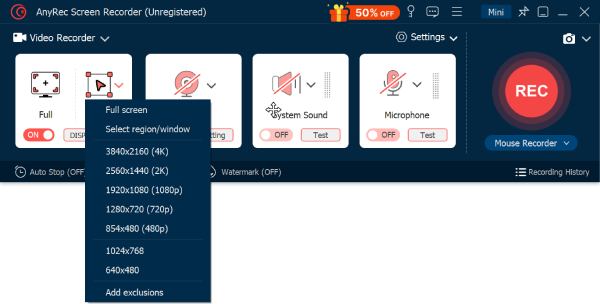
Step 1. Launch AnyRec Screen Recorder and select "Video Recorder". From here, choose to capture "Full" screen or "Custom" mode by simply dragging the frame to choose your capture area.
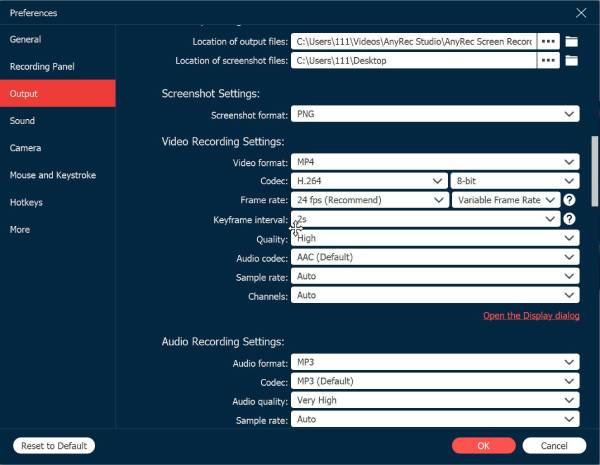
Step 2. If you need a specific quality, click the "Settings" button and navigate to the "Output" tab to fine-tune your preferences.
Step 3. To record the sound from your computer, toggle the "System Sound" ON. If you plan to narrate your video, enable the "Microphone" as well. Adjust the volume between your voice and the system audio.
Step 4. Click the "REC" button to initiate the countdown. As you record, use the floating toolbar to add arrows, draw, or add text. You can also click the "Camera" button to take an instant screenshot.
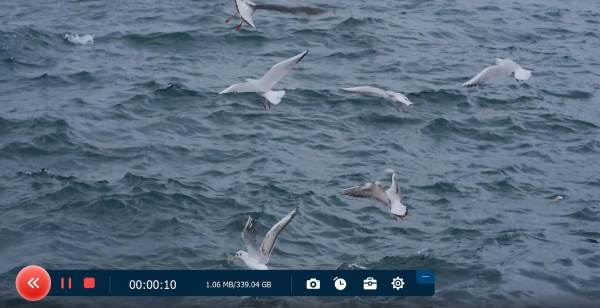
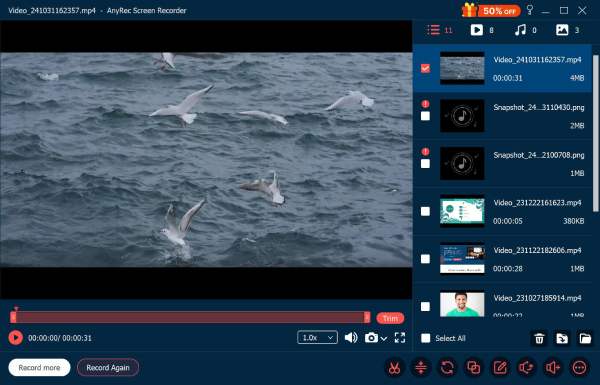
Step 5. When you have finished, click the "Stop" button. A preview window will launch, letting you watch your recording and trim any dead air. Once it looks perfect, click the "Save" button.
OBS Studio as Alternative to Free Cam
Some may still prefer a completely open-source environment as their Free Cam alternative, enjoying total control over every detail. For this, OBS Studio is the standard. It utilizes a Scenes and Sources system, letting you build complex layouts with several cameras, images, and window captures.
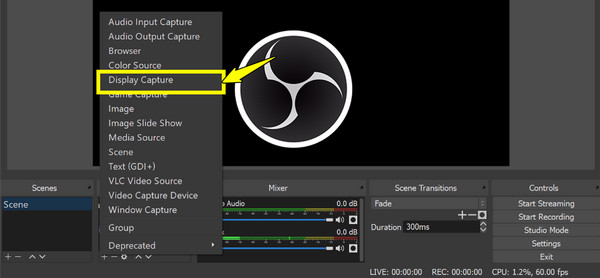
Step 1. Open OBS and locate the "Scenes" box in the bottom-left corner. Click the "Add" button and name it, e.g., Screen Recording. Then, click the "Add" button in the "Sources" box, and choose "Display Capture". Name it and click "OK".
Step 2. Next, in the "Audio Mixer" panel, set your audio settings such as Desktop Audio and Mic/Aux. You can select your export format too in the "Settings" button.
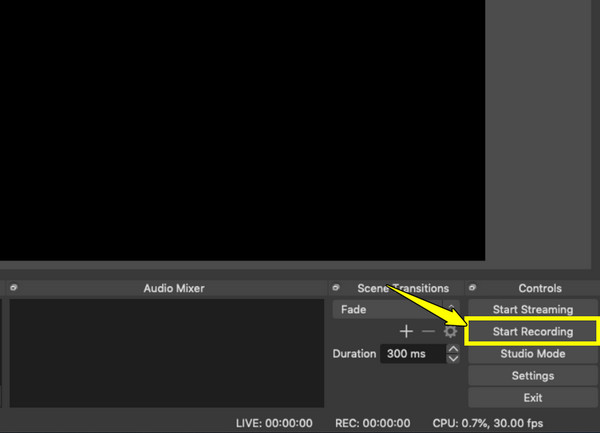
Step 3. Once ready, click the "Start Recording" button on the right-hand control panel. When finished, click the "Stop Recording" button. Locate your video by going to "File" and clicking "Show Recordings".
Conclusion
After this iSpring Free Cam screen recorder review, it is now clear why Windows users go for it to record the screen. As you have seen here, it never adds a watermark and does not give you a 5-minute time limit, so it is an incredibly reliable choice for a free recording experience. But others may find its lack of webcam support and export format limits the need to find alternatives. For this, switch to AnyRec Screen Recorder today! It lets you record in stunning 4K quality, enjoy webcam overlay, and export in formats and output settings you like. Whether you want to record lengthy videos or walkthroughs, this tool addresses the shortcomings of basic free tools.
Secure Download
Secure Download
Related Articles:
About Our Author




