
[Guide] How to Use Smart Switch on Samsung & Other Devices

Don't know how to use Smart Switch? You're likely searching for this because you're switching phones, or you've heard that Smart Switch is one of the most reliable apps for transferring data. Whatever your reason is, this app is straightforward to use, and if you're unfamiliar with it, just keep reading this post! Here, you'll find a simple guide to use Samsung Smart Switch, everything you need to know about it, and its best alternative you can get from the market. Dive in now.
Guide List
What Is Smart Switch? Simple Reviews Detailed Steps on How to Use Smart Switch Best Smart Switch Alternative to Transfer Data on All DevicesWhat Is Smart Switch? Simple Reviews
Before making those fingers of yours busy performing this post's detailed steps to use Samsung Smart Switch transfer, allow yourself first to explore a brief background about it, and things you should and shouldn't expect from this app. So, Smart Switch is Samsung's data transfer solution. It is designed to make moving your data from one phone to another easy and quick.
Smart Switch helps you transfer phone data to Samsung from another Samsung, Android, or even iPhone in just a few steps. There is no need to waste time on manual backup. You can switch to new Samsung wirelessly, with a cable, or via a PC, depending on what's most convenient for you.
Now, that brief description might make Smart Switch on Android sound amazing, but it still possesses limitations that you need to take note of. So, what are these?
- • Some apps or app data may not transfer correctly, especially from an iPhone to a Samsung.
- • Large transfers can take a long time, particularly with older devices or wireless connections.
- • A stable Wi-Fi or cable connection is required, or the transfer can fail or be interrupted.
Detailed Steps on How to Use Smart Switch
Now that you have acquired a brief background about Smart Switch and everything you need to know about it, it is time for you to proceed with performing the simple steps to use Samsung Smart Switch. As mentioned earlier, Samsung Smart Switch can be used to transfer various data from another Samsung device, an Android phone, or even an iPhone. This post features different guides that cover all of the data transfer processes from other devices. So, perform the one that applies on your end.
How to Transfer Data from Samsung to Another Android or Vice Versa with Smart Switch
Step 1.Launch the Samsung Smart Switch app on both devices (Smart Switch usually comes pre-installed on Samsung phones). If it is not installed yet on the other device or in both, you can get Smart Switch on the Google Play Store.
Step 2.Next, head to the sending phone, tap the "Send from this phone", and choose between "Wireless" or "Cable". But if you are using another Android phone, it is recommended to select wireless transfer for your convenience. Then, follow the on-screen instructions to proceed.
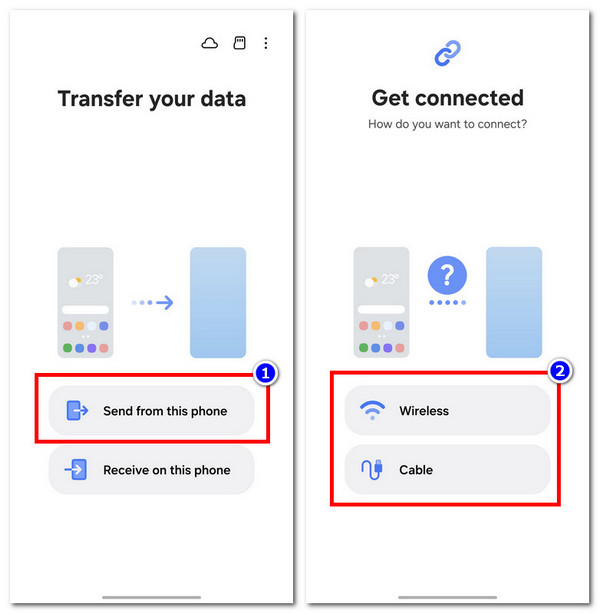
Step 3.Then, head to the receiving phone and choose between "Galaxy/Android" or "iPhone/iPad", depending on the sending phone's operating system. After, pick the same connection mode as the one you chose earlier, and follow the on-screen instructions to proceed.

Step 4.Next, on the receiving device, select the data you want to transfer from the sending device, and then tap "Transfer". After that, wait for the process to complete, which may take some time depending on the amount of data.
Step 5.Ensure that both devices remain connected and powered on until the data transfer is finished. Once done, check your new/receiving device to ensure everything moved correctly.
How to Transfer Data from iPhone/iPad to Samsung with Smart Switch
Step 1.On your iOS phone, head to the Settings app, tap your "name", select the "iCloud" option, and back up the data you want to transfer to another device.
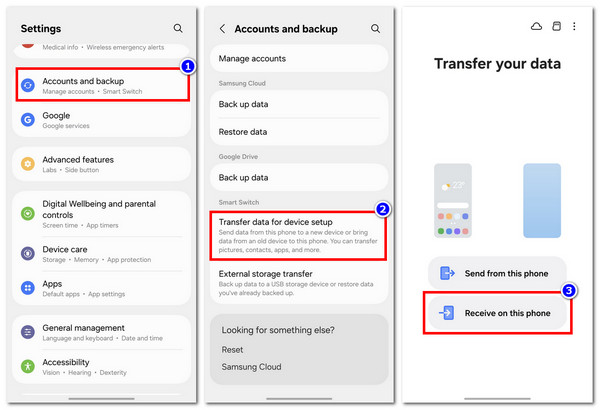
Step 2.Then, head to your Samsung phone's Settings app, select the "Accounts and backup", and tap the "Transfer data for device setup" to access the Smart Switch app. Next, select the "Receive on this phone" option.
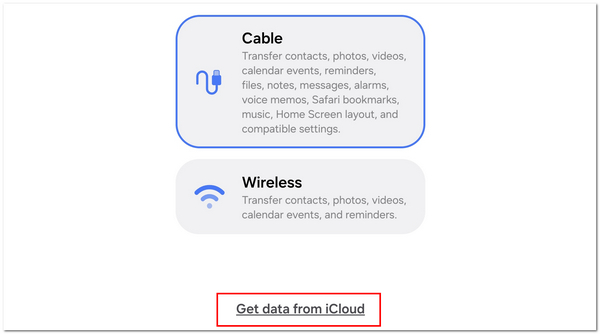
Step 3.After that, select the "iPhone/iPad" option on the new screen and tap the "Get data from iCloud". Then, enter your Apple Account credentials and tap the "Sign in to iCloud" to access your iPhone/iPad's iCloud.
Step 4.Next, select the data you wish to transfer and tap "Import". And that's it!
Best Smart Switch Alternative to Transfer Data on All Devices
Now that you know Samsung Smart Switch tutorials, you might also want to consider an alternative because of its limitations. If so, AnyRec PhoneMover is one of the best options you can try. This desktop-based tool enables you to transfer data from one device to another through a smooth, quick, and easy file-transferring process. Unlike Smart Switch, this tool supports transferring all data types, including photos, videos, contacts, messages, and more than 20 additional formats, accurately between any devices (iOS, Android, and PC). It can also transfer large files in minutes through a wired connection, so weak Wi-Fi won't slow you down. And since Smart Switch requires a stable Wi-Fi connection, this tool lets you transfer files at maximum speed without relying on the internet at all.

Allows you to pick which files or folders to move without overwriting or limitations.
Provides 1-click phone data migration, backup, and restore. No factory reset required.
Detects and merges duplicate files to help save storage space.
Lets you skip, delete, and manage contacts, photos, and more directly within the tool.
Secure Download
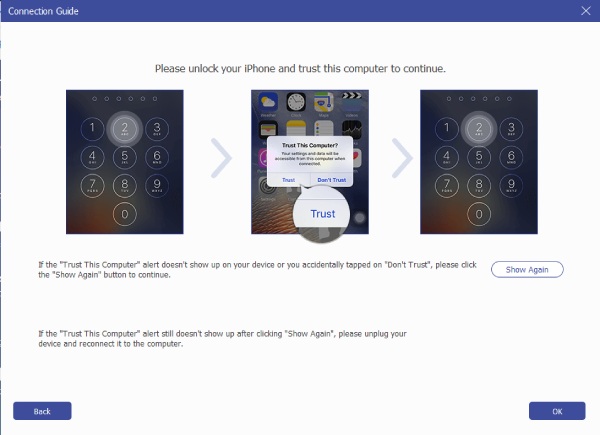
Step 1.Install AnyRec PhoneMover on your desktop and launch it afterward. Suppose you wish to transfer media files from your phone to another. In that case, link both phones to the computer through USB cables. If you are using an Android, you need to scan the QR code.
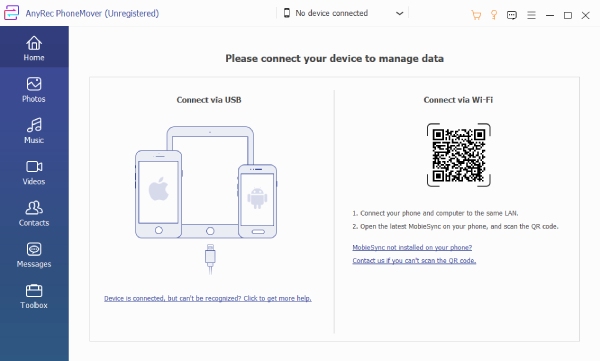
Step 2.After that, follow the on-screen instructions within the tool. Then, click the "Photos" button on the left side to view all of the photos you have on your phone.
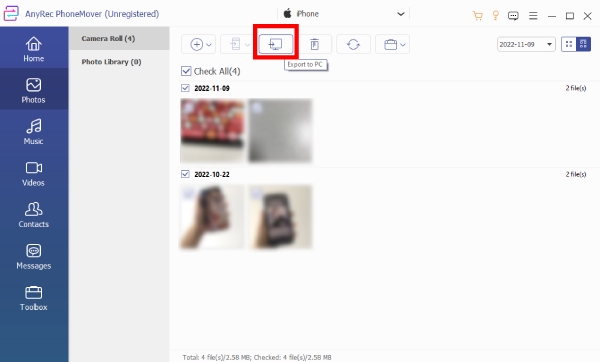
Step 3.Next, tick the checkboxes of the photos you wish to transfer to select them. Then, click the "Export to Device" button above to transfer these media files to the other phone. And that's it! The process for transferring other files is the same.
Conclusion
Now that you have explored this post's guide to use Smart Switch to transfer data. You can now start transferring files from one phone to another. After exploring the guide, you've seen how reliable it is for migrating data. However, there are a few drawbacks you may want to consider before using it. If those limitations make you look for an alternative, AnyRec PhoneMover is one of the best file-transferring tools on the market. This tool overcomes all the shortcomings of Smart Switch, giving you a much better overall experience. Try it today!
Secure Download



