How to Send SMS from iPhone to iPhone? [iCloud, iTunes, etc.]

Sending SMS from iPhone to iPhone can be essential. No matter you switch to a new iPhone 17 or just simply want to make a backup of important conversations, you can forward text messages from one iPhone to another manually. Whatever the reason is, knowing the proper methods can save you time and effort. Fortunately, Apple does have options to make the transfer process even simpler. This guide here shares the four ways how to send SMS from iPhone to iPhone, helping you choose the one that best fits your needs.
Guide List
One-Click Way to Send SMS Messages between iPhone without Backup How to Send SMS from iPhone to iPhone via iCloud Use iTunes/Finder to Send SMS Messages from iPhone to iPhoneOne-Click Way to Send SMS Messages between iPhone without Backup
For a faster, simpler, and more direct solution to sync messages between iPhones where you don't need to rely on iCloud or iTunes backups, AnyRec PhoneMover is what you need. This is an all-in-one tool designed for anyone who wishes for an effortless and flexible solution. Here, you can move SMS messages from one iPhone to another with just a single click, without affecting other existing data. It works perfectly if you have just bought a new iPhone and only intend to move specific data, such as texts, photos, videos, contacts, and others. Compared with other cloud-based options, this tool offers faster transfer speed and complete control over what to send.

Transfer SMS, photos, contacts, and more between iPhones.
Compatible with the latest iOS versions and all iPhone models.
Maintains original message quality and formatting during transfer.
Built-in file manager to delete, organize, or export data easily.
Secure Download
Step 1.Have the AnyRec PhoneMover launched on your computer. Then, connect both iPhones using a USB cable and tap on the "Trust" notification on each phone to allow access.
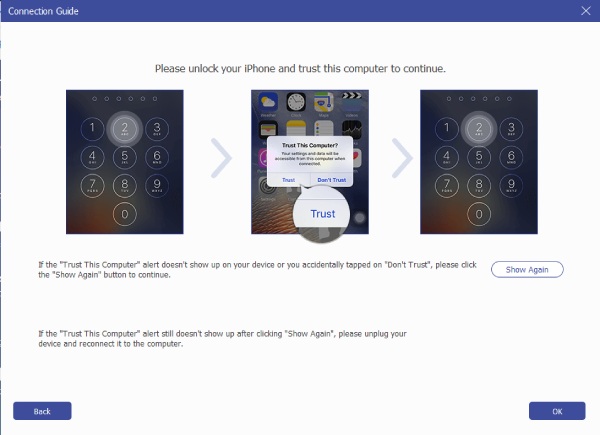
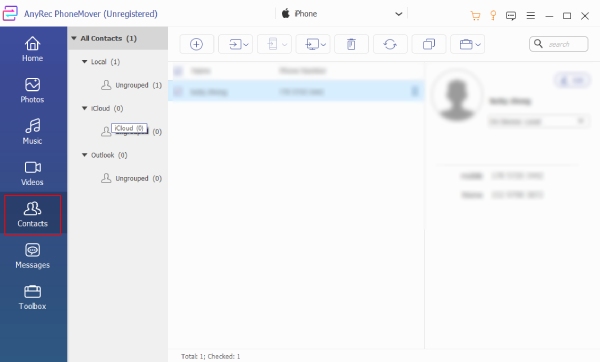
Step 2.Once detected, select your source iPhone and go to "Messages" from the left panel. Locate the SMS messages you wish to transfer, then click their boxes to select them.
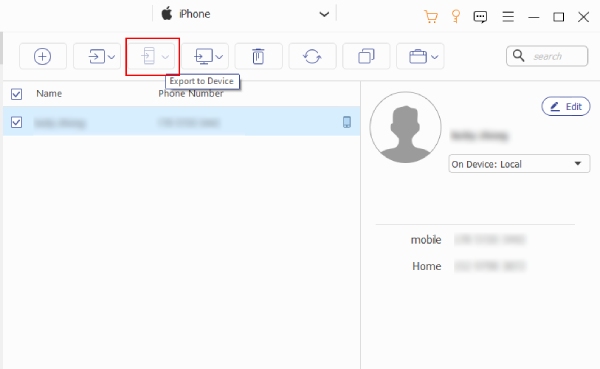
Step 3.After choosing, click the "Export to Device" button and select the target iPhone as the destination. Wait for a few moments for it to complete, and you'll see your SMS on the new iPhone.
Secure Download
How to Send SMS from iPhone to iPhone via iCloud
If you recently upgraded to a new iPhone and wish to keep your text messages, iCloud is a quick and secure way to forward SMS from iPhone to iPhone. This method ensures all your SMS as well as iMessages are synced across Apple devices used with the same Apple ID. Also, iCloud saves a lot of time since it does not need cables or third-party software, just a stable Wi-Fi connection.
So, before you begin, make sure both iPhones are connected to the internet and linked with the same Apple ID. Here's how to transfer text messages to new iPhone via iCloud:
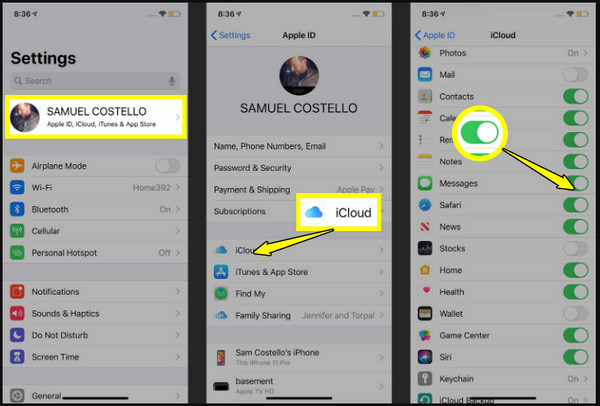
Step 1.On your old iOS device, open the "Settings" app, tap on your "Apple ID name", and choose "iCloud".
Step 2.There, enable "Messages" to sync your SMS with iCloud; please wait until the upload is complete.
Step 3.Now, on your new iPhone, sign in with the same Apple ID and turn on the "Messages" switch in iCloud. After a while, your SMS messages will appear on the new device.
Use iTunes/Finder to Send SMS Messages from iPhone to iPhone
Suppose cloud storage is not your preferred method for sending text from iPhone to iPhone, then iTunes or Finder provides another best option. This approach lets you create a complete backup of iPhone text messages, as well as settings, and even app data. It is useful when you intend to restore everything exactly as it was on your old iOS device. However, you must have enough disk space on your PC to complete the process smoothly.
Step 1.Pair your old iPhone to your computer via a USB cable. Then, open "iTunes" (Finder on newer macOS versions).
Step 2.Select your device above, then click the "Back Up Now" button to start creating a full backup. Once done, disconnect the old iPhone properly.
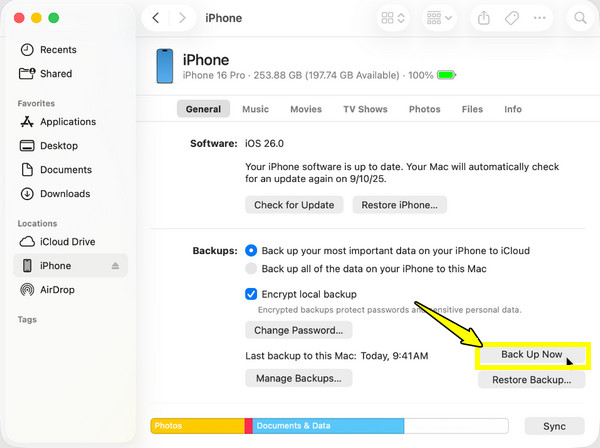
Step 3.Connect your new iPhone, and once detected, select your device, then choose "Restore Backup". Pick the most recent backup that happened to transfer your SMS messages to new iPhone.
Conclusion
Whether you want to sync through iCloud, or restore backups using iTunes or Finder, you can transfer text messages from old iPhone to new iPhone with the above methods. If you want to select custom text messages before transferring to iPhone, AnyRec PhoneMover is highly recommended. Different from cloud and default file transfer tools, you can preview, select, edit, and move custom SMS messages without erasing other data on your iPhone. Use the program to move all iPhone files safely here.
Secure Download
Related Article
About Our Author