
How to Record Screen in Sleep Mode without Interruptions

Just imagine waiting for a live stream event to finish as you wish to capture everything. This could be tiring since you do not want your screen to glow all night or drain your phone battery. Frustrating, right? However, with the right workaround, you can record screen in sleep mode! Whether you're on PC or smartphone, the following holds three reliable ways to record video with the screen off, while still ensuring every frame is captured. Keep it rolling while your screen stays dark!
Guide List
Use AnyRec Screen Recorder to Record Screen in Sleep Mode How to Use OBS to Record Screen in Sleep Mode How to Record Screen in Sleep Mode on iPhone/AndroidUse AnyRec Screen Recorder to Record Screen in Sleep Mode
By choosing the right tool, you can have a seamless screen recording in sleep mode experience. The first way to pull this off is with AnyRec Screen Recorder. This premier choice maintains its process when the display is timed out. Unlike basic tools, it has a Schedule Recording feature that triggers and keeps the capture sessions without manual intervention. Aside from screen recording, it captures your system audio, microphone sound, and webcam at once, without sacrificing quality. If you wish to eliminate the risk of any interruptions from mouse movements or notifications, this program offers the most reliable way to make sure your footage is done perfectly without needing to watch your computer.

Record full screen, specific windows, or custom regions.
Scheduled tasks by setting a start and end time to record smoothly.
Customize settings, e.g., resolution, frame rate, to get desired results.
Utilizes minimal CPU resources, preventing overheating even in long sessions.
Secure Download
Secure Download
Step 1. Launch AnyRe Screen Recorder to begin. Start setting the screen capture with "Full" or "Custom" options and audio source, like "System Sound" and "Microphone".
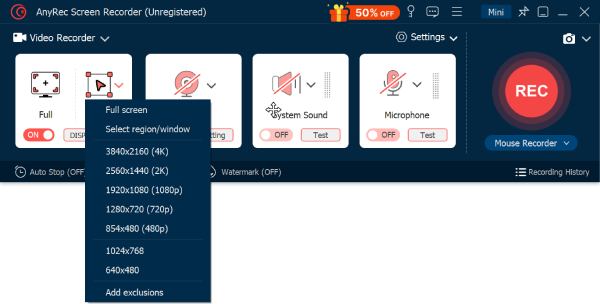
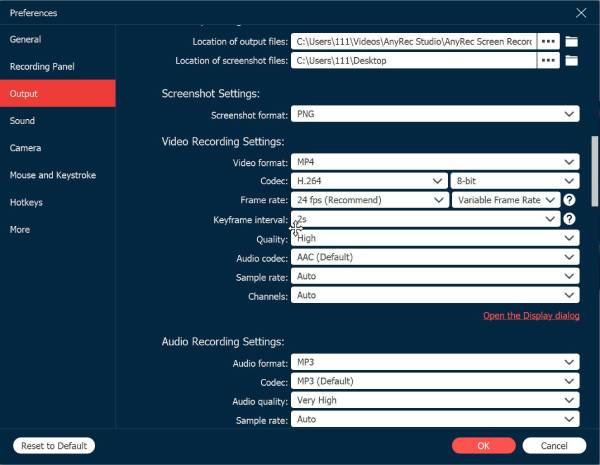
Step 2. If you wish to get specific recording results, click the "Settings" button and head towards the "Output" tab to adjust resolution, format, frame rate, etc.
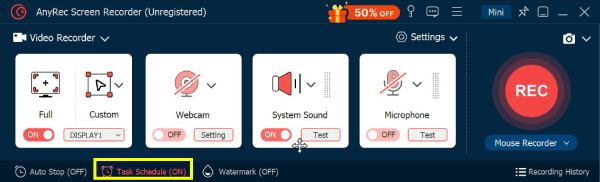
Step 3. To continue the screen recording for hours, click the "Task Schedule" button below to set a start and end time, recording length, and more. Once ready, click the "REC" button. The process will continue even if your computer sleeps.
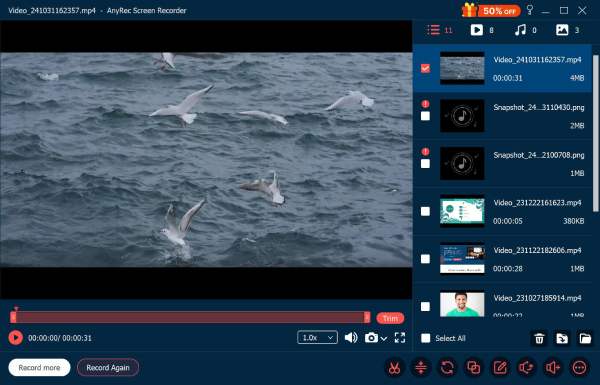
Step 4. Later, stop the recording. In the preview window, watch and cut out any extra parts. If everything goes perfectly, click the "Export" button to get it saved on your computer.
Secure Download
Secure Download
How to Use OBS to Record Screen in Sleep Mode
Now, for an open-source alternative, you can record video while the computer is locked with OBS Studio. This industry-standard program for streamers records the output of your graphics card instead of the physical light from your monitor. By adjusting your Windows power plan, the program can record the screen in sleep mode, making it ideal for users who want complete control over their bitrates and encoding settings. OBS takes large CPU usage. If you want to fix laggy OBS, you can reduce game FPS, resolution, and other unnecessary settings.
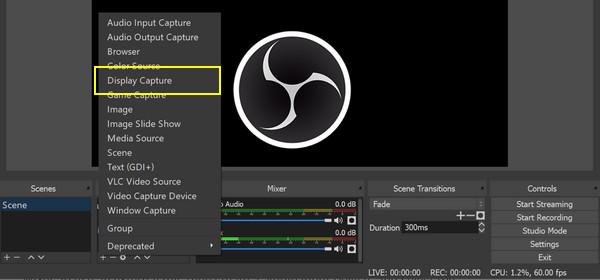
Step 1. Open OBS Studio on your PC. Set up your "Sources", such as Display Capture, to record the computer's display by clicking the "Add" button.
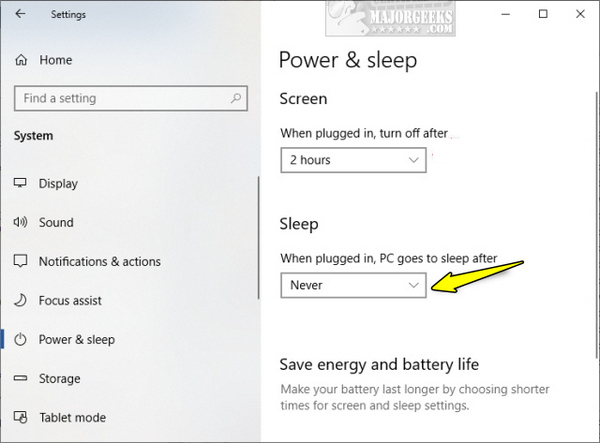
Step 2. After that, go to your computer's "Control Panel" to "Power Options" and select "Change plan settings". Set the "Put the computer to sleep" menu to "Never".
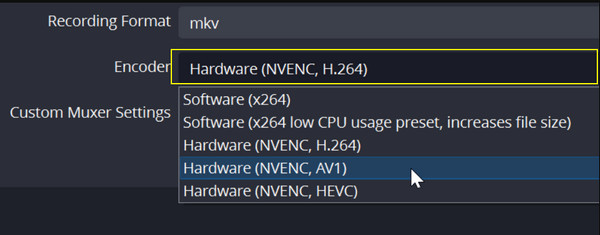
Step 3. Then, click on the "Settings" button to choose the "Output" section. Here, select your Recording Path, Quality, and Format. Make sure your encoder is set to "Hardware NVENC". Click the "OK" button to verify all changed settings.
Step 4. At last, click the "Start Recording" button in the corner. You can then turn off your monitor, and the GPU will continue sending frames to OBS.
How to Record Screen in Sleep Mode on iPhone/Android
While desktop solutions have the most control, you might need to record video with phone screen off on the go. Is this possible with mobile devices? The truth is, the sleep mode recording is a challenge, but the goal here is to keep the record active while the OLED pixels are turned off. For this, you need to configure some settings and also third-party video and audio recording apps.
Here's how to record screen with a locked screen on iPhone/Android:
How to Record Screen in Sleep Mode on iPhone
- 1. Launch "Settings" then head to "Accessibility" and go to "Guided Access"; please turn it on, including the "Mirror Display Auto-Lock" switch button.
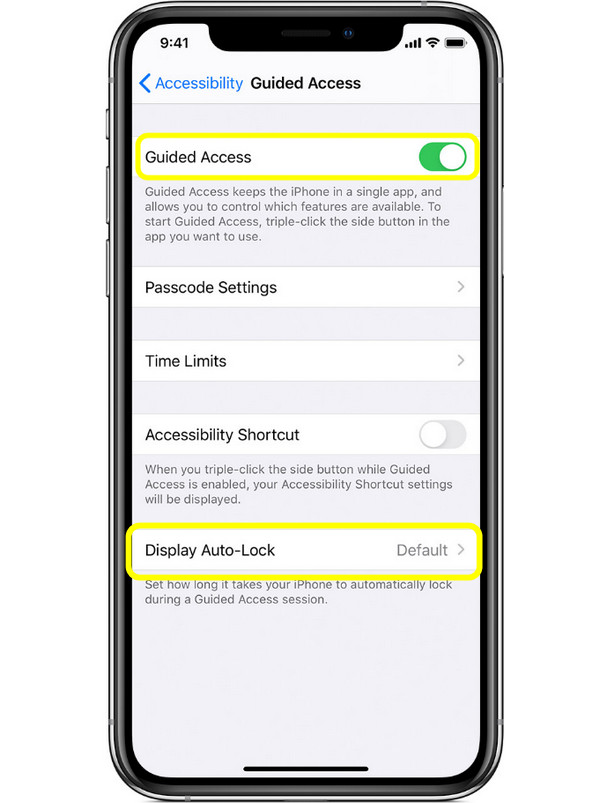
- 2. From the "Control Center", start screen recording. Then triple-press the "Power" button to engage "Guided Access" on the app you wish to capture.
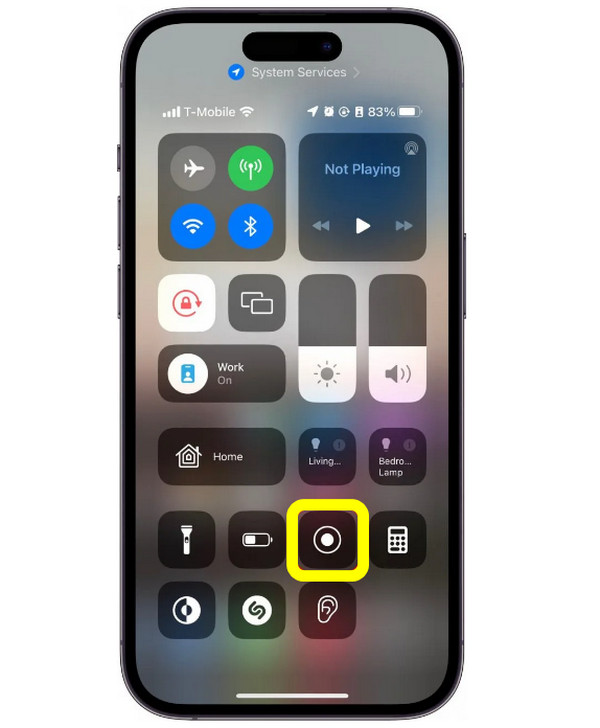
- 3. Your device will then allow the screen to lock depending on your Auto-Lock settings without stopping the recording session.
How to Record Screen in Sleep Mode on Android
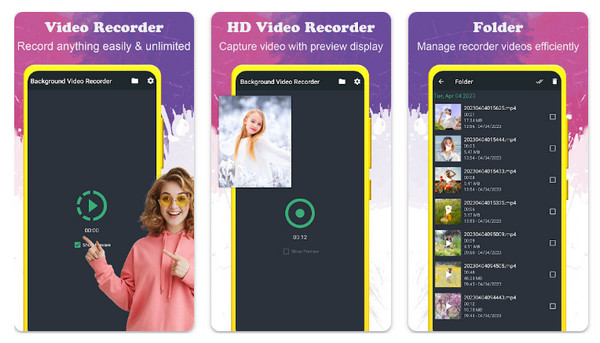
- 1. Get an app installed like Background Video Recorder.
- 2. Then, grant all required permissions for "Appear on Top" and "Screen Recording".
- 3. After that, start recording within the app and tap the "Clock" icon to dim the display.
- 4. Later, stop it by double-tapping the dark screen or using the notification toggle.
Conclusion
Mastering how to record video while the screen is off is the ultimate productivity! By following the steps above, you no longer have to wait and watch your computer during a recording session, as the recording still continues. While there are many workarounds to do the task, nothing beats the convenience of AnyRec Screen Recorder. With its Task Schedule feature, you can set recordings, whether it is a specific window or full screen, while you sleep or are away from your desk. So, save your time and battery, and let this program do the heavy, high-quality recording task for you.
Secure Download
Secure Download



