
4 Ways to Backup iPhone without iCloud in Minutes

Are you one of those Apple users who are looking for a guide to backup iPhone without iCloud? If you are, then you perhaps still want to back up your iPhone, but not with iCloud; probably because it’s already full and you don’t want to pay for more storage, or you prefer not to use cloud services. Well, whatever the reason is, thankfully, you clicked this post! Here you get to explore 4 practical guides on to backup iPhone without enough iCloud storage. Discover them now.
Guide List
Backup iPhone to Mac or PC without iCloud Using Finder/iTunes How to Selectively Backup through Google Drive without iCloud Use Manual Backup Function to Backup iPhone without iCloud Fast and Easy Way to Backup All iPhone Data without iCloudBackup iPhone to Mac or PC without iCloud Using Finder/iTunes
The first method you can use to back up an iPhone without iCloud is by using Finder or iTunes. This lets you keep a complete copy of your photos, contacts, messages, and other essential data safely stored on your computer. iCloud may be convenient, but storing your backup on a computer keeps everything in one place and accessible even without an internet connection. Just note that this method doesn’t let you choose which files to back up.
How to Backup iPhone to Mac without iCloud
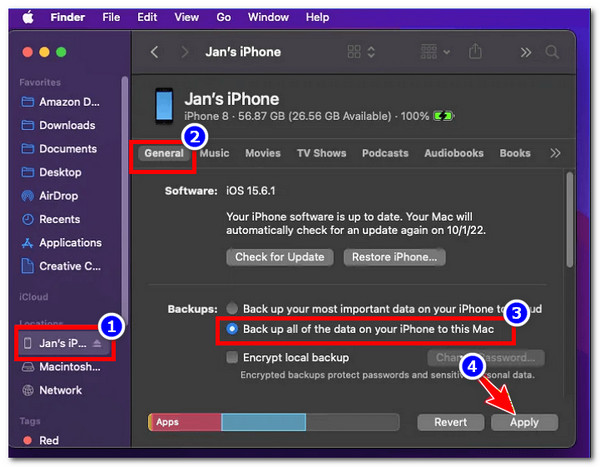
If you are utilizing a Mac computer running macOS Catalina (10.15) or later, iTunes was replaced by Finder, and here are the steps you need to follow to back up your iPhone to Mac:
Step 1.Link your iPhone to your Mac using your phone’s USB cable. After that, run "Finder" and select your iPhone in the sidebar under the "Locations".
Step 2.Next, select the "Back up all of the data on your iPhone to this Mac" option under the "General" tab.
Step 3.Finally, click "Back Up Now" to initiate the backup process. That’s it! Now you can backup iPhone files to a computer without iCloud via Finder.
How to Backup iPhone to Windows without iCloud
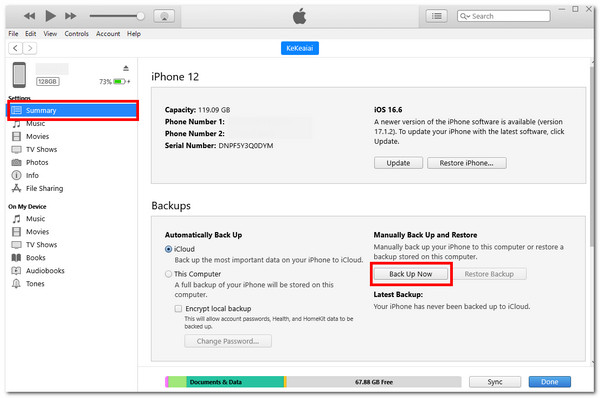
If you are using a Windows PC or a Mac running macOS Mojave (10.14) or earlier, you can utilize iTunes to back up your iPhone. Here are the steps you need to follow to back up your iPhone using iTunes:
Step 1.Link your iOS mobile device to your PC and wait for iTunes to launch automatically on your screen.
Step 2.Then, head to your iPhone, unlock it, and tap "Trust" to confirm that you trust your computer.
Step 3.After that, click the "Device" tab, select the "Summary" option, and click the "Back Up Now" button to back up your iPhone to your computer.
How to Selectively Backup through Google Drive without iCloud
If you don’t want to create a complete backup of your iPhone using iCloud, Finder or iTunes, you can choose to back up specific data instead, such as photos, contacts, or calendar events. One easy way to do this is through Google Drive, which lets you selectively back up important information and access it from any device. However, the downside is that it doesn’t include all your iPhone data, such as messages, app data, and settings.
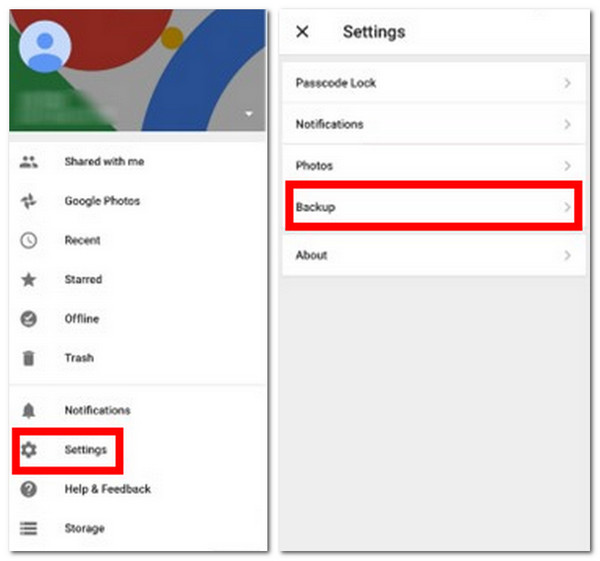
Step 1.Install the Google Drive on your iPhone and run it afterward. Then, tap the "Menu" icon in the left corner.
Step 2.Then, on the settings menu of the app, select the "Backup" option to proceed. After that, choose which backup from the list of options.
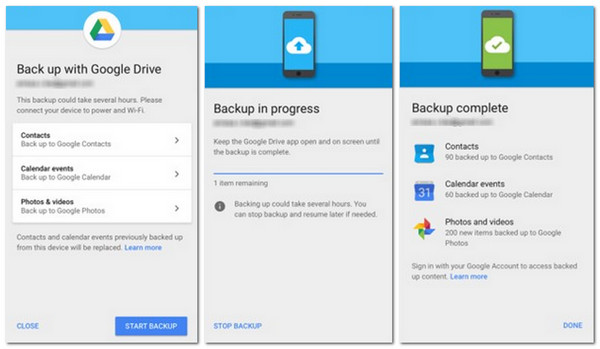
Step 3.Then, begin the backup process by pressing the "Start Backup" button and waiting until the process is finished.
Use Manual Backup Function to Backup iPhone without iCloud
If you prefer to back up only specific types of data instead of your entire iPhone, using the manual backup method is a great alternative. So you can selectively save your photos, contacts, messages, and other files without relying on iCloud. There is no need to pay for more iCloud storage space. However, this process can take more time and doesn’t include app data, settings, or system files. In case you still want to try this one, here are the steps to backup an iPhone to your computer without iTunes or iCloud manually:
How to Backup Photos and Videos from iPhone to PC and Mac without iCloud
If you wish to back up photos and videos from your iPhone manually, here are the steps you need to follow:
Step 1.Link your iOS device to your Mac/PC using a USB cable.
Step 2.After that, follow the step below that applies to your end:
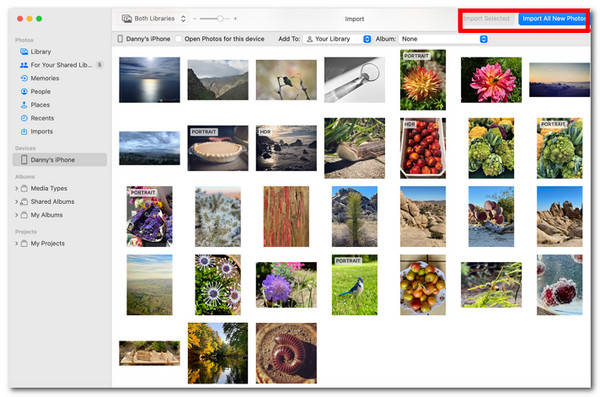
• On Mac, open the "Photos" app, then click "Import" to move your chosen or all photos from your iPhone to your computer.
• On Windows, open "File Explorer", go to "This PC", select your iPhone device, and head to the "DCIM folder". Then, proceed to Step 3.
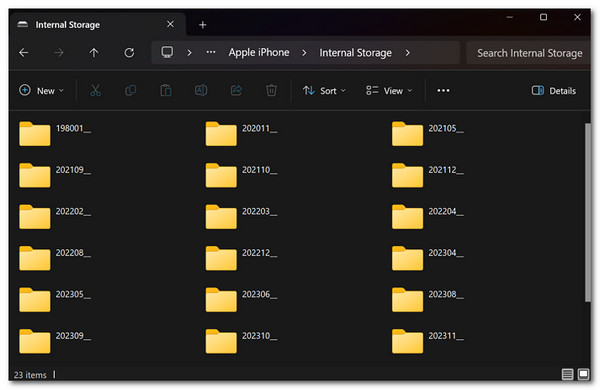
Step 3.Next, select all the photos and videos you want and copy or import them into a folder on your computer.
How to Backup Contacts from iPhone to PC and Mac without iCloud
In case you wish to back up contacts from your iPhone manually, here are the steps showing you how to backup iPhone contacts without iCloud:
Step 1.Open the "Contacts" app on your iPhone.
Step 2.After that, select a contact you want to back up, tap "Share Contact", and choose how you want to send it (Mail, AirDrop, or Files).
Step 3.Next, repeat the process for essential contacts or, if using a Mac, export all contacts as a "vCard (.vcf)" file for more effortless saving.
How to Backup Messages from iPhone to PC and Mac without iCloud
Lastly, if you want to manually backup messages from your iPhone to your computer, here is the guide to backup text messages on iPhone without iCloud:
Step 1.Open the "Messages" app and go to the conversation you want to save.
Step 2.After that, tap and hold a message, then tap "More" and select the messages you wish to back up.
Step 3.Next, tap the "Share" icon and choose to send or save them through "Mail, Notes, or Files" for safekeeping.
Fast and Easy Way to Backup All iPhone Data without iCloud
There you go! Now, if you are looking for a way that allows you to quickly and easily back up all iPhone data without iCloud, then use the professional AnyRec PhoneMover! This desktop-based tool enables you to move all types of data, such as videos, photos, messages, contacts, and other types of files, from your iPhone to another device. Aside from it, this iPhone backup software allows you to choose which files to back up, unlike the default ways earlier. Additionally, it also lets you transfer files at maximum speed without relying on the internet, buffering, delay, or data loss!

Enables you to preview selected data to ensure you have chosen the correct file.
Allows you to select, edit, and transfer phone data without limits.
Capable of keeping your original file quality intact, with no blurring or compression.
Transfer all files from your iPhone without wiping any existing files.
Secure Download
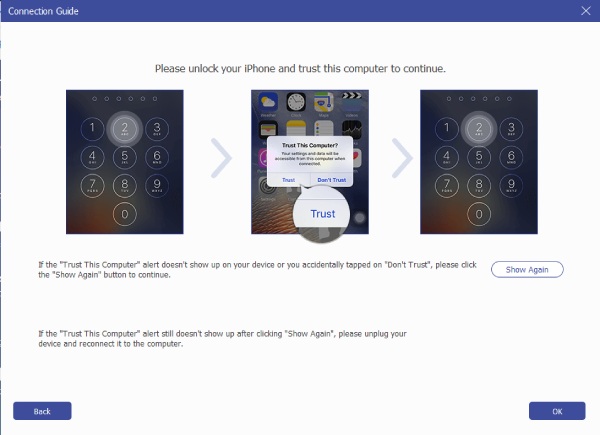
Step 1.Install, then launch AnyRec PhoneMover on your computer. After that, link your iPhone to the PC and tap "Trust" on your phone screen.
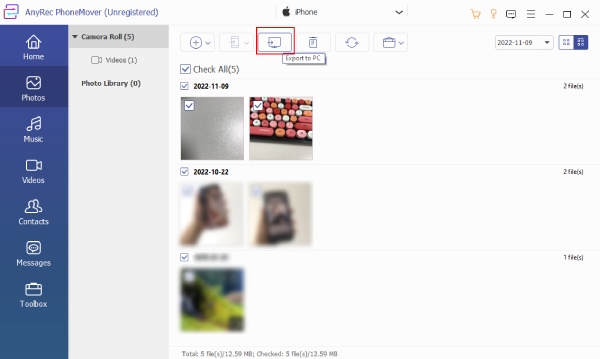
Step 2.Then, click the file type you wish to transfer from the sidebar (Photos, Music, Videos, Contacts, and Messages). Next, select all the files you want to transfer by ticking their checkbox.
Step 3.Click the "Export to PC" icon to transfer the selected files to your PC. Otherwise, click the phone icon if you wish to transfer it to another device, which you need to link as well.
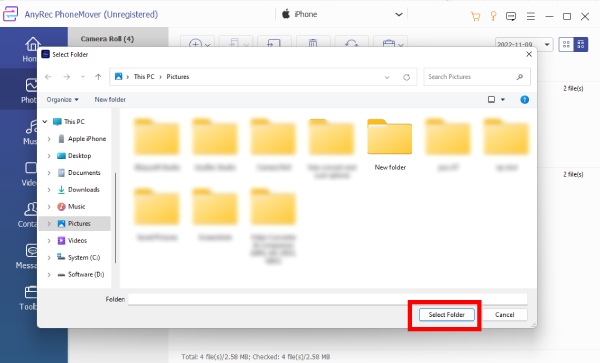
Step 4.In case you want to transfer the selected phone data to your computer, choose your preferred file destination and click "Select Folder".
Conclusion
So, if your iCloud is already full and you don’t want to pay for more storage, or you prefer not to use cloud services, you can use the default methods above to backup iPhone to computer without iCloud. Through them, you can effectively back up your iPhone data to another device without using iCloud. But, if you want to transfer the iPhone’s data easily and quickly, you can use AnyRec PhoneMover! With this tool, you can back up almost all of your iPhone’s files, either all of them or selectively. So, what are you still waiting for? Try using this tool today.
Secure Download



