
2 Ways to Convert FLA to MP4 with High Quality

FLA is not a common video format. An FLA file is an editable source file for a project created in Adobe Animate (formerly Adobe Flash). You cannot open an FLA file without Adobe. That's why people want to convert FLA to MP4.
Adobe Animate allows users to export FLA to MP4 directly. It seems that there is no need to use a FLA converter. However, you may still encounter these or those problems when you export Adobe Animate .fla to .mp4 video. During this time, you can record FLA files to bypass missing libraries, not rendering, low export quality, and many other questions.
Now, let's see how to convert a .fla animation file to .mp4 step by step.
Guide List
How to Convert FLA to MP4 with Adobe Animate Can't Export FLA to MP4? Try AnyRec Screen Recorder Instead FAQsHow to Convert FLA to MP4 with Adobe Animate
Be aware that online FLA to MP4 converters cannot parse FLA project files. So don't waste time. Just convert Adobe Animate files to MP4 within the program. If you use HEVC, you can convert FLA to MP4 with a transparent background.
- 1. Click the "Open" option from the top "File" dropdown list. Open your .fla file with Adobe Animate.
- 2. Edit your FLA file if necessary. Later, click the "Export" option from the "File" dropdown list. Click the "Export Video/Media…" option.
- 3. In the Export Video/Media…" window, select "H.264" from the "Format" list. And select "Default (AME)" from the "Preset" list.
- 4. You can adjust video resolution to 1080p, set frame rate as 24 or 30 FPS. And render the range as an entire animation or specific frames based on your need. (optional)
- 5. Tick the checkmark before "Start Adobe Media Encoder Render Queue immediately".
- 6. Click the "Export" button to start the FLA to MP4 conversion.
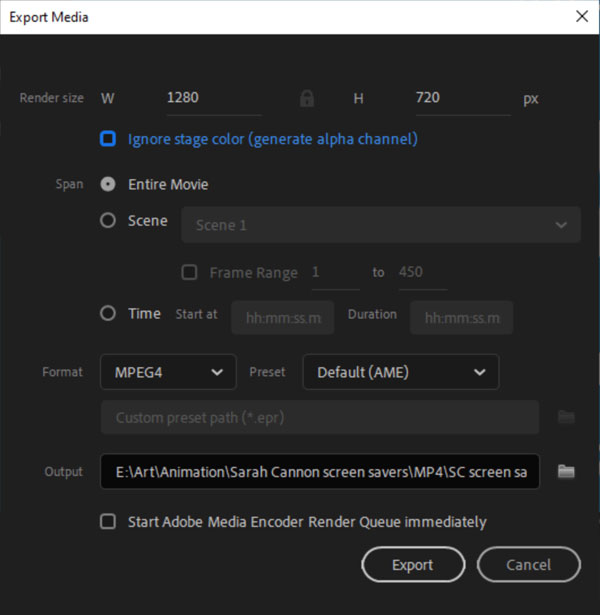
When you see the "The … .mp4 has been successfully created" message in the "Export Media" window, it means you have turned a .fla file into a .mp4 file completely.
Some people convert FLA to SWF with Adobe Animate, then convert SWF to MP4 format with other video converters. If you are interested, you can try this method as well.
Can't Export FLA to MP4? Try AnyRec Screen Recorder Instead
Sometimes the "Export Video/Media", "Export Movie", or "Export Video" greyed out in Adobe Animate without knowing why. Adobe Animate may crash during the FLA to MP4 export process. The converted MP4 video may miss assetes or have black screens. To get a MP4 version of your Adoeb Animate project file, you can open FLA with Adobe Animate and then record it with AnyRec Screen Recorder. By doing so, you can make a 1:1 copy of this FLA file without quality loss.

Record videos in FLA and rare formats to MP4 smoothly.
Keep the original video and audio details.
Schedule recording or set custom record lengths.
Trim, convert, compress, and edit metadata of your MP4 recording.
Secure Download
Secure Download
- 1. Open FLA files with Adobe Animate. Play it as usual. Then open AnyRec Screen Recorder. Set the screen capture area to the FLA project file. Turn on the toggle button before "System Sound".
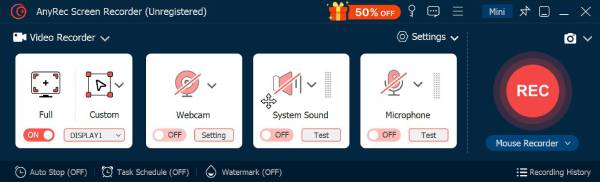
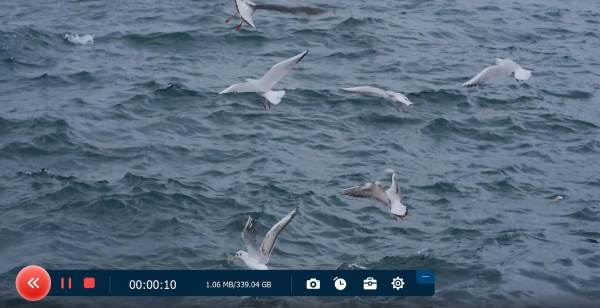
- 2. Click the "REC" button to start video recording. When you want to finish the recording, just click the "Stop" button.
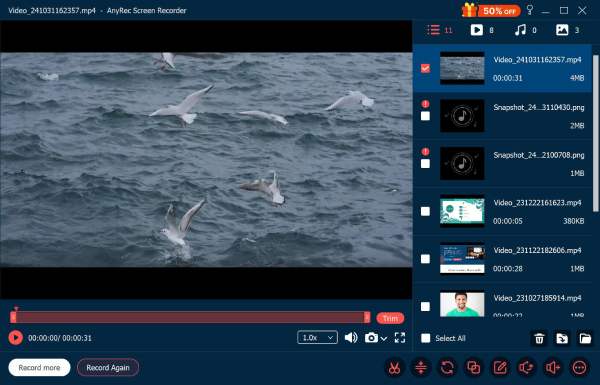
- 3. In the Preview window, you can find your converted MP4 video directly. It is also supported to edit it with the built-in tools.
FAQs
-
Why the end of animation cuts off early when export FLA to MP4?
The extended timeline caused this problem. You can check labels and frame scripts to solve it.
-
The MP4 export quality is bad. What can I do while converting FLA to MP4?
You can raise video bitrate (from 8 to 2 Mbps for 1080p), increase video resolution, and set render engine as "Use Media Encoder" to export a high-quality MP4 video.
-
Why is there no sound after converting FLA to MP4?
Check if you tick the option of "Include Audio" in export. Moreover, make sure the audio stream is supported.
Conclusion
That's all to export FLA to MP4 in all scenarios. Even though Adobe Animate may be stuck on exporting or fail to convert FLA project files, you can use AnyRec Screen Recorder to bypass the file size restriction. Just play the FLA file and record it as an MP4 format. If there is no available video converter, you can use this program to change the file format, too.
Secure Download
Secure Download
Related Articles:
About Our Author




