
Hot

AnyRec Video Converter
120× faster video conversion and editing. No waiting.
Secure Download
From MOV to GIF Ways: Find 8 Ways to Get GIF Animations

For creating short animations, social media clips, and looping moments, creating GIFs from MOV videos has become popular. How to convert MOV to GIF, then? Whether you want a quick online solution or a mobile app, plenty of reliable tools are here to guide you. The following parts share 8 of the best MOV to GIF converters, including online, desktop, and mobile apps. Easy-to-follow steps are provided to help you convert videos effortlessly.
Guide List
Convert MOV to GIF with One-stop Editing Function Online Tool to Convert MOV to GIF Freely GIF Maker - MOV to GIF App with Quick Creation Tools Video to GIF - iPhone App for MOV to GIF Conversion File Converter - Lightweight Mobile Converter with One-Tap PresetsConvert MOV to GIF with One-stop Editing Function
A dependable Windows and Mac program that excels in producing high-quality GIFs from your MOV video files, AnyRec Video Converter supports over a thousand video and image formats. With its clean, beginner-friendly interface, you can make a GIF from MOV and many other formats with ease. Also, its advanced processing engine ensures that your GIFs keep smooth motion and clear frames throughout the process. Moreover, if you wish to enhance your MOV clips before exporting as GIFs, you can enjoy the program's editing tools to trim, crop, adjust speed, apply effects, filters, and more. This reliable MOV to GIF converter gives you everything needed to convert, edit, and polish clips effortlessly.

Works with a broad range of formats, like MOV, GIF, MP4, MKV, and more.
High-speed conversion for handling MOV files without a longer waiting time.
Maintains high quality during and after the MOV to GIF conversion.
Allows you to modify the resolution, frame rate, quality, and so on.
Secure Download
Secure Download
Step 1. After launching AnyRec Video Converter, upload your MOV file by clicking the "Add Files" button.
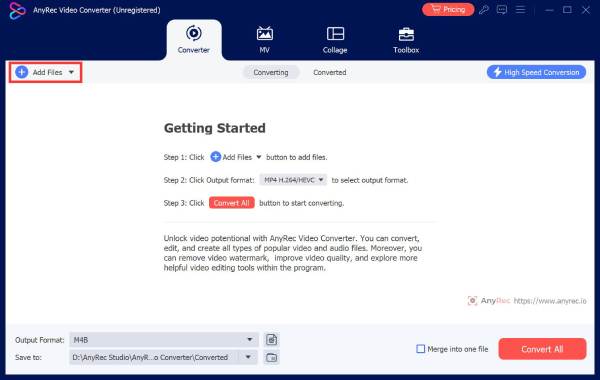
Step 2. Open the "Format" dropdown menu, switch to the "Video" section, then select "GIF" as your output format from the list.
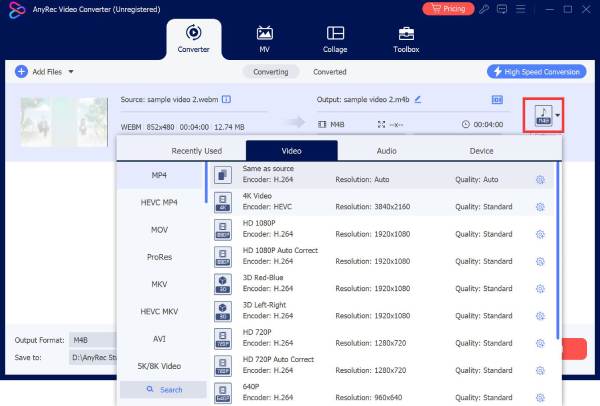
Step 3. At last, click the "Convert All" button to export your MOV video as a GIF and save it to your device.

Secure Download
Secure Download
Online Tool to Convert MOV to GIF Freely
Another quick and convenient way to transform MOV to GIFs is through an online converter. These platforms work directly from a web browser, so you can simplify the entire process without installing anything. Here are the top online solutions that help you create GIFs from MOVs.
1. CloudConvert
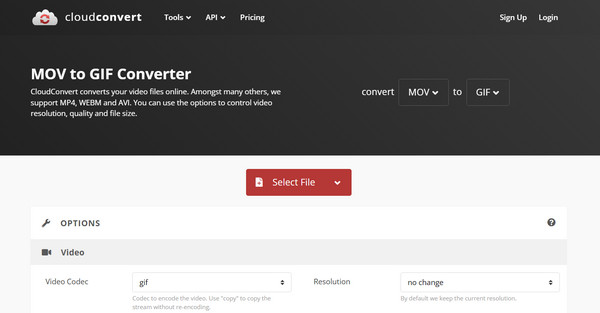
CloudConvert provides free MOV to GIF conversion from online and offline sources. It lets you adjust video settings, including frame rate, resolution, and file size.
Step 1. Once CloudConvert is opened, click "Select File" to upload your MOV video.
Step 2. Choose "GIF" as the output format.
Step 3. Adjust settings if needed, then click "Convert" and download the GIF animation.
2. FreeConvert
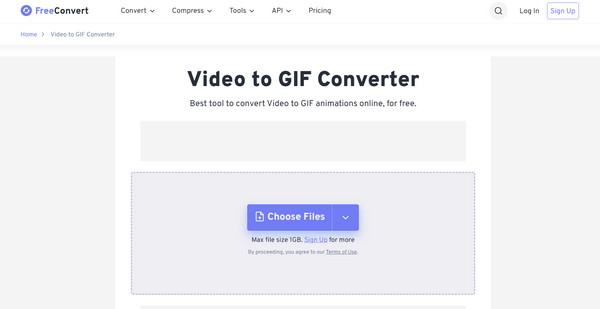
Moving on to FreeConvert, it is a simple online MOV to GIF converter that delivers high-quality results. It includes optimization tools like compression levels, color adjustments, and frame-rate controls to ensure the final output looks smooth.
Step 1. Visit FreeConvert's site. Click "Choose Files" to upload your MOV video.
Step 2. Pick "GIF" as the target format.
Step 3. Open "Advanced Options" to customize settings if you wish.
Step 4. Click "Convert" to make a GIF from a video.
3. Ezgif
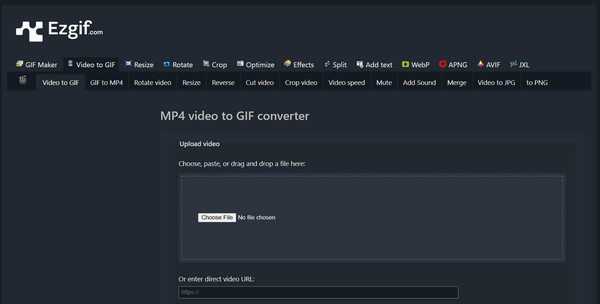
The next online tool is Ezgif, which focuses on providing detailed editing features, but also excels in converting MOV video to GIF. Here, you can crop, reverse, resize, or apply effects to your videos before transforming them into GIFs, ideal for creating memes or animated snippets.
Step 1. Go to the Ezgif MOV to GIF tool page.
Step 2. Click "Choose File" to import your MOV video, and click "Upload Video" to move on.
Step 3. Start editing, trimming, or resizing the video if you want.
Step 4. Then, click "Convert to GIF" and save your converted file.
4. VEED.IO
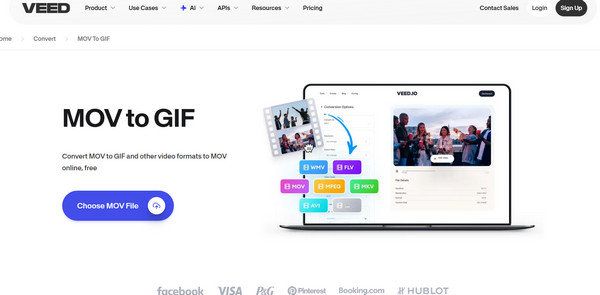
If you prefer a tool to convert MOV to GIF with a more modern interface, VEED.IO offers a polished alternative. This tool allows you to add filters, text, overlays, or adjust the speed before exporting. Despite being beginner-friendly, it still has advanced customization options.
Step 1. Search for the VEED.IO MOV to GIF Converter main page.
Step 2. There, upload your MOV video file.
Step 3. You can apply filters or other editing adjustments.
Step 4. Select "GIF" as your output format and click "Export" to save it and download it to your computer.
GIF Maker - MOV to GIF App with Quick Creation Tools
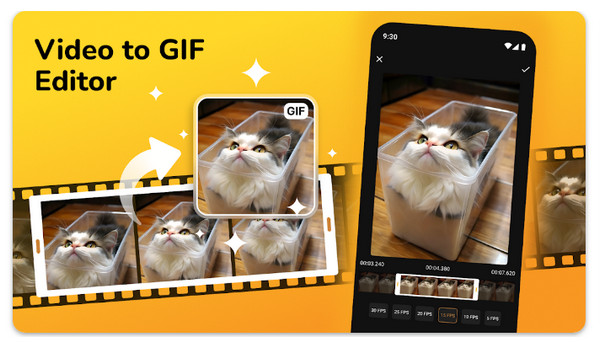
It's time for this mobile solution, GIF Maker on iPhone, to offer an easy way to turn MOV to GIF directly on your device. It permits you to trim, add captions, and adjust frame speed, making it useful for users who usually create GIFs for social media. With this app's clean layout, the workflow is quick and beginner-friendly, ensuring fast GIF creation on your iPhone.
Video to GIF - iPhone App for MOV to GIF Conversion
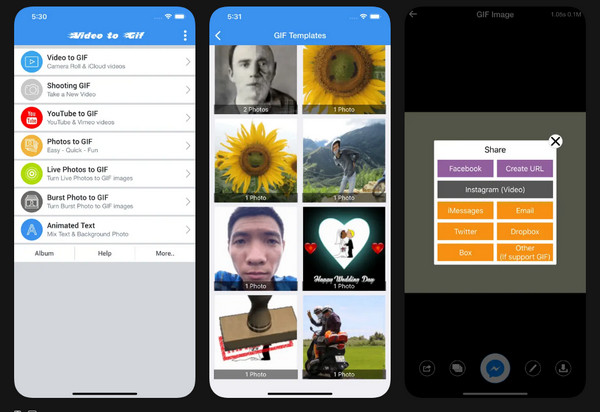
Video to GIF, on the other hand, is a convenient Android app that converts MOV to GIF in just a few steps. It features editing tools like trimming, cropping, and speeding up the video. Furthermore, it supports HD output, so you can enjoy high-quality GIFs even from lengthy or detailed video clips. This tool is ideal for anyone who wishes for a quick, hassle-free conversion.
File Converter - Lightweight Mobile Converter with One-Tap Presets
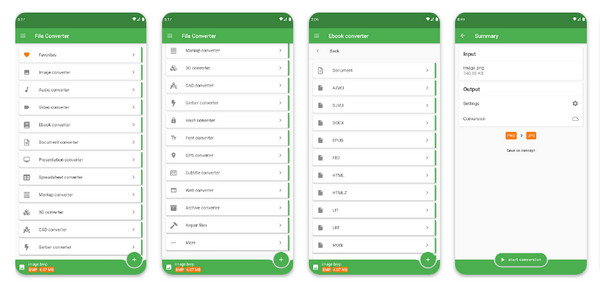
Lastly, there is the File Converter app. It covers a wide range of file types, including converting MOV to GIF with ease. Aside from converting, it allows you to resize or compress GIFs for quick sharing. Plus, its lightweight design guarantees a fast conversion process without straining your storage or device's performance.
Conclusion
Many thanks to the above tools to convert MOV to animated GIF; the process has become easier than ever. Each option here offers a convenient way to transform your MOV clips into shareable GIFs, depending on your device. However, if you wish for a more powerful and flexible tool that works with extensive editing and fast-speed conversion, AnyRec Video Converter offers the perfect solution. With its comprehensive settings and high-quality results, it makes a great all-around choice for all your video-to-GIF conversions.
Secure Download
Secure Download
Related Articles:
About Our Author




