
5 Simple Ways to Fix Audio and Video Out of Sync on Any TV

There's nothing quite as troublesome as watching your favorite shows only to have dialogue hit your ears seconds after the actor is done speaking. These frustrating audio and video out of sync issues can make the best content feel unwatchable. The good news is that this issue can be resolved with quick tweaks to your settings. Here are the five fixes to eliminate audio and video out-of-sync errors and bring your movie night back immediately.
Guide List
Reasons for Audio and Video Out of Sync Fix 1. Adjust the Audio Delay Fix 2. Enable Game Mode Fix 3. Check Frame Rate on Streaming Devices Fix 4. Change Digital Output Format Fix 5. Use AnyRec Video RepairReasons for Audio and Video Out of Sync
To get you ready for the technical solutions to fix audio and video out of sync, it is important to identify the root cause. Most audio and video sync issues come from the following factors:
- • Heavy Picture Processing. 4K and 8K TVs have complex algorithms to enhance the image, which can result in a delay of the video connected to the audio.
- • Corrupted Source Files. Sometimes the sound out of sync with video issue isn't in your hardware at all, but a corrupted file that has damaged the playback stream.
- • Slow Hardware Connections. The handshakes between your TV and external receivers via HDMI can sometimes experience lag.
- • Format Conversion. If your TV is converting audio from one format to another in real time, it may create a processing gap.
- • Frame Rate Mismatch. Streaming devices may produce your content at a different frequency than your display's native rate.
Fix 1. Adjust the Audio Delay
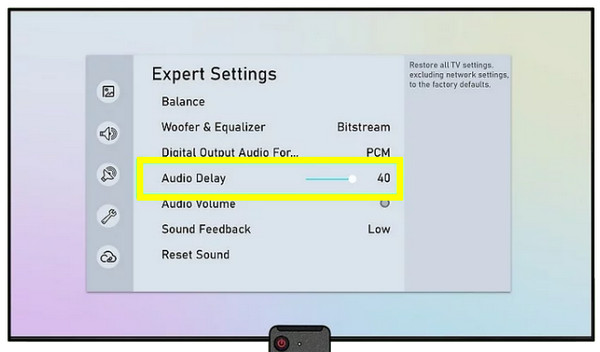
Most modern televisions come with a dedicated Audio Delay feature designed to combat audio and video out-of-sync errors. This setting lets you manually adjust the audio signal so it reaches your ears at the exact moment the visual reaches your eyes.
Step 1.On your TV's "Settings" menu, navigate to the "Audio" or "Sound" submenu.
Step 2.Locate an option labeled "AV Sync" or "Audio Delay".
Step 3.Start playing a video featuring people speaking, and use the slider to adjust the audio delay.
Step 4.Slow down or speed up until the movements match the dialogue.
Fix 2. Enable Game Mode
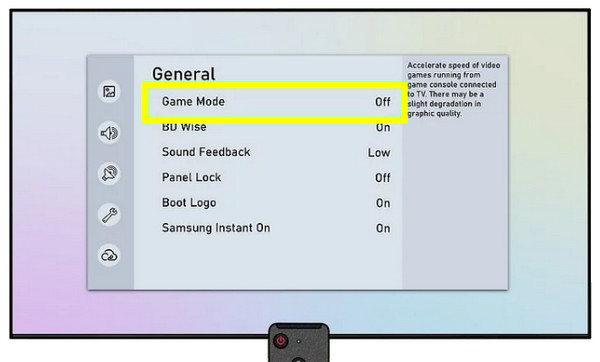
Moving forward, if manually adjusting does not do the trick, the culprit might be your TV's internal brain working too hard on the visuals. For this, Game Mode is a powerful preset that removes excess motion smoothing filters to give you the fastest video output. It is a secret method for anyone dealing with audio delay on video issues.
Step 1.Using your TV remote, press the "Home" or "Settings" button. Head to the "Picture" or "Display" settings.
Step 2.Look for the "Picture Mode" and then choose the "Game Mode" from the list of options, such as Standard, Cinema, etc.
Step 3.Exit the menu and check if the playback is aligned with the sound.
Fix 3. Check Frame Rate on Streaming Devices
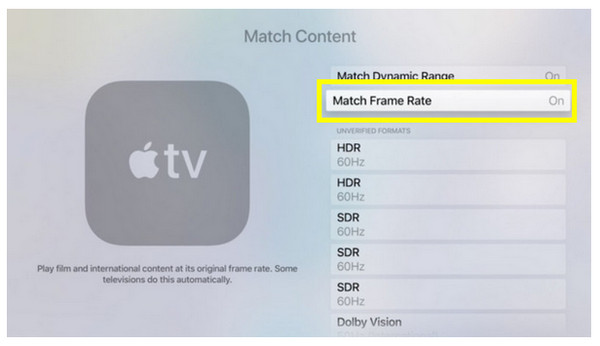
In addition to TV settings, external hardware such as Roku, Apple TV, or Fire TV can usually be the source of video and audio out of sync issues. These streaming devices sometimes struggle to match the correct frame rate to your television, resulting in video stuttering or drifting out of sync with the audio track.
Step 1.Go to the "Settings" menu on your streaming device, like Apple TV, then navigate to the "Display & Sounds" or "Video" settings.
Step 2.Locate the "Match Content" or "Match Frame Rate" feature and toggle the settings to ON.
Step 3.Next, restart your streaming app or the device to apply the settings.
Fix 4. Change Digital Output Format
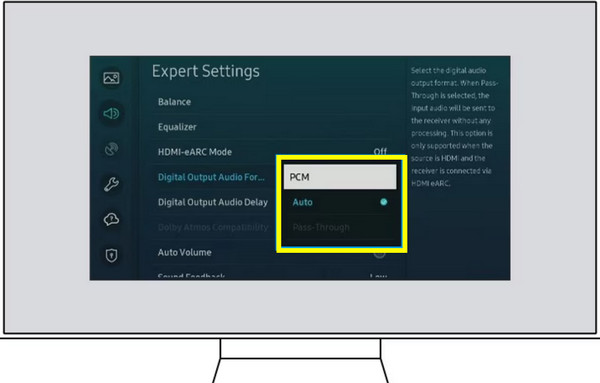
Another effective strategy to fix audio and video out of sync issues involves looking at how the TV handles digital sound data before it outputs to your speakers. When a TV is set to Auto, it may take a while to process that data, leading to an out-of-sync effect. Switching your digital output will ensure a raw, lightning-fast transfer of audio data.
Step 1.Open your TV's "Settings" and choose the "Sound" or "Audio" menu.
Step 2.There, find the "Expert Settings" or "Digital Audio Output" section.
Step 3.Track down the "Digital Output Audio Format", and change the selection to "PCM" or "Pass-through".
Step 4.Check your video now to see if the lag has been fixed.
Fix 5. Use AnyRec Video Repair
Tried every setting on your TV and still facing audio and video out of sync? The problem is likely linked to the video file itself, so here's why AnyRec Video Repair becomes an essential part. This software is designed to fix not-synced videos by analyzing the metadata and restoring the internal structure of the file. Whether your video was corrupted or suffered from a recording glitch, this tool provides the necessary professional-grade recovery solution from the comfort of your home. You don't need any technical skills to get started or navigate, as it simplifies the complex task of fixing audio and video streams.
Advanced algorithms are used to match audio and video streams.
Uses a sample file to fix the corrupted video with high accuracy.
Supports fixing videos from cameras, smartphones, drones, and dashcams.
Watch the repaired video first before saving the final version.
Secure Download
Secure Download
Step 1.Start AnyRec Video Repair on your computer. Then, click the "Add" button on the left side to upload the video with the out of sync issue.
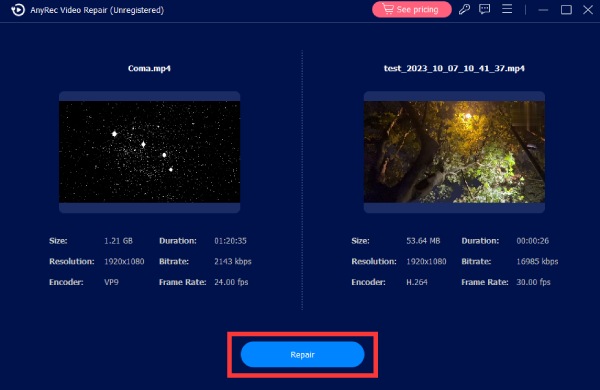
Step 2.Proceed by clicking the "Add" button on the right side to upload your sample working video file with the same format. Then, click the "Repair" button to begin the synchronization process.
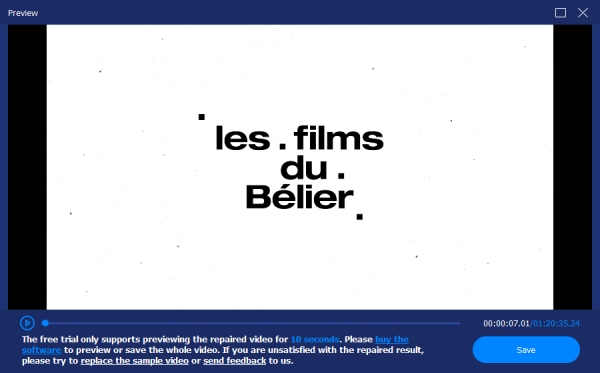
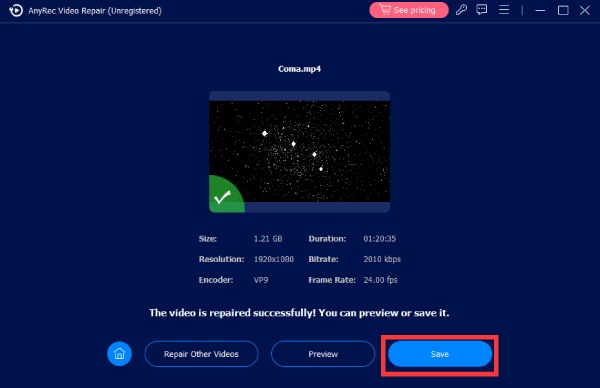
Step 3.Once done, click the "Preview" button to check if the audio and video are perfectly synced, then click the "Save" button to save the fixed video file to your desired folder.
Conclusion
Dealing with audio out of sync with video can be such a headache. But as you've seen, most of the time, a simple settings adjustment is what you need to align what you see and what you hear. From checking Game Mode to matching frame rates across your streaming devices, your entertainment will remain perfectly in sync. However, in cases the file itself is damaged, AnyRec Video Repair is your best bet! This powerful, AI-driven tool can handle desynced files with professional precision. It works across various formats, so whatever corrupted file formats can be restored in seconds.
Secure Download
Secure Download
Related Articles:
About Our Author




