
Transfer Data Between iPhones without Reset: 5 Ways Here!

Transferring data from iPhone to iPhone without resetting is essential for switching data to new iPhone or daily data transfer. Of course, you would not want to erase the existing setup, so thankfully, there are several ways to transfer files, apps, and even settings. Thus, today's guide will explore five effective ways to transfer data between iPhones without resetting, using Apple's built-in and third-party tools. Enjoy the smooth transition while keeping all your files intact.
Guide List
Best Way to Transfer Data from iPhone to iPhone without Resetting Use iTunes to Transfer Data from iPhone to iPhone without Resetting How to Transfer Data from iPhone to iPhone without Resetting [AirDrop] Sync Data from iPhone to iPhone without Reset through iCloud Transfer Data Between iPhones without Resetting via Cloud-based ServicesBest Way to Transfer Data from iPhone to iPhone without Resetting
Transferring data between iPhones is often linked with restoring from a backup, leading to resetting your new device. However, not everyone wants to lose their existing files, so how to do iPhone to iPhone data transfer without data erasing? If you are looking for a faster and safer alternative, AnyRec PhoneMover offers the ideal solution. This professional phone data transfer software lets you move photos, contacts, videos, music, and text messages from one iPhone to another, without factory resetting your new iPhone. It is made to simplify the transfer process into just a few clicks, so even starters can transfer data from old iPhone to new iPhone seamlessly.

Transfer photos, videos, music, messages, etc., between iPhones.
Compatible with all iPhone models and versions, including the latest ones.
High-speed USB or Wi-Fi connection for fast file migration.
Built-in file manager for organizing, deleting, or exporting content.
Secure Download
Step 1.SLaunch AnyRec PhoneMover on your computer and connect both iPhones using a USB cable. When prompted on each device, tap "Trust" to allow the program to access your data, ensuring both devices are correctly recognized.
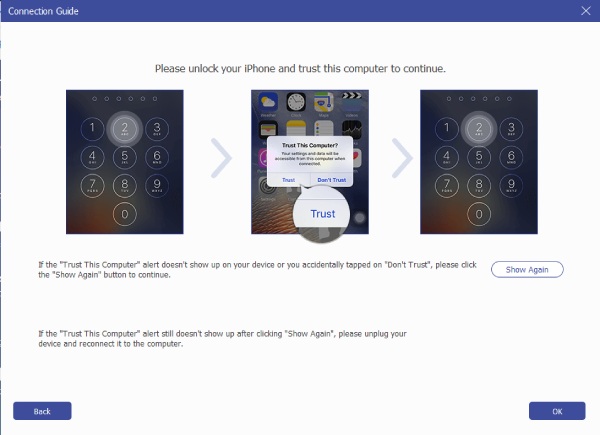
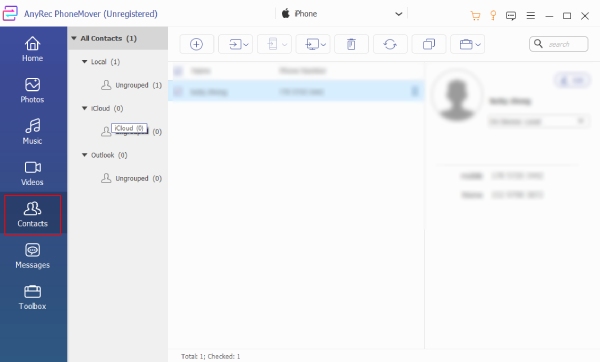
Step 2.SOnce the devices are detected, select your source iPhone from the top menu. From the left sidebar, choose the data type you wish to transfer, like photos, contacts, messages, or videos. Then, check the items you want to move by clicking their corresponding boxes.
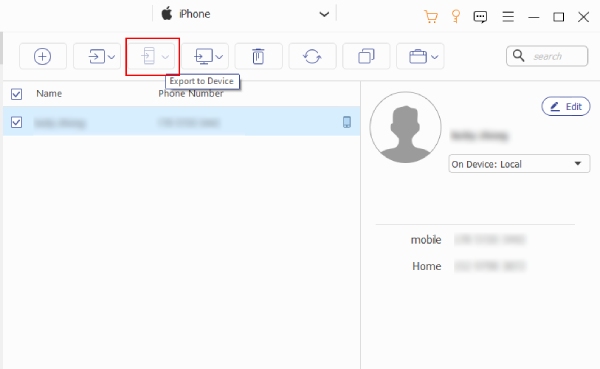
Step 3.SAfter selecting your data, click the "Export to Device" button and choose your target iPhone as the destination. Please wait to transfer data to new iPhone.
Secure Download
Use iTunes to Transfer Data from iPhone to iPhone without Resetting
When it comes to managing iPhone data right from your computer, iTunes remains one of the most reliable tools to transfer everything from your old iPhone to iPhone 17 without resetting. (Solutions you may need to fix iTunes not recognizing iPhone.) This method is perfect for those who want wired connections and have a large amount of data to be transferred. Here, you won't need to reset your iPhone, and it works well for transferring media files, messages, and app data via a quick sync process.
Step 1.SOnce you connect your old iPhone to your computer, launch "iTunes".
Step 2.SThen, click the device icon above, and from the "Summary" tab, choose "Back Up Now".
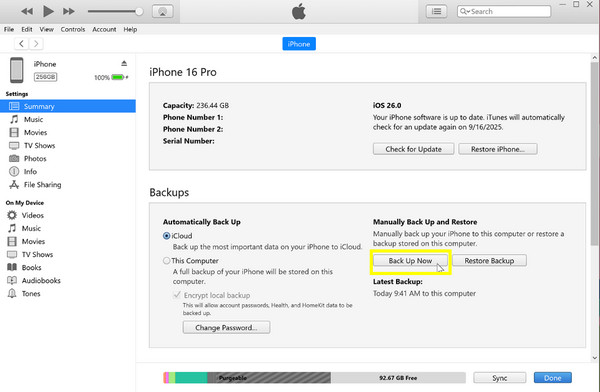
Step 3.SAfter completing the backup, disconnect your old iPhone properly and connect the new one.
Step 4.SClick on the device icon, and there choose the "Restore Backup" option.
Step 5.SDetermine the most recent backup file and then click the "Restore" button to start moving iPhone data to another iPhone without resetting.
How to Transfer Data from iPhone to iPhone without Resetting [AirDrop]
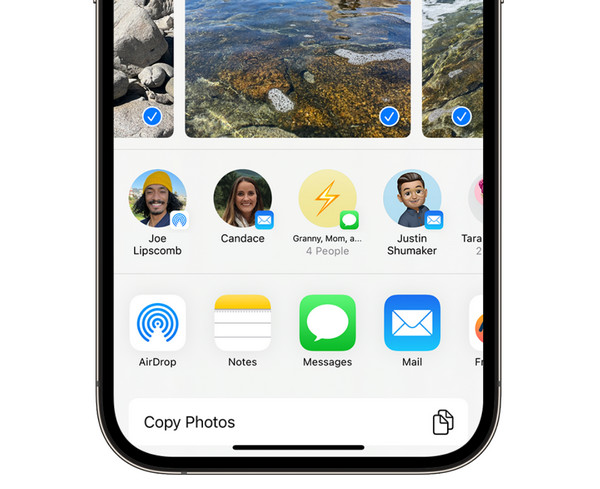
If you want a quick, wireless method for transferring data from iPhone to iPhone without resetting, especially selected files, AirDrop is the way to go. It is ideal for sending photos, videos, contacts, and other files in just a few taps, as long as the other Apple device is nearby. Moreover, it works fast and securely, and is already built right into your iOS system. Here are the steps you can follow to AirDrop from iPhone to iPhone.
Step 1.SOn both iPhones, turn on Wi-Fi, Bluetooth, and AirDrop from the "Control Center".
Step 2.SThen, on your old iPhone, select the files you wish to transfer, for example, photos or contacts. Tap the "Share" button and choose "AirDrop".
Step 3.SWhen your new iPhone shows up on the list, tap its name.
Step 4.SThen, on your new iPhone, tap the "Accept" button to receive the files.
Step 5.SWait for the transfer to complete, and the files will appear instantly on your new phone.
Sync Data from iPhone to iPhone without Reset through iCloud
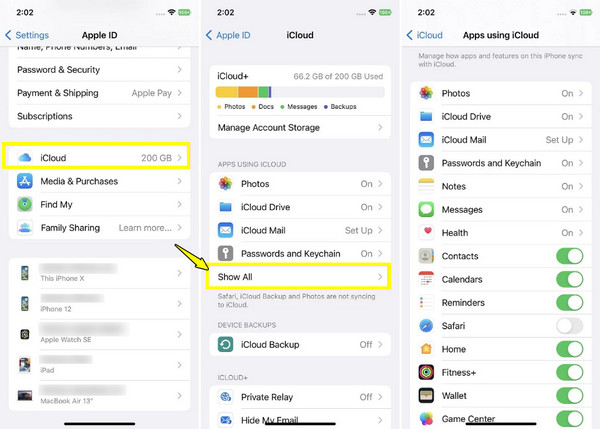
iCloud provides a seamless way to sync data between iPhones without transferring data from iPhone to iPhone manually. This approach ensures your contacts, photos, messages, and more data stay updated across both devices linked to the same Apple ID. The best part is that it does not need any connection to a computer; all you need is a stable Wi-Fi connection. Here's the detailed steps to move data from iPhone to iPhone without resetting with iCloud:
Step 1.SOpen the "Settings" app, then tap on your "Apple ID Name" and select "iCloud".
Step 2.SFrom there, toggle on the data types you wish to sync, like Photos, Contacts, or Messages.
Step 3.SOn your new iPhone, sign in with the same Apple ID.
Step 4.SHead to "Settings" then "iCloud" and enable the same toggles, and your data will automatically sync to your new iPhone.
Transfer Data Between iPhones without Resetting via Cloud-based Services
Finally, if you want alternatives to Apple's ecosystem, several methods make data transfer from iPhone to iPhone without resetting, so secure and straightforward. You can use apps like Google Drive, where you can upload files from your old iPhone and download them onto the new device anytime. Also, Google Drive supports multiple data types, including photos, videos, documents, and more, giving you more freedom and accessibility.
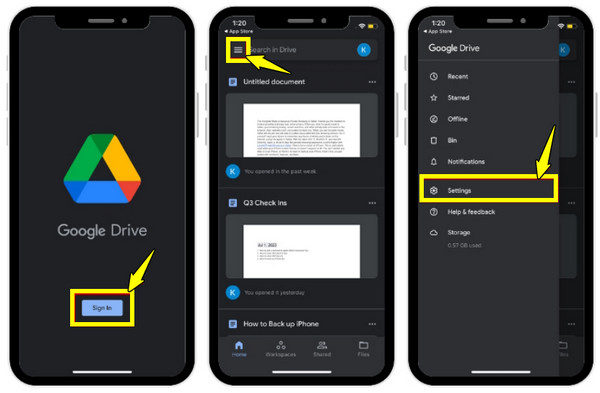
Step 1.SLaunch the "Google Drive" app on your old iPhone from the App Store.
Step 2.SSign in with your Google account. Tap the "Menu" button to "Settings", then "Backup", and select the data you wish to back up.
Step 3.STap the "Start Backup" and please wait for the process to be completed.
Step 4.SOn your new iPhone, get the "Google Drive" app and log in with the same Google account, then access your files from the "My Drive" section.
Conclusion
Transferring data between iPhones does not necessarily mean wiping your new device clean, as you can learn to transfer data from iPhone to iPhone without resetting. You've seen here the methods available, from built-in Apple options to third-party tools, you can move your photos, contacts, apps, and files while keeping everything intact. Among them, if you want a faster and more efficient method, use AnyRec PhoneMover. With its high-speed transfer and intuitive interface, transferring data to a new iPhone is smoother than ever. It is the perfect solution for a quick and complete way to manage your iPhone data!
Secure Download



