
7 Quick 3GP Video Repairs and How to Prevent in 2026

Due to their small file size, 3GP files are usually used for mobile devices. However, once corrupted, it may stop playing entirely. Before you panic or delete the file, try several 3GP video repair methods first! Some take only a few minutes, while others require help recovering severely damaged 3GP videos. For more details, scroll down to repair corrupted 3GP files, know the signs of corruption, and get simple tips to keep your files safe in the future.
Guide List
Signs That Your 3GP File Is Corrupted Quick Fixes You Can Try to Repair 3GP Files Repair a 3GP File with AnyRec Video Repair Fix a Corrupted 3GP File with VLC Repair a Damaged 3GP Video Online How to Prevent 3GP Corruption FAQsSigns That Your 3GP File Is Corrupted
Whether it is an old video from a classic mobile phone or a recording that won't work, a 3GP file not playing is frustrating. And knowing the signs can save you hours to repair damaged 3GP videos. Here are some of the red flags you need to watch out for:
- • The file won't open at all. When you double-click and nothing happens, or your player suddenly crashes, your file is corrupted.
- • Video plays, but no audio. While the visual remains on screen, the audio stream may be corrupted during a transfer.
- • Freezes or stutters at the same point. If your video hands are at the exact same time, you may be dealing with a localized data gap.
- • Green or black screen on playback. Seeing solid colors usually indicates a codec mismatch or a decoding failure.
- • Error message: "file format not supported" or "cannot play this video". These error prompts usually point to internal metadata that has been wiped.
- • File shows 0 seconds duration. This means the metadata that tracks the points has been stripped away.
Quick Fixes You Can Try to Repair 3GP Files
You don't always need expensive software for a 3GP video repair; there are some quick adjustments that often trick your computer into reading the data correctly. Here are some of them:
1. Update or install the codec pack. Installing a comprehensive codec pack (such as K-Lite) can help your system translate old mobile data into a viewable format. By doing so, you can fix 3GP videos that won't play. It won't change the file itself; it simply solves the 'format not supported' error.
2. Change the file extension. Sometimes, a 3GP file is healthy, but the system is using the wrong software engine to power it. Rename the file extension to a similar format, like .avi or .3gp, and you may repair the 3GP video.
3. Convert to MP4. If the file is glitchy, you can rebuild the entire structure by converting from 3GP to MP4. It can refresh the video metadata, clearing up stuttering and duration errors.
4. Move to internal storage. Lastly, a quick 3GP video repair method is to move it directly into your computer's folder. Doing so ensures the media players have the fastest possible access to its data.
Repair a 3GP File with AnyRec Video Repair
For a more powerful, professional-grade solution that runs on your desktop, AnyRec Video Repair is a specialized tool designed to fix 3GP videos, especially severe issues that standard players can't fix. It uses AI-driven algorithms to restore fragmented video data by analyzing the frame structure of your 3GP video file, keeping audio and video perfectly synced. Therefore, if your 3GP files were damaged during a sudden power loss or a failed transfer, this software tool is particularly effective. It provides a level of precision that feels professional yet keeps everything simple enough for anyone without any technical background.
AI smart repair to automatically identify and fix 3GP video errors.
Specifically optimized for older devices as well as modern 4K footage.
Allows you to upload a healthy video from the same device for a perfect fix.
Review the restored footage in real time to verify its quality before saving.
Secure Download
Secure Download
Step 1. Launch AnyRec Video Repair on your PC or Mac. Click the "Add" button on the left side of the interface to upload the specific 3GP file that's corrupted or facing any issues.
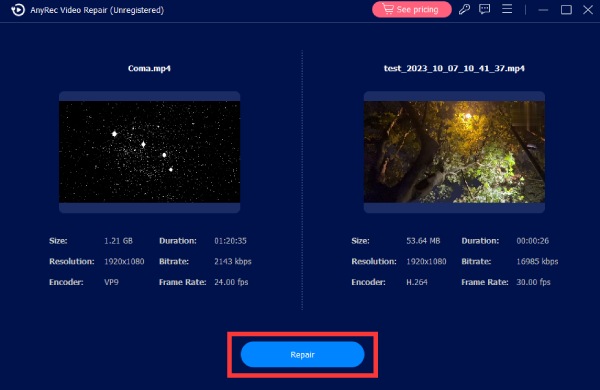
Step 2. To provide the tool with a guide, click the other "Add" button to upload a working sample video recorded on the same device. Once both files are loaded, click the "Repair" button to start the repair.
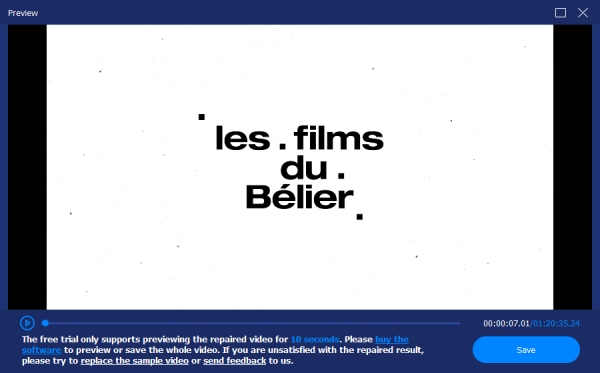
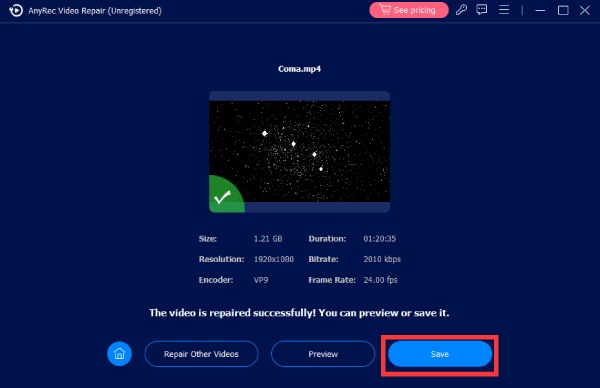
Step 3.After the process is complete, click the "Preview" button to make sure the visuals and sound are perfectly synced. Click the "Save" button to store the repaired 3GP video in your desired folder.
Secure Download
Secure Download
Fix a Corrupted 3GP File with VLC
VLC Media Player is more than just a versatile player; it also includes a robust repair tool that can help you repair 3GP videos. It is particularly effective when your video freezes halfway through. While it does not require the original file, it is a safe way to get your footage back on track without risking any further damage to the source file.
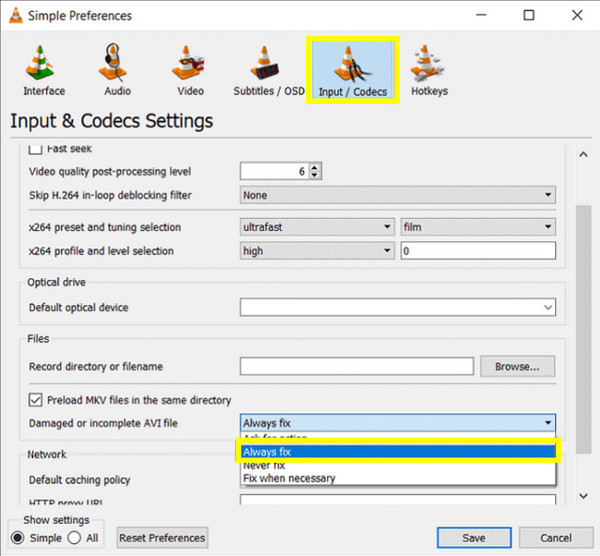
Step 1.Open VLC, then go to "Tools" and select "Preferences". Click on the "Input/Codecs" tab to proceed.
Step 2.From there, locate the "Damaged or incomplete AVI file" setting and select "Always fix" from the dropdown.
Step 3.Click the "Save" button, then try to open your corrupted 3GP file.
Repair a Damaged 3GP Video Online
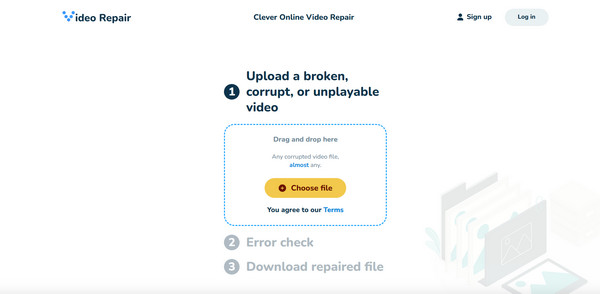
If local software is not getting the 3GP video repair you want, try fixing it with Clever Online Video Repair. This standout utility specializes in reconstituting interrupted videos. This must be one of the friendliest cloud tools available today. With its reference file feature, it specifically targets the outdated container issues, and it feels like magic when it suddenly pops back to life without installing anything.
Step 1.Once you have visited the Clever Online Video Repair site, click the "Choose file" button to upload your corrupted 3GP.
Optionally, you can specify the issue (e.g., no audio) and the device used to record it.
Step 2.If the automatic fix won't work, upload a sample video with the same format to help the tool.
Step 3.Then preview the repaired video to confirm, and then click the "Download" button.
How to Prevent 3GP Corruption
Now, the last thing you want is to repeat the process to fix 3GP videos. So, taking proactive steps can ensure your mobile memories stay safe in the long term.
- • Stable Transfers. Avoid transferring files when your mobile is low on battery.
- • Safe Ejection. Always use the "Safely Remove Hardware" option before unplugging the SD card.
- • Cloud Backups. Ensure that you have moved your 3GP files to a cloud service to protect them from physical hardware failure.
- • Use Modern Formats. If you're recording videos in the 3GP format, switch camera settings to MP4 for better compatibility.
FAQs
-
Will repairing a 3GP video reduce its original quality?
In most cases, no. Most 3GP video repair methods focus on fixing the container rather than re-encoding the actual frames.
-
Why does my 3GP video file play audio but have a black screen?
This issue is usually a sign of a codec issue or a corrupted video stream. Your computer understands the sound but cannot interpret the visual data.
-
Can I always fix a corrupted 3GP video file?
It actually depends on how severe the media file is. If the core video data is still there, tools like VLC can almost fix it. Meanwhile, if the data was overwritten, there may not be enough actual information left to restore.
Conclusion
Losing access to your 3GP video collections is frustrating, but today, the corrupted label need not be the end. From simple 3GP video repair tricks to using more technical solutions, there's always a way to fix corrupted 3GP videos. If you have tried all the quick basic steps, and your 3GP file still won't play, give AnyRec Video Repair a shot! This AI-driven approach gives you sample files and a healthy sample video experience, providing the best possible results of your footage with just a few clicks!
Secure Download
Secure Download
About Our Author




