
Where Do AirDrop Files Go on Mac? [and How to Use It]

When you use AirDrop to send or receive files on Mac, it means a quick way to share photos and other files between nearby Apple devices. But, you may end up wondering, "Where do AirDrop files go on Mac?". After all, the transfer is done quickly, yet you cannot find the file. Therefore, today's guide is here to help, featuring where AirDrop are files saved on Mac, how to use AirDrop, the best alternative tool, and more. Find your shared content in seconds today!
Guide List
What is AirDrop on Mac? How to Use It? Where Do AirDrop Files Go on Mac Why Can't You Find AirDrop Files on Mac? How to Solve Best Alternative Way to AirDrop Files on Windows/MacWhat is AirDrop on Mac? How to Use It?
Before learning where AirDrop files go, it will definitely help knowing what AirDrop is and how it works on your Mac.
AirDrop is an Apple-built-in feature used to transfer photos, videos, documents, and more between Macs and other Apple devices nearby. It utilizes a secure mix of Bluetooth and Wi-Fi to detect nearby devices and send files directly. Using it on a Mac makes it perfect for quickly sharing files, whether it is from your iPhone or sharing between two Macs; the steps only take a few clicks!
Step 1.On your Mac, open "Finder" and select "AirDrop" from the sidebar. Or, go to "Go" then choose "AirDrop" from the menu bar. Both devices should turn on "Bluetooth" and "Wi-Fi".
Step 2.From the lower part of the AirDrop window, determine who can send files to you: Contacts Only or Everyone. Then, drag and drop the file onto that window, and choose the receiving device from the list.

Step 3.On the receiving Mac or iPhone, click the "Accept" button from the pop-up that appears, and the shared file will be transferred instantly.
Where Do AirDrop Files Go on Mac
Even though AirDrop is made to make file transfer effortless, you may be struggling to locate the file you've just received. After knowing how to use AirDrop on Mac, answer here where AirDrop files go on Mac. Unlike on iPhone, where files open automatically in apps where they have been moved to, AirDrop on Mac saves files to a specific location by default.
By default, you can see all AirDrop files in the "Downloads" folder. You can access it by opening "Finder" and selecting "Downloads" from the sidebar. From there, you can see all photos, documents, videos, and other files you have AirDropped on your Mac.
Take note that AirDrop does not organize files by type or sender, so your recent AirDrop items will appear mixed with other downloaded files.
Now, when you AirDrop something to your Mac, you know where to go!
Why Can't You Find AirDrop Files on Mac? How to Solve
What if you struggle to find the files you have just received? Or you just encounter AirDrop failed to save item? This AirDrop files not showing up in Downloads folder issue happens for several reasons, from incorrect AirDrop settings to permission restrictions. If your AirDrop transfer has been completed but you can't seem to find the files anywhere, there are ways to fix it.
See below the most common reasons why you can't find AirDrop files on Mac, along with simple solutions for each one. So you can solve the problem or even change the AirDrop location.
- 1. You're in the wrong location. All AirDrop files are in the "Downloads" folder by default. Open "Finder" and find "Downloads".
- 2. The file is opened. Some file types, like PDFs or images, may open in their default app, so kindly check the recent app window.
- 3. The AirDrop transfer did not complete. If one device moved out of range, the transfer may have failed, so try sending the file again and ensure both devices are placed close to each other.
- 4. You're using a different account. If you have multiple profiles, switch to the correct account and find the AirDropped files in the "Downloads" folder.
- 5. Incorrect AirDrop permissions. Head to "Finder", then find "AirDrop", and at the bottom, ensure the visibility is set to "Everyone" or "Contacts Only".
- 6. Temporary system glitch. Try restarting your Mac or relaunching Finder by pressing the "Command + Option + Esc", then select "Finder", and click "Relaunch".
Best Alternative Way to AirDrop Files on Windows/Mac
Now you can find AirDrop photos and files on Mac and iPhone. But AirDrop does not always work seamlessly on non-Apple devices, especially for Android and Windows PC. This is where an AirDrop alternative like AnyRec PhoneMover comes in, a program that allows you to easily move photos, videos, contacts, messages, and more between two devices. Using a USB connection, you can ensure a fast and stable transfer without interruptions. Whether you want to set up a new device or are simply looking for a smoother alternative to AirDrop, this tool makes file transferring effortless.

Transfer multiple file types like photos, videos, music, etc.
Preview your files before sending to confirm which one to transfer.
Manage your data freely by adding, deleting, or editing files directly.
Keeps original quality, offers no compression or data loss.
Secure Download
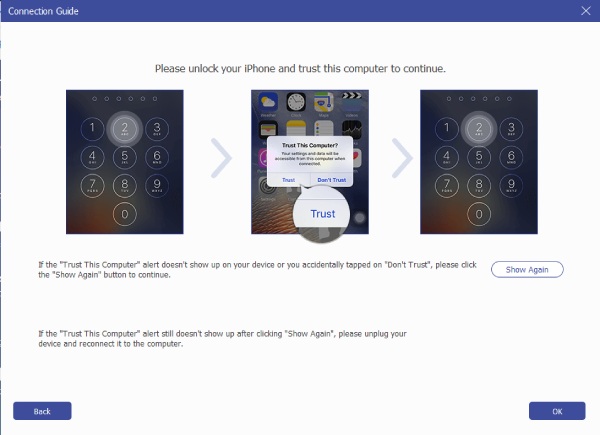
Step 1.Start AnyRec PhoneMover. Plug your iPhone into the computer via a lightning USB cable. Tap "Trust" on iPhone to confirm the prompt. If you're moving files between phones, connect the other one as well.
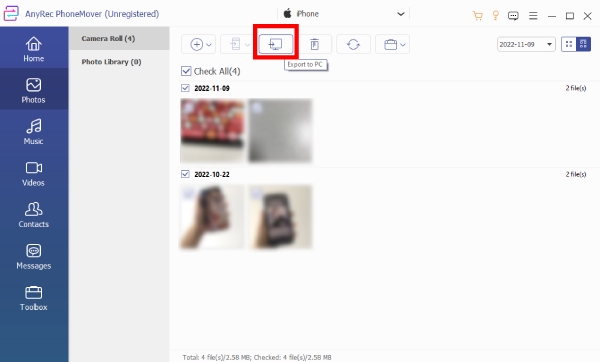
Step 2.From the left panel, select the data type you want to transfer, such as Photos, Videos, Music, etc. The program will then scan and categorize all your files.
Step 3.Mark the items you wish to transfer, then click the "Export to Device" button to send them to the target device.
Conclusion
Finding the AirDrop file location on Mac can be confusing, especially when you are dealing with various file types and saving locations. You've learned here, your AirDropped items are placed in the Downloads folder. However, if you often move files and want a more reliable one, consider AnyRec PhoneMover. This powerful tool offers a seamless way to send photos, videos, music, and other data between two devices without worrying about compatibility or file locations. Try this best alternative to AirDrop now!
Secure Download



