
Videos Not Playing on iPhone? Here's How to Fix It Easily

The iPhone videos not playing scenarios can be divided into many parts, including videos that refuse to play, video freezes, show only a black screen with a loading spinner, video stutters, video buffers, and more. Whatever the case, the video won't play on an iPhone, which is annoying. It happens to a lot of people. Luckily, the problem can be fixed within 5 minutes. You can do as the following paragraphs show.
Guide List
Why Your iPhone Won't Play That Video (The Real Reason) How to Fix Videos Not Playing on iPhone How to Fix a Damaged Video from iPhone Quick Fixes for Common iPhone Videos Not Playing IssuesWhy Your iPhone Won't Play That Video (The Real Reason)
Don't know why your video fails to play on iPhone? Here are possible reasons that explain 90% of complaints.
- Unsupported formats on iPhone. The iPhone compatible formats include MP4 (H.264, HEVC), MOV, and M4V. If you want to play videos in MKV, AV1, HEVC in MKV container, FLV, WMV, and AVI formats, you need to convert them to iPhone video formats first.
- iPhone cannot play the ripped Blu-ray MKV files by default. The MakeMKV rips are typically 30-70 GB with TrueHD/DTS-HD MA audio, which is not playable on iPhone with no errors.
- Some app-specific videos are not playable on the iPhone. Weak Wi-Fi, Geo block, the app server down, and iPhone's low power mode can cause the iPhone not to play videos.
How to Fix Videos Not Playing on iPhone
It's okay if you have no idea why your videos are not playing or keep stopping on your iPhone. Use the following methods to make the iPhone load videos again.
Troubleshoot with General Solutions First
To start with, you can use those ways to fix iPhone videos playing with a black screen, unable to load videos, and other similar videos not playing issues.
#1. Check your Internet connection. Restart the router or switch to another network nearby. Moreover, you can do a speed test using an online tool.
#2. Look over the server status. Check if the servers are down on YouTube, Netflix, or whatever apps you use.
#3. Relaunch or update the streaming app. Force quit and then re-open the application. Later, you can update them in the App Store.
#4. Update iOS to the latest version. Open the Settings app. Tap the "General" button. Then tap the "Software Update" button to install the latest iOS version.
Fix iPhone Videos Not Playing in the Photos App
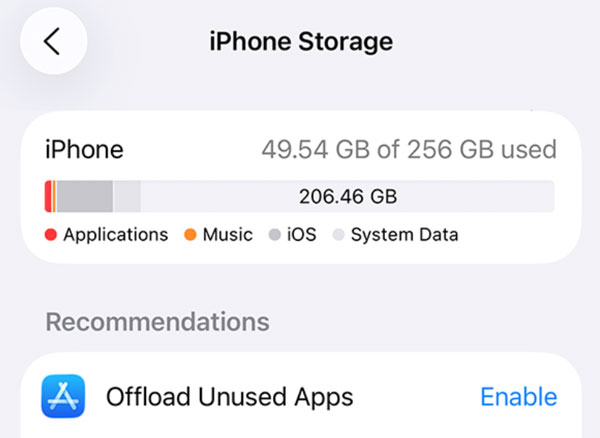
If your iPhone storage is nearly full, you cannot get smooth playback. It also fails to play iCloud videos because of the iPhone's low storage problems. During this time, you can open the Settings app, tap the "General" button, and tap the "iPhone Storage" button to see what consumes the most space.
Fix iPhone Videos Not Playing in Safari and Other Browsers
Apple removed Flash support entirely. Thus, Safari will not play Flash-based video under any circumstances. If a website still relies on Flash, there's no direct way to play Flash videos on an iPhone. You can record website videos to MP4 and then play them successfully. Moreover, you can check if there are slow data connections, server down, CDN failures, and streaming infrastructure issues to fix videos that won't load on iPhone.
Fix Videos Sent via WhatsApp, WeChat, or Email Won't Play on iPhone
Those apps aggressively compress videos before sending due to the maximum file size limit. Heavy video compression can occasionally lead to video damage or degrade. To fix iPhone video playback failures, you can trim videos into shorter lengths before sending them to keep high video quality. As for video files too large to preview inline, you can save the video before playing.
How to Fix a Damaged Video from iPhone
Most of the time, the video you're trying to play is damaged, so there's no way you can play it on your iPhone. To resolve your videos not playing on iPhone, use AnyRec Video Repair to assist. You need the damaged video and a sample one, and then let the program create the magic in no time! It provides a quick and straightforward way of repairing videos while maintaining the original quality during and after the process.
Repair damaged, corrupted, and unplayable videos.
Fix broken videos from DJI drones, GoPro, Sony, SD card and more.
Detect damaged frames and fix broken headers in clicks.
Support MP4, MKV, AVI, and 3GP formats.
Secure Download
Secure Download
- 1. Start by clicking the two "Add" buttons to upload the corrupted video and the sample video.
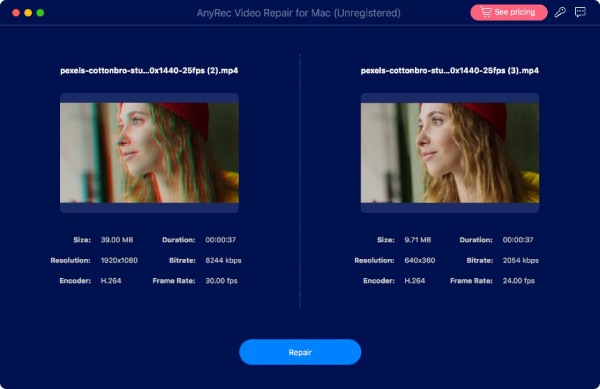
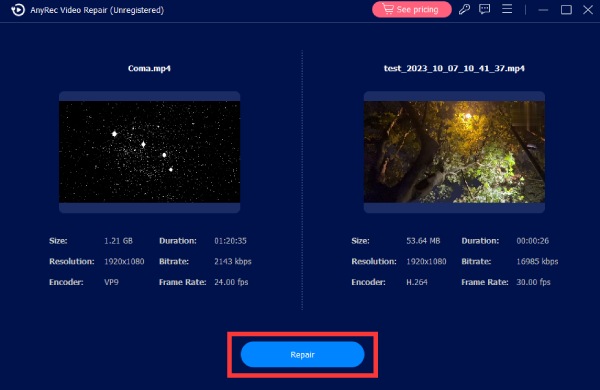
- 2. After that, click the "Repair" button and wait for a minute.
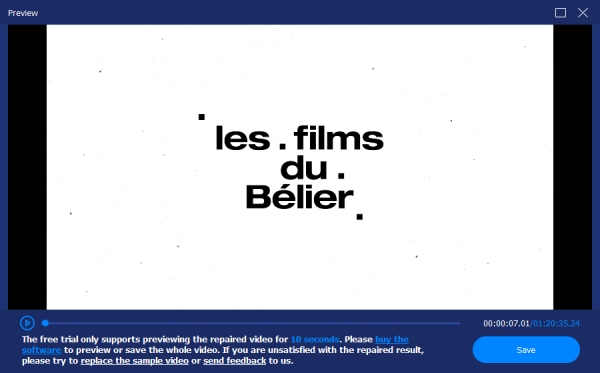
- 3. Click the "Preview" to check the repaired video first. If you like how it turns out, store it on your computer by clicking the "Save" button. Then, you can play it to check if the videos not playing on iPhone are fixed.
Secure Download
Secure Download
Quick Fixes for Common iPhone Videos Not Playing Issues
If the above content is too long to read, you can check the following table instead.
| Symptom | Root Cause | Fix |
| MKV tap shows filename only, no playback. | No native MKV support | Share to VLC or Infuse. |
| HEVC video fails with "media isn’t loading". | HEV1 subcodec from HandBrake | Re-encode with HVC1 or use Infuse. |
| AV1 video won’t play. | A17 chip required | Convert to H.264 or use iPhone 15 Pro+. |
| Plex download won’t open. | Plex iOS 2025 bug | Switch to Infuse Pro as Plex client. |
| Blu-ray MKV stutters in VLC. | VLC bypasses hardware decoding | Switch to Infuse. |
| Reddit video spinning forever. | Autoplay + weak WiFi | Disable autoplay in Reddit settings. |
| Video plays on Mac, not iPhone. | AV1 or HEV1 codec mismatch | Convert via HandBrake with correct profile. |
| Cinematic mode video loses effect after transfer. | iCloud required for Cinematic data | Upload via iCloud, not direct transfer. |
Conclusion
Most video problems on iPhone are not serious. Small things, such as a full storage, an outdated app, a weak Internet connection, and a damaged video file usually cause them. Once you know what to look for, you can fix videos not playing on iPhone easily. Use AnyRec Video Repair to fix damaged videos within a few clicks. Just click the Free Download button and upload your sample video now!
Secure Download
Secure Download
About Our Author




