
A Complete Screen Studio Review (and Its Top Alternative)

You've seen them all over the internet, those sleek recordings that zoom in perfectly on every click and even have professional-grade backgrounds. To recreate the look, enter Screen Studio. Is it still the standard for educators and casuals? In this comprehensive Screen Studio review, you will dive deeper into its features, steps for using it, and reveal the best alternative that gives you the same pro feeling. Enjoy high-quality video content without any headache.
Guide List
What is Screen Studio Detailed Review of Screen Studio How to Use Screen Studio for Screen Recording Powerful Alternative to Screen Studio to Record in High QualityWhat is Screen Studio
Start this Screen Studio review with its key definition. Screen Studio is a specialized recording app designed to transform desktop captures into high-quality videos. It is primarily built for macOS users looking to create tutorials, product demos, or other social media content without requiring complex editing skills. With its aesthetics and friendliness, this tool has become one of the most loved among content creators who value a polished, professional-looking final product.
Detailed Review of Screen Studio
Done with the basic definition of Screen Studio, here's a deeper evaluation of its capabilities and its real-world performance. While Screen Studio is widely famous for its magic features, it still comes with certain drawbacks that you should consider before purchasing. The following breaks down an honest look at where the tool excels and where it falls short.
Key Features of Screen Studio:
- • Automatic Zoom and Pan. Smartly zooms in on your clicks and active windows to keep the viewer focused.
- • Customizable Backgrounds. Add a stylish canvas to your recording with adjustable shadows, insets, and paddings.
- • Cursor Smoothing. Transform jittery movements into a smooth, professional glide.
- • Webcam and Audio Integration. Covers selfie overlays with audio background noise removal and auto-transcription.
- • Vertical Export. Offers one-click conversion for TikTok, Reels, and YouTube Shorts with adjusted animations.
Pros of Screen Studio:
- • Offers a studio look quickly without manual editing.
- • Export to 4K 60FPS videos.
- • Time-saving by automating complex tasks such as zooming in.
- • Very intuitive screen with a minimal learning curve for starters.
Cons of Screen Studio:
- • Currently available for macOS users only.
- • Not an ideal replacement for complete scale editors.
- • High-quality records result in very large file sizes.
How to Use Screen Studio for Screen Recording
With the Screen Studio review complete, transition into the practical steps needed to produce your polished video. Follow these simple steps to record yourself, refine video, and export your content with professional magic.
Step 1. Start Screen Studio and select whether to capture your entire screen, a specific window, or a linked iOS device. Choose your microphone and webcam to add a voiceover and a talking head overlay.
Step 2. Once ready, click the "Record" button and start your tutorial or demo. You won't have to worry about the mouse movements as the tool will smooth them later.
Step 3. End the recording quickly to access the editor, and see the automatic zoom already applied to your clicks. Also, use the timeline to adjust the zoom levels, change the cursor size, or edit the background style.
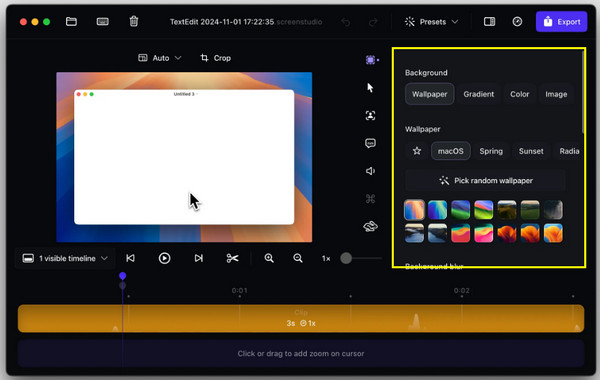
Step 4. Click the "Export" button and pick your desired preset, such as Web, Social, Media, or GIF, to save the final file.
Powerful Alternative to Screen Studio to Record in High Quality
If you're a Windows user or need a more versatile recording suite, having a powerful alternative is the next logical step in your recording journey. For this, AnyRec Screen Recorder shines as the top-tier choice for anyone who needs high-performance recording across multiple platforms. This tool is made to handle everything from a standard tutorial to intense gameplay and live meetings without lag. It provides a more complete set of recording modes that goes beyond the style of Screen Studio. Whether you wish to record at ultra-high frame rates or schedule your recording in advance, this software has the flexibility to offer that casual and professional craving!

Specialized modes for Video, Audio, Webcam, Game, and even Phone.
Built-in video editor to remove unwanted parts before saving the final file.
Record content in high definition at up to 60 FPS without a watermark.
Real-time annotation with brushes, shapes, and text to highlight points.
Secure Download
Secure Download
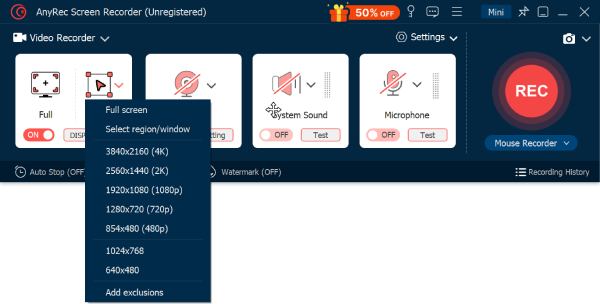
Step 1. Start by opening AnyRec Screen Recorder on your computer. Select "Video Recorder" to access the capturing interface. Here, choose "Full" for the entire screen or "Custom" for manually selecting the window or region.
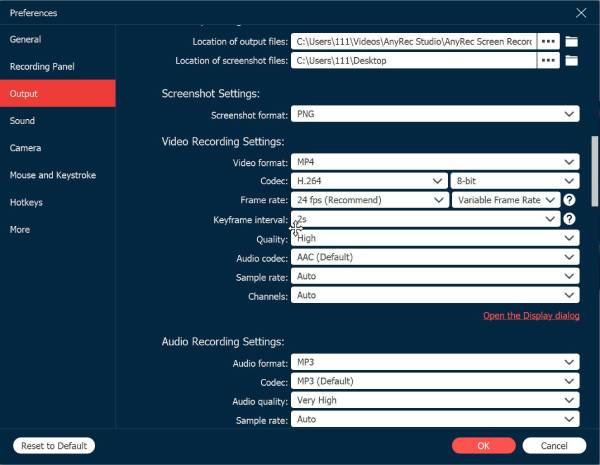
You can click on the "Settings" button and navigate to the "Output" section to pre-select your video format, frame rate, and quality.
Step 2. To ensure your viewers can hear clearly, turn on the "System Sound" toggle. Switch the "Microphone" toggle on as well if you wish to provide a walkthrough. Adjust the volume for both to ensure your voice perfectly balances with the system sound.
Step 3. Initiate the capture process by clicking the "REC" button. As you record, a floating toolbar will be accessible to grant you the ability to use real-time annotation tools such as brushes or text, and click the "Camera" button to take a screenshot.
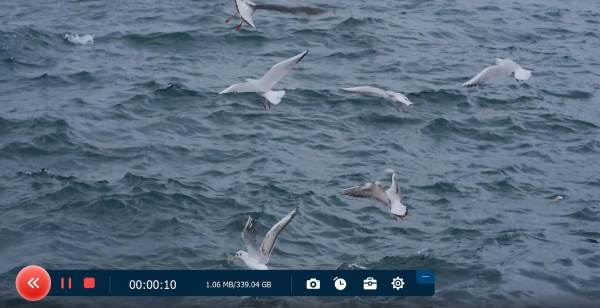
Step 4. Once you've finished your recording, click the "Stop" button to launch the preview window. Watch your footage back to ensure everything was captured correctly. You can use the trimming tool to crop extra segments.
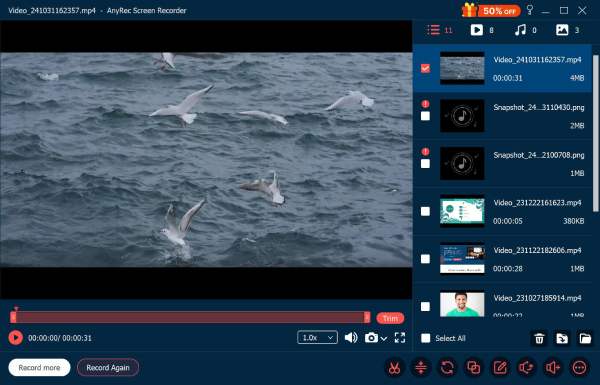
Click the "Save" button to export your high-quality video file.
Conclusion
Screen Studio remains an undisputed champion for macOS users who want to create high-end product demos with no editing effort. But after this Screen Studio review, you see its limitations, such as the need to work seamlessly on Windows, as it is not the perfect fit for everyone. So, to give you a high-quality and versatile alternative, here's AnyRec Screen Recorder. It stands out as a top-tier solution for any system, handling everything from quick clips to long 60 FPS gaming. Whether you prioritize aesthetics or all-around performance, this tool is the versatile powerhouse your toolkits need.
Secure Download
Secure Download
About Our Author




