
Never Attach: 12 Tools on How to Make a Screenshot as Link

For quick explanations, feedback, saving important information, and so much more, screenshots are used. But while taking it is easy, sharing it is not, since it may be time-consuming. Thus, the solution lies in how to make a screenshot as a link. Instead of attaching files, imagine capturing your screen and getting that shareable link instantly! This post will share with you the 12 powerful tools that transform screenshots into links, making communication easier than ever.
| Tool | Type | Link Sharing | Account Needed | Best For |
| ImageKit | Image Hosting | Direct | Optional | Advanced users |
| ImgBB | Image Hosting | Direct, HTML, BBCode | No | Quick uploads for all |
| Postimage | Image Hosting | Direct | No | Forum users |
| Google Drive | Cloud Storage | Shareable | Yes | Collaboration and backups |
| Dropbox | Cloud Storage | Shareable | Yes | Personal or professional use |
| Jumpshare | Cloud Storage | Auto | Yes | Quick visual communication |
| Awesome Screenshot | Screenshot Tool | Auto | Yes | Annotated images |
| Lightshot | Screenshot Tool | Auto | No | Fast screenshot |
| Snagit | Screenshot Tool | Link via Screencast | Yes | Professional guides |
| Slack | Messaging App | Private | Yes | Internal team communication |
| Discord | Messaging App | Public | Yes | Casual or gaming communities |
| Trello | Collaboration Tool | Direct | Yes | Project tracking |
Guide List
Use Image Hosting Services to Get Screenshot URLs Upload Screenshots to Cloud Storage and Get Links Screenshot and Send with Built-in Sharing Make a Screenshot as a Link by Messaging Screenshot Entire Webpages for SharingUse Image Hosting Services to Get Screenshot URLs
For sharing screenshots online or embedding them into websites, using image hosting services is among the easiest ways! These platforms let you upload images quickly and generate direct links. See below the best free image hosting platform to make a screenshot as a link:
1.ImageKit
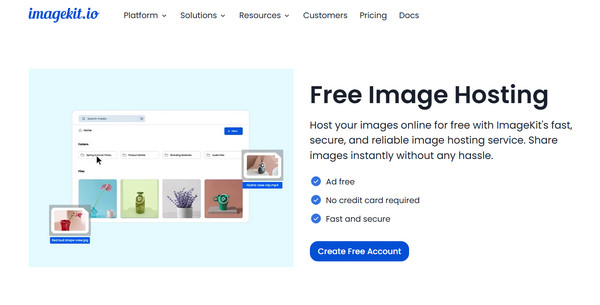
ImageKit is a robust media optimization and real-time transformation tool that also works as your reliable image hosting platform. What makes it stand out is its ability to optimize images for quicker loading without losing quality.
2.ImgBB
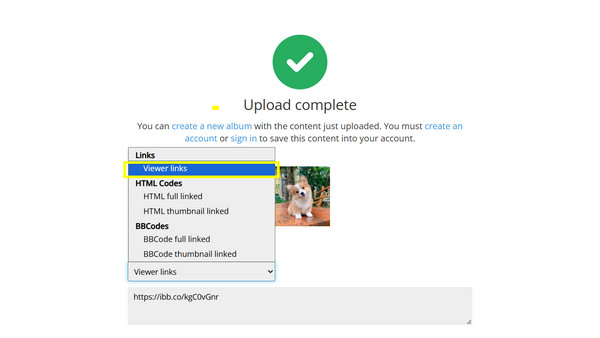
ImgBB is the following image hosting service in this list. It is a user-friendly and free platform that helps turn a screenshot into a link, perfect for quick upload and instant sharing. It supports direct HTML and BBCode links, which is great for blogs, forums, and social media.
Step 1. Go to the official site of ImgBB. Begin by clicking the "Start Uploading" button and selecting your screenshot from your computer.
Step 2. Click the "Upload" button to proceed. Here, you can see options for links (Direct link, HTML, and BBCode); copy the "Direct Link URL" to use the screenshot link anywhere online.
3.Postimage
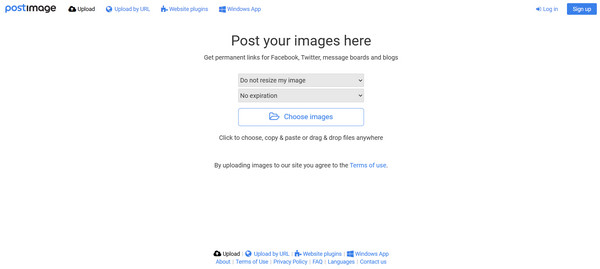
Postimage is another famous free image hosting platform. It allows you to import multiple images simultaneously, set expiration dates, and select specific image sizes in the upload process.
Upload Screenshots to Cloud Storage and Get Links
In this method of cloud storage services, you'll have to upload a screenshot and get links that you can send to others! Additionally, these platforms offer the benefit of backup and sync; get to know them below.
1.Google Drive
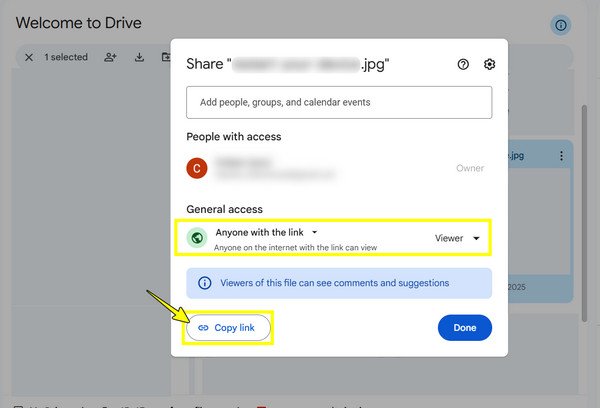
One of the most popular cloud storage options for desktop and mobile is Google Drive. It offers 15 GB of free storage, and once you upload, you can view, comment on, or edit it using shareable links. Indeed, great for personal use and collaboration tasks, assisting you in getting a url from a screenshot!
Step 1. Go to the Google Drive site and sign in to your account. There, click "New" to "File Upload" and select your screenshot from your computer.
Step 2. Afterward, right-click on the file and select "Share". Ensure it is set to the "Anyone with the link" option, then click on "Copy link" and share it anywhere you want.
2.Dropbox
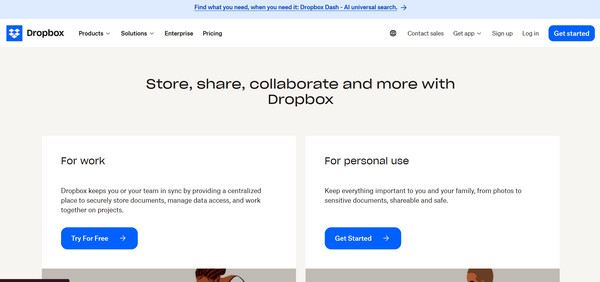
Another well-known file cloud storage service that excels in file organization is Dropbox. Aside from allowing you to upload screenshot and get a link for use on the web or in a mobile app, it also supports automatic screenshot upload if the desktop app is installed.
3.Jumpshare
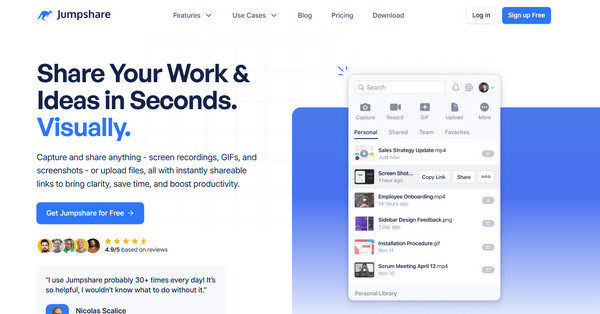
The last one is Jumpshare. It is made for quick visual sharing, mixing cloud storage services with screenshot tools. Upon uploading the image, the tool will immediately generate a shareable link.
Screenshot and Send with Built-in Sharing
Following that, screenshot tools offer built-in sharing features that generate a link! It is the fastest method for creating a website link in a screenshot without importing them manually to the platform. So, if you prioritize speed and convenience, check out the following screenshot tools:
1.Awesome Screenshot
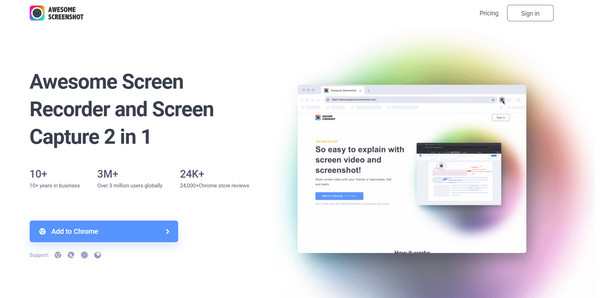
Awesome Screenshot works as a browser extension that takes a screenshot of your screen and allows annotation before sharing. Once you're done with everything, the image is uploaded to the cloud alongside a shareable link.
2.Lightshot
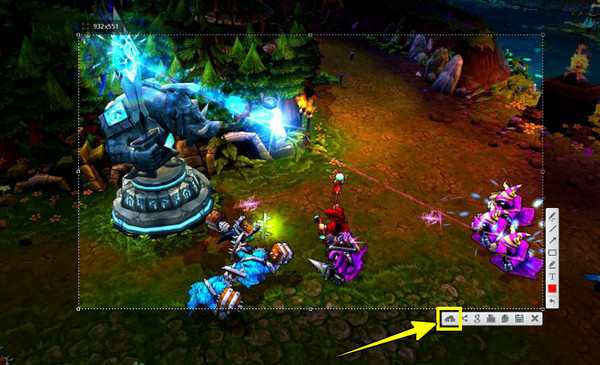
As for this lightweight solution to make a screenshot as a link, Lightshot works cross-platform. It gives you the option to select an area of your screen to capture, then edit it quickly, and upload it to the server in just a click with a unique URL for sharing.
Step 1. Launch Lightshot by pressing the "Print Screen" key on your keyboard; otherwise, run it from your taskbar.
Step 2. Next, determine the capture area and click the "Upload to Cloud" button. You will obtain the screenshot link right away and share it.
3.Snagit Screen Capture
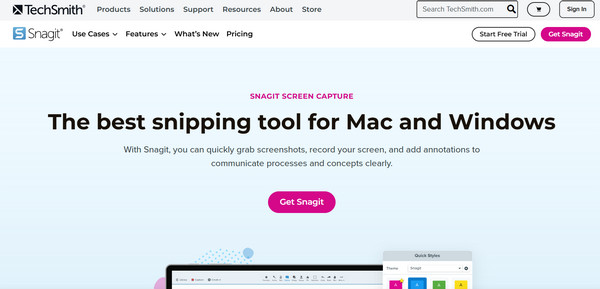
Snagit, on the other hand, is a walking premium screen capture tool for professionals. It lets you annotate, record video, and share it via link through its Screencast service or cloud upload.
Make a Screenshot as a Link by Messaging
At this moment, you'll see how to make a picture into a link with messaging platforms. The following apps host the image for you and allow you to copy the image link in chats, making it convenient for team communication.
1. Slack
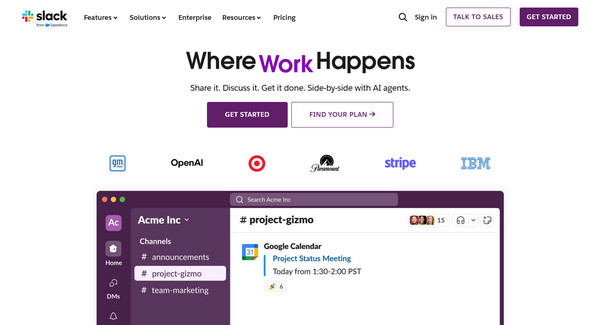
In Slack, you can instantly drag and drop an image into any chat or channel. After it is done, the image can be viewed by anyone in the workspace, and you can right-click on it to obtain its public link.
2. Discord
Up next: Discord. It features image uploads in DMs and servers, where you can paste Discord screenshots directly and then immediately get the link. For fast communication, mainly among gaming communities, Discord is perfect.
Step 1. Once you have opened the Discord server or DM chat, drag and drop the screenshot into the message box.
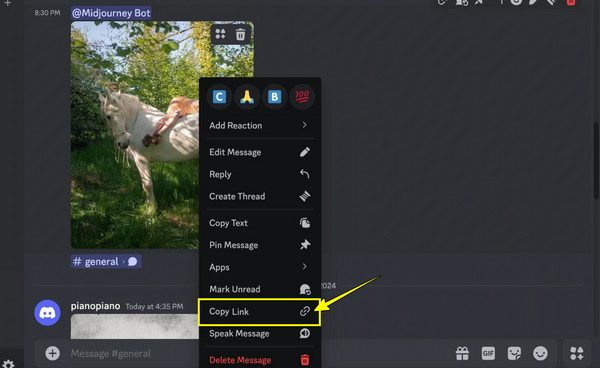
Step 2. After that, right-click on it and select "Copy Link" (Copy Image Address). In this way, you make a screenshot into a clickable link, and then paste the link to the location where you want to share the screenshot.
3. Trello
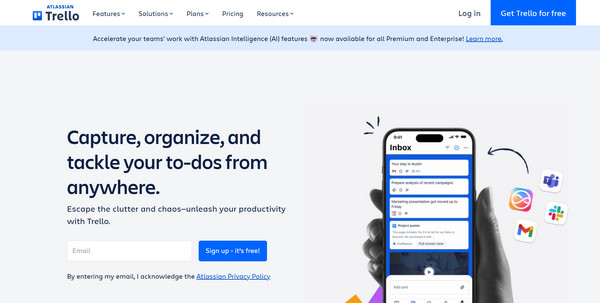
Trello allows screenshots to be clipped to cards to track tasks and for visual reference. Once you have done it, all team members can preview and get the link. While it is not a public link by default, you have to enable public sharing on a board or card first.
Screenshot Entire Webpages for Sharing
After trying different ways to turn your screenshots into links, you may run into scenarios where a basic screenshot is not enough, like capturing the complete details. For this, it's time to shine for AnyRec Screen Recorder. More than just a screen recording tool, it comes with a Snapshot feature that lets you take a full-page, window, or scrolling screenshot in just a click. Even better? You can customize it with text, callouts, lines, and more, and enjoy the result with no watermarks or annoying pop-ups.

Capture screen in scrolling, full, menus, or any region you choose.
Customizable hotkeys for faster control in recording and screenshotting.
Adjust the resolution, format, and other output settings to your needs.
No ads or interruptions during the session, ensuring a clean result.
Secure Download
Secure Download
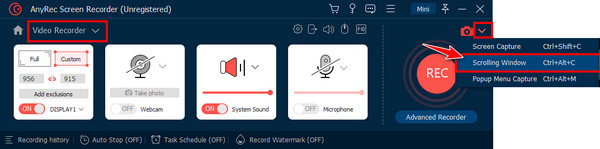
Step 1. Start AnyRec Screen Recorder, and head to "Video Recorder". Click the "Split" button beside the Camera, and choose "Scrolling Window" to screenshot the entre webpage. You can also press "Ctrl + Alt + C" inside the active window as a shortcut.
Step 2. After that, in the "Preview" window, you can crop, highlight, or draw directly on your screenshot via the Paint tool.
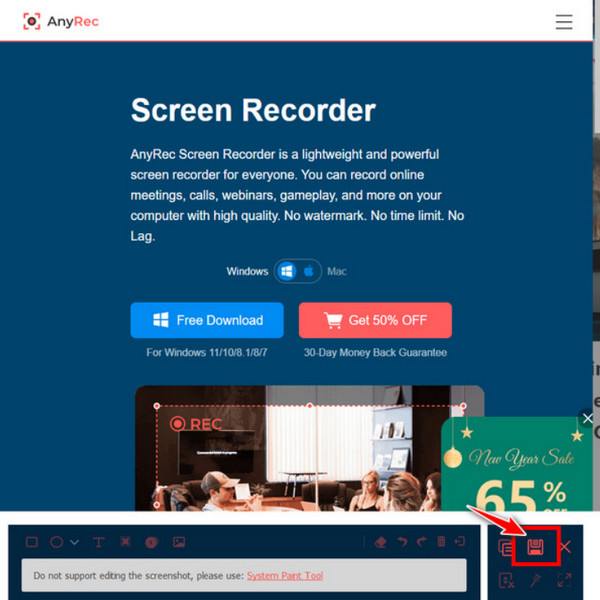
Step 3. Done with it? Click the "Save" button, then select the path for your image and the format to use. Finally, click the "Save" button to download it.
Conclusion
Sharing screenshots as links is effortless with the best 12 tools you've just seen today. It could be a cloud storage, image host, or messaging platform; each has a unique way to help you make a screenshot as a link. But for an entire webpage screenshot or scrolling content with no hassle, AnyRec Screen Recorder is your best bet in this category! It supports recording and capturing everything with just a click, no watermarks, no pop-ups, just clean, excellent quality results.
Secure Download
Secure Download



