
Turn off iCloud Music Library on iPhone/iPad/Mac/PC [3 Ways]

How do you turn off iCloud Music Library? If you’ve been dealing with syncing issues, missing songs, or mismatched tracks across your devices, this might be the solution you’re looking for. In this article, you’ll discover three easy ways to fix these issues and learn precisely to stop loading iCloud Music Library. Start exploring each of them now.
Guide List
Why Should You Turn Off iCloud Music Library? What Will Happen? Detailed Steps to Turn Off iCloud Music Library on iPhone/iPad How to Turn Off iCloud Music Library on Mac/Windows Another Quick Way to Sync Your Music Library from iPhoneWhy Should You Turn Off iCloud Music Library? What Will Happen?
Before making your hands busy performing this post's methods to disable iCloud Music Library, you can first explore the reason why you should do this, and what will happen. Now, check the reasons for turning off iCloud Music Library.
- • You're facing syncing issues, like songs, playlists, or metadata not matching across devices.
- • You want to save local storage, since automatic uploads or downloads can use space.
- • You prefer to manage music locally instead of relying on the cloud.
- • You're switching music services and don't want your Apple Music library synced across devices.
Now, what will happen if you turn off iCloud Music Library? Well, here are the things that could happen:
- • Syncing stops across devices. Changes on one device won't appear on others.
- • Local songs stay on your device, but cloud-only tracks may become unavailable offline.
- • You free up storage, since automatic syncing stops.
- • You'll need to manage music manually on each device.
- Cross-device access is lost, so playlists and library updates won't sync automatically.
Understanding this helps you know what to expect before you start. Next, you'll see three easy ways to turn it off. After that, you can transfer music from iPhone to Mac, Windows, Android, iPod and more devices flexibly.
Detailed Steps to Turn Off iCloud Music Library on iPhone/iPad
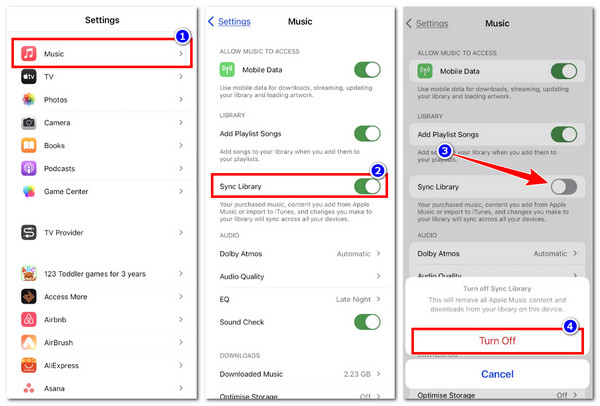
The first option to turn off iCloud Music Library is to turn it off on your iPhone/iPad. If you want to take control of your music and stop it from syncing across devices, go after these simple steps to do it safely without losing your local songs. How do you shut off iCloud Music Library on iPhone/iPad? Follow these steps:
Step 1. Open the "Settings" application on your iPhone/iPad. After that, scroll down and tap "Music" to access your music settings.
Step 2. Next, look for the "Sync Library" option (it may also be called iCloud Music Library depending on your iOS version). This controls whether your music is synced across your devices.
Step 3. Then, toggle "Sync Library" off. A confirmation message will appear, so tap "Turn Off" to confirm your choice.
How to Turn Off iCloud Music Library on Mac/Windows
Otherwise, if you are using a Mac or Windows PC, you can also turn off iCloud Music Library on your computer. This is helpful if you want to manage your music locally or stop changes from syncing across your devices. It is a good idea to put music on flash drive for its portability, faster access, and more storage. By following these steps, you will know exactly to turn off and unsync iCloud Music Library on your PC.
Step 1. Open the "Music" application on Mac or "iTunes" on Windows. After that, go to the menu bar and click "Music" (Mac) or "Edit" (Windows), then select "Preferences".
Step 2. Next, click the "General" tab if it's not already open. Look for the "iCloud Music Library" or "Sync Library" option.
Step 3. Then, uncheck the box next to "iCloud Music Library" or "Sync Library". A confirmation message may appear, so click "Turn Off" to confirm your choice.
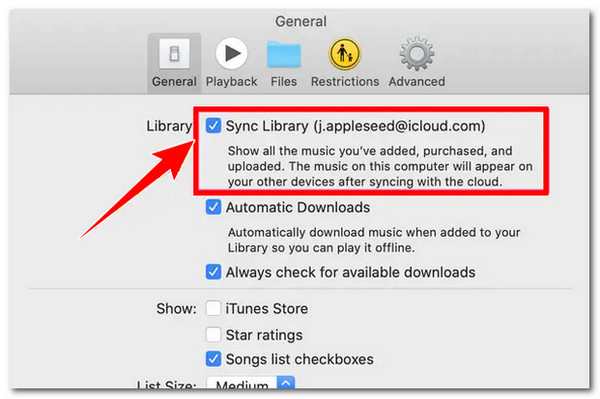
After completing these steps, your Mac or Windows computer will stop syncing music with iCloud. Any songs you downloaded from iCloud will remain on your computer, but playlists and changes made on other devices will no longer update automatically.
Another Quick Way to Sync Your Music Library from iPhone
There you have it! Those are the default answers to your question, "How do you turn off iCloud Music Library?". Now, if you're looking for another way to sync your Music Library from your iPhone to other devices without iCloud, you can use AnyRec PhoneMover. This desktop-based tool allows you to transfer or sync various music from your iPhone to other devices, such as another iPhone, iPad, iPod, Android, and your computer. You can transfer them without erasing existing songs, and you can even manage your songs and playlists using this tool. Additionally, this tool allows you to transfer your entire music library while keeping the album art, lyrics, track information, and audio metadata.

Allows you to transfer downloaded and purchased songs in MP3, M4A, AAC, etc.
Enables you to view and select specific music that you wish to sync to another device.
You can transfer files, like a music library, without relying on the internet connection.
Do a complete device migration, which includes music, without a full phone backup.
Secure Download
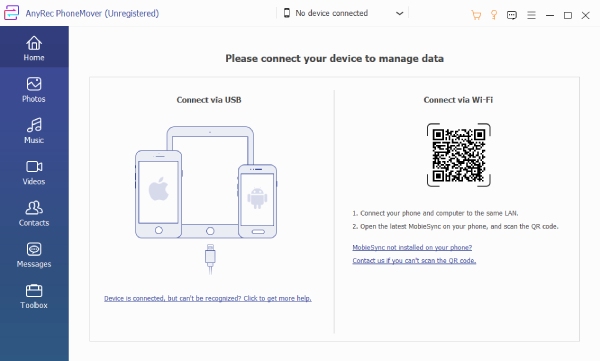
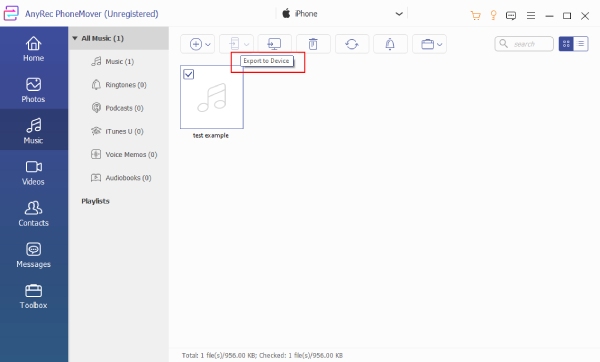
Step 1. Install AnyRec PhoneMover on your computer and launch it afterward. Then, connect your iPhone to the computer through a USB cord and wait until the tool finishes scanning your device. Once done, select the "Music" option in the left menu.
Step 2. After that, you will see all the music you have on your iPhone, all that is present in your library, select all the music you wish to transfer or sync.
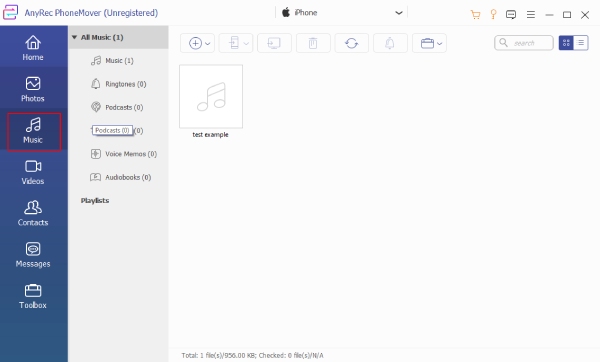
Step 3. Once done, click the "Export to PC" or "Export to Device" button to move your selected songs to your computer or phone.
Conclusion
That's it! These are 3 proven ways to disable and stop using iCloud Music Library. Using these methods, you can now easily turn off iCloud Music Library to resolve syncing issues, missing songs, or mismatched tracks across your devices. If you are looking for another way to sync your Music Library from your iPhone to other devices, AnyRec PhoneMover is a solid choice. With this program, you can quickly and easily transfer your iPhone's Music Library without any hassle.
Secure Download



