 Play any region disc on Windows and Mac.
Can VLC Play Blu-ray? How to Watch Blu-ray Discs with VLC

When talking about free media players, VLC is almost everyone's top pick. It plays almost all video and audio files, so many users wonder: Can VLC Player play Blu-ray discs? If you want to know whether VLC supports Blu-rays, how to set it up, and how to fix VLC Blu-ray not playing problems, this complete guide is for you.
Guide List
Part 1: Will VLC play Blu-ray Discs? Part 2: How to Play Blu-ray Disc in VLC on Windows/Mac Part 3: Why VLC Failed to Play Your Blu-ray Disc? Part 4: How to Fix VLC Won't Play Blu-ray Issue Part 5: Best VLC Alternative to Play Any Blu-ray without ErrorsPart 1: Will VLC play Blu-ray Discs?
Is it possible to play Blu-ray in VLC media player? The answer is yes. VLC can play unprotected, homemade, or non-commercial Blu-ray discs, but it cannot play most commercial Blu-ray movies directly. This is because many Blu-ray discs are protected with technologies like AACS and BD+ encryption, and VLC does not include the decryption keys. In addition, Blu-ray discs may also have restrictions based on Blu-ray region codes, which determine where certain discs can be played.
Part 2: How to Play Blu-ray Disc in VLC on Windows/Mac
If you want to play commercial Blu-rays in VLC, you need to install AACS dynamic library or Keys Database first. These files allow VLC to recognize AACS-protected Blu-ray discs and encryption keys for supported Blu-ray movies.
On Windows:
Step 1. Navigate to https://vlc-bluray.whoknowsmy.name/ to download Keys Database (KEYDB.cfg) and AACS dynamic library (libaacs.dll).
Step 2. Go to "C:ProgramData" and create a new folder named "AACS" in it. Then put the KEYDV.cfg file inside the folder.
Step 3. Navigate to "C:Program FilesVideoLANVLC" and copy the libaacs.dll file to it.
Step 4. Insert the disc into the drive. Launch VLC on your PC and click the "Open Disc" button from the "Media" menu. Choose "Blu-ray" in the "Disc" tab.
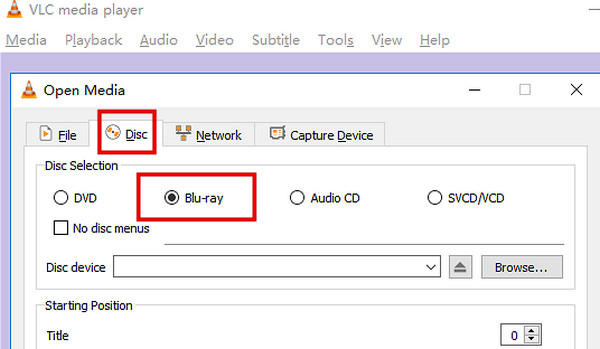
Step 5. Select the Blu-ray disc and click the "Play" button to play the disc in VLC.
On Mac:
Step 1. Go to https://vlc-bluray.whoknowsmy.name/ and get the Keys Database (KEYDB.cfg) and AACS dynamic library (libaacs.dylib).
Step 2. Right-click VLC and choose "Show Package Content". Move the KEYDB.cfg file to the "/Library/Preferences/aacs/" folder. Move the libaacs.dylib file to the "Contents/MacOS/lib/" folder.
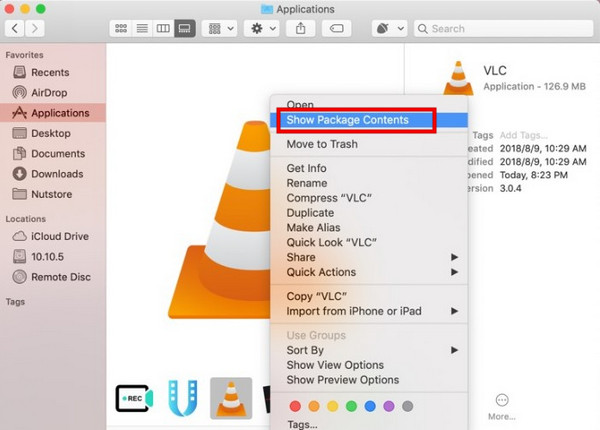
Step 3. After inserting the Blu-ray disc into the drive, launch the VLC player on the Mac. Click the File button on the menu bar. Then, click the "Open Disc" button.
Step 4. Select the disc you insert and click the "Open" button to import it. Then, click the Open; button to play the Blu-ray disc in VLC.
Part 3: Why VLC Failed to Play Your Blu-ray Disc?
If your VLC won't play Blu-ray successfully, it is usually caused by one of the following reasons:
- 1. Outdated VLC Version. VLC versions before V3.0 do not support Blu-ray playback. Make sure you are using the latest VLC version.
- 2. Missing AACS or BD+ decoding library. If the library files are placed in the wrong folder or do not contain the required keys, VLC will fail to play Blu-rays.
- 3. Missing or invalid AACS configuration file. The KEYDB.cfg file is missing, outdated, or incorrectly installed.
- 4. Your input can't be opened. VLC can't recognize the input format and open the Blu-ray disc normally.
- 5. Unsupported or damaged Blu-ray disc. Scratched, dusty Blu-ray discs or other hardware errors with your Blu-ray drive will cause reading failures.
Part 4: How to Fix VLC Won't Play Blu-ray Issue
If VLC fails to play your Blu-ray disc, you can try several troubleshooting methods. The following solutions can help fix common problems.
Update VLC Media Player
Update your VLC version to VLC V3.0 or later. If you are using a 64-bit Windows computer, make sure to install the 64-bit version of VLC for better compatibility. Click "Help" tab on the top menu bar and choose the "Check for Updates" option to install the latest version if available.
Reset Preferences
Incorrect preferences can sometimes prevent VLC from opening Blu-ray discs. Resetting VLC preferences may fix the VLC not playing Blu-ray problem.
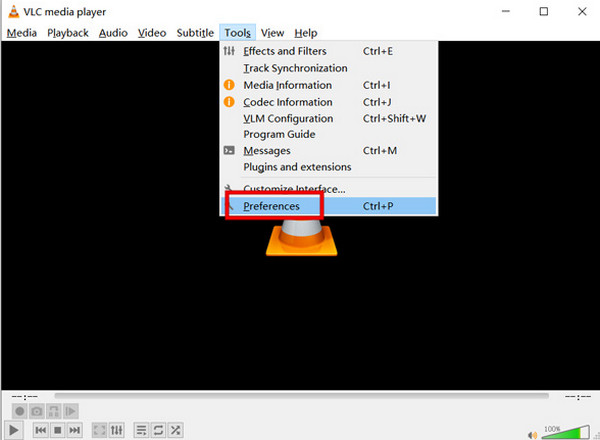
Step 1. Open VLC and go to "Tools" > "Preferences".
Step 2. Tick "All" under the "Show Settings" at the bottom left corner to enter the "Advanced Preferences" window.
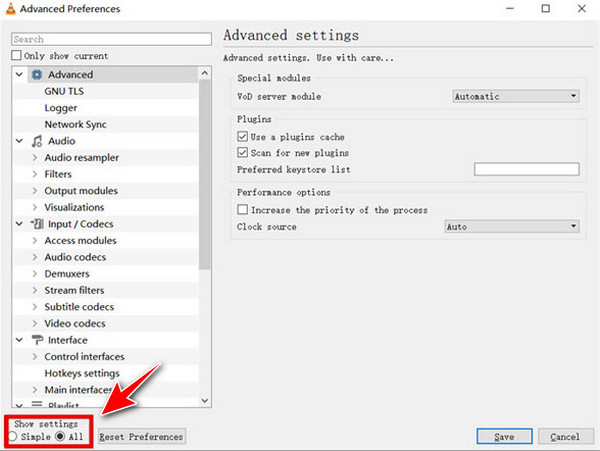
Step 3. Click "Reset Preferences" and restart VLC.
Install New Blu-ray Decoder Tools
Sometimes your decryption files are outdated and incompatible with newer commercial releases or configurations. Delete the old AACS folder and old libaacs files completely. Re-download the newest matching KEYDB.cfg and decryption library for your system. Re-place the two files in the correct folders as guided in Part 2. Reboot VLC and reinsert the Blu-ray disc to play.
Part 5: Best VLC Alternative to Play Any Blu-ray without Errors
If VLC still cannot play your Blu-ray disc after troubleshooting, a region free Blu-ray player can be a better choice. AnyRec Blu-ray Player is a professional Blu-ray player designed to play Blu-ray discs from any region easily. You don't need to install additional configuration files and decoder tools manually. It supports encrypted Blu-ray movies and delivers high-quality video and audio, providing a smooth, cinema-like viewing experience on your Windows PC or Mac.

Play DVDs, Blu-ray discs, and ISO folders smoothly.
Play DVDs and Blu-rays from any region and country.
Support 4K UHD Blu-ray playback and lossless Dolby audio.
Play thousands of video and audio formats.
Secure Download
Secure Download
Step 1. Launch the Blu-ray player on your computer, and insert your Blu-ray disc or DVD into the internal drive.
Step 2. Click the "Open Disc" button, select the Blu-ray/DVD you just inserted. Then click the "OK" button to confirm.
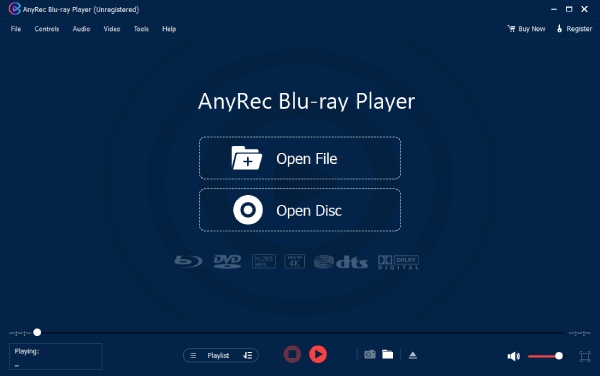
Step 3. Adjust the playback settings from the menu, then click the "Play" button to play the Blu-ray disc smoothly.
Conclusion
In short, VLC Blu-ray playback is possible, but it needs manual setup and extra decryption files. For a simpler viewing experience, we recommend using a region free DVD player - AnyRec Blu-ray Player is the best alternative. It supports playing encrypted Blu-ray discs and provides original high-quality video up to 4K.
Secure Download
Secure Download
Related Articles:
About Our Author