
7 Ways to Download Photos from iCloud to iPhone, PC, Mac

iCloud is a convenient way to sync photos across Apple devices, but there are times when you may need to download photos from iCloud for offline access or backup. Fortunately, Apple offers several built-in options, and there are alternatives you can use depending on the device you have. In this post, you'll explore seven effective ways to save iCloud photos. From the Photos app to saving them to an external hard drive, find the best approach for your iCloud library here.
Guide List
Download iCloud Photos on Mac Move iCloud Photos to PC Download Photos from iCloud to iPhone Download iCloud Photos on Android Save iCloud Photos to External Hard Drive Can't Download iCloud Photos? Try This AlternativeDownload iCloud Photos on Mac
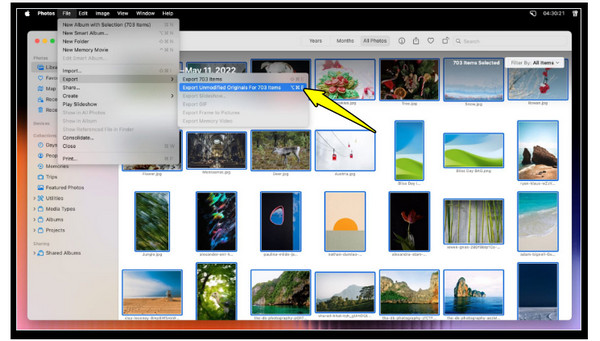
If you're using a Mac, the easiest way to download original photos from iCloud is through the Photos app. This app syncs with your iCloud account and downloads your photos to your Mac's local storage. If you plan to keep your entire iCloud library synced to your Mac for offline access, this one's perfect.
- 1. Launch the Photos app on Mac. Head to the menu bar and click on "Photos" then "Settings" (Preferences).
- 2. There, select the "iCloud" tab, and check "iCloud Photos" to enable syncing.
- 3. Next, select "Download Originals to this Mac" to save full-resolution copies of the images.
Move iCloud Photos to PC
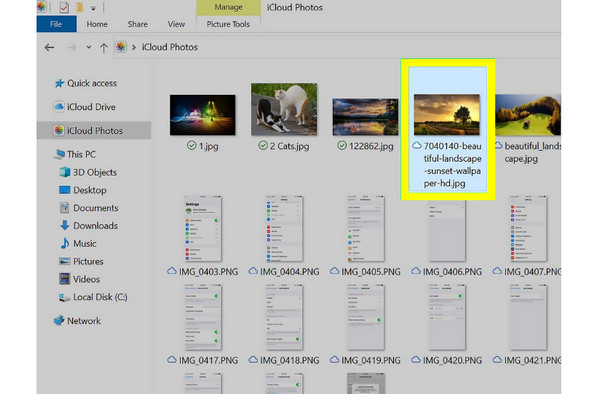
For those working on a Windows PC, you can still download all photos from iCloud in two practical ways. The first option is to use the iCloud for Windows app, which syncs the entire iCloud Photo Library. The second option is to use the iCloud website, where you can upload photos to iCloud and then download selected photos to your device.
Use iCloud for Windows:
- 1. Run the iCloud for Windows app on your PC. Then sign in with your Apple ID.
- 2. Enable "Photos" and check "iCloud Photos".
- 3. Next, open the "File Explorer" and head to the "iCloud Photos", then select the photos you wish to copy to your desired PC folder.
Use iCloud.com:
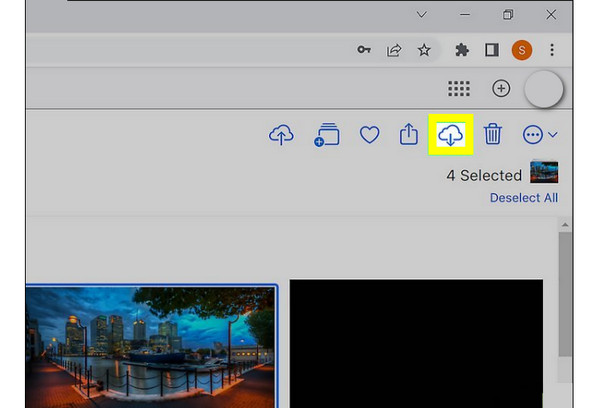
- 1. Open any browser and type iCloud.com into the address bar.
- 2. Sign in with your Apple ID account.
- 3. Then click on the "Photos" app.
- 4. From there, choose the ones you wish to download.
- 5. Click the "Download" button at the top.
Download Photos from iCloud to iPhone
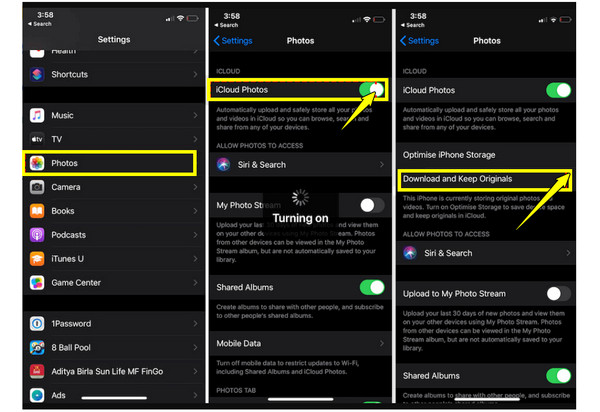
Meanwhile, if you wish to download iCloud photos and videos back to your iPhone, do it in the Settings app. By enabling iCloud Photos, you can sync your photos across all your devices. You can use Shared Albums, too, to get specific sets of images only. Here's how to get pictures from iCloud to iPhone:
- 1. On your iPhone, head to the Settings app, tap on your "Apple ID name" above, then go to "iCloud".
- 2. There, tap on "Photos" and turn the "iCloud Photos" ON. Select "Download and Keep Originals" to keep full-resolution copies.
- 3. To download pictures from a Shared Album, open the "Photos" app, navigate to the "Albums" tab, and save the image from the shared album to your library.
Download iCloud Photos on Android
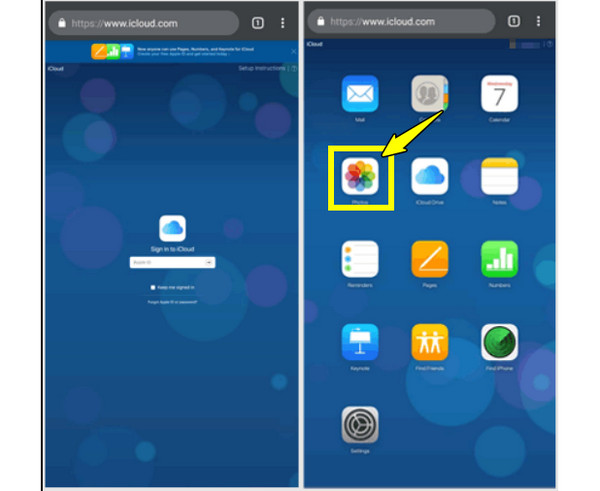
On the other hand, for Android device users, you can still access and get old photos from iCloud using your mobile browser. Since there's no iCloud app for Android devices, the web version can step up.
- 1. On your Android phone, open a browser and visit iCloud.com.
- 2. There, sign in with your Apple ID; tap "Photos" from the menu, and choose the ones you wish to download.
- 3. Tap the "Download" button and confirm the action.
Save iCloud Photos to External Hard Drive
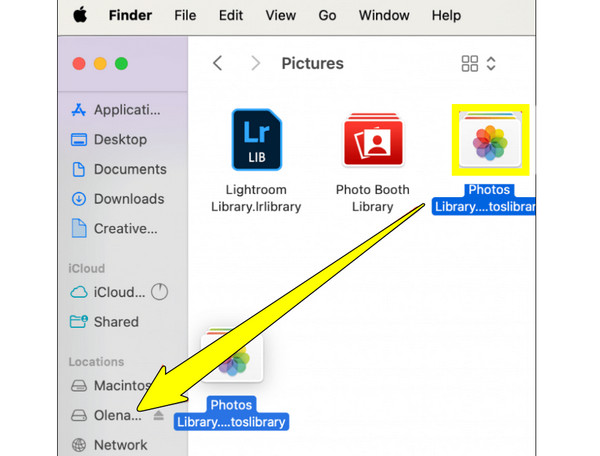
For a secure backup of your iCloud Photos, downloading them to an external hard drive is a smart move. Doing so gives an extra protection to your files in case your iCloud account runs out of storage space. Once you download iCloud from iPhone to an external hard drive, you can free up more storage space on your mobile phone or computer.
- 1. Save your iCloud photos to your computer.
- 2. Next, connect your external hard drive to your computer.
- 3. Open Finder on Mac, or File Explorer on Windows.
- 4. Then, drag and drop your downloaded photos to the external hard drive. Later, safely eject the drive.
Can't Download iCloud Photos? Try This Alternative
While iCloud works conveniently for storing and syncing your photos, it can sometimes be slow or complicated to use, especially for syncing large photo libraries. Moreover, iCloud needs a stable internet connection to transfer photos in bulk. So you cannot access your photos offline. For these, AnyRec PhoneMover is an excellent solution. Here, you can quickly move your entire library from your iPhone to your computer. It works much faster, and you won't have to worry about storage limits or sync delays. With its intuitive interface, this software makes photo transfers simple, even for beginners. Best of all, it covers other data types as well, such as music, videos, contacts, and more, making it a versatile all-in-one data transfer alternative.

Move photos, videos, music, and more file types between phones and PCs.
It can automatically scan and remove duplicate photos.
Supports organizing and managing the photo library before and after transfer.
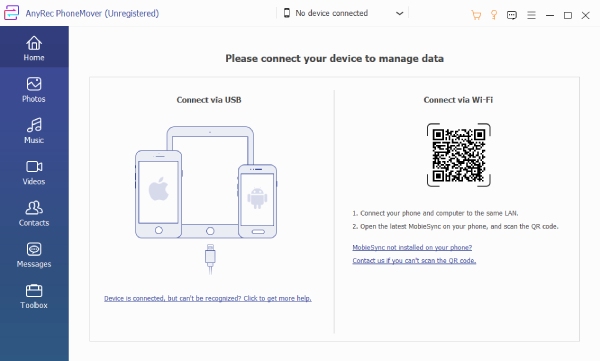
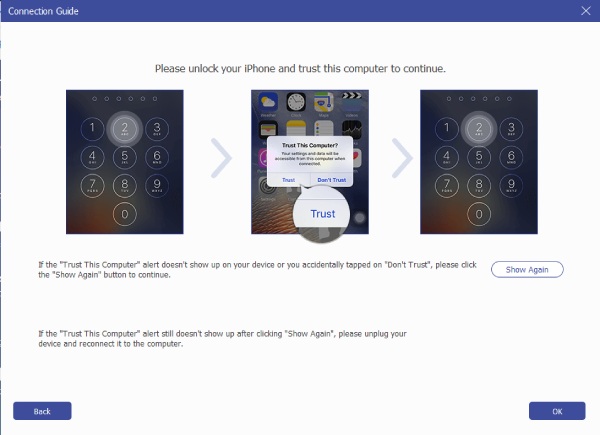
Step 1.Open AnyRec PhoneMover, and get a USB cable to connect your iPhone. If prompted, tap "Trust" in the notification to grant access.
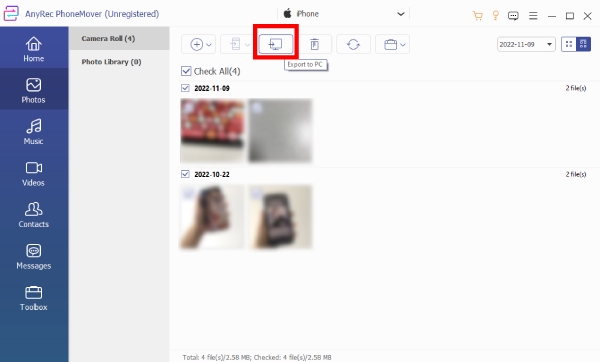
Step 2.Now that your device information and data show up on screen, click on the "Photos" tab from the left panel, then browse through your photo library and check the boxes of the photos you wish to move.
Step 3.After selecting, click the "Export to PC" button at the top, then select a destination folder and confirm the export.
Conclusion
To keep your memories safe and accessible on Apple devices, it is an important step to download photos from iCloud.com. With the methods you've explored, from the Photos app to using an external drive, you have a wide range of options for managing your iCloud storage. However, since iCloud can be slow sometimes and challenging to manage, using AnyRec PhoneMover is an excellent alternative. It works faster, avoids sync delays, and supports organizing your photos and other data. With it, you can securely back up your photos and free up space on your devices.
Secure Download



