
3 Ways to Control Android Using PC via Bluetooth [2025]

Whether you wish to manage your file, type messages, or mirror your phone's screen, being able to control Android from PC makes multitasking music more efficient. While USB and Wi-Fi connections offer the fastest performance, you may wonder if you can control Android using PC via Bluetooth if you don't have any cable or connection available. Today's guide will explore ways to do so, including a solution to transfer and manage your Android files. Scroll down now!
Guide List
Can You Really Control Android from PC via Bluetooth 3 Ways to Control Android Using PC Via Bluetooth Transfer, Manage, and Edit Android Files on PC without BluetoothCan You Really Control Android from PC via Bluetooth
Controlling your Android device from PC is a convenient way to manage your files and even navigate apps without picking up your phone. For this job, Wi-Fi and USB are the most commonly used, so you may think that Bluetooth can also do it.
Can you really control Android using PC via Bluetooth? Yes, but the capabilities are more limited compared to Wi-Fi and USB connections. With Bluetooth, you can usually do low-resolution screen mirroring, transfer files, and use input controls such as a keyboard and mouse. Meanwhile, for full high-quality screen sharing, it may not be possible unless your Android phone is rooted or connected with specialized third-party apps.
3 Ways to Control Android Using PC Via Bluetooth
With Bluetooth connectivity, you can link your devices wirelessly and control your Android phone directly from your computer. And among the available solutions, three stand out as the best, offering different sets of features. Below you'll know how these three tools work to control Android using PC via Bluetooth:
1. Microsoft Phone Link
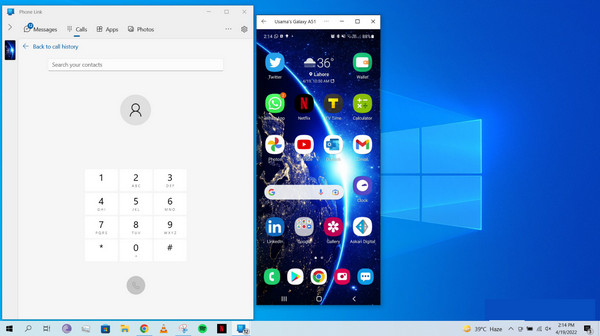
Designed for Windows users who want a seamless connection between their computer and Android phone, Phone Link allows you to control Android using PC via Bluetooth. It has deep integration features that make it possible for you to view notifications, answer calls, and even access apps. Unlike other tools, Microsoft Phone Link is built light and secure, and for productivity, even letting you drag and drop files between devices without the help of different apps.
Step 1.Launch Microsoft Phone Link on your PC. On your Android device, get the "Link to Windows" app installed. Connect the two via Bluetooth by following the on-screen instructions.
Step 2.Allow permissions for calls, contacts, and notifications. And once it is linked, you can mirror your phone screen, send texts, and access phone apps from PC.
2. TeamViewer QuickSupport
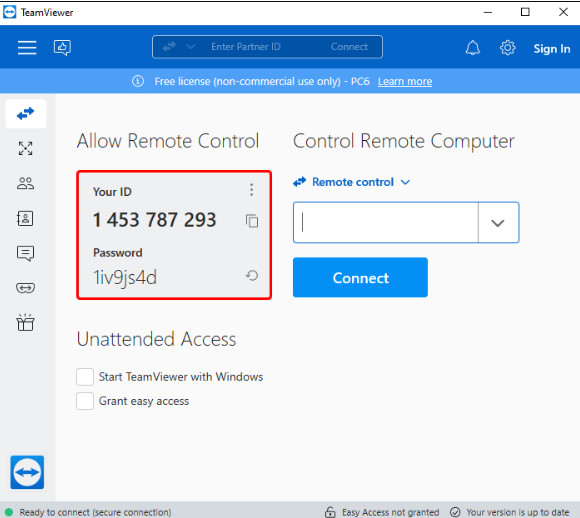
Next one is TeamViewer QuickSupport, a remote-control app that centers on technical support and device management. Compared to the preview tool, which is focused on integration and convenience, TeamViewer provides complete remote access to your phone, covering control and screen sharing. Here, you can connect your Android not only with PCs but also with Mac and Linux computers.
Step 1.LOn your computer, get the TeamViewer app, the same as on your Android phone. After that, pair both devices via Bluetooth or enter the ID on your PC.
Step 2.Accept all permissions if prompted on your Android phone to enable remote access. Now, start controlling Android from PC screen.
3. Samsung Flow
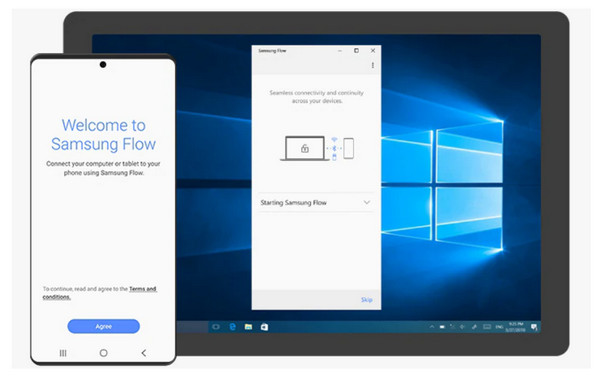
Last but not least, Samsung Flow is a mirror app for Samsung device users, giving a more versatile experience. Besides its power to control Android using PC via Bluetooth, it serves as a bridge for file sharing and notification syncing. It has a unique advantage with its multi-device continuity, including unlocking your PC using your phone, sharing content quickly, and even continuing tasks between your devices.
Step 1.LOpen Samsung Flow on both your devices and select "Bluetooth" as the connection method. Pair them successfully by confirming the code that can be seen on both screens.
Step 2.Next, grant all permissions for messages, notifications, and file access. Later, you can start sharing files, syncing notifications, and unlocking your computer using your phone.
Transfer, Manage, and Edit Android Files on PC without Bluetooth
While controlling Android using PC via Bluetooth is convenient, it has some limitations, like slower transfer speeds, limited file size, and pairing issues. For this, if you want a quick transfer and more reliable solutions, use AnyRec PhoneMover. It goes beyond simple transfer, giving you more room to manage, organize, and even edit your Android data right on your computer. It could be large videos, backups, or your music library; this excellent tool makes the process smooth and hassle-free. With its clean interface and robust features, it is wonderful for anyone who opts for professional control over their Android files. You can even use it to mirror phone screen to PC.

Can transfer files seamlessly between Android, iPhone, and PC.
Edit, delete, and manage files directly from your computer.
Offer high-speed transfer without relying on Bluetooth.
Provide a preview of selected files to ensure you move only what you need.
Secure Download
Step 1.Open AnyRec PhoneMover on your computer. Use a USB cable to link your Android phone and allow all permissions for your computer.
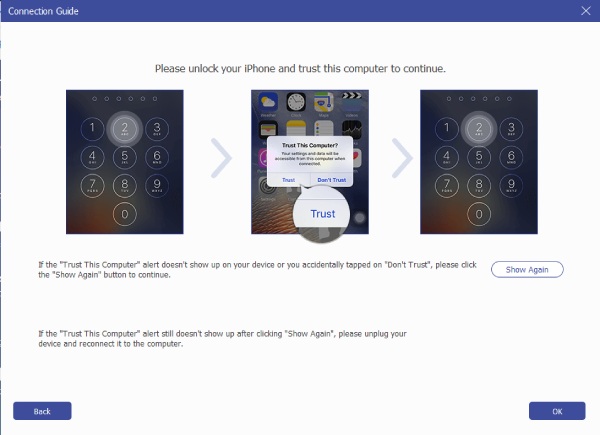
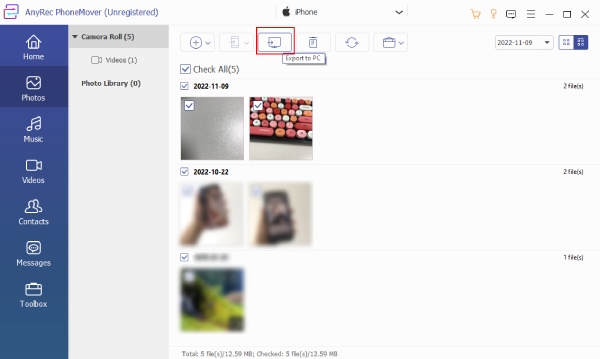
Step 2.Once connected, the program will scan your device and display all files in categories such as Photos, Videos, Music, etc. From here, you can view, manage, or even edit your files directly.
Step 3.To transfer files, select the one you want to work with by checking the boxes next to it. Then, choose "Export to PC" to move Android files onto your computer.
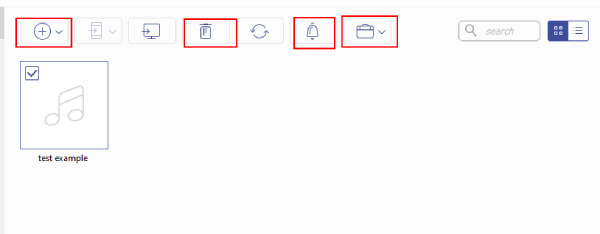
Step 4.After that, you can use the program's additional tools to keep your Android organized. You can remove duplicate files, convert unsupported formats, and even create full backups.
Conclusion
Controlling Android phone from PC is great for multitasking, file sharing, and communicating. You've seen here the tools you can use to connect and control Android using PC via Bluetooth, such as Microsoft Phone Link, TeamViewer QuickSupport, and Samsung Flow. However, if your main goal is not just control but also to transfer Android files, manage data, and more, then AnyRec PhoneMover is the best choice. Unlike Bluetooth, this tool offers you a complete toolkit to move files, organize, and edit Android data from your PC. Enjoy its high-speed transfer, compatibility, and advanced tools today!
Secure Download



