Hot

AnyRec Video Converter
120× faster video conversion and editing. No waiting.
Secure Download
How to Play AV01 Videos in VLC When They Won't Open

Yes, VLC can play AV01 videos, but playback may fail due to an outdated VLC version, hardware decoding issues, an unsupported container, or a damaged file.
If your AV01 video shows a black screen, stutters, or refuses to open, try the fixes below first. If VLC still cannot play it, converting AV01 to MP4 is the simplest workaround.
Guide List
Basic Information of AV01 Codec Files How to Use VLC to Play AV01 Codec Files Can't Play AV01 in VLC? Convert It to MP4 4 Common Ways to Fix the AV01 Codec Can’t Play in VLC Issue What Players/Social Media Support the AV01 Codec Except VLCBasic Information of AV01 Codec Files
AV1 (AV01 codec) is an open-source, royalty-free video encoding format developed by the Alliance for Open Media (AOMedia) to replace the VP9 format.
Features of AV01
It offers higher compression efficiency, significantly reducing bitrates while maintaining equivalent video quality. This minimizes bandwidth consumption, enabling smooth playback of high-definition video even under average or poor network conditions, while lowering stuttering and buffering. It is particularly well-suited for applications such as 4K and 8K ultra-high-definition video and the transmission of streaming media.
Applications of AV01
Mainstream browsers such as Google Chrome and Microsoft Edge already support AV01 decoding. Streaming platforms like YouTube and Netflix have also begun adopting this format to reduce bandwidth consumption.
Why Do Some Videos Use the AV1 Codec
- Smaller files at similar visual quality.
- Lower bandwidth requirements.
- Increasing support across browsers, platforms, and hardware.
How to Use VLC to Play AV01 Codec Files
VLC is a solid choice for an AV01 player, and VLC also supports playing H.265 and other codec files. However, depending on your system configuration, running the VLC AV01 codec may require some additional setup. By default, VLC utilizes software decoding on the CPU to play AV01, allowing playback even without hardware support. However, high resolutions, such as 4K/8K, may experience stuttering.
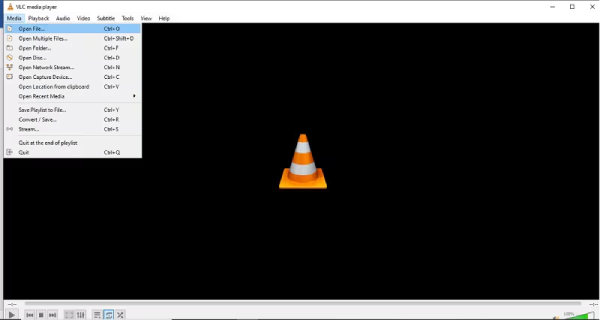
Step 1.Launch VLC Media Player, click "Media" and "Open Files" or drag the AV01 codec file to VLC to open it. Then, VLC will play the AV01 codec file automatically.
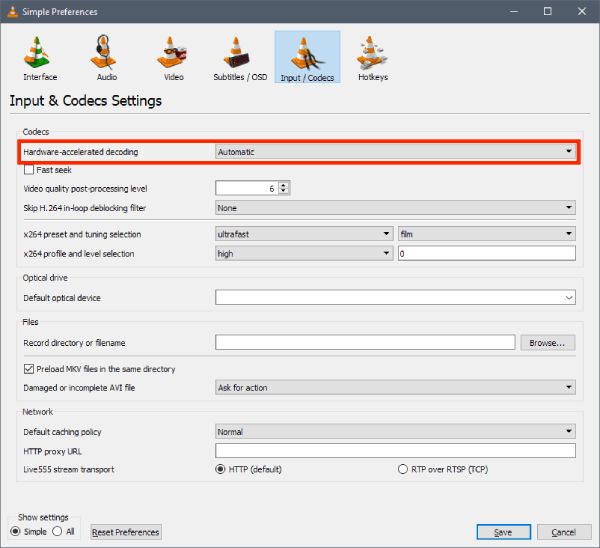
Step 2.Click "Tools" and locate "Preferences". In the bottom-left corner, select "Display Settings: All". On the left side, find "Input/Codecs" and choose "Hardware-accelerated Decoding" automatically.
Can't Play AV01 in VLC? Convert It to MP4
If you have already updated VLC and adjusted hardware decoding but the file still won't play, converting the video to a more widely compatible format can be easier than troubleshooting the original codec. You can use AnyRec Video Converter to convert them into popular formats. This program can convert AV1/AV01 videos to MP4 and other formats while letting you adjust the codec, resolution, frame rate, and bitrate. This is useful when the original AV01 file causes playback problems on your device or player.
Equipped with AI-optimized video quality, it reduces issues such as jitter and noise.
Support batch conversion, with no file size limitation for each file.
Automatically remove noise and optimize contrast, brightness, and other settings.
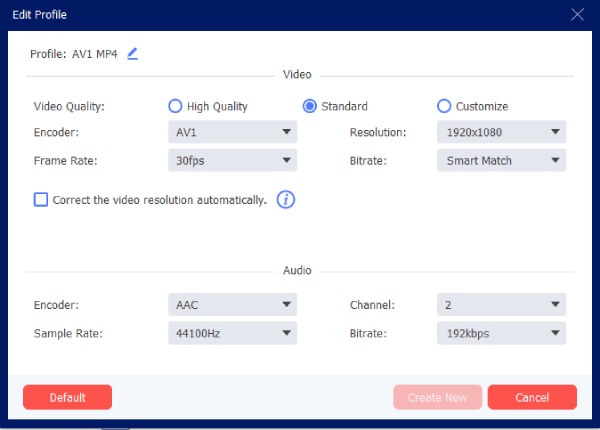
Customized video parameters, such as frame rate, encoder, etc, to maintain the original quality.
Secure Download
Secure Download
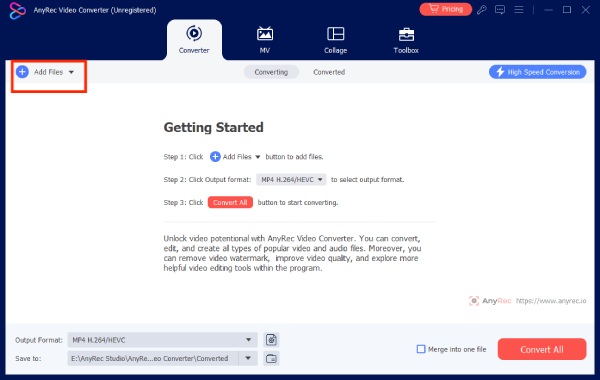
Step 1.Launch this software and click "Add Files" to upload your AV01 codec video.
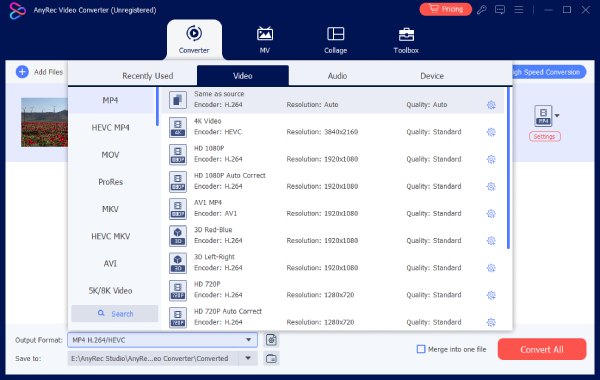
Step 2.Click "Output Format" in the bottom left corner to choose a desired and convenient format, such as MP4.
Step 3.You can change the video parameters by clicking "Custom Profile" at the tail of your AV01 codec video.
Step 4.Click "Convert All" to save the AV01 codec video in the popular format.
4 Common Ways to Fix the AV01 Codec Can’t Play in VLC Issue
Check the common solutions to fix AV01 VLC Problem first.
| Problem | Try This First |
| VLC won’t open the file | Update VLC |
| Black screen | Change hardware decoding |
| Video stutters | Try hardware decoding |
| Audio plays but video doesn’t | Check decoder/container |
| Video looks corrupted | Test another player/file |
| File is damaged | Repair or obtain another copy |
| Nothing works | Convert AV01 to MP4 |
Confirm the VLC version
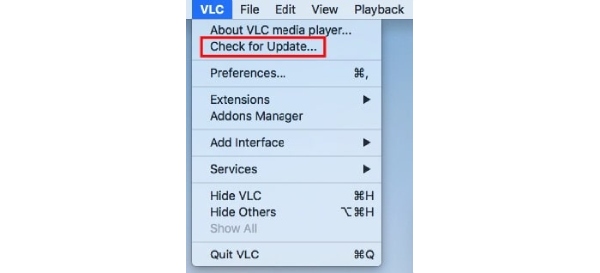
Try updating VLC to the latest version. AV01 support started as an experimental feature in VLC 3.0. Later updates improved it. An older VLC version may not play AV01 files properly.
Check hardware acceleration settings
- 1. Open VLC Media Player.
- 2. Go to "Tools" and click "Preferences" on Windows/Linux.
- 3. Open Input/Codecs.
- 4. Find Hardware-accelerated decoding.
- 5. Try Automatic first.
- 6. If playback is still broken, try Disable.
- 7. Save the settings and restart VLC.
The best setting depends on your GPU, driver, operating system, and VLC build. If one setting causes problems, try the other.
Switch video output module
After video decoding, the output must be displayed on the screen via the rendering module. Different systems and graphics card drivers exhibit varying levels of compatibility with rendering interfaces. An incompatible rendering module may result in a black screen or display failure. Switching the output module effectively changes the video rendering method, thereby enhancing compatibility.
Check the video file container format
AV01 is a video encoding format that must be encapsulated within a standard container to be correctly recognized. If the container file is damaged or the index table is missing, VLC cannot correctly decode AV01-formatted files. VLC's built-in repair function can reconstruct damaged file indexes.
What Players/Social Media Support the AV01 Codec Except VLC
Although the new version of VLC supports decoding AV01, other capable platforms can serve as alternatives to VLC for playing AV01 content.
Social Media / Streaming Platforms
- YouTube
It has widely adopted AV01 encoding, particularly for 4K/8K and high-frame-rate videos. - Netflix
Enabled AV01 on mobile (Android) and select smart TVs to reduce bandwidth consumption. - Facebook / Instagram
Gradually supporting AV01 video uploads and playback (primarily in high-resolution scenarios). - TikTok
It has begun experimenting with AV01 in background transcoding to enhance video compression efficiency.
Desktop Browsers
- Google Chrome
Supports software AV01 decoding starting from Chrome 70+. Newer versions offer smoother performance with hardware acceleration. - Microsoft Edge (Chromium-based)
Supports AV01 codec in sync with Chrome. - Mozilla Firefox
Supports AV01 codec starting from Firefox 67+ (requires system decoder or built-in decoder). - Opera
Based on the Chromium engine, it also supports AV01.
Conclusion
Using VLC to play AV01 Codec files is a convenient option. If you encounter playback issues, try the troubleshooting methods above. However, the most effective and quality-assured approach is to convert the file to a higher-quality, more compatible format. AnyRec Video Converter can quickly convert your files to any format you need while optimizing video quality. Try using it to convert your AV01 codec files.
Secure Download
Secure Download
Related Article
About Our Author