
6 Ways Transfer Music from iPhone to iPhone [All Songs]

Sharing music between iPhones does not have to be complicated with the right approach! Whether you want speed, convenience, or full control over your music library, Apple offers multiple ways to transfer music from iPhone to iPhone. In this post, you can transfer music from iPhone to iPhone selectively or entirely. Get your favorite songs to make it to your new iPhone quickly and safely.
Guide List
How to Sync Your Music from iPhone to iPhone via Apple Music Transfer Music between iPhones Using iTunes Directly Transfer All Music iPhone to iPhone without iTunes Use AirDrop to Transfer Music One by One from iPhone to iPhone How to Share Music between iPhones through Email [Size Limitation] Backup and Restore Music from iPhone to iPhone via iCloud BackupHow to Sync Your Music from iPhone to iPhone via Apple Music
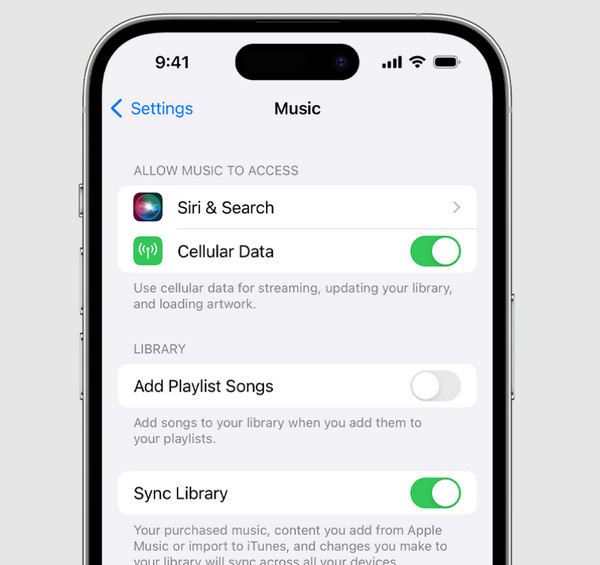
The first method here to get all music on your new iPhone is with Apple Music. Once you have enabled iCloud Music Library (Or you can turn off iCloud Music Library anytime.), all of your playlists, albums, and favorites will appear automatically on all Apple iOS devices using the same Apple ID. It works without manual transfers, here's how:
Step 1.On both iPhones, open the "Settings" app, then head to the "Music" section.
Step 2.There, turn on the "Sync Library" (iCloud Music Library) toggle button.
Step 3.Ensure both devices use the same Apple ID.
Step 4.Wait for a while to sync the music library. All your tracks should now appear on the receiving iPhone.
Transfer Music between iPhones Using iTunes
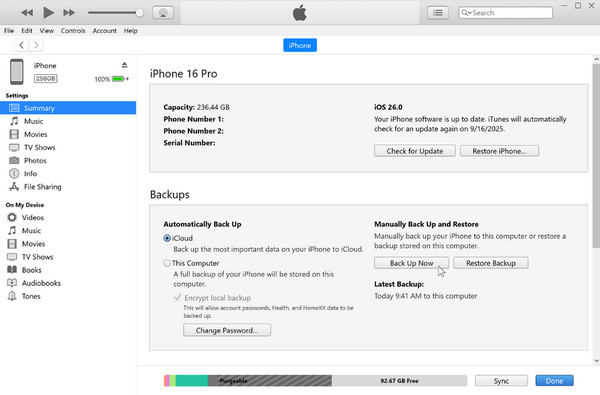
Using iTunes is a traditional way to transfer purchased music from iPhone to iPhone. It works reliably for moving those purchased or imported songs from one iPhone to another device, even if it requires a computer. If you have a large music collection stored locally, follow the steps below to transfer iTunes music from iPhone to iPhone:
Step 1.First, connect the sending iPhone to your computer via a USB cable. Then open "iTunes".
Step 2.Select your device there. Click the "Back Up Now" button. It creates a complete iTunes backup of your music and settings.
Step 3.After that, disconnect the iPhone, and connect the receiving iPhone.
Step 4.From iTunes, select your device and click the "Restore Backup" button, and pick the recent backup made. Please wait until it is complete.
Directly Transfer All Music iPhone to iPhone without iTunes
Up next: for users who wish for a faster, more convenient way to transfer MP3 songs from iPhone to iPhone without iTunes, AnyRec PhoneMover is an excellent solution. This professional tool lets you do a direct iPhone-to-iPhone transfer of music, videos, photos, contacts, and more. Its intuitive interface ensures that even starters can move their files in just a few clicks. Moreover, it works with all iPhone models and iOS versions, providing broad compatibility to all iPhone users.

Transfer music and playlists from iPhone to iPhone directly.
Preview your music library to select precisely what you want.
Maintains original audio quality during and after the transfer.
Offers a faster transfer speed with a USB connection.
Secure Download
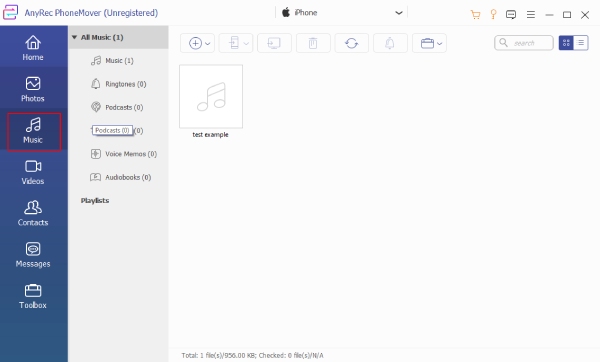
Step 1.Connect both your iPhones to your computer with a USB cable. Launch AnyRec PhoneMover and wait for it to detect them. Once detected, ensure to set which is the source and target device.
Step 2.On the left panel, click "Music" to view your music library, and you'll see it on screen. Browse through your songs, preview tracks if needed, then choose the songs you want to transfer by checking their boxes.
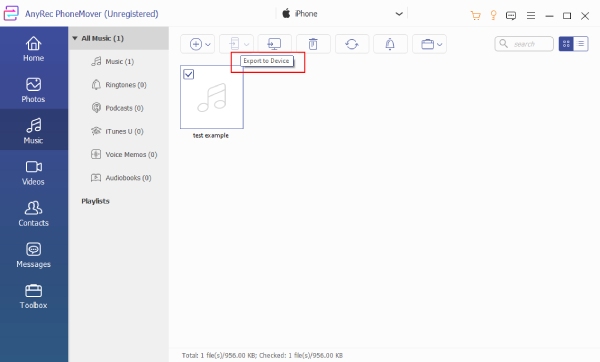
Step 3.After selecting your desired tracks, click the "Export to Device" button and pick the receiving iPhone as the destination. Please wait for the transfer to complete, then open the "Music" app on the iPhone to confirm all chosen songs are transferred.
Secure Download
Use AirDrop to Transfer Music One by One from iPhone to iPhone
AirDrop iPhone music transfer works over Wi-Fi and Bluetooth. Although AirDrop is perfect for sending one or a few songs to iPhone at a time, you need to ensure both iPhones are within close range. See steps below to AirDrop from iPhone to iPhone and get those songs.
Step 1.Ensure Wi-Fi, Bluetooth, and AirDrop are turned on in the "Control Center" on two iPhones. Set the visibility of AirDrop to "Everyone" or "Contacts Only".
Step 2.Now, open the "Music" app on the sending iPhone. Choose the song you wish to share. Later, tap the "Share" button, then pick "AirDrop".
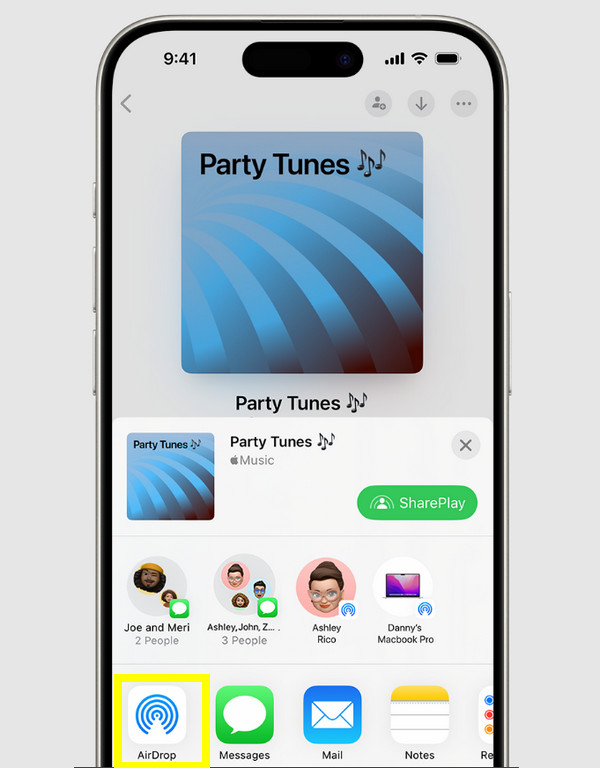
Step 3.Next, determine the receiving iPhone from the nearby device list, and tap on it. On the receiving device, tap the "Accept" button to download music to iPhone.
How to Share Music between iPhones through Email [Size Limitation]
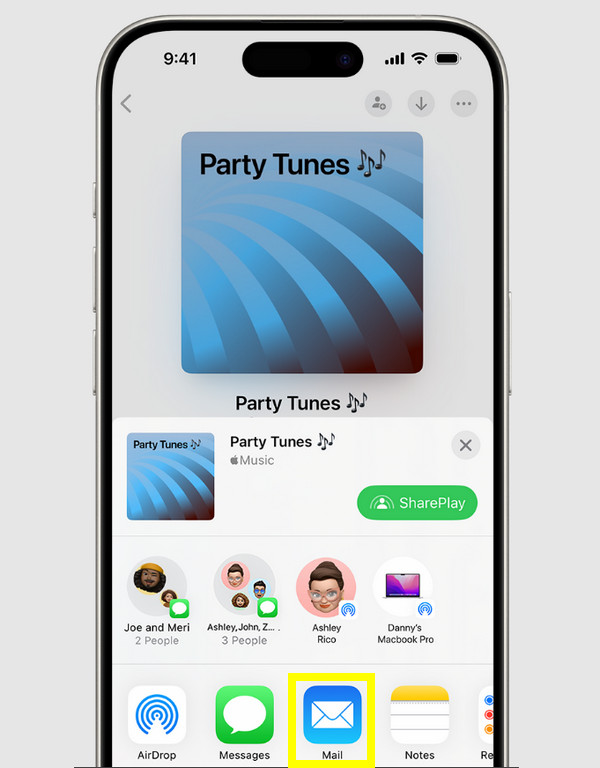
Another simple way to send music from iPhone to iPhone is via Email, especially if the previous method is not an option. But the catch is, email services have file size limits, usually around 25MB, so this approach is ideal for single songs only.
Step 1.Go to the "Music" or "Files" app on your iPhone, then locate the song you wish to share.
Step 2.There, tap the "Share" button and choose "Mail" as the sharing method.
Step 3.Enter the email address of the recipient and add a message if needed, then tap the "Send" button.
Step 4.On the receiving device, open the email and download the attached file.
Backup and Restore Music from iPhone to iPhone via iCloud Backup
iCloud lets you transfer music from iPhone to iPhone without a computer. Moreover, you can back up all iPhone music and then restore it on a new iPhone wirelessly. Unlike other methods, this solution is excellent for large libraries or entire playlist migrations.
Step 1.On the source iPhone, open "Settings", then go to the "Apple ID name" above, tap on "iCloud", then select "iCloud Backup".
Step 2.Tap the "Back Up Now" button to create a current backup.
Step 3.On the receiving device, ensure it is in the setup mode.
Step 4.Follow the on-screen instructions until you reach the "Apps & Data" screen.
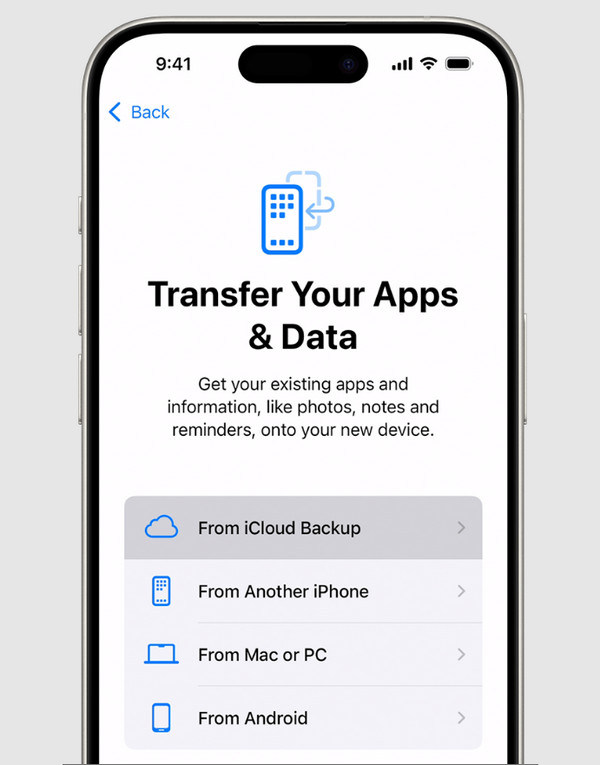
Step 5.There, tap on "Restore from iCloud Backup" and sign in with the same Apple ID. Then, select the most recent backup and wait for the process to complete.
Conclusion
As you have seen, sharing iPhone music can be simple with the perfect method you choose. From Apple Music to iTunes backup, there are many options suitable for every user to transfer music from old iPhone to new iPhone. If you want a fast, reliable, and comprehensive solution, AnyRec PhoneMover is highly recommended. This tool lets you carry over all your music, playlists, and even other data directly between iOS devices without any restrictions. It also supports batch transfers and maintains the original quality of your songs. With this tool, you can ensure your music library is fully accessible on your new device.
Secure Download



