
4 Effective Ways to Record on Peacock with Any Contents

Can you record on Peacock? While Peacock offers a wide range of movies, TV shows, and exclusive content, not all content is available for offline viewing, which can be inconvenient when you want to watch videos without an internet connection. In such cases, recording Peacock videos becomes a practical solution. In this guide, you will learn several effective methods to record on Peacock across PC, iOS, and Android devices.
Guide List
Before Recording: Can You Download Episodes on Peacock The Most Effective Way to Record on Peacock without Limits How to Record on Peacock Using Windows Snipping Tools For iOS & Android - Quick Solutions to Recording on PeacockBefore Recording: Can You Download Episodes on Peacock
Before start recording content from Peacock, you should know that Peacock actually offers offline downloads. However, this feature is limited to certain subscription plans and specific content. Not all movies or TV shows are available for download, and even when they are, downloaded videos can only be accessed within the Peacock app. This policy is set to protect the rights and interests of the contents.

What's more, downloaded content usually comes with restrictions, which means that you cannot watch it the way you do online. Features like free transfer or playing outside the app are limited. So, for many users, it is a good option to search for how to watch Peacock offline without Premium Plus. Therefore, screen recording comes as the most efficient method for most users.
The Most Effective Way to Record on Peacock without Limits
For those who want both high-quality videos and unrestricted recording of Peacock TV series, a professional recording tool is the most effective approach. Among all the potential options, AnyRec Screen Recorder is the most reliable solution. With this professional tool, you can record and save all the Peacock content with no limitations at all.
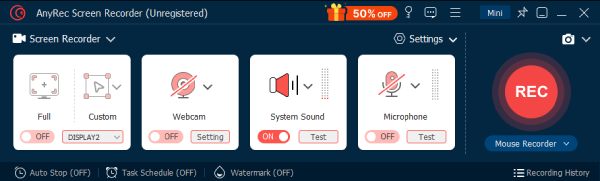
The method is so simple that you don't need any experienced skill to achieve the goal. And all the features provided allow you to edit further and possess full control over the recorded content on Peacock. You can follow the steps below to get started right away.

Screen record video and audio from the Peacock platform losslessly.
Set a scheduler to auto-start and stop recording videos.
Record Peacock TV without a black screen on PC/Mac/iPhone/Android.
Trim, merge, compress, and convert video after recording.
Secure Download
Secure Download
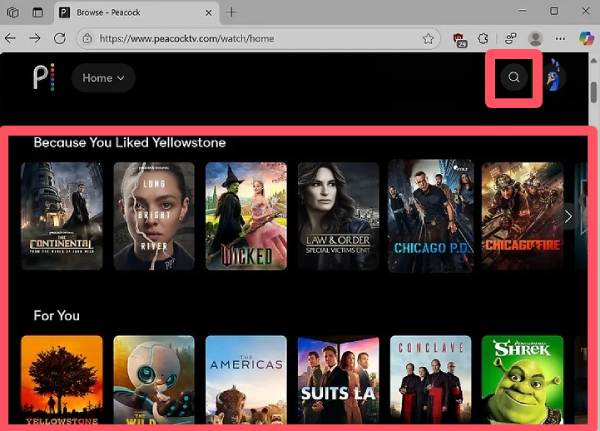
Step 1. Launch AnyRec Screen Recorder on your device and select the desired part of your Peacock for recording.
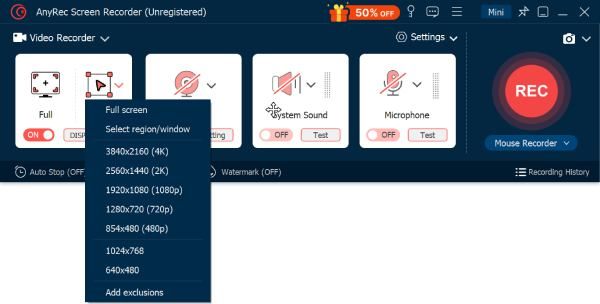
Step 2. Click the "Record" button to start recording on Peacock. Once finished, click the "Stop" button to proceed.

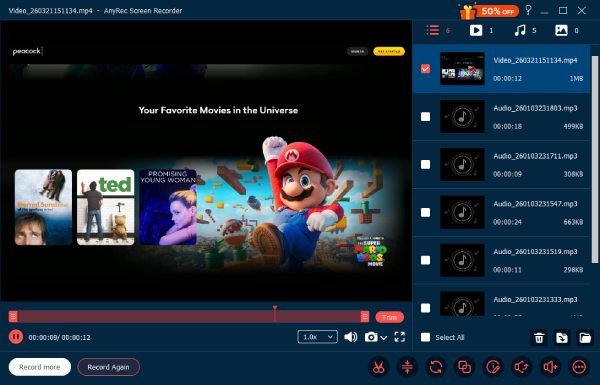
Step 3. Before saving the recording, you can further edit your work. Finally, click the "Export" button to save the recording.
How to Record on Peacock Using Windows Snipping Tools
If you prefer a built-in solution, Windows also offers a simple way to record screen activities through its native tools. While these tools may not be as powerful as professional software, they can still handle basic recording tasks. In this section, you will learn how to use the Windows Snipping Tool or related features to record Peacock TV series.
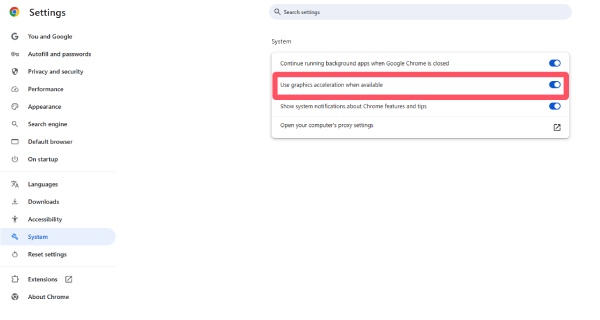
Step 1. On your Chrome, click the "System" button under the "Settings" tab. Then, click the "Use graphics acceleration when available" button.
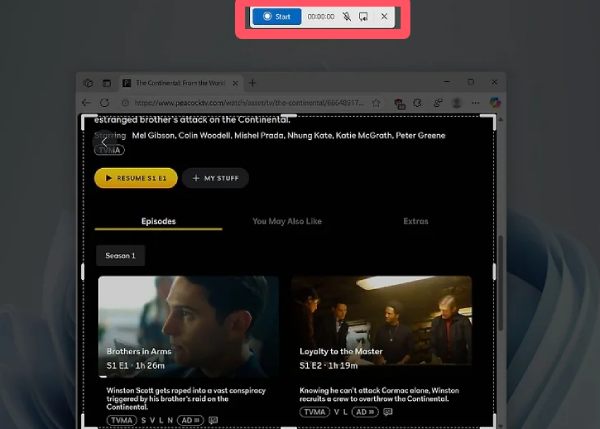
Step 2. Navigate to the official website of Peacock and open the content you want to record. Press the "Windows + Shift + S" buttons together.
Step 3. Click the "Record" button and then the "Start" button to record on Peacock. Once finished, click the "Stop" button.
For iOS & Android - Quick Solutions to Recording on Peacock
If you often enjoy videos using your mobile phone, there are also practical ways to save and watch Peacock content offline without Premium Plus. Although mobile recording may have some limitations compared to desktop solutions, it still provides a convenient way to capture videos directly on your phone. Below are two practical methods for iOS and Android users.
Default Tool for iOS
iOS devices come with a built-in screen recording feature that allows users to capture on-screen activities easily. With just a few taps, you can start screen recording on an iPhone and capture Peacock videos directly from the Control Center. This method is simple and does not require installing additional apps.
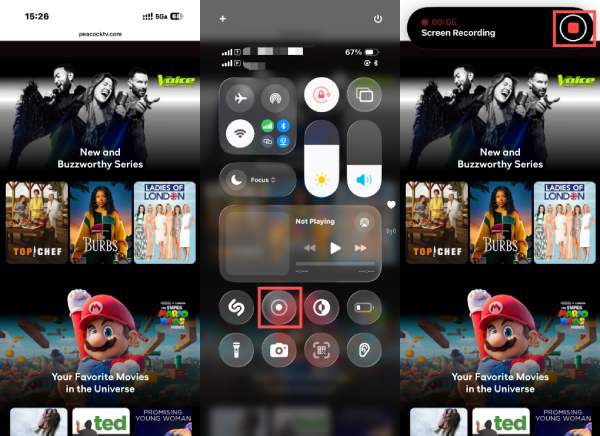
Step 1. Navigate to the content you want to record on Peacock, whether using the browser or the app.
Step 2. Scroll down from the top of your screen, tap the "Screen Recorder" button. Wait for 3 seconds, and the recording will start.
Step 3. To end the recording, press the "Stop" button on the top. And the recording will be saved in your Photos.
Screen Recorder Video Recorder for Android
There are many options available for Android users. Third-party apps like Screen Recorder Video Recorder can help you record on Peacock easily. This free screen recorder with no watermark typically provides more flexible recording settings. They are useful for users who want more control over their recordings.
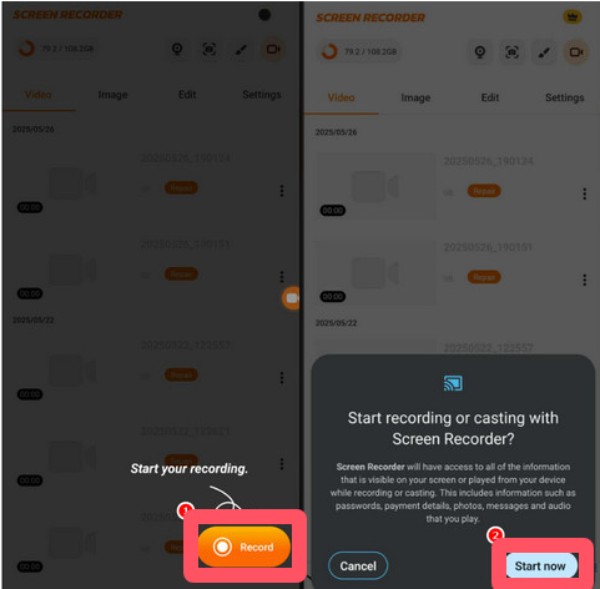
Step 1. Launch the Screen Recorder Video Recorder on your Android device to start the process.
Step 2. Tap the "Record" button at the bottom of the screen. Then, a window will pop up.
Step 3. Tap the "Start Now" button and start recording on your Peacock. Press the "Stop" button when you finish.
Conclusion
With the methods provided, you can figure out how to watch Peacock offline without Premium Plus. By choosing a proper method, you can easily record and watch Peacock content anytime and anywhere. Among them, AnyRec Screen Recorder provides you with the most convenient method with a high-quality output and customizable options.
Secure Download
Secure Download
About Our Author




