
Repair MOV Files: 4 Solutions to Access Your Videos

Repairing broken MOV files is a useful skill, as they can sometimes become corrupted and unplayable. Losing access to important videos can be frustrating, but the good news is that there are several effective ways to repair MOV files. In this guide, you will learn multiple solutions to fix damaged MOV files and restore them for smooth playback.
Guide List
A Proven Practical Way to Repair MOV Files Successfully [Windows] How to Repair Corrupt MOV Files Using VLC [Mac] QuickTime Player - A Default Way to Fix Damaged MOV Files An Online MOV Fixer You Can Try for FreeA Proven Practical Way to Repair MOV Files Successfully
If you want a reliable and efficient way to repair damaged MOV files, using a professional tool is often the best option. AnyRec Video Repair is designed to fix corrupted, unplayable, or distorted MOV videos with a high success rate. You only need to upload your damaged file along with a sample video, and the tool will automatically analyze and repair it.
Repair damaged MOV video and other file formats in just one click.
Preview to confirm whether the fixed video meets your demands.
Fix unplayable videos from computers, cameras, storage devices, etc.
All repaired videos will not be stored, which can protect your privacy.
Secure Download
Secure Download
Step 1.Launch AnyRec Video Repair and click the "Add" button to import your damaged MOV file with another sample video file.
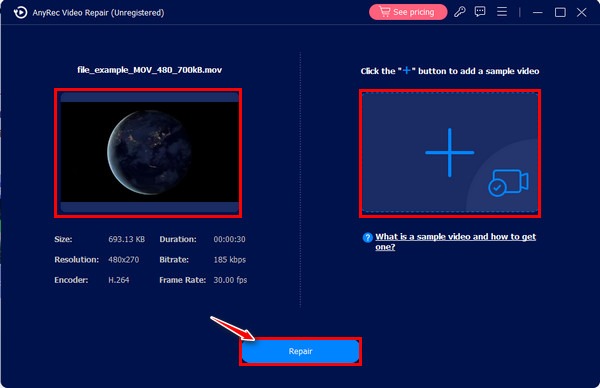
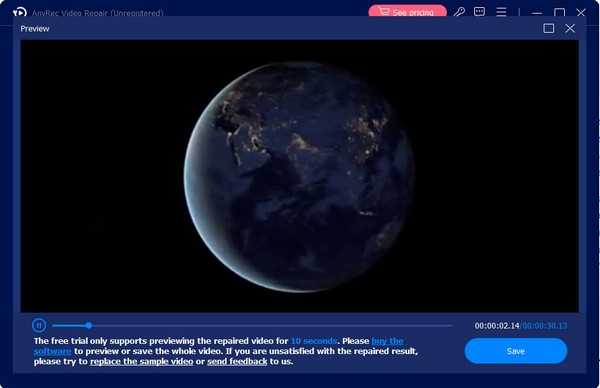
Step 2.Wait for the process to finish after clicking the "Repair" button. Once done, click the "Preview" button to check your MOV file.
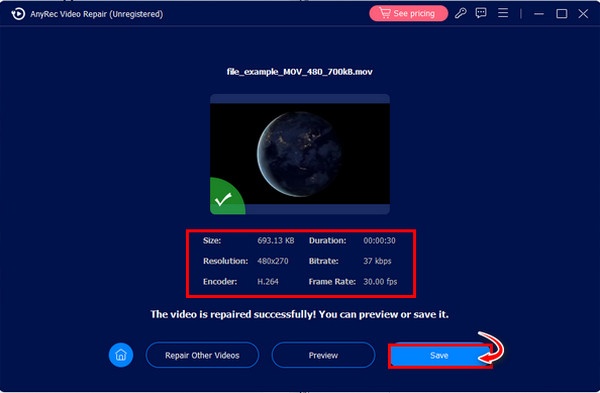
Step 3.After checking the detailed parameters, you can click the "Save" button to save the repaired MOV file.
[Windows] How to Repair Corrupt MOV Files Using VLC
For Windows users, VLC Media Player provides a built-in feature that can help repair certain types of corrupted video files. Although primarily known as a media player, VLC also includes basic repair functions that can fix minor issues in MOV files. In this section, you will learn how to use VLC to convert your MOV file for repair.
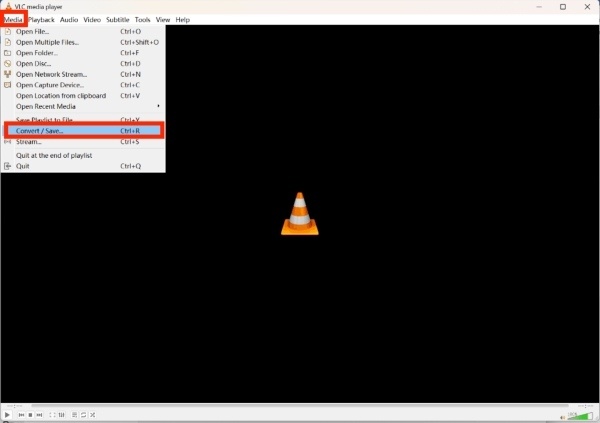
Step 1.Launch VLC media player on your device and click the "Convert / Save..." button under the "Media" tab.
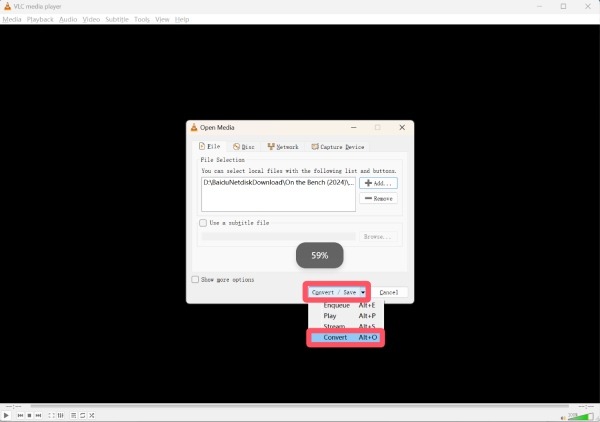
Step 2.Click the "Add..." button to search for the MOV file for repair. Click the "Convert / Save..." button and then the "Convert" button.
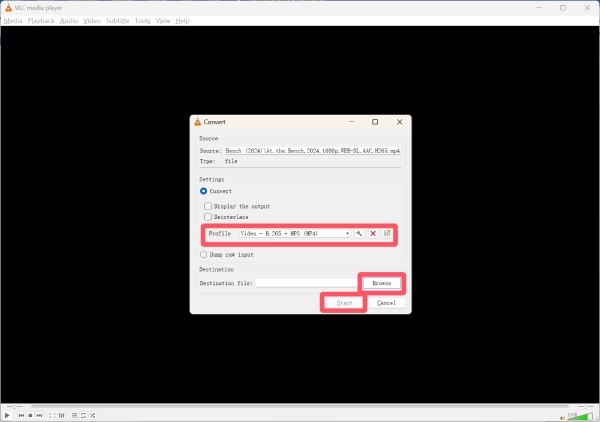
Step 3.Under the "Convert" tab, click "Profile" to select the format for recovery. Finally, click the "Start" to start the process of MOV file repair.
[Mac] QuickTime Player - A Default Way to Fix Damaged MOV Files
Mac users can take advantage of QuickTime Player, a built-in application that supports MOV files natively. In some cases, QuickTime can automatically detect and fix minor issues when opening a damaged video. This section introduces how to use QuickTime Player as a convenient solution for repairing MOV files on macOS.
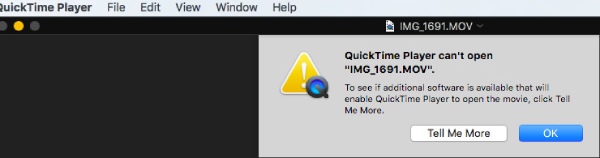
Step 1.Launch QuickTime Player and upload your damaged MOV file. It cannot play MOV on Mac since it's damaged.
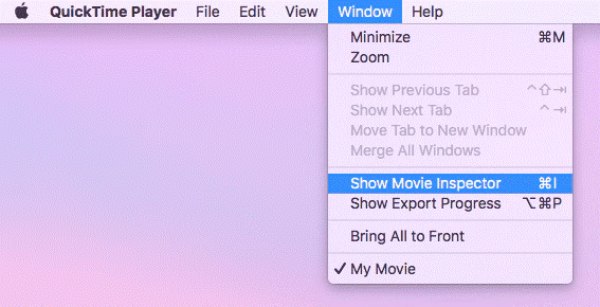
Step 2.Under the "Window" tab, click the "Show Movie Inspector" button to proceed.
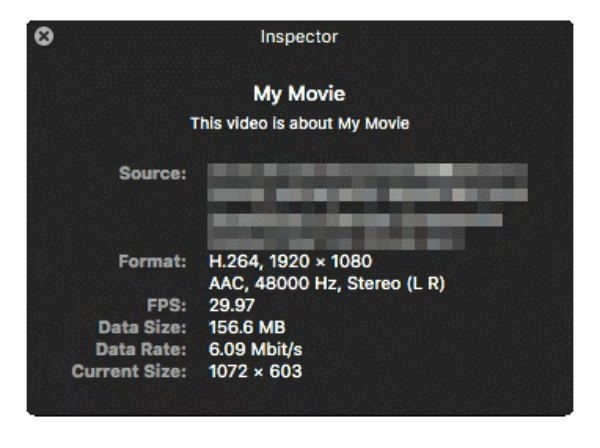
Step 3.The Inspector will display the detailed information of your MOV file. If it's not damaged severely, it will repair the MOV file automatically.
An Online MOV Fixer You Can Try for Free
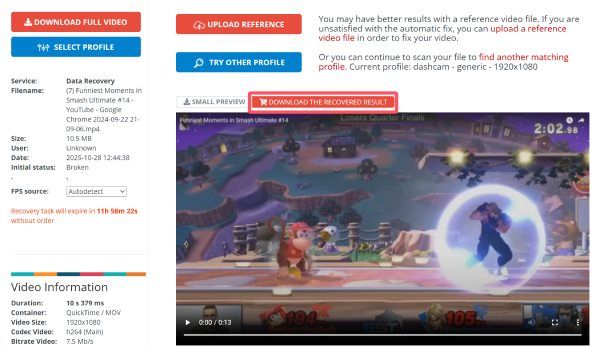
Suppose you prefer not to install any software, Fix.Video offers a convenient alternative. These web-based solutions allow you to upload your corrupted files and repair them directly in your browser. While they may have limitations in file size or repair capabilities, they are still useful for quick fixes. This section will introduce how to use Fix.Video to repair your MOV file.
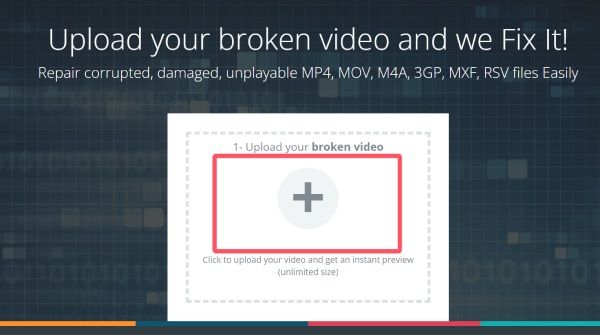
Step 1.Navigate to the official website of Fix.Video. Click the "Upload" button to import the damaged MOV file.
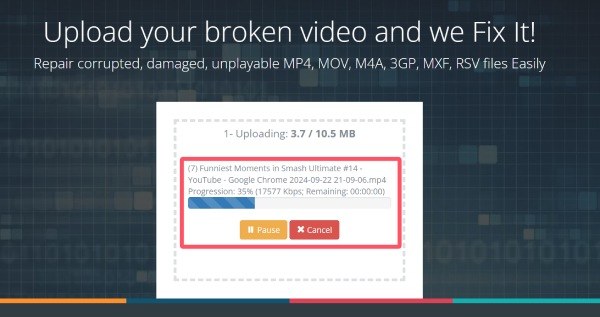
Step 2.And the process of repairing the MOV file will start automatically. Wait until the process is finished.
Step 3.Preview to check if the MOV file is repaired. If it does, click the "DOWNLOAD THE RECOVERED RESULT" button to save it.
Conclusion
Now, fixing a damaged MOV file can no longer be a problem for you. No matter what device you are using, there is always a practical solution to figure out the issue. Among all the options, AnyRec Video Repair is the most compatible solution that can be applied to any device, allowing you to successfully restore your MOV files and enjoy smooth video playback again.
Secure Download
Secure Download
About Our Author




